

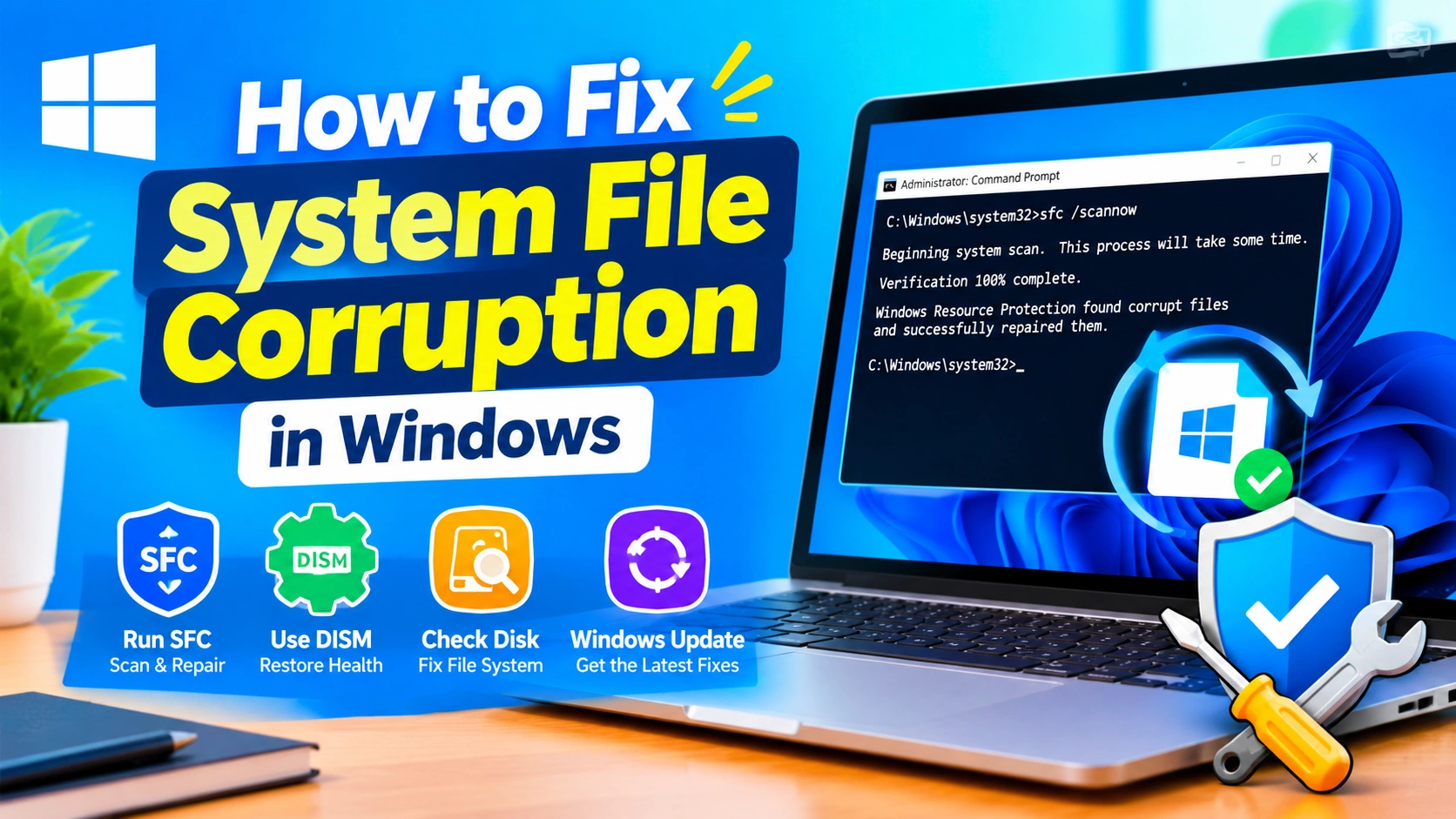
System file corruption can cause Windows to behave unexpectedly. You may experience frequent crashes, missing features, applications that refuse to start, slow performance, blue screen errors, or Windows components that suddenly stop working.
Fortunately, corrupted Windows system files can often be repaired without reinstalling the operating system. Windows includes several built-in tools that can scan protected files, repair damaged components, and restore the system to a healthier state.
This guide explains how to fix system file corruption in Windows step by step, starting with the safest and simplest solutions.
What Is System File Corruption?
Windows relies on thousands of system files to manage hardware, applications, security, networking, updates, and other operating-system functions.
System file corruption occurs when one or more of these files become damaged, modified incorrectly, incomplete, or unreadable.
Common causes include:
- Unexpected computer shutdowns
- Power failures
- Failed Windows updates
- Malware or potentially unwanted software
- Hard drive or SSD problems
- Incorrect system modifications
- Software installation failures
- Driver conflicts
- Damaged Windows components
- File-system errors
- Aging or failing storage hardware
Not every Windows problem is caused by corrupted system files. However, if several Windows features begin failing at the same time, checking the integrity of system files is a useful troubleshooting step.
Signs of Corrupted Windows System Files
System corruption can produce different symptoms depending on which files are affected.
You may notice:
- Windows applications crashing unexpectedly
- Settings refusing to open
- Windows Search not working correctly
- Start Menu problems
- Random freezes
- Blue screen errors
- Missing Windows features
- Windows Update failures
- Error messages when launching programs
- Extremely slow system behavior
- Unexpected restarts
- Windows services failing to start
- Built-in applications disappearing or malfunctioning
If the problem started immediately after installing a particular application or driver, that software may be the real cause rather than system-file corruption.
1. Restart Your Computer
Before running advanced repair commands, restart Windows.
A temporary system problem can sometimes look like file corruption. Restarting clears temporary system states and allows Windows services and components to initialize again.
After restarting, check whether the original problem still occurs.
If the problem continues, proceed with the repair methods below.
2. Run System File Checker
The System File Checker (SFC) is one of the most useful built-in Windows tools for repairing corrupted protected system files.
SFC scans Windows system files and attempts to replace damaged files with a cached copy.
How to run SFC
- Open Start.
- Search for Command Prompt.
- Right-click Command Prompt.
- Select Run as administrator.
- Enter:
sfc /scannow
- Press Enter.
- Wait for the scan to reach 100%.
Do not close the Command Prompt window while the scan is running.
What the SFC results mean
SFC can produce several different results.
“Windows Resource Protection did not find any integrity violations.”
This means SFC did not detect corrupted protected system files.
“Windows Resource Protection found corrupt files and successfully repaired them.”
Windows found corrupted files and repaired them successfully.
“Windows Resource Protection found corrupt files but was unable to fix some of them.”
Some files could not be repaired. In this situation, use DISM before running SFC again.
3. Use DISM to Repair the Windows Component Store
If SFC cannot repair all corrupted files, the Windows component store itself may be damaged.
The Deployment Image Servicing and Management (DISM) tool can repair the Windows component store.
Open Command Prompt as administrator and run:
DISM /Online /Cleanup-Image /RestoreHealth
Press Enter and wait for the process to finish.
The operation can take some time, especially on slower computers.
When DISM finishes, restart Windows and run SFC again:
sfc /scannow
Running SFC after DISM is important because DISM can restore the component source that SFC needs for repairs.
4. Run DISM CheckHealth
You can also check whether Windows believes the component store has been damaged.
Run:
DISM /Online /Cleanup-Image /CheckHealth
This performs a relatively quick check.
For a more detailed scan, use:
DISM /Online /Cleanup-Image /ScanHealth
If corruption is detected, use:
DISM /Online /Cleanup-Image /RestoreHealth
A practical repair sequence is:
DISM /Online /Cleanup-Image /RestoreHealth
sfc /scannow
5. Check the Drive for File-System Errors
System-file corruption can sometimes be related to problems with the storage device or its file system.
Windows includes CHKDSK, which can check a drive for file-system errors.
Open Command Prompt as administrator and run:
chkdsk C: /scan
This performs an online scan of the C: drive.
If Windows reports file-system problems that require repair, you may need a more extensive CHKDSK operation.
For example:
chkdsk C: /f
Windows may tell you that the drive is currently in use and ask whether you want to schedule the check for the next restart.
Type:
Y
Then restart the computer.
Important
Do not repeatedly run aggressive disk-repair operations on a drive that may be physically failing without first considering your data.
If important files are not backed up and you suspect a failing HDD or SSD, back up your important data first.
6. Install Pending Windows Updates
A damaged or outdated Windows component can sometimes be corrected through a Windows update.
Open:
Settings → Windows Update
Select Check for updates.
Install available updates and restart the computer if Windows requests it.
After updating, test the feature that was previously failing.
Windows updates can replace outdated system components and include fixes for known operating-system problems.
7. Check Windows Services
Corruption is not always the reason a Windows feature stops working. Sometimes an essential service has been disabled or failed to start.
Press:
Win + R
Type:
services.msc
Press Enter.
Look for the service related to the Windows feature that is failing.
Before changing anything, research the specific service and understand its normal startup configuration. Avoid randomly changing Windows services because disabling an important service can create additional problems.
8. Perform a Clean Boot
Third-party applications can interfere with Windows services and make corruption appear to be the problem.
A clean boot starts Windows with a minimal set of drivers and startup programs.
To investigate third-party conflicts:
- Press Win + R.
- Type
msconfig. - Press Enter.
- Open the Services tab.
- Select Hide all Microsoft services.
- Disable the remaining non-Microsoft services.
- Open the Startup section through Task Manager.
- Disable unnecessary startup applications.
- Restart Windows.
If the problem disappears after a clean boot, a third-party application or service may be responsible.
Remember to restore normal startup settings after testing.
9. Use System Restore
If system corruption or instability began recently, System Restore may allow you to return Windows to an earlier system state.
Search Windows for:
Create a restore point
Open it and select System Restore.
Choose an available restore point from before the problem began.
System Restore can be useful after:
- Driver installations
- Software installations
- Configuration changes
- Certain Windows updates
- Unexpected system changes
However, System Restore does not replace a complete personal-data backup.
10. Repair Windows From the Recovery Environment
If Windows cannot start normally, use the Windows Recovery Environment (WinRE).
You can reach recovery options through:
Settings → System → Recovery
Depending on your Windows configuration, you may also be able to access recovery options during startup.
Recovery tools can include:
- Startup Repair
- System Restore
- Command Prompt
- Uninstall Updates
- Startup Settings
- Reset this PC
If Windows is unstable enough that normal troubleshooting is difficult, WinRE can provide another way to diagnose and repair the installation.
11. Try Startup Repair
If system corruption is preventing Windows from booting correctly, Startup Repair may help resolve startup-related problems.
From Windows Recovery Environment, select:
Troubleshoot → Advanced options → Startup Repair
Windows will attempt to identify and repair certain startup problems automatically.
Startup Repair is primarily designed for boot-related issues, so it should not be considered a general replacement for SFC or DISM.
12. Uninstall a Recent Windows Update
If the problem began immediately after a Windows update, removing the most recent update can help determine whether the update caused the issue.
Open:
Settings → Windows Update → Update history
Review recently installed updates.
If Windows cannot start normally, recovery options may also provide an option to uninstall recent updates.
Use this approach when there is a strong connection between the update and the problem rather than removing updates randomly.
13. Check for Malware
Malware can modify, delete, or interfere with Windows files.
If corruption keeps returning after successful repairs, scan the computer for malware.
Use Windows Security to perform a security scan.
Open:
Settings → Privacy & security → Windows Security → Virus & threat protection
Run a scan and follow the recommendations provided by Windows Security.
If malware is detected, remove it before attempting additional system repairs.
14. Check the Health of Your SSD or HDD
Repeated system corruption can be a warning sign of storage problems.
If Windows files repeatedly become corrupted, consider checking the health of your SSD or HDD.
Warning signs include:
- Increasing numbers of file errors
- Extremely slow disk performance
- Files becoming unreadable
- Frequent application crashes
- Unexpected Windows freezes
- Boot problems
- Repeated CHKDSK errors
- Unusual noises from a mechanical hard drive
For an older mechanical hard drive, unusual clicking, grinding, or repeated mechanical noises should be treated seriously.
If the storage device appears to be failing, prioritize backing up important files before performing extensive repairs.
15. Check Available Free Storage
Windows needs free disk space to perform updates, create temporary files, and maintain system operations.
Open:
Settings → System → Storage
Check how much free space is available on the Windows drive.
If the drive is nearly full, remove unnecessary files and applications.
You can also use Windows’ built-in storage cleanup features to remove temporary files.
Keeping reasonable free space available can reduce problems associated with a severely constrained system drive.
16. Repair Windows With an In-Place Upgrade
If SFC and DISM cannot resolve persistent system corruption, an in-place Windows repair installation can be a stronger option.
This process reinstalls Windows system components while, when performed correctly with the appropriate options, allowing you to retain personal files and applications.
Before starting:
- Back up important files.
- Make sure you have enough storage space.
- Use installation media appropriate for your Windows version.
- Follow Microsoft’s installation instructions carefully.
- Confirm the option to keep personal files and applications before proceeding.
An in-place repair can be especially useful when the Windows installation is damaged but the operating system still starts normally.
17. Reset Windows as a Last Resort
If Windows remains severely damaged and other repair methods fail, you can consider Reset this PC.
Windows provides reset options that can reinstall the operating system.
Depending on the option selected, applications and settings may be removed.
Before resetting Windows:
- Back up personal files.
- Save browser passwords and important credentials.
- Back up documents, photos, and other important data.
- Make sure you have installation information for essential applications.
- Disconnect unnecessary external storage devices.
- Review the reset options carefully.
A reset should generally be considered after less disruptive repair methods have failed.
Recommended Repair Order
You do not need to perform every method immediately.
A sensible troubleshooting sequence is:
Step 1
Restart Windows.
Step 2
Run:
sfc /scannow
Step 3
If SFC reports that it cannot repair everything, run:
DISM /Online /Cleanup-Image /RestoreHealth
Step 4
Run SFC again:
sfc /scannow
Step 5
Check the file system:
chkdsk C: /scan
Step 6
Install pending Windows updates.
Step 7
Investigate recent drivers, applications, or updates if the problem started after a specific change.
Step 8
Check for malware and storage-device problems.
Step 9
Use System Restore, WinRE, or Startup Repair when appropriate.
Step 10
Consider an in-place repair installation if corruption continues.
Step 11
Use Reset this PC only when other repair methods have failed or a clean Windows installation is preferable.
What If SFC and DISM Keep Finding Corruption?
Repeated corruption deserves more investigation.
If you repeatedly run:
sfc /scannow
and Windows keeps reporting damaged files, do not simply repeat the command indefinitely.
Possible causes include:
- Failing SSD or HDD
- File-system corruption
- Malware
- Incomplete updates
- Driver problems
- Unstable hardware
- Memory errors
- Incorrect system modifications
Start by protecting your important data. Then investigate the storage device, recent system changes, Windows Update history, and hardware stability.
Can Corrupted System Files Be Repaired Without Losing Data?
Often, yes.
SFC, DISM, CHKDSK, Windows Update, System Restore, and several recovery tools are designed to troubleshoot Windows without requiring a complete reinstall.
However, no repair method should be considered a substitute for a backup.
If the computer contains important documents, photographs, work files, or other irreplaceable data, create a backup before performing major repairs.
How to Prevent System File Corruption
You cannot prevent every instance of corruption, but good maintenance can reduce the risk.
Avoid forced shutdowns
Allow Windows to shut down normally whenever possible.
Keep Windows updated
Install important Windows updates and restart when required.
Protect your computer
Use reputable security software and avoid suspicious downloads.
Maintain storage health
Monitor an aging HDD or SSD and replace storage hardware when it shows signs of failure.
Keep backups
Use an external drive or another reliable backup destination for important files.
Avoid unnecessary system modifications
Be careful with registry cleaners, unofficial Windows modifications, and scripts that change protected system components.
Keep sufficient free space
Avoid operating Windows with an almost completely full system drive.
Frequently Asked Questions
What is the best command to fix corrupted Windows files?
Start with:
sfc /scannow
If SFC cannot repair all files, run:
DISM /Online /Cleanup-Image /RestoreHealth
Then run SFC again.
Should I run DISM or SFC first?
For a normal Windows installation, SFC is a good first repair attempt. If SFC cannot repair files, use DISM and then run SFC again.
Can system file corruption cause a blue screen?
Yes. Damaged Windows components can contribute to system crashes and blue screens, although faulty drivers, hardware problems, memory errors, and other issues can cause similar symptoms.
Does SFC delete personal files?
SFC is designed to scan and repair protected Windows system files. It is not intended to delete your personal documents, photos, or other user files.
Can a bad SSD cause Windows system-file corruption?
Yes. Storage errors can result in files being damaged or becoming unreadable. Repeated corruption should therefore prompt a check of the storage device.
How long does DISM RestoreHealth take?
The duration varies depending on the computer, Windows installation, storage speed, and the condition of the component store. It can take several minutes or considerably longer.
What should I do if Windows cannot boot?
Enter Windows Recovery Environment and try appropriate recovery tools such as Startup Repair, System Restore, Uninstall Updates, or Command Prompt.
Is reinstalling Windows always necessary?
No. Many system-file problems can be repaired using SFC, DISM, System Restore, Windows Recovery tools, or an in-place repair installation. A full reset or clean installation is usually reserved for more serious cases.
Final Thoughts
System file corruption can look like a major Windows failure, but you often do not need to reinstall Windows immediately.
Start with the least disruptive solutions. Run SFC, use DISM when necessary, check the file system with CHKDSK, install pending updates, and investigate malware or hardware problems if corruption continues.
The most important point is to look for the underlying cause. If Windows repeatedly repairs the same files, the problem may not be Windows itself—it could be a failing storage device, unstable hardware, malware, or another system-level issue.
With a methodical approach and a current backup, most Windows system-file problems can be diagnosed without unnecessarily wiping the computer.