

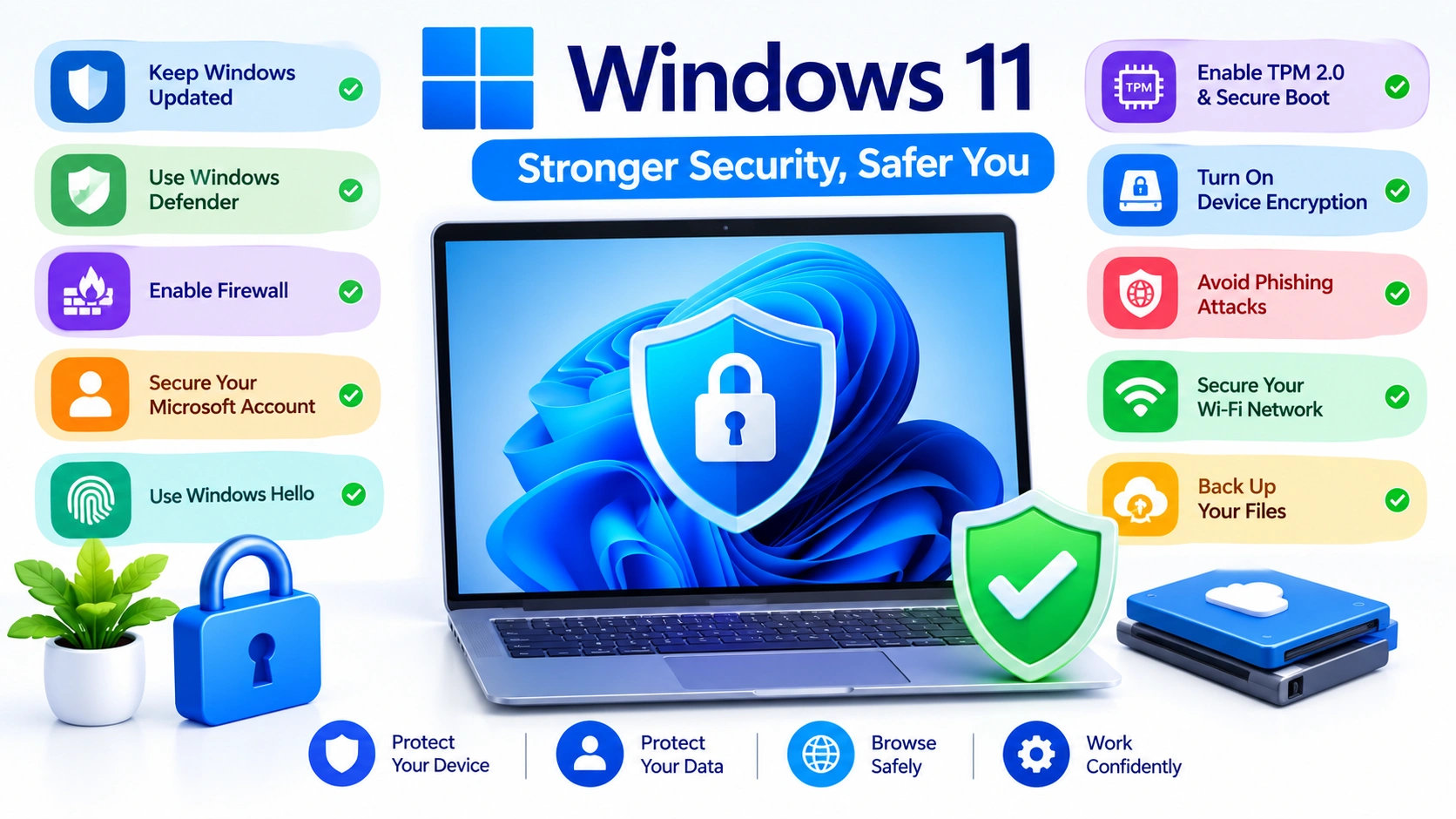
Windows 11 includes several built-in security features designed to protect your computer from malware, unauthorized access, data theft, and other online threats. However, simply installing Windows 11 is not enough to guarantee strong protection. Your security settings, software updates, passwords, and everyday habits all play an important role.
The good news is that you can significantly improve Windows 11 security without installing a large collection of third-party security programs. By properly configuring the tools already included with Windows 11 and following a few security best practices, you can create a much safer computing environment.
1. Keep Windows 11 Updated
One of the simplest ways to improve Windows 11 security is to install updates regularly. Microsoft releases security updates to address vulnerabilities that could potentially be exploited by attackers.
To check for updates:
- Open Settings.
- Select Windows Update.
- Click Check for updates.
- Install available updates.
- Restart your PC if required.
You should also keep your applications, browsers, and hardware drivers updated. Security weaknesses are not limited to Windows itself.
If possible, enable automatic updates so important security patches are installed without requiring constant manual checks.
2. Turn On Windows Security Features
Windows 11 comes with the Windows Security application, which provides several important protection mechanisms.
Open it by searching for Windows Security from the Start menu.
Review the main sections, including:
- Virus & threat protection
- Firewall & network protection
- App & browser control
- Device security
- Account protection
Avoid disabling security features unless you have a specific reason and understand the consequences.
3. Use Microsoft Defender Antivirus
Microsoft Defender Antivirus provides built-in malware protection and is enabled by default on many Windows 11 systems.
To check its status:
- Open Windows Security.
- Select Virus & threat protection.
- Review the protection status.
- Open Virus & threat protection settings.
- Make sure Real-time protection is enabled.
You can also manually run a scan when you suspect something is wrong.
For a more thorough check, use the Full scan option rather than relying only on a quick scan.
4. Enable the Windows Firewall
A firewall helps control network connections between your computer and other devices or services.
Windows 11 includes a built-in firewall that can protect your PC from unwanted network communication.
Check it by going to:
Windows Security → Firewall & network protection
Make sure the firewall is enabled for the networks you use.
Be particularly careful when connecting to public Wi-Fi networks. Avoid turning off the firewall simply because an application or game has connection problems. Instead, investigate the specific application or firewall rule causing the issue.
5. Strengthen Your Microsoft Account
Your Microsoft account may provide access to Windows, OneDrive, Microsoft Store purchases, email, and other services. Protecting this account is therefore extremely important.
Use a strong, unique password and enable two-step verification or another available multi-factor authentication method.
If an attacker obtains your password, an additional authentication factor can make unauthorized access significantly more difficult.
You should also review your account’s security information periodically and remove authentication methods you no longer use.
6. Use Windows Hello
Windows Hello can provide a more convenient and secure way to sign in to Windows 11.
Depending on your hardware, you may be able to use:
- Fingerprint recognition
- Facial recognition
- A Windows Hello PIN
A Windows Hello PIN is tied to your device rather than simply being a traditional password used across online services.
To configure it:
- Open Settings.
- Go to Accounts.
- Select Sign-in options.
- Choose an available Windows Hello method.
- Follow the setup instructions.
Use a strong PIN that other people cannot easily guess.
7. Enable Secure Boot
Secure Boot is a security feature supported by modern computers that helps prevent unauthorized software from loading during the startup process.
You can check Secure Boot through Windows:
- Press Windows + R.
- Type
msinfo32. - Press Enter.
- Find Secure Boot State.
If it shows On, Secure Boot is enabled.
If it is disabled, check your computer or motherboard manufacturer’s documentation before changing firmware settings. Incorrect BIOS/UEFI changes can prevent Windows from starting.
8. Make Sure TPM 2.0 Is Enabled
Windows 11 requires compatible hardware security features, including TPM 2.0 on supported installations.
The Trusted Platform Module can help protect cryptographic keys and support security features such as Windows Hello and BitLocker.
You can check TPM status by:
- Pressing Windows + R.
- Entering
tpm.msc. - Pressing Enter.
If Windows reports that the TPM is ready for use, your system is generally configured to use it.
9. Turn On Device Encryption or BitLocker
Encrypting your storage can help protect files if your computer is lost or stolen.
Depending on your Windows edition and hardware, you may have access to Device encryption or BitLocker.
Look under:
Settings → Privacy & security → Device encryption
On supported editions, BitLocker can provide more advanced drive-encryption management.
Before enabling encryption, make sure you understand how recovery works and keep your recovery key somewhere safe. Losing the recovery key can make recovering encrypted data extremely difficult.
10. Use SmartScreen and Reputation-Based Protection
Windows 11 includes protection against potentially dangerous websites, downloads, and applications.
Go to:
Windows Security → App & browser control
Then review Reputation-based protection settings.
These protections can help warn you about suspicious applications and potentially unwanted software.
Do not automatically bypass Windows warnings simply because a download comes from a website you recognize. Verify the software source first.
11. Avoid Installing Unknown Software
Many Windows security problems begin when users install applications from unreliable sources.
Before downloading software:
- Use the developer’s official website when possible.
- Avoid suspicious download portals.
- Check the publisher and digital signature.
- Be cautious with bundled installers.
- Avoid pirated or modified applications.
- Read installation screens carefully.
If an installer asks you to disable antivirus protection before continuing, treat that as a warning sign.
12. Control App Permissions
Some applications request access to your camera, microphone, location, contacts, or other system resources.
Review these permissions regularly.
Go to:
Settings → Privacy & security
Select categories such as Camera, Microphone, or Location and review which applications have access.
Disable permissions that an application does not genuinely need.
This reduces the amount of information applications can access if they are compromised or misused.
13. Use a Standard User Account for Everyday Work
Using an administrator account for everything can increase the potential impact of malicious software.
For everyday activities, consider using a standard user account when practical. Administrator privileges should generally be required only when performing tasks that genuinely need them.
Windows’ User Account Control can also help prevent applications from making significant system changes without your approval.
Do not automatically click Yes on every UAC prompt. If an unexpected application suddenly requests administrator privileges, investigate why.
14. Secure Your Wi-Fi Connection
Windows security also depends on the network your computer uses.
For your home network:
- Use WPA2 or WPA3 security where supported.
- Set a strong Wi-Fi password.
- Change the router’s default administrator password.
- Keep router firmware updated.
- Avoid using outdated wireless security standards.
When using public Wi-Fi, avoid entering sensitive information on websites that do not use HTTPS and be cautious about unexpected network prompts.
15. Protect Your Files With Regular Backups
Security is not only about preventing attacks. You should also prepare for the possibility that malware, hardware failure, accidental deletion, or ransomware could damage your files.
Maintain regular backups of important documents, photographs, projects, and other irreplaceable data.
A strong backup strategy can include:
- An external drive
- Cloud storage
- Another computer or network location
- Offline backups for especially important files
Keep at least one backup isolated from your computer when possible. This can reduce the risk of ransomware affecting both your original files and backups.
16. Watch for Phishing Attacks
Even the best Windows security configuration cannot completely protect you from social engineering.
Be suspicious of messages that:
- Demand immediate action
- Ask for passwords or verification codes
- Contain unexpected attachments
- Use suspicious links
- Claim your account will be closed
- Offer unusually attractive rewards
Before clicking a link, check where it actually leads. When a message claims to be from a bank, Microsoft, or another organization, consider opening the organization’s official website directly rather than using the message’s link.
17. Review Startup Apps
Unnecessary startup applications can increase your attack surface and make Windows slower.
Open:
Settings → Apps → Startup
Review applications that launch automatically when Windows starts.
Disable programs you do not need, especially applications you do not recognize. However, research unfamiliar entries before disabling them because some legitimate Windows components and hardware utilities may appear in the list.
18. Remove Unused Applications
Old software that is no longer maintained can become a security risk.
Go to:
Settings → Apps → Installed apps
Review the installed applications and remove programs you no longer need.
Pay particular attention to software you do not remember installing. If you find suspicious applications, investigate them before simply deleting associated files manually.
19. Lock Your PC When You Leave
Physical access can be just as important as online security.
Whenever you leave your computer unattended, lock it using:
Windows + L
You can also configure Windows to require sign-in after the computer wakes from sleep.
This simple habit can prevent someone nearby from accessing your files, browser sessions, and accounts.
20. Create a Security Routine
Improving Windows 11 security is not a one-time task. Create a simple routine to keep your system protected.
Regularly:
- Install Windows security updates.
- Check antivirus status.
- Review account security.
- Verify firewall protection.
- Remove unnecessary applications.
- Review app permissions.
- Back up important files.
- Check for suspicious activity.
- Update browsers and important software.
These habits can significantly reduce the chances of common security problems.
Final Thoughts
Improving Windows 11 security does not require complicated tools or advanced technical knowledge. Start with the fundamentals: keep Windows updated, enable Microsoft Defender and the firewall, secure your Microsoft account, use Windows Hello, enable supported hardware security features, and maintain reliable backups.
Just as importantly, practice safe browsing and software-installation habits. Security works best as a combination of built-in Windows protections and careful user behavior.
By regularly reviewing these settings and maintaining good security habits, you can make your Windows 11 PC considerably more resistant to malware, unauthorized access, data theft, and other common threats.