

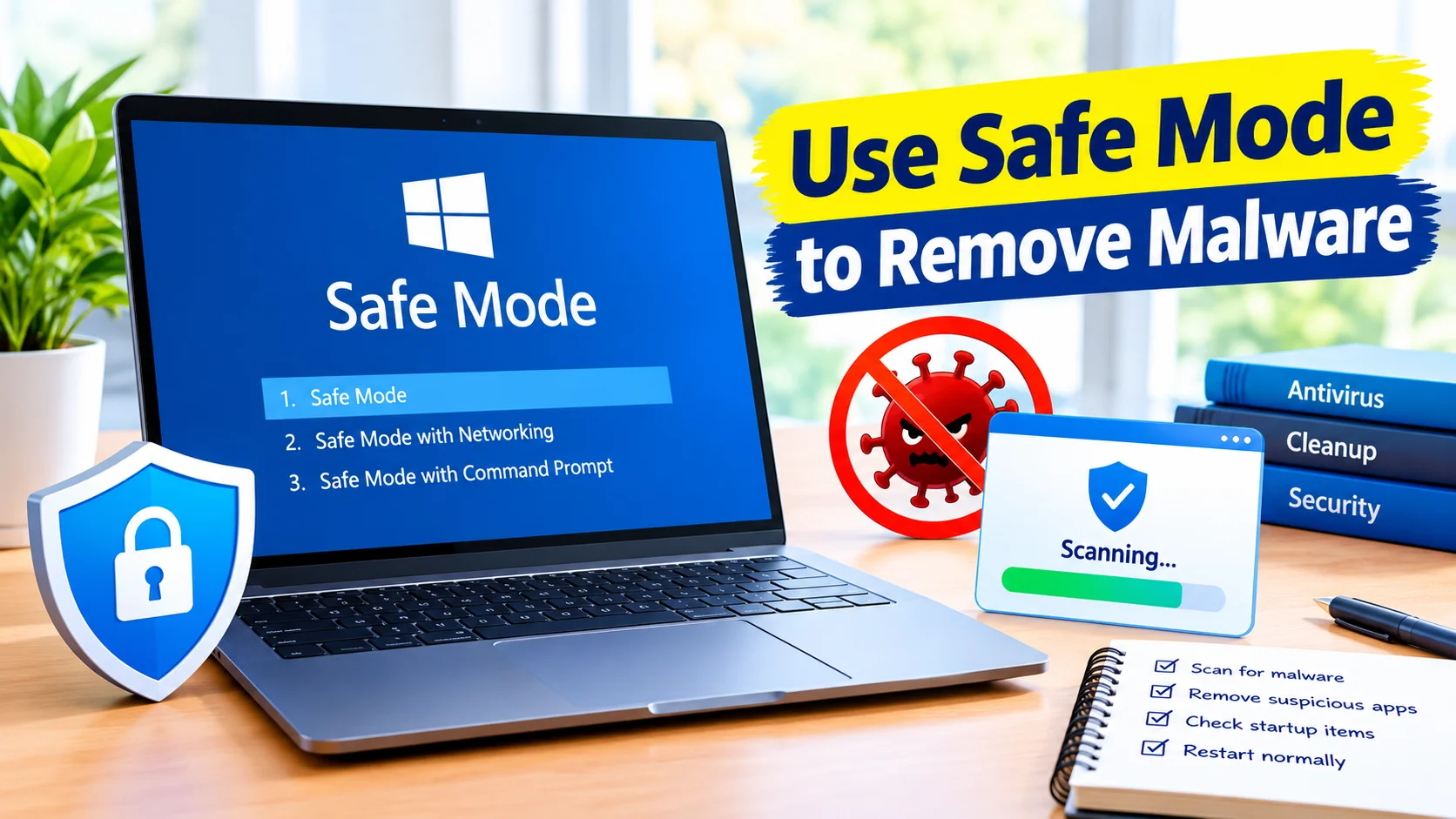
Use Safe Mode to remove malware when malicious software prevents normal antivirus scans, causes constant pop-ups, slows Windows down, or interferes with system tools. Safe Mode starts Windows with a limited set of drivers and services, which can make it easier to identify and remove suspicious programs.
Malware can sometimes protect itself by launching automatically when Windows starts. Running the system in Safe Mode can prevent some unwanted software from loading, giving you a cleaner environment for troubleshooting and malware removal.
This guide explains how Safe Mode works, how to enter it, and how to safely scan and remove malware from a Windows PC.
What Is Windows Safe Mode?
Safe Mode is a Windows troubleshooting environment that starts the operating system with only essential components. Many third-party applications, startup programs, and nonessential drivers are not loaded.
This makes Safe Mode useful for troubleshooting problems caused by:
- Malware and potentially unwanted programs
- Problematic drivers
- Suspicious startup applications
- Software conflicts
- System configuration problems
- Persistent pop-ups and browser redirects
Safe Mode does not automatically remove malware. Instead, it provides a more controlled environment where you can investigate suspicious software and run security scans.
Why Use Safe Mode to Remove Malware?
Some malware programs are designed to start automatically with Windows. They may interfere with security software, consume system resources, or repeatedly restore unwanted files and settings.
Using Safe Mode can help because fewer third-party processes are running.
The main benefits include:
- Fewer processes: Malware may not start normally.
- Easier troubleshooting: Suspicious behavior can be easier to identify.
- Improved access to security tools: Some malicious programs may interfere less with scanners.
- Reduced software conflicts: Unnecessary applications and services are usually not loaded.
- Safer removal: You can investigate suspicious programs without many background applications running.
However, Safe Mode is not a replacement for reputable antivirus or antimalware software.
Before Removing Malware
Before making changes to an infected computer, take a few precautions.
Disconnect From the Internet
If you suspect an active malware infection, disconnect the computer from the internet when practical. You can disable Wi-Fi or unplug the Ethernet cable.
This can reduce the ability of some malware to communicate with external servers or download additional components.
You may need internet access later to update security software or download a legitimate scanner. If possible, perform those tasks before disconnecting or use another trusted device.
Back Up Important Files
If Windows is still usable, back up important personal documents, photos, and other irreplaceable files.
Avoid backing up suspicious executable files or unknown programs. If the infection is severe, consider using an offline backup or a clean computer to protect important data.
Have a Security Scanner Ready
Use a reputable security product that supports Windows. Windows also includes built-in security features that can be used to scan for threats.
Avoid downloading random “malware removal” programs from pop-up advertisements or unfamiliar websites. Some fake security tools are themselves malicious.
How to Start Windows in Safe Mode
The exact steps can vary slightly between Windows versions, but Windows 10 and Windows 11 provide several ways to access Safe Mode.
Method 1: Use Windows Settings
On a working Windows installation:
- Open Settings.
- Go to System.
- Select Recovery.
- Find Advanced startup.
- Select Restart now.
- After Windows restarts, choose Troubleshoot.
- Select Advanced options.
- Choose Startup Settings.
- Select Restart.
- When the Startup Settings menu appears, press the key for Safe Mode.
You will typically see options for standard Safe Mode and Safe Mode with Networking.
For malware troubleshooting, standard Safe Mode is often preferable when you do not need an internet connection.
How to Enter Safe Mode From the Sign-In Screen
If you cannot access the Windows desktop normally, you can also reach the recovery environment from the sign-in screen.
- At the Windows sign-in screen, select the Power button.
- Hold the Shift key.
- Select Restart while continuing to hold Shift.
- Wait for the recovery options to appear.
- Select Troubleshoot.
- Choose Advanced options.
- Select Startup Settings.
- Click Restart.
- Choose the appropriate Safe Mode option.
This can be useful when malware or another software problem prevents Windows from loading the desktop correctly.
Should You Use Safe Mode With Networking?
Safe Mode with Networking loads additional components needed for network connectivity.
It can be useful if you need to download security updates or access an online security service. However, networking also gives potentially active malware access to the internet.
If you already have an updated security scanner available, consider using regular Safe Mode first.
Use Safe Mode with Networking only when you have a specific reason to need network access.
How to Scan for Malware in Safe Mode
Once Windows starts in Safe Mode, begin with a trusted security scanner.
Step 1: Open Windows Security
Open the Windows Security application and locate the malware or virus scanning options.
Run a full scan rather than relying only on a quick scan when you suspect an infection.
A full scan can take considerably longer, especially if the computer contains many files.
Step 2: Review Detected Threats
After the scan finishes, carefully review the detected items.
Security software may identify:
- Viruses
- Trojans
- Spyware
- Potentially unwanted applications
- Suspicious files
- Malicious browser components
Follow the security software’s recommended remediation process.
Do not manually delete system files simply because their names look unfamiliar. Some legitimate Windows files have technical or unusual names.
Step 3: Run Another Scan
For persistent infections, a second scan can provide additional confidence.
You can use another reputable on-demand malware scanner if necessary, provided it comes from a legitimate source.
Avoid installing numerous security programs simultaneously because they can conflict with each other and consume system resources.
Check Suspicious Startup Programs
Malware frequently attempts to launch automatically when Windows starts.
While in Safe Mode, inspect applications that are configured to start with Windows.
Look for programs that:
- You do not recognize
- Recently appeared before the problem started
- Have suspicious names or locations
- Were installed without your knowledge
- Are associated with unwanted browser behavior
Do not disable or remove an item solely because its name is unfamiliar. Research the program carefully and verify its publisher and file location before taking action.
Uninstall Suspicious Applications
If you identify an unwanted program, open Windows’ installed-app settings and check whether it can be legitimately uninstalled.
Remove software that you knowingly installed but no longer need, particularly if it is associated with suspicious behavior.
If Windows refuses to uninstall an application, do not immediately download an unknown third-party removal tool. Instead, use a reputable security scanner or follow documentation from the software vendor.
Check Your Web Browser
Malware and potentially unwanted software can modify browser settings.
After removing threats, check your browser for:
- Unknown extensions
- Unwanted search engines
- Suspicious homepage settings
- Unexpected notifications
- Unfamiliar proxy settings
- Persistent redirects
Remove extensions that you do not recognize and reset affected browser settings if necessary.
Restart Windows Normally
After completing your scans and cleanup, restart the computer normally.
Check whether the original symptoms have disappeared.
Pay attention to:
- Unexpected pop-ups
- Browser redirects
- High CPU or disk usage
- Unknown applications
- Security warnings
- Unusual network activity
- Programs launching automatically
If the symptoms return immediately after restarting, the infection may not have been completely removed.
What to Do If Malware Keeps Coming Back
Persistent malware requires additional investigation.
Try these steps:
Run an Offline Security Scan
An offline scan can examine Windows without allowing the normal operating environment to fully load. This can make it harder for certain persistent threats to hide.
Check Recently Installed Software
Review applications installed around the time the problem began.
Remove programs you do not recognize only after verifying that they are unwanted or malicious.
Update Windows
Install available Windows security updates after the system has been cleaned and connectivity is safe.
Keeping Windows updated reduces exposure to known vulnerabilities.
Change Important Passwords
If you believe malware may have captured passwords, change important credentials from a known-clean device.
Prioritize email, banking, cloud storage, social media, and other accounts containing sensitive information.
Enable multifactor authentication whenever it is available.
Common Mistakes When Removing Malware in Safe Mode
Safe Mode is useful, but careless changes can create additional problems.
Avoid these mistakes:
Deleting Random System Files
Removing an unfamiliar file does not necessarily remove malware. You could accidentally damage Windows.
Installing Fake Malware Removers
Search results and pop-ups can contain misleading advertisements for fake security software. Download security tools only from trusted sources.
Disabling Security Features Permanently
Some malware removal guides recommend turning off security protections. Avoid disabling Windows security features unless you have a specific, trusted troubleshooting reason.
Connecting to the Internet Unnecessarily
If you do not need internet access during cleanup, standard Safe Mode can reduce unnecessary network exposure.
Ignoring the Original Infection
Deleting one suspicious file may not remove all components of an infection. A complete security scan is usually more reliable than manual deletion alone.
When Safe Mode Is Not Enough
Safe Mode is primarily a troubleshooting environment. It cannot guarantee that every type of malware will be removed.
Consider professional assistance or a Windows reset/reinstallation when:
- Malware repeatedly returns
- Security tools cannot run
- System files are severely damaged
- Important accounts may have been compromised
- The computer behaves suspiciously even after multiple scans
- You cannot determine what caused the infection
For severe infections, reinstalling Windows may provide a cleaner starting point, but make sure important personal data is safely backed up first.
Frequently Asked Questions
Can Safe Mode remove malware automatically?
No. Safe Mode does not automatically remove malware. It starts Windows with fewer drivers and services, making it easier to troubleshoot and run security scans.
Is Safe Mode safe for malware removal?
Safe Mode can be useful for malware troubleshooting because many third-party programs do not start. However, it does not guarantee that malware is inactive or harmless.
Should I use Safe Mode or Safe Mode with Networking?
Use regular Safe Mode when you already have the security tools and updates you need. Safe Mode with Networking is useful when network access is specifically required.
Can I run Windows Security in Safe Mode?
Some security features and scans may work differently in Safe Mode. If a particular scan is unavailable, use the Windows recovery environment or an offline scanning option instead.
What happens after I restart Windows?
Windows should return to normal operation. If suspicious symptoms return, perform another security scan and investigate startup programs, installed applications, browser extensions, and other possible persistence mechanisms.
Final Thoughts
Use Safe Mode to remove malware when suspicious software interferes with normal Windows operation or makes malware troubleshooting difficult. Safe Mode limits the number of drivers, services, and applications that load, creating a cleaner environment for investigation.
For the best results, combine Safe Mode with reputable security software, careful review of installed applications and startup programs, browser cleanup, Windows updates, and strong account security practices. If the infection persists, an offline scan or professional assistance may be necessary.