

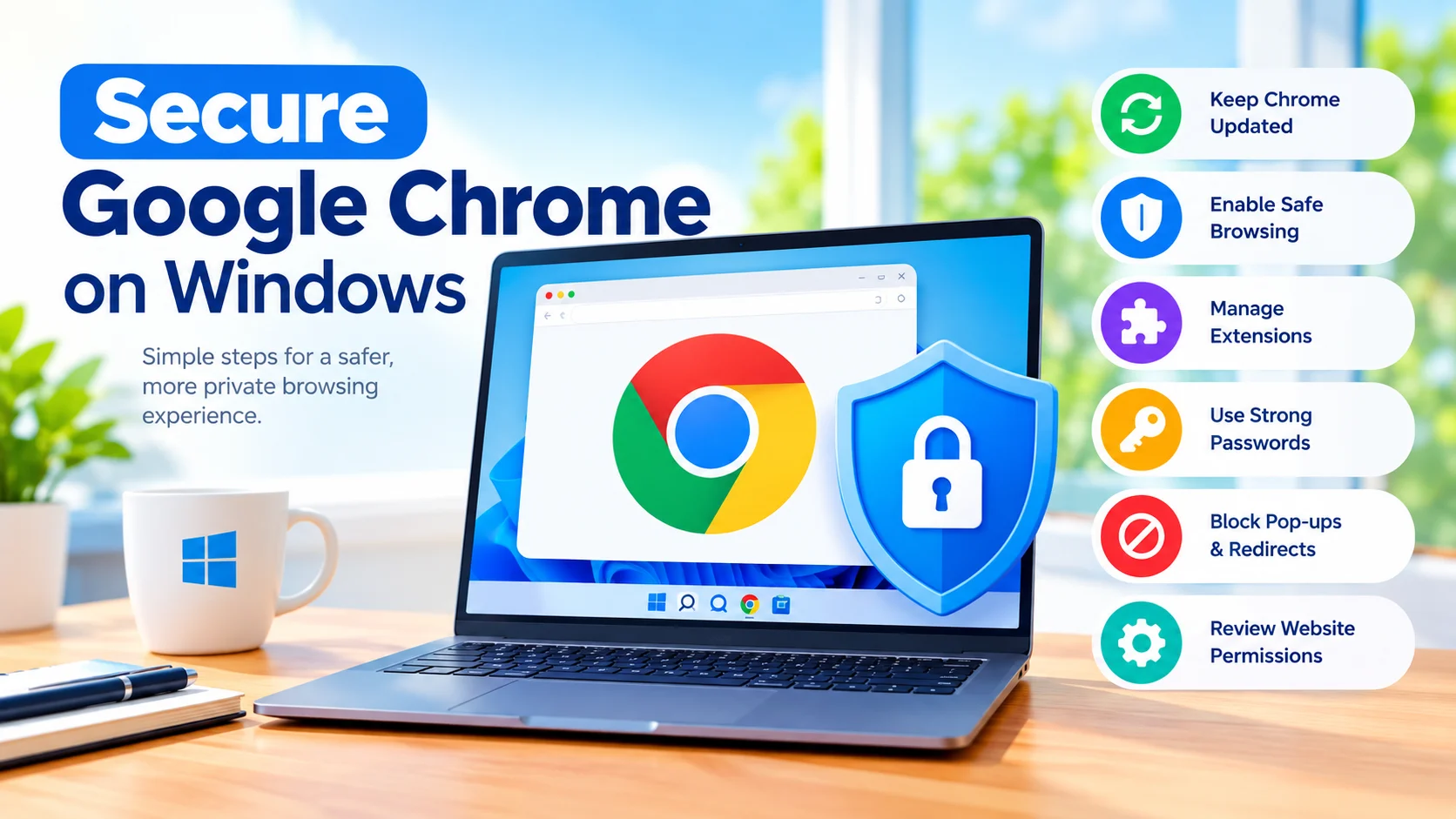
Secure Google Chrome on Windows to protect your browsing activity, personal information, passwords, and online accounts from common security threats. Chrome includes several built-in security features, but configuring them correctly and following safe browsing practices can provide an extra layer of protection.
Whether you use Chrome for work, banking, shopping, or everyday browsing, a few simple security adjustments can help reduce the risks associated with malicious websites, phishing attacks, dangerous downloads, and suspicious browser extensions.
Why You Should Secure Google Chrome on Windows
Google Chrome is one of the most widely used web browsers on Windows, making browser security an important part of protecting your personal data. Keeping Chrome updated and using its built-in security controls can help you browse more safely.
When you secure Google Chrome on Windows, you can improve your protection by:
- Keeping Chrome updated
- Enabling Safe Browsing protections
- Removing suspicious extensions
- Using strong and unique passwords
- Protecting saved passwords
- Blocking dangerous pop-ups and redirects
- Reviewing website permissions
- Being cautious with downloads
- Keeping Windows security features enabled
1. Keep Google Chrome Updated
One of the simplest ways to improve browser security is to keep Chrome updated. Updates can include security fixes for vulnerabilities discovered in the browser.
To check for updates:
- Open Google Chrome.
- Select the three-dot menu in the upper-right corner.
- Go to Help > About Google Chrome.
- Chrome will automatically check for available updates.
- Restart the browser if an update is installed.
Avoid delaying important browser updates, especially when they address known security vulnerabilities.
2. Enable Enhanced Safe Browsing
Chrome’s Safe Browsing feature helps protect users from dangerous websites, downloads, and files.
To review this setting:
- Open Chrome.
- Select Settings.
- Click Privacy and security.
- Select Security.
- Review the available Safe Browsing options.
- Choose the protection level that matches your security needs.
Enhanced protection can provide additional warnings about potentially dangerous websites and downloads.
3. Remove Suspicious Chrome Extensions
Browser extensions can add useful functionality, but malicious or poorly maintained extensions can create security and privacy risks.
Review your installed extensions regularly:
- Open Chrome.
- Select the three-dot menu.
- Choose Extensions > Manage Extensions.
- Look through the installed extensions.
- Remove anything you no longer use or do not recognize.
Only install extensions from trusted sources, and pay attention to the permissions an extension requests.
If an extension asks for access that seems unrelated to its purpose, consider whether you really need it.
4. Use Strong and Unique Passwords
Chrome can help generate and store strong passwords. Avoid using the same password across multiple websites.
A compromised password can become particularly dangerous when it is reused on email, banking, shopping, or social media accounts.
For important accounts:
- Use unique passwords.
- Make passwords long and difficult to guess.
- Avoid personal information.
- Enable two-factor authentication when available.
- Review saved passwords periodically.
A password manager can also make it easier to use unique credentials without having to remember every password.
5. Protect Saved Passwords
If Chrome stores your passwords, protecting your Windows account is especially important. Someone who gains access to your Windows profile may potentially gain access to browser-stored information.
Use a strong Windows sign-in method and avoid sharing your Windows account with other people.
If you use Chrome’s password management features, periodically check for compromised or weak passwords and replace them.
6. Block Dangerous Pop-Ups and Redirects
Unexpected pop-ups and redirects can lead to fraudulent websites, fake security alerts, or unwanted downloads.
Chrome provides controls for pop-ups and redirects.
Go to:
Settings > Privacy and security > Site settings > Pop-ups and redirects
Keep unwanted pop-ups blocked unless a trusted website genuinely requires them.
Be particularly cautious when a pop-up claims that your computer is infected and instructs you to call a phone number or install unfamiliar software.
7. Review Website Permissions
Websites can request access to features such as your camera, microphone, location, notifications, and clipboard.
You can review these permissions through Chrome’s settings:
Settings > Privacy and security > Site settings
Review permissions such as:
- Camera
- Microphone
- Location
- Notifications
- JavaScript
- Pop-ups and redirects
- Automatic downloads
Remove permissions from websites that no longer need them.
8. Be Careful With Downloads
Even with browser security protections enabled, you should think carefully before downloading files.
Avoid downloading software from unfamiliar websites, particularly when a website uses aggressive advertisements or misleading download buttons.
Before opening a downloaded file:
- Confirm that you know what it is.
- Verify the source.
- Be suspicious of unexpected executable files.
- Scan suspicious files with trusted security software.
- Don’t disable security protections simply to run an unknown program.
Windows Security can provide an additional layer of protection against malicious files.
9. Use HTTPS Websites
When entering sensitive information online, check that the website connection is secure and that you’re communicating with the intended website.
Look at the address bar before entering:
- Passwords
- Credit card information
- Banking credentials
- Personal information
Remember that HTTPS encrypts the connection, but it does not automatically mean a website is trustworthy. A fraudulent website can also use HTTPS.
Always verify the domain name carefully.
10. Clear Unnecessary Browsing Data
Chrome stores browsing history, cookies, cached files, and other information as you use the web.
You can manage this information by going to:
Settings > Privacy and security > Delete browsing data
Depending on your needs, you can remove:
- Browsing history
- Cookies and other site data
- Cached images and files
Clearing cookies can sign you out of websites, so make sure you understand what will be removed before confirming.
11. Be Careful With Chrome Sync
Chrome Sync can make bookmarks, passwords, history, and other browser information available across your devices.
This can be convenient, but your Google Account becomes an important security point.
Protect your Google Account with:
- A strong, unique password
- Two-step verification
- Updated recovery information
- Regular security reviews
Avoid signing into your Google Account on untrusted or shared computers whenever possible.
12. Keep Windows Security Enabled
Browser security should not be your only defense.
Windows includes built-in security features that can help protect your computer from malware and other threats. Keep Windows and its security components updated, and avoid disabling protection simply because a website or downloaded application requests it.
For additional protection, maintain a layered approach:
Chrome security + Windows security + safe browsing habits + regular updates
13. Watch for Fake Chrome Security Warnings
Scammers sometimes create websites that imitate browser or Windows security messages.
A suspicious page may claim:
“Your computer is infected!”
It may then encourage you to download software, install an extension, or call a phone number.
Do not automatically trust these messages. Close the tab and investigate the warning through legitimate security tools instead.
Never give remote access to your computer simply because a website claims that your system has a problem.
14. Check Chrome’s Privacy and Security Settings Regularly
Security isn’t a one-time task. Browser settings, extensions, accounts, and website permissions can change over time.
Every few months, review:
- Chrome updates
- Safe Browsing settings
- Installed extensions
- Saved passwords
- Website permissions
- Pop-up settings
- Google Account security
- Windows security updates
This simple maintenance routine can help keep your browser protected as your browsing habits change.
Final Thoughts
To secure Google Chrome on Windows, start with the basics: keep Chrome and Windows updated, enable appropriate Safe Browsing protection, remove unnecessary extensions, protect your Google Account, and be cautious with downloads and suspicious websites.
Chrome provides many useful security features, but no browser can protect against every threat. Good security habits remain an important part of keeping your personal information and Windows PC safe.
Quick Security Checklist
- ✅ Keep Chrome updated
- ✅ Use Safe Browsing protection
- ✅ Remove unknown extensions
- ✅ Use strong, unique passwords
- ✅ Enable two-factor authentication
- ✅ Review website permissions
- ✅ Block unwanted pop-ups
- ✅ Be cautious with downloads
- ✅ Check website addresses before entering sensitive information
- ✅ Keep Windows Security enabled
- ✅ Review Chrome security settings regularly