

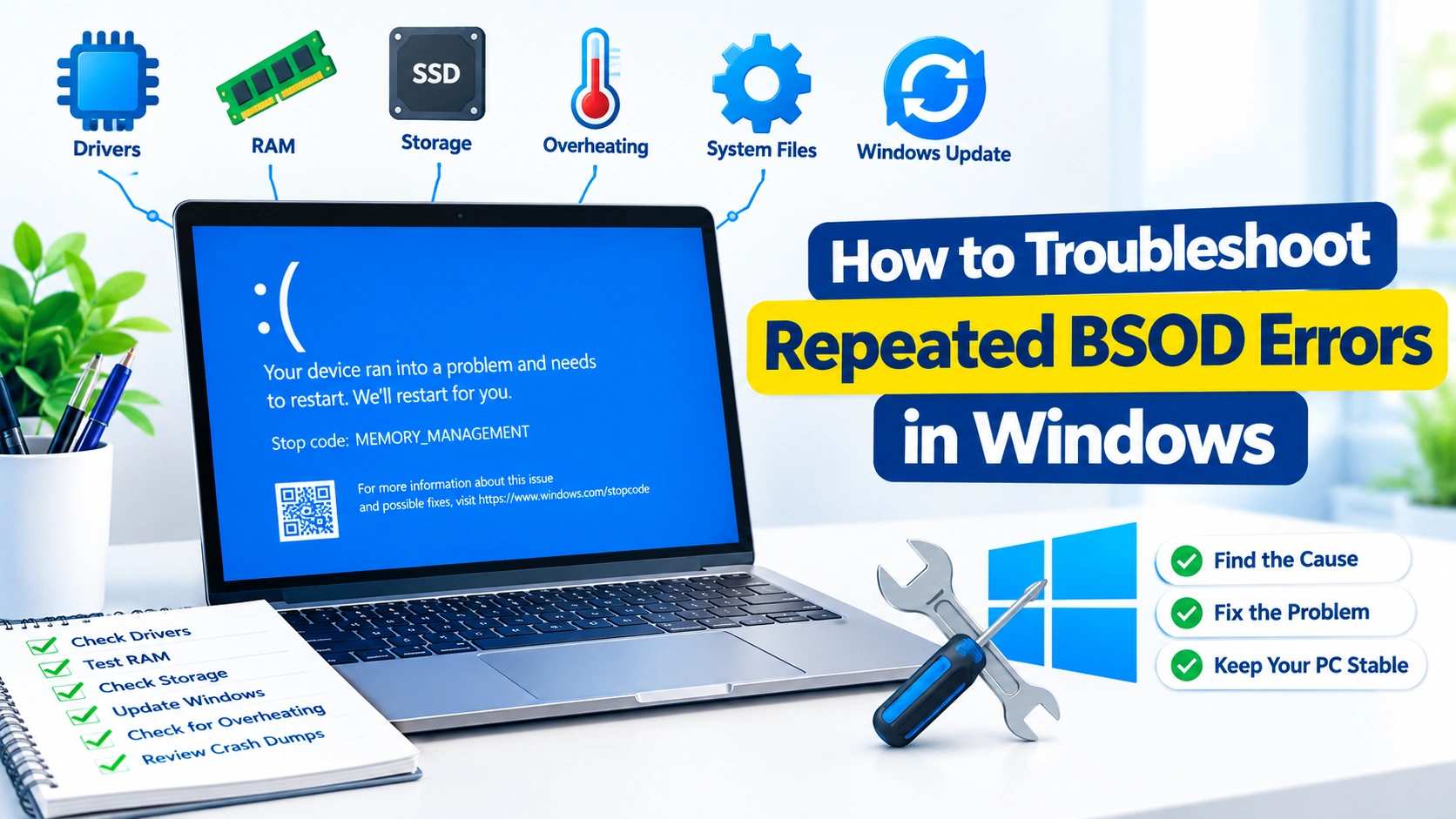
A Blue Screen of Death (BSOD) can be frustrating, especially when it keeps appearing on the same Windows PC. Repeated blue screen errors may be caused by faulty drivers, damaged system files, memory problems, overheating, incompatible software, storage issues, or recent hardware changes.
Fortunately, you can troubleshoot many recurring BSOD problems systematically. Instead of repeatedly restarting the computer and hoping the error disappears, identify the underlying cause and apply the appropriate fix.
Learn how to troubleshoot repeated BSOD errors in Windows by checking drivers, RAM, system files, storage, overheating, updates, and crash dumps.
What Is a BSOD?
A BSOD is a Windows system crash that occurs when the operating system encounters a serious problem that it cannot safely recover from. Windows displays a blue screen containing information about the failure and usually restarts the computer.
Common stop codes include:
- CRITICAL_PROCESS_DIED
- SYSTEM_SERVICE_EXCEPTION
- IRQL_NOT_LESS_OR_EQUAL
- MEMORY_MANAGEMENT
- PAGE_FAULT_IN_NONPAGED_AREA
- DRIVER_IRQL_NOT_LESS_OR_EQUAL
- KERNEL_SECURITY_CHECK_FAILURE
- VIDEO_TDR_FAILURE
The specific stop code can provide an important clue about what is causing the repeated crashes.
1. Record the BSOD Stop Code
Before changing anything, write down the stop code shown on the blue screen.
For example, if Windows displays MEMORY_MANAGEMENT, memory-related problems should be investigated. If the message identifies a driver or graphics component, focus on drivers and related hardware.
You can also check Windows crash information after the computer restarts using Event Viewer or other diagnostic tools.
2. Think About What Changed Recently
Repeated BSOD errors often begin after a system change. Consider whether you recently:
- Installed a new driver
- Updated Windows
- Installed new software
- Added RAM or another hardware component
- Updated graphics software
- Connected a new peripheral
- Changed BIOS or UEFI settings
- Enabled overclocking
- Installed an antivirus or system utility
If the crashes started immediately after a particular change, temporarily reversing that change can help determine whether it is responsible.
3. Start Windows in Safe Mode
Safe Mode loads Windows with a limited set of drivers and services. If BSODs stop occurring in Safe Mode, a third-party driver, application, or startup component may be involved.
To access Safe Mode:
- Open Settings.
- Go to System > Recovery.
- Select Advanced startup > Restart now.
- Choose Troubleshoot > Advanced options > Startup Settings.
- Select Restart.
- Press the appropriate key to start Safe Mode.
Once in Safe Mode, uninstall recently added software or drivers and investigate hardware-related changes.
4. Update or Roll Back Problematic Drivers
Drivers are a common source of recurring BSOD errors. Graphics, network, storage, chipset, and peripheral drivers can all cause system instability when they are corrupted or incompatible.
Open Device Manager and inspect devices showing warning symbols.
For a recently updated device, you can try:
- Right-click the device.
- Select Properties.
- Open the Driver tab.
- Choose Roll Back Driver if the option is available.
For older drivers, download compatible versions from the hardware manufacturer’s official website rather than relying on random third-party driver sites.
5. Run Windows System File Checker
Corrupted Windows system files can contribute to crashes. Windows includes System File Checker (SFC) for detecting and repairing protected system files.
Open Terminal or Command Prompt as administrator and run:
sfc /scannow
Wait until the scan reaches 100 percent. If SFC reports that it found and repaired corrupted files, restart Windows and check whether the BSOD returns.
6. Use DISM to Repair the Windows Image
If SFC cannot repair all damaged files, use Deployment Image Servicing and Management (DISM).
Open an administrator Command Prompt or Terminal and run:
DISM /Online /Cleanup-Image /RestoreHealth
After the process finishes, run:
sfc /scannow
Restart the computer afterward.
Running DISM before another SFC scan can help repair the Windows component store that SFC relies on.
7. Test Your RAM
Memory problems can cause unpredictable crashes and stop codes such as MEMORY_MANAGEMENT or PAGE_FAULT_IN_NONPAGED_AREA.
Windows includes a built-in memory diagnostic tool.
To use it:
- Press Windows + R.
- Enter
mdsched.exe. - Choose Restart now and check for problems.
- Allow Windows to perform the memory test.
For more extensive testing, you can use a reputable bootable memory-testing utility.
If errors are detected, shut down the PC and check the RAM modules. If you have multiple memory sticks, testing them individually can help identify a defective module.
8. Check SSD or Hard Drive Health
Storage problems can also produce system crashes. A failing SSD or hard drive may cause corrupted files, application failures, boot problems, and BSODs.
Check the health information provided by your SSD or hard-drive manufacturer. Also, run Windows’ disk-checking tools when appropriate.
For example:
chkdsk C: /scan
Do not immediately assume that every disk-related problem requires formatting the drive. If the storage device is physically failing, prioritize backing up important files before attempting extensive repairs.
9. Check for Overheating
Excessive temperatures can make a PC unstable, particularly during gaming, video editing, or other demanding workloads.
Check temperatures for:
- CPU
- GPU
- SSD
- Other components supported by your monitoring software
Also inspect the PC for blocked ventilation, excessive dust, malfunctioning fans, or poor airflow.
If crashes happen primarily when the system is under heavy load, overheating or power-related instability deserves particular attention.
10. Disable Overclocking Temporarily
CPU, GPU, and RAM overclocking can cause instability when settings are too aggressive or when hardware conditions change.
If you have modified BIOS/UEFI performance settings, temporarily return the system to its default configuration.
This includes:
- CPU overclocking
- GPU overclocking
- Custom RAM timings
- Increased voltages
- Performance profiles
If BSODs stop after returning to default settings, gradually testing changes can help identify the unstable configuration.
11. Remove Recently Installed Software
Some applications install low-level drivers or services that interact closely with Windows. Security software, hardware-monitoring utilities, virtual-machine software, customization tools, and other system utilities can occasionally contribute to crashes.
If the BSOD began after installing a particular application:
- Uninstall the application.
- Restart Windows.
- Use the computer normally for a while.
- Check whether the crashes continue.
If removing the software solves the problem, look for a newer compatible version before reinstalling it.
12. Install Pending Windows Updates
Microsoft periodically releases Windows updates containing security improvements, bug fixes, driver changes, and compatibility improvements.
Go to:
Settings > Windows Update
Install available updates and restart the computer when requested.
However, if the BSOD began immediately after a particular update, investigate that update before repeatedly installing additional system changes. Depending on the situation, uninstalling a recently installed update may help determine whether it is involved.
13. Check Reliability Monitor
Windows Reliability Monitor provides a useful timeline of application failures, Windows failures, hardware errors, and other problems.
Press Windows + R, enter:
perfmon /rel
Look for critical events around the times when the BSOD occurred.
Repeated failures on the same dates or involving the same application or component can provide valuable clues.
14. Examine Crash Dumps
Windows can create crash dump files when a BSOD occurs. These files contain technical information that can help identify the component involved in the crash.
Advanced users can analyze dump files using Microsoft’s debugging tools.
Pay particular attention to:
- Bug check codes
- Faulting modules
- Driver names
- Exception information
- Repeated patterns across multiple crashes
If several dump files consistently point toward the same driver, that driver deserves further investigation.
15. Disconnect Unnecessary Hardware
External hardware can sometimes cause system instability through defective devices or problematic drivers.
Temporarily disconnect nonessential devices such as:
- USB hubs
- External storage
- Printers
- Game controllers
- Webcams
- Bluetooth adapters
- Specialized peripherals
Restart Windows and see whether the crashes continue.
If the BSOD disappears, reconnect devices one at a time to identify the potential source.
16. Check BIOS and Firmware Updates
Motherboard BIOS/UEFI and hardware firmware can contain important compatibility and stability fixes.
Check your motherboard or PC manufacturer’s support page for firmware updates that specifically apply to your model.
Be careful when updating BIOS/UEFI. Use the manufacturer’s instructions exactly and avoid interrupting the update process.
17. Use System Restore When Appropriate
If Windows started crashing repeatedly after a significant software or configuration change, System Restore may allow you to return system settings and files to an earlier restore point.
Search Windows for Create a restore point, then open System Restore if suitable restore points are available.
System Restore does not replace a proper backup, and it should not be considered a way to recover personal files that have been deleted.
18. Reset or Reinstall Windows as a Last Resort
If hardware appears healthy and repeated troubleshooting has not resolved the problem, Windows itself may require a more extensive repair.
Before resetting or reinstalling Windows:
- Back up important files.
- Record application licenses and account information.
- Make sure you have installation media if needed.
- Confirm that important files are stored somewhere safe.
- Check whether the problem could be caused by hardware.
A clean Windows installation can eliminate many software-related causes, but it will not fix defective RAM, a failing SSD, overheating, or other physical hardware problems.
How to Identify the Real Cause
Avoid changing too many things simultaneously. A better approach is to troubleshoot methodically:
- Record the BSOD stop code.
- Note when the crashes occur.
- Check recent hardware, driver, software, and Windows changes.
- Test RAM and storage.
- Repair Windows system files.
- Update or roll back relevant drivers.
- Check temperatures and BIOS settings.
- Examine Reliability Monitor and crash dumps.
- Test the system after each significant change.
This approach makes it easier to determine which change actually solved the problem.
When to Suspect Hardware
Hardware becomes a stronger suspect when BSODs continue after Windows repairs, driver troubleshooting, and software removal.
Potential warning signs include:
- Memory tests reporting errors
- SSD health warnings
- Random crashes during heavy workloads
- System freezes before Windows loads
- Unexpected restarts
- Overheating
- Multiple unrelated BSOD stop codes
- Crashes occurring even after a clean Windows installation
In these situations, test or replace the suspected component rather than repeatedly reinstalling Windows.
Final Thoughts
Repeated BSOD errors should not be treated as random Windows annoyances. The stop code, crash timing, recent system changes, hardware tests, and Windows diagnostic information can help narrow down the cause.
Start with simple checks such as recent drivers, Windows system files, RAM, storage health, and overheating. If the problem persists, investigate crash dumps and hardware more deeply. By troubleshooting one variable at a time, you have a much better chance of finding the underlying cause and keeping your Windows PC stable.