

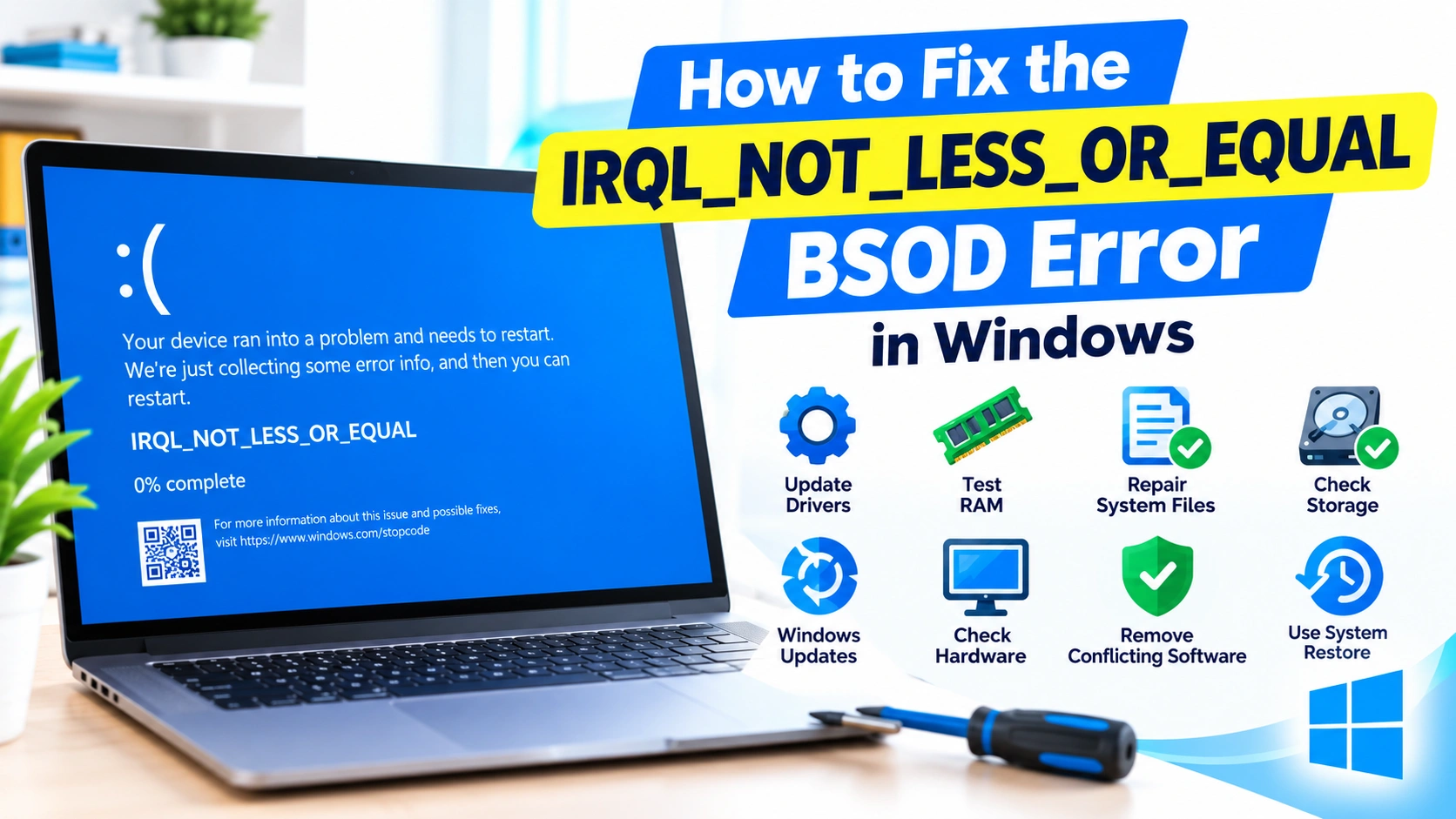
The IRQL_NOT_LESS_OR_EQUAL BSOD error is a common Windows stop error that can cause a computer to suddenly crash, restart, or display a blue screen. It usually indicates that a driver or system component attempted to access memory incorrectly.
Although the error can look serious, you can often troubleshoot it without reinstalling Windows. The key is to identify whether the problem is caused by a faulty driver, defective RAM, incompatible software, corrupted system files, or recent hardware changes.
What Does IRQL_NOT_LESS_OR_EQUAL Mean?
The IRQL_NOT_LESS_OR_EQUAL error is commonly associated with the Windows stop code:
IRQL_NOT_LESS_OR_EQUAL
Windows uses Interrupt Request Levels (IRQLs) to manage certain system operations. The error can occur when a kernel-mode driver or system component tries to access a memory address that it should not access at a particular IRQL.
Common causes include:
- Faulty or incompatible device drivers
- Defective or unstable RAM
- Recently installed hardware
- Corrupted Windows system files
- Overclocking or unstable hardware settings
- Incompatible security or system utilities
- Windows updates or driver conflicts
- Disk or file-system problems
1. Restart Your Computer
If the BSOD occurred only once, restart Windows and check whether the problem returns.
A temporary driver or software problem can sometimes trigger a single crash. However, repeated IRQL_NOT_LESS_OR_EQUAL errors usually require additional troubleshooting.
If Windows repeatedly crashes during startup, try entering Safe Mode before continuing.
2. Disconnect Recently Installed Hardware
Think about any hardware you installed shortly before the BSOD started.
Examples include:
- RAM modules
- Graphics cards
- USB devices
- Wi-Fi adapters
- Storage drives
- PCIe expansion cards
Shut down the computer and disconnect nonessential hardware. Then start Windows again.
If the crashes stop, reconnect devices one at a time to identify the hardware associated with the problem.
3. Update Device Drivers
Faulty drivers are one of the most common causes of this BSOD.
Pay particular attention to drivers for:
- Graphics cards
- Network adapters
- Chipsets
- Storage controllers
- Audio devices
- Bluetooth adapters
Open Device Manager by pressing Windows + X and selecting Device Manager.
Expand the relevant hardware category, right-click the device, and select Update driver.
For graphics, chipset, and other important drivers, it can also be useful to obtain the latest compatible version directly from the hardware manufacturer’s official website.
Avoid installing random driver packages from unfamiliar websites.
4. Roll Back a Recently Updated Driver
Sometimes the newest driver is not compatible with your particular hardware or Windows configuration.
If the BSOD started after a driver update:
- Open Device Manager.
- Locate the affected device.
- Right-click it and choose Properties.
- Open the Driver tab.
- Select Roll Back Driver if the option is available.
- Restart Windows.
If the rollback option is unavailable, you may need to install an earlier stable driver manually.
5. Run Windows Memory Diagnostic
Because IRQL_NOT_LESS_OR_EQUAL can be related to memory problems, test your RAM.
Press Windows + R, type:
mdsched.exePress Enter and choose Restart now and check for problems.
Windows will restart and perform a memory test.
If the diagnostic reports memory errors, shut down the computer and investigate the RAM modules. On a desktop PC with multiple RAM sticks, testing modules individually can help identify a defective stick or problematic slot.
For more thorough testing, you can also use a reputable bootable memory-testing utility.
6. Check for RAM Instability
Memory does not always have to be physically defective to cause a BSOD.
Unstable memory settings can also produce errors.
If you recently enabled:
- XMP
- EXPO
- Memory overclocking
- Manual RAM timings
- Increased memory voltage
try returning the BIOS/UEFI memory settings to their default configuration.
Then use the computer normally and check whether the crashes continue.
7. Run System File Checker
Corrupted Windows system files can contribute to system instability.
Open Windows Terminal or Command Prompt as Administrator and run:
sfc /scannowWait until the scan reaches 100%.
If SFC finds damaged files, Windows will attempt to repair them automatically.
Restart the computer afterward and check whether the BSOD returns.
8. Run DISM
If SFC cannot repair all system files, use the Deployment Image Servicing and Management tool.
Open an elevated Command Prompt or Windows Terminal and run:
DISM /Online /Cleanup-Image /RestoreHealthAllow the operation to finish. It may take several minutes.
When it completes, run:
sfc /scannowRestart Windows afterward.
9. Check Your Storage Drive
Storage problems can contribute to Windows crashes and corrupted system files.
You can check the Windows system drive with:
chkdsk C: /scanThis performs an online scan of the file system.
If Windows reports disk-related problems, further investigation may be necessary. You should also check the health of an SSD or hard drive using a trusted manufacturer utility or storage-monitoring application.
10. Uninstall Recently Installed Software
If the BSOD started after installing a program, temporarily uninstall it.
Pay special attention to software that operates at a low system level, such as:
- Antivirus applications
- VPN clients
- Hardware monitoring tools
- Disk utilities
- RGB control software
- Virtualization software
- System optimization tools
- Third-party firewall applications
Restart the computer after removing the software and monitor the system.
11. Check Windows Update
Microsoft regularly releases Windows updates containing security improvements, bug fixes, and driver-related changes.
Open Settings > Windows Update and check for available updates.
Install pending updates and restart your PC.
However, if the BSOD began immediately after a particular Windows update, troubleshooting may require uninstalling that update or checking Microsoft’s documentation for known issues.
12. Disable Overclocking
CPU, GPU, and RAM overclocking can cause intermittent system crashes when hardware becomes unstable.
If you are experiencing repeated IRQL_NOT_LESS_OR_EQUAL errors, temporarily return your system to its default clock speeds.
This includes disabling custom:
- CPU overclocks
- GPU overclocks
- RAM profiles
- Undervolting
- Custom voltage settings
Use the computer at stock settings long enough to determine whether stability improves.
13. Use Safe Mode to Isolate the Problem
Safe Mode starts Windows with a limited set of drivers and services.
If the BSOD does not occur in Safe Mode, a third-party driver or application becomes a more likely cause.
You can access Safe Mode through:
Settings > System > Recovery > Advanced startup > Restart now
Then select:
Troubleshoot > Advanced options > Startup Settings > Restart
Choose the Safe Mode option after the computer restarts.
14. Check the Minidump for the Faulty Driver
Windows can create crash dump files after a BSOD.
The small memory dump files are commonly stored in:
C:\Windows\MinidumpThese files can be analyzed with appropriate debugging tools to identify the driver or component involved in the crash.
Look for a driver name associated with the crash rather than assuming that the IRQL error itself identifies the exact cause.
For example, a dump may point toward a network, graphics, storage, or security driver.
15. Perform a System Restore
If the problem started recently, System Restore can help return Windows to an earlier working configuration.
Search Windows for Create a restore point, open the System Properties window, and select System Restore.
Choose a restore point created before the BSOD problem began.
System Restore generally does not remove personal documents, but it can affect recently installed applications, drivers, and system settings.
16. Check for Hardware Problems
If software troubleshooting does not resolve the problem, investigate the hardware.
Potential causes include:
- Faulty RAM
- Overheating
- Defective motherboard components
- Unstable power delivery
- Failing storage
- Graphics card problems
- Poor hardware connections
Make sure the computer is adequately cooled and that internal components are properly seated.
For desktop PCs, carefully reseating RAM and expansion cards can sometimes resolve problems caused by poor connections.
17. Reset Windows as a Last Resort
If the BSOD continues despite extensive troubleshooting, Windows may have deeper configuration or software problems.
Before resetting Windows, back up important files.
You can then use:
Settings > System > Recovery > Reset this PC
Depending on your situation, Windows provides options that can preserve personal files while removing applications and resetting system settings.
A clean installation may be appropriate when the Windows installation is severely damaged and other repair methods have failed.
How to Prevent IRQL_NOT_LESS_OR_EQUAL Errors
Once the problem is resolved, a few maintenance habits can reduce the likelihood of similar crashes:
- Keep Windows updated.
- Use reliable hardware drivers.
- Avoid unnecessary driver-update utilities.
- Monitor RAM and storage health.
- Avoid unstable overclocking.
- Keep important files backed up.
- Remove software that causes repeated system conflicts.
- Download drivers and utilities from trusted sources.
- Maintain adequate PC cooling.
- Investigate recurring BSODs instead of repeatedly restarting the computer.
Final Thoughts
The IRQL_NOT_LESS_OR_EQUAL BSOD does not necessarily mean that Windows needs to be reinstalled. In many cases, the underlying issue is a problematic driver, unstable RAM, corrupted system files, incompatible software, or hardware instability.
Start with simple steps such as restarting Windows, updating or rolling back drivers, testing RAM, and repairing system files. If the problem continues, examine crash dumps and investigate recently installed hardware or software. This systematic approach can help identify the underlying cause without unnecessarily replacing hardware or reinstalling Windows.