

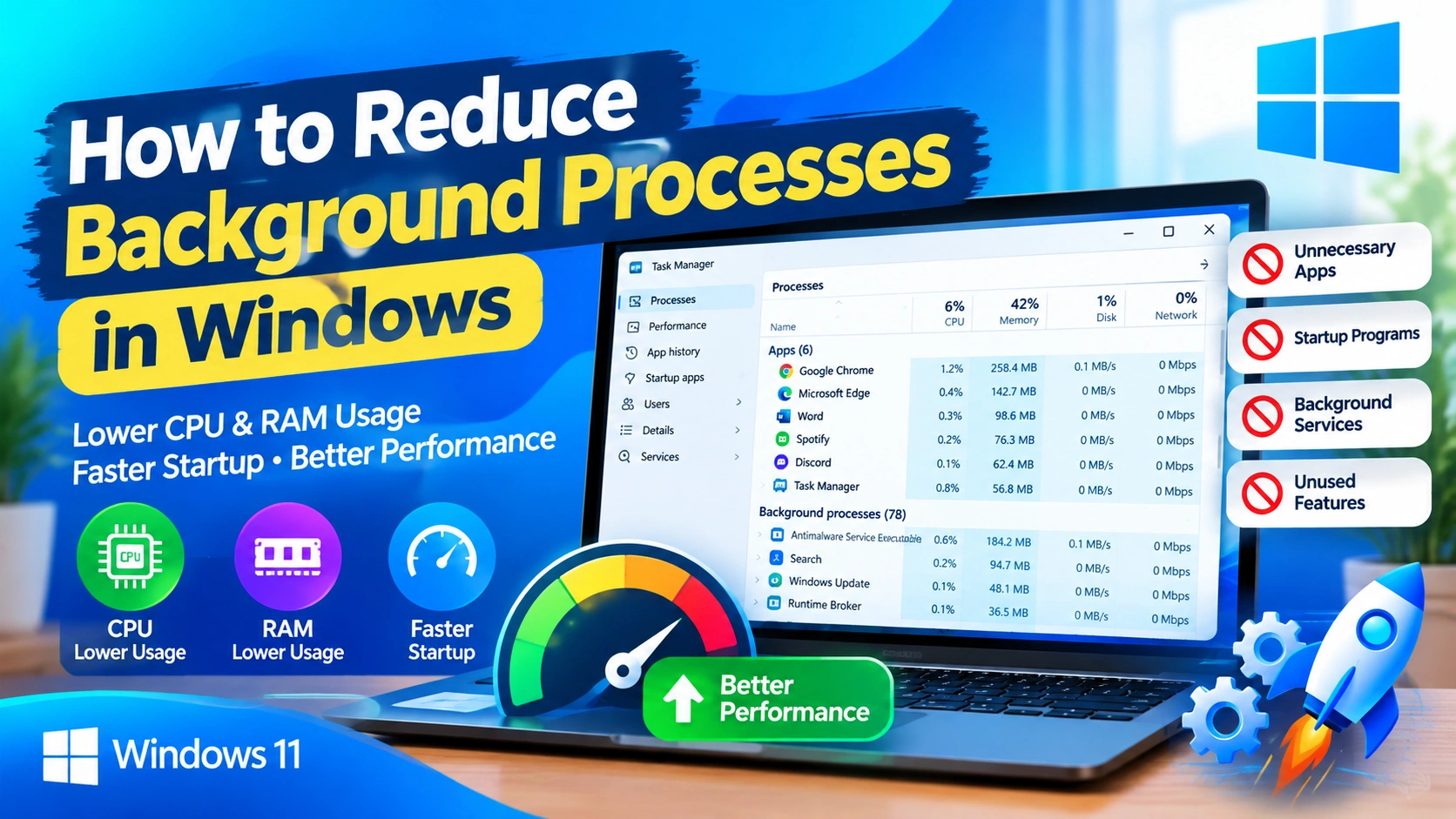
Too many background processes can consume valuable CPU, RAM, disk, and network resources, making Windows feel slower than usual. While many background processes are essential for Windows and installed applications, unnecessary programs can run continuously even when you are not using them.
If your computer takes a long time to start, applications respond slowly, or Task Manager shows unusually high resource usage, reducing unnecessary background activity can help improve overall system responsiveness.
This guide explains safe and practical ways to reduce background processes in Windows without disabling important system components.
What Are Background Processes in Windows?
Background processes are programs and services that operate without requiring an active window on your desktop.
For example, Windows may run background processes for:
- Security and antivirus protection
- Windows Update
- Cloud synchronization
- Hardware drivers
- Software updates
- Search indexing
- Notifications
- Printer utilities
- Gaming services
- Communication applications
Some background activity is necessary. The goal is not to eliminate every process but to reduce unnecessary applications that consume resources.
Why Reduce Background Processes?
Reducing unnecessary background processes can provide several benefits, especially on computers with limited hardware.
You may notice:
- Faster Windows startup
- Lower RAM usage
- Reduced CPU activity
- Less disk usage
- Better application responsiveness
- Improved gaming performance
- Fewer unnecessary notifications
- Longer battery life on laptops
- More resources available for demanding applications
However, closing or disabling the wrong process can cause software or Windows features to stop working. Always identify a process before disabling it.
1. Check Background Processes in Task Manager
Windows Task Manager is the best place to start because it shows which applications and processes are consuming system resources.
Press Ctrl + Shift + Esc to open Task Manager.
If Task Manager opens in its compact view, click More details.
Select the Processes tab and examine the following columns:
- CPU
- Memory
- Disk
- Network
- GPU
Click a column heading to sort processes by resource usage.
For example, click Memory to find applications using the most RAM.
Identify Unnecessary Applications
Look for programs that:
- You are not currently using
- Start automatically with Windows
- Consume significant resources
- Run duplicate background services
- Belong to software you rarely use
Do not automatically terminate processes simply because they use CPU or memory. Some Windows processes are essential for system operation.
2. Close Apps You Are Not Using
One of the simplest ways to reduce background activity is to close applications that are no longer needed.
Common examples include:
- Web browsers with many tabs
- Microsoft Teams
- Discord
- Cloud storage applications
- Game launchers
- Media applications
- Creative software
- Software update utilities
Before closing an application through Task Manager, try closing it normally.
Some applications remain active after their main window is closed. Check the notification area near the Windows clock and exit applications you do not need.
3. Disable Unnecessary Startup Apps
Many applications automatically launch when Windows starts. These programs can increase startup time and continue running in the background.
Open Task Manager and select Startup apps.
Review the list and check the Startup impact column.
If an application is unnecessary at startup:
- Select the application.
- Click Disable.
- Restart Windows.
Examples of applications that may not need to start automatically include:
- Music players
- Game launchers
- Messaging applications
- Update managers
- Manufacturer utilities
- Cloud applications you rarely use
Avoid disabling security software, hardware utilities, or components you do not recognize.
4. Disable Background App Permissions
Windows allows some applications to perform activities in the background even when you are not actively using them.
Depending on your Windows version and application type, background activity can be controlled through Windows settings.
Open Settings and go to Apps > Installed apps.
Find the application you want to control.
Select its Advanced options if available.
Look for Background apps permissions and select an appropriate option, such as Never.
Not every application provides this setting. Traditional desktop applications may manage background activity differently.
5. Remove Applications You No Longer Use
Unused applications can install services, scheduled tasks, update processes, and startup components.
Removing software you no longer need can therefore reduce unnecessary background activity.
Go to:
Settings > Apps > Installed apps
Review the installed applications and uninstall programs you no longer use.
Pay particular attention to:
- Old software
- Trial applications
- Duplicate utilities
- Unused game launchers
- Old printer software
- Browser extensions with desktop components
- Manufacturer utilities you do not need
Do not uninstall drivers or system components simply because you do not recognize their names.
6. Reduce Browser Background Activity
Web browsers can consume significant memory and CPU resources.
If your browser has dozens of open tabs, extensions, and background applications, it may remain active even after you close a browser window.
Review your browser settings for options related to:
- Background apps
- Startup behavior
- Memory saving
- Sleeping tabs
- Extensions
Remove extensions that you no longer use.
A browser with fewer active tabs and extensions generally requires fewer system resources.
7. Control Cloud Storage Applications
Cloud synchronization programs can continuously use CPU, RAM, disk, and network resources.
Examples include cloud storage clients used to synchronize files between your PC and online storage.
If you do not need continuous synchronization, consider pausing synchronization temporarily or changing which folders are synchronized.
This can be especially useful when:
- Installing large applications
- Playing games
- Editing videos
- Copying large files
- Using an older hard drive
Avoid completely disabling synchronization if you rely on it for important backups or file access.
8. Reduce Unnecessary Windows Services Carefully
Windows Services control many background functions.
Press Windows + R, type:
services.msc
and press Enter.
You will see a large list of services.
However, do not randomly disable Windows services.
A service that appears unnecessary may be required by another Windows feature or application.
Before changing a service, research its exact function and determine whether you actually need it.
If a service belongs to third-party software that you have completely removed, it may be worth investigating. For important Microsoft services, use extra caution.
9. Turn Off Unnecessary Notifications
Notifications themselves usually do not consume large amounts of resources, but applications that constantly run to generate notifications can contribute to background activity.
Go to:
Settings > System > Notifications
Review applications that are allowed to send notifications.
Disable notifications from applications you do not need.
This can also reduce interruptions while you work or play games.
10. Reduce Unnecessary Synchronization
Windows and applications may synchronize settings, files, accounts, and other information in the background.
Review synchronization features you do not use.
For example, you may be able to reduce activity from:
- Cloud file synchronization
- Browser synchronization
- Unused email accounts
- Third-party backup applications
- Manufacturer utilities
Do not disable synchronization that protects important files or settings unless you have another backup method.
11. Check for Resource-Hungry Applications
Sometimes one application is responsible for most of the background activity.
Open Task Manager and monitor CPU, memory, disk, and network usage.
For example:
High CPU usage:
Look for applications performing calculations, scans, updates, or other intensive tasks.
High memory usage:
Look for browsers, games, editing software, and applications with many active components.
High disk usage:
Look for Windows updates, antivirus scans, indexing, synchronization, or file-heavy applications.
High network usage:
Look for downloads, cloud synchronization, streaming, or application updates.
Identifying the source is usually more effective than blindly closing processes.
12. Keep Windows and Drivers Updated
Reducing background processes is not only about disabling programs.
Software updates can also improve performance, stability, and resource management.
Open:
Settings > Windows Update
and check for available updates.
Also keep important hardware drivers updated when appropriate, particularly graphics, chipset, network, and storage-related drivers.
Avoid downloading drivers from unknown websites. Use Windows Update or the hardware manufacturer’s official support site whenever possible.
13. Run a Malware Scan
Unexpected background processes can sometimes be caused by unwanted or malicious software.
If you notice unexplained CPU, memory, disk, or network activity, perform a security scan.
Open Windows Security and select:
Virus & threat protection
Run a scan and follow Microsoft’s recommendations if threats are detected.
Be especially cautious if an unfamiliar process repeatedly launches after you terminate it.
14. Restart Windows Regularly
A simple restart can clear temporary processes and refresh system resources.
If your computer has been running for a long time and gradually becomes less responsive, restart Windows before making aggressive configuration changes.
Restarting can also complete pending updates and resolve temporary application problems.
15. Upgrade Hardware if Background Activity Is Not the Real Problem
Sometimes background processes are not the primary cause of poor performance.
For example, a computer with only a small amount of RAM may struggle with modern applications even when background activity is minimal.
Hardware upgrades may provide a larger improvement when appropriate.
Consider:
- Adding more RAM
- Replacing an HDD with an SSD
- Upgrading an older storage drive
- Improving cooling
- Replacing aging hardware
Before purchasing anything, identify the actual performance bottleneck using Task Manager or another reliable monitoring tool.
What Windows Processes Should You Avoid Disabling?
Some processes are closely associated with core Windows functionality.
Be cautious when dealing with processes related to:
- Windows Security
- Windows Update
- Desktop Window Manager
- Windows Explorer
- System services
- Hardware drivers
- Networking
- Audio
- Input devices
If you do not know what a process does, search for its exact name before ending or disabling it.
The name alone is not always enough to determine whether a process is safe to stop.
How to Find the Cause of High Resource Usage
If your PC is slow, follow this simple process:
Step 1: Open Task Manager
Press Ctrl + Shift + Esc.
Step 2: Check CPU Usage
Sort processes by CPU usage.
Step 3: Check Memory Usage
Sort the list by Memory and identify applications using excessive RAM.
Step 4: Check Disk Usage
Look for applications continuously accessing the storage drive.
Step 5: Check Startup Apps
Disable unnecessary applications that automatically launch with Windows.
Step 6: Restart the Computer
Restart Windows and check whether the resource usage improves.
This approach is safer than disabling random Windows services.
Common Mistakes to Avoid
Reducing background processes can improve performance, but aggressive changes can create new problems.
Avoid these mistakes:
Disabling Every Startup Program
Not every startup application is unnecessary. Security software and hardware utilities may need to start with Windows.
Ending Unknown Windows Processes
A process that looks unfamiliar may be an important Windows component.
Disabling Services Randomly
Changing service settings without understanding their purpose can break Windows features.
Using Registry Cleaners
Registry-cleaning utilities generally are not necessary for routine Windows performance maintenance and can create additional problems when used improperly.
Installing Multiple Optimization Programs
Several “PC optimizer” applications running simultaneously can actually increase background activity.
Ignoring Malware
If an unfamiliar process repeatedly returns, investigate its source rather than continually terminating it.
Best Way to Reduce Background Processes
For most users, the safest approach is:
- Check Task Manager.
- Identify applications using excessive resources.
- Close applications you are not using.
- Disable unnecessary startup programs.
- Remove software you no longer need.
- Reduce unnecessary synchronization.
- Review background permissions where available.
- Scan for malware if activity seems suspicious.
- Keep Windows and drivers updated.
- Restart Windows and monitor performance again.
The goal is not to make Task Manager show as few processes as possible. Windows naturally requires many processes to provide security, networking, graphics, updates, and other features.
Instead, focus on removing unnecessary third-party activity while leaving essential Windows components alone.
Frequently Asked Questions
Does having many background processes slow down Windows?
Not necessarily. Windows normally runs many background processes, and the number of processes alone does not determine performance. CPU, RAM, disk, and network usage are more useful indicators.
How do I stop unnecessary processes?
Open Task Manager, identify the application consuming resources, and close it if you do not need it. For applications that start automatically, use the Startup apps section to prevent them from launching with Windows.
Is it safe to end background processes?
It depends on the process. Closing a normal application is usually safe, but terminating an essential Windows process can cause instability or make certain features stop working.
Should I disable Windows services to improve performance?
Usually, no. Disabling services without understanding their purpose can cause problems. Start with unnecessary startup applications and unused software instead.
How can I reduce RAM usage in Windows?
Close applications you are not using, reduce browser tabs and extensions, disable unnecessary startup programs, uninstall unused software, and identify applications that consistently consume large amounts of memory.
Why does Task Manager always show many processes?
Modern Windows installations use many separate processes for security, system components, drivers, applications, and background services. A large process count is not automatically a problem.
Final Thoughts
Reducing unnecessary background processes can make Windows feel faster and more responsive, particularly on computers with limited RAM or older hardware. The safest strategy is to identify which applications are actually consuming resources instead of trying to eliminate as many processes as possible.
Start with Task Manager, review startup applications, uninstall software you no longer use, control unnecessary synchronization, and investigate unusually high resource usage. These steps can improve performance while keeping essential Windows functions intact.