

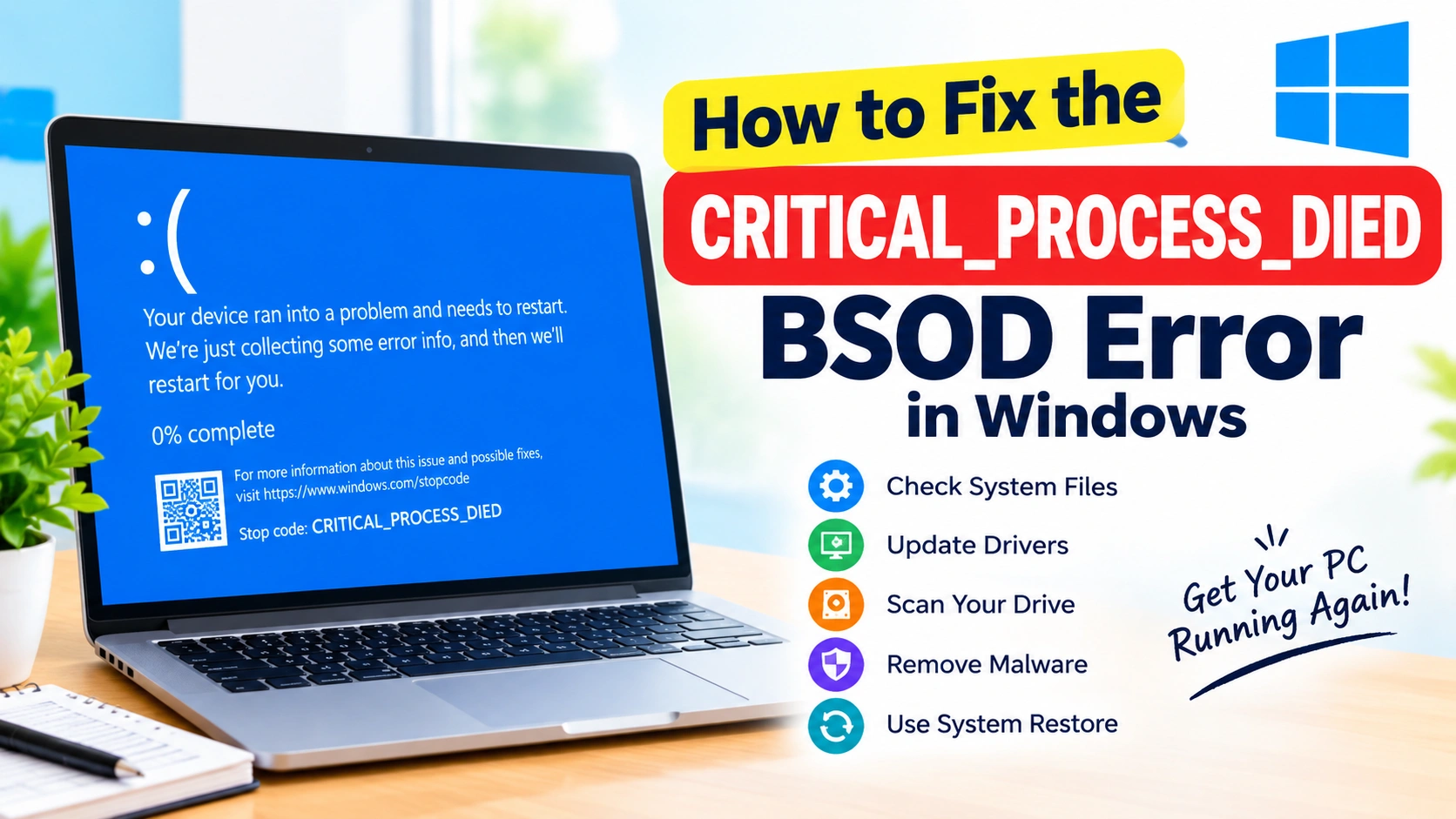
The CRITICAL_PROCESS_DIED BSOD error is a serious Windows stop error that can cause your computer to suddenly restart, freeze, or display a blue screen. The error usually appears with the stop code CRITICAL_PROCESS_DIED and indicates that an essential Windows process has unexpectedly stopped working.
This problem can be caused by corrupted system files, faulty drivers, problematic Windows updates, disk errors, malware, or hardware problems. Fortunately, you can often resolve the issue without reinstalling Windows.
In this guide, you’ll learn practical ways to fix the CRITICAL_PROCESS_DIED BSOD error and prevent it from returning.
What Is the CRITICAL_PROCESS_DIED Error?
Windows relies on numerous background processes to keep the operating system running. Some of these processes are essential to system stability.
When an important system process terminates unexpectedly, Windows may stop the computer to protect the system. This results in a Blue Screen of Death (BSOD) and the stop code:
CRITICAL_PROCESS_DIED
The error may occur during startup, while using applications, after installing a driver, or seemingly at random.
Common Causes of CRITICAL_PROCESS_DIED
Several issues can trigger this BSOD, including:
- Corrupted or missing Windows system files
- Outdated or incompatible device drivers
- Failed Windows updates
- Damaged hard drive or SSD sectors
- File system errors
- Malware or unwanted software
- Faulty RAM
- Recently installed applications or drivers
- Overclocking or unstable hardware settings
- Problems with Windows startup components
Identifying what changed shortly before the error appeared can help narrow down the cause.
Before You Start: Back Up Important Files
If Windows still starts normally, back up important documents, photos, and other personal files before performing advanced troubleshooting.
Repeated blue screens can sometimes indicate a developing storage or hardware problem. Having a backup protects your data if the problem becomes worse.
1. Restart Your Computer
Start with the simplest solution.
A temporary Windows or driver problem can occasionally trigger a single BSOD. Restart your PC and check whether the error returns.
If the computer continues working normally, monitor it for a while. If CRITICAL_PROCESS_DIED appears again, continue with the troubleshooting steps below.
2. Boot Windows Into Safe Mode
Safe Mode starts Windows with a limited set of drivers and services. This can help determine whether a third-party driver or application is responsible.
If you can reach Windows:
- Open Settings.
- Select System.
- Choose Recovery.
- Find Advanced startup.
- Select Restart now.
- Choose Troubleshoot.
- Select Advanced options.
- Choose Startup Settings.
- Click Restart.
- Press the key for Enable Safe Mode.
If the computer works correctly in Safe Mode but crashes during normal startup, a recently installed driver, service, or application may be involved.
3. Run System File Checker
Corrupted Windows files are a common reason for system instability.
System File Checker can scan protected Windows files and replace damaged versions when possible.
Open Command Prompt as administrator and run:
sfc /scannow
Wait for the scan to finish. The process can take several minutes.
If Windows reports that corrupted files were repaired, restart your computer and check whether the BSOD returns.
4. Use DISM to Repair the Windows Image
If SFC cannot repair the corrupted files, use the Deployment Image Servicing and Management (DISM) tool.
Open an elevated Command Prompt and enter:
DISM /Online /Cleanup-Image /RestoreHealth
Allow the command to complete. When it finishes, restart Windows.
You can then run SFC again:
sfc /scannow
Using DISM before SFC can help repair the underlying Windows component store that SFC relies on.
5. Check Your Drive for Errors
Storage problems can cause corrupted files and Windows crashes.
Windows includes the Check Disk utility for finding and repairing file-system problems.
Open Command Prompt as administrator and run:
chkdsk C: /f
If Windows says the drive is currently being used, it may ask whether you want to schedule the scan for the next restart.
Type:
Y
Then restart your computer.
For a deeper scan that checks for bad sectors, you can use:
chkdsk C: /f /r
Keep in mind that the /r scan can take considerably longer, particularly on large drives.
6. Update or Roll Back Problematic Drivers
A faulty driver can cause Windows to crash at a low system level.
Pay particular attention to drivers for:
- Graphics cards
- Storage controllers
- Chipsets
- Network adapters
- Motherboards
To check drivers:
- Right-click the Start button.
- Open Device Manager.
- Look for devices showing warning symbols.
- Right-click a recently updated device.
- Choose Properties.
- Open the Driver tab.
If the BSOD started immediately after a driver update, the Roll Back Driver option may be useful.
For other devices, install drivers from the hardware manufacturer’s official website whenever possible.
7. Remove Recently Installed Drivers or Software
Think about what changed immediately before the blue screen started.
For example, you may have recently:
- Installed a new driver
- Added antivirus software
- Installed a system utility
- Installed a hardware-management application
- Updated a graphics driver
- Added a disk-management tool
If the timing matches the beginning of the crashes, temporarily uninstalling the recent software can help identify the cause.
Restart Windows after removing the software and see whether the problem continues.
8. Install Pending Windows Updates
Windows updates can include fixes for system stability and driver compatibility.
Open:
Settings > Windows Update
Check for available updates and install them.
Restart your computer afterward.
If the problem started immediately after a particular Windows update, however, you may need to consider uninstalling that update instead.
9. Uninstall a Recent Windows Update
If the BSOD began shortly after Windows installed an update, reverting that update may help determine whether it caused the problem.
Go to:
Settings > Windows Update > Update history
Look for recently installed updates and review the available uninstall options.
This should generally be considered a troubleshooting step rather than a permanent solution. Keeping Windows updated is important, so investigate alternative fixes if removing the update resolves the crash.
10. Scan Windows for Malware
Malware can modify system files, interfere with Windows processes, or install unstable drivers.
Run a scan using Windows Security:
- Open Windows Security.
- Select Virus & threat protection.
- Choose Scan options.
- Start a Full scan.
If you suspect a particularly persistent infection, Windows Security also provides additional scanning options.
Avoid installing multiple antivirus programs that provide real-time protection simultaneously, as they can interfere with each other.
11. Check Your RAM
Faulty memory can cause unpredictable crashes, corrupted data, and BSOD errors.
Windows includes a built-in memory diagnostic tool.
Press Windows + R, type:
mdsched.exe
Press Enter and choose the option to restart and check for memory problems.
Allow the diagnostic to complete.
If memory errors are detected, test the RAM modules individually if your computer configuration allows it. For desktops with removable memory, reseating the modules can also help identify a poor connection.
12. Disable Overclocking
Overclocking can improve performance, but unstable settings may cause system crashes.
If you recently changed CPU, GPU, or RAM settings, return the hardware to its default configuration.
This includes settings controlled through:
- BIOS/UEFI
- GPU tuning software
- CPU utilities
- RAM overclocking profiles
After restoring default settings, use the computer normally and check whether the BSOD disappears.
13. Use System Restore
If the problem appeared recently, System Restore may allow you to return Windows to an earlier configuration.
Search Windows for:
Create a restore point
Then open System Restore and select an available restore point created before the crashes began.
System Restore generally affects system files, drivers, and installed applications rather than personal documents, but you should still review the changes before confirming the restoration.
14. Check Windows Startup Problems
If Windows crashes before you can reach the desktop, use the Windows Recovery Environment.
You can access it through:
Troubleshoot > Advanced options
Depending on your situation, useful options may include:
- Startup Repair
- System Restore
- Uninstall Updates
- Startup Settings
- Command Prompt
Startup Repair is particularly useful when damaged startup components prevent Windows from loading normally.
15. Analyze the BSOD Minidump
Advanced users can investigate Windows crash dump files to identify the component involved in the crash.
Windows may save small memory dump files in:
C:\Windows\Minidump
A crash-analysis utility can help identify the driver or module associated with the crash.
Look for patterns across multiple crash reports rather than assuming that one displayed driver name is automatically the root cause. A driver can sometimes appear in a crash because it was affected by another underlying problem.
16. Disconnect Recently Added Hardware
New hardware can sometimes introduce driver conflicts or compatibility problems.
If the BSOD began after adding a device, temporarily disconnect it and restart Windows.
Examples include:
- USB devices
- Expansion cards
- External storage
- New Wi-Fi adapters
- Docking stations
- Recently installed internal hardware
If removing the hardware stops the crashes, check for updated drivers and compatibility information from the manufacturer.
17. Reset Windows as a Last Resort
If system files, drivers, updates, and hardware checks do not resolve the problem, Windows’ reset options can provide a fresh installation environment.
Before using Reset this PC:
- Back up important files.
- Make sure you have access to your account credentials.
- Check which applications will be removed.
- Confirm that important files are stored somewhere safe.
Windows provides options that can preserve personal files while removing applications and resetting system components, depending on the selected recovery configuration.
What to Do If CRITICAL_PROCESS_DIED Keeps Returning
If the BSOD continues after software troubleshooting, consider the possibility of a hardware problem.
Potential areas to investigate include:
- RAM
- SSD or hard drive
- Motherboard
- Power supply
- CPU stability
- Storage-controller problems
Pay attention to other symptoms such as file corruption, unusually slow disk performance, application crashes, boot failures, or multiple different BSOD codes.
A pattern of different stop codes can sometimes indicate a broader hardware or system-integrity problem rather than one specific Windows component.
How to Prevent CRITICAL_PROCESS_DIED in the Future
You can reduce the likelihood of recurring system crashes by following a few maintenance habits:
- Keep Windows updated.
- Install drivers from trusted sources.
- Avoid questionable system-optimization utilities.
- Scan regularly for malware.
- Monitor the health of your storage drives.
- Keep important files backed up.
- Avoid unstable overclocking settings.
- Don’t interrupt Windows updates while they are installing.
- Remove software you no longer need.
- Investigate recurring crashes instead of repeatedly restarting the PC.
Frequently Asked Questions
What does CRITICAL_PROCESS_DIED mean?
CRITICAL_PROCESS_DIED is a Windows stop error that occurs when an important system process unexpectedly terminates. Windows displays a BSOD to prevent further system operation while the problem is handled.
Can corrupted system files cause CRITICAL_PROCESS_DIED?
Yes. Damaged or missing Windows system files can contribute to system instability. Running SFC and DISM can help detect and repair Windows component problems.
Can a bad driver cause this BSOD?
Yes. An incompatible, corrupted, or unstable driver can cause serious Windows crashes. Recently updated graphics, storage, chipset, and network drivers are worth investigating.
How do I fix CRITICAL_PROCESS_DIED if Windows won’t start?
Use the Windows Recovery Environment and try options such as Startup Repair, Safe Mode, System Restore, or uninstalling a recently installed update.
Does CRITICAL_PROCESS_DIED mean my hard drive is failing?
Not necessarily. Storage errors are one possible cause, but the BSOD can also result from corrupted system files, drivers, updates, malware, or faulty RAM.
Will resetting Windows fix CRITICAL_PROCESS_DIED?
A Windows reset can resolve software-related causes by restoring system components to a fresh configuration. However, it may not fix a failing SSD, RAM, motherboard, or other hardware problem.
Final Thoughts
The CRITICAL_PROCESS_DIED BSOD error can look alarming, but it does not automatically mean that your computer is permanently damaged. Start with straightforward solutions such as restarting Windows, checking system files, scanning the drive, and reviewing recent driver or software changes.
If the problem persists, investigate Windows updates, RAM, storage health, startup problems, and recently installed hardware. Taking a systematic approach can help identify whether the underlying cause is software, Windows corruption, a driver conflict, or hardware instability.
Most importantly, back up your important files before performing major repairs. A reliable backup gives you a safety net while you work through the troubleshooting process.