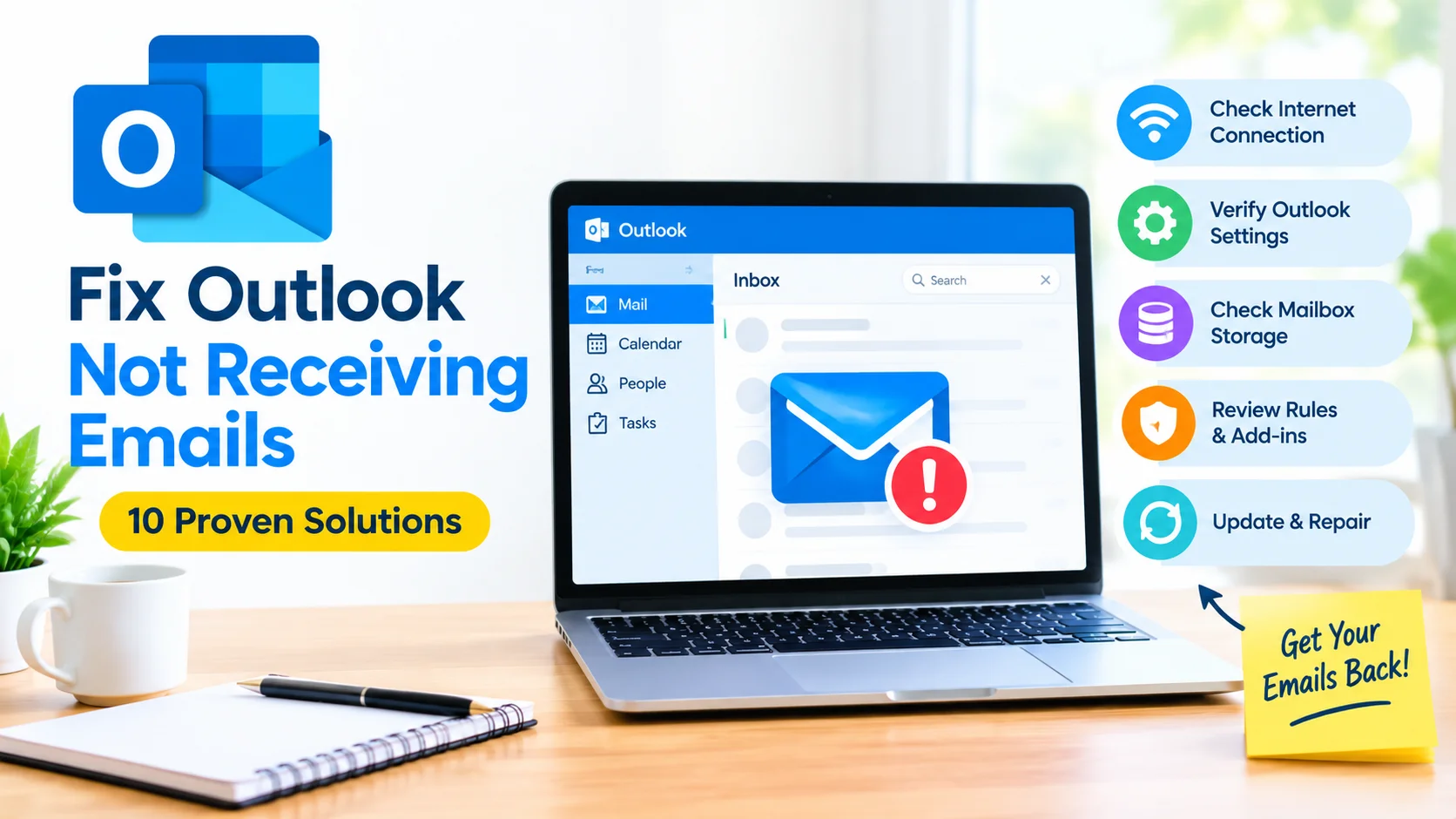
If Outlook is not receiving emails, the problem may be caused by an incorrect internet connection, a full mailbox, offline mode, synchronization errors, account settings, or a temporary issue with the mail server. Fortunately, most Outlook email problems can be resolved with a few straightforward troubleshooting steps.
This guide explains how to fix Outlook not receiving emails on a Windows PC and restore normal email synchronization.
Why Is Outlook Not Receiving Emails?
Before changing settings, it helps to identify the possible cause. Common reasons include:
- Outlook is offline or disconnected.
- Your internet connection is unstable.
- The Outlook mailbox is full.
- Emails are being redirected to another folder.
- Outlook is not synchronizing correctly.
- Incorrect account settings are preventing mail delivery.
- Outlook add-ins are interfering with normal operation.
- A corrupted Outlook profile is causing synchronization problems.
- The email server is temporarily unavailable.
- Outlook or Microsoft 365 needs an update.
Try the following solutions in order.
1. Check Your Internet Connection
Outlook requires an active internet connection to synchronize messages with your email server.
Open a web browser and visit a few websites. If other websites also fail to load, troubleshoot your network connection first.
You can also restart your Wi-Fi router or switch temporarily to another network.
Once your internet connection is working, reopen Outlook and check whether new messages appear.
2. Check Whether Outlook Is Offline
Outlook can be switched to offline mode, preventing it from downloading new emails.
To check:
- Open Outlook.
- Look at the status area near the bottom of the window.
- Check whether it says Working Offline or Disconnected.
- Open the Send/Receive tab.
- Disable Work Offline if it is enabled.
- Click Send/Receive All Folders.
Wait a few moments and check your Inbox again.
3. Manually Send and Receive Emails
Sometimes automatic synchronization stops working while Outlook itself continues running normally.
To manually synchronize your mailbox:
- Open Outlook.
- Select Send/Receive.
- Click Send/Receive All Folders.
- Wait for the synchronization process to finish.
- Check your Inbox.
If messages arrive after manually synchronizing, the problem may be related to automatic send/receive settings.
4. Check Your Mailbox Storage
A full mailbox can prevent new messages from being delivered.
If you’re using a Microsoft account, Microsoft 365 account, Exchange account, or another email provider, check the available mailbox storage.
Delete unnecessary:
- Emails with large attachments
- Sent messages
- Deleted messages
- Spam or junk messages
- Old newsletters
After freeing up space, empty the Deleted Items folder if necessary and allow Outlook time to synchronize.
5. Check the Junk Email Folder
The missing message may have been delivered successfully but automatically classified as junk.
In Outlook:
- Open the Junk Email folder.
- Search for the missing message.
- If you find it, right-click the message.
- Select the appropriate option to mark it as Not Junk.
If legitimate messages repeatedly go to Junk Email, review your Outlook junk email and blocked sender settings.
6. Search All Outlook Folders
The message may exist somewhere in Outlook but not appear in the Inbox.
Use Outlook’s search feature to search for:
- The sender’s email address
- The subject
- A keyword from the message
- A date range
Also check folders such as:
- Archive
- Deleted Items
- Junk Email
- Sent Items
- Other
- Custom folders
This is particularly useful if Outlook’s rules are automatically moving incoming messages.
7. Check Outlook Rules
Outlook rules can automatically move, delete, forward, or categorize incoming messages.
To review your rules:
- Open Outlook.
- Go to Settings or Rules, depending on your Outlook version.
- Review the rules that process incoming messages.
- Look for rules that move emails away from the Inbox.
- Temporarily disable suspicious rules.
- Send yourself a test email.
If the test message appears in the Inbox after disabling a rule, that rule may be responsible for the problem.
8. Restart Outlook
A simple restart can resolve temporary synchronization problems.
Close Outlook completely and wait several seconds. Then open it again and allow the application to synchronize.
If Outlook remains stuck, restart Windows and try again.
You can also check Task Manager to make sure Outlook has completely closed before restarting it.
9. Disable Problematic Outlook Add-ins
Third-party add-ins can sometimes interfere with Outlook functionality.
To test whether an add-in is causing the issue, start Outlook in Safe Mode.
Press Windows + R, enter:
outlook.exe /safeand press Enter.
If Outlook receives emails normally in Safe Mode, an add-in may be causing the problem.
You can then disable unnecessary add-ins and restart Outlook normally.
10. Repair Your Outlook Profile
If Outlook still does not receive emails, your Outlook profile may have synchronization problems.
Depending on your Outlook version and account type, you may need to create a new Outlook profile or reconnect the account.
Before removing an existing profile, make sure important locally stored data is backed up and that you know your email account credentials.
After creating a new profile, add your account and allow Outlook to synchronize your mailbox.
Check Your Email Account Outside Outlook
Another useful troubleshooting step is to sign in to your email account using its webmail service.
For example, if you use an Outlook.com or Microsoft 365 account, open the corresponding webmail interface and check your Inbox.
If new messages appear in webmail but not in Outlook, the problem is likely related to the Outlook application, profile, or synchronization.
If messages do not appear in webmail either, the problem may involve the account, mailbox, sender, filtering, or email service.
Update Outlook and Windows
Outdated software can sometimes cause compatibility and synchronization problems.
Check for available updates for:
- Microsoft Outlook
- Microsoft 365
- Windows
- Microsoft Office components
After installing updates, restart your computer and test Outlook again.
Repair Microsoft 365 or Office
If Outlook continues to malfunction, repairing Microsoft 365 or Office may help.
Windows provides repair options for installed Office applications. Start with the less disruptive repair option and test Outlook afterward.
If that does not solve the problem, an online repair may be available, although it can take longer and may require additional setup.
What to Do If Outlook Still Does Not Receive Emails
If none of the solutions above works, determine whether the problem affects one account or multiple accounts.
For example:
- One account affected: Check account configuration, mailbox storage, rules, and profile settings.
- Multiple accounts affected: Check Outlook itself, internet connectivity, add-ins, updates, and Office installation.
- Webmail works but Outlook doesn’t: Focus on Outlook synchronization, profile, and application issues.
- Webmail also doesn’t receive messages: Check the email provider, mailbox status, filtering, and server-side settings.
This approach can help narrow down the source of the problem without making unnecessary changes.
Frequently Asked Questions
Why is Outlook not receiving new emails?
Common causes include an offline connection, synchronization problems, a full mailbox, incorrect rules, account issues, or temporary server problems.
Why does Outlook receive emails late?
Delayed emails can result from synchronization intervals, connection problems, Outlook being offline, server delays, or application issues.
How do I force Outlook to receive emails?
Open Outlook and select Send/Receive > Send/Receive All Folders. This manually starts synchronization.
Why are emails going to Junk instead of my Inbox?
Outlook’s junk email filtering, blocked senders, or email rules may be moving legitimate messages. Check your Junk Email folder and filtering settings.
Should I reinstall Outlook if it is not receiving emails?
Reinstalling Outlook is usually not the first step. Try checking connectivity, synchronization, mailbox storage, rules, add-ins, account settings, and the Outlook profile first.
Final Thoughts
When Outlook is not receiving emails, start with simple checks such as your internet connection, Outlook’s online status, mailbox storage, and Junk Email folder. If those do not resolve the issue, manually synchronize Outlook, review rules and add-ins, repair the Outlook profile, and update Microsoft 365 or Windows.
Testing the account through webmail is also an effective way to determine whether the problem comes from Outlook itself or the email service.