Knowing how to check your Microsoft Office version can help you determine which features, updates, and security improvements are available on your computer. It is also useful when troubleshooting Office problems, checking software compatibility, or deciding whether you need to upgrade.
Microsoft Office has been released in several versions, including Microsoft 365, Office 2024, Office 2021, Office 2019, and older editions. The steps for finding your version are straightforward and usually take less than a minute.
Why Check Your Microsoft Office Version?
Your Office version can affect compatibility, available features, and update options. Before installing an Office add-in or following a troubleshooting guide, it is useful to know exactly which edition you have.
Checking your Office version can help you:
- Identify whether you use Microsoft 365 or a one-time Office purchase.
- Find your Office version and build number.
- Check whether your software is up to date.
- Troubleshoot Word, Excel, or PowerPoint problems.
- Confirm compatibility with Office files and add-ins.
- Determine whether your Office edition is still supported.
How to Check Your Microsoft Office Version
You can check the installed Office version directly from Word, Excel, PowerPoint, or another Office application.
Step 1: Open an Office Application
Open Microsoft Word, Excel, or PowerPoint from the Start menu.
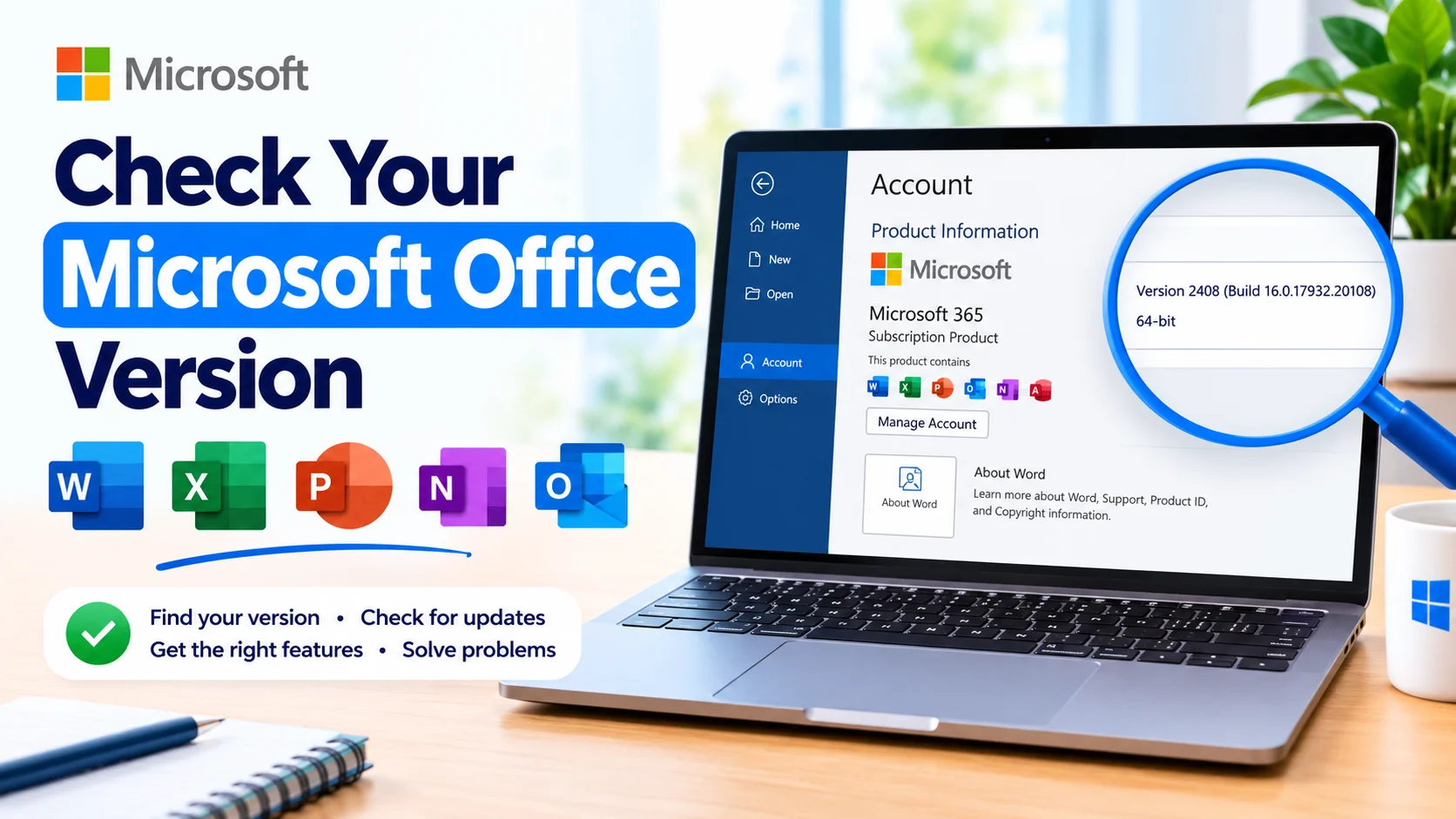
Step 2: Open the Account Page
In Word or Excel, click File in the upper-left corner.
Select Account from the left-hand menu.
Depending on your Office edition, this section may be called Office Account.
Step 3: Find Product Information
Look under Product Information.
You should see information such as:
- Microsoft 365
- Microsoft Office Home and Business
- Microsoft Office Professional
- Office 2024
- Office 2021
- Office 2019
This tells you which Office product is installed.
Step 4: Check the Version and Build Number
Look for About Word, About Excel, or a similar option.
Click it to display detailed information about the application.
You may see information similar to:
Microsoft Word for Microsoft 365 MSO (Version 2609 Build 16.0.xxxxx.xxxxx) 64-bit
The version and build number can be especially useful when contacting technical support or troubleshooting an Office problem.
How to Check Whether Office Is 32-bit or 64-bit
The About window can also show whether your Office installation is 32-bit or 64-bit.
For example:
Microsoft Excel for Microsoft 365 MSO (64-bit)
This information is important when installing certain Office add-ins, extensions, or software that integrates with Microsoft Office.
How to Check Your Office Version From Windows
You can also find Office information through Windows settings, although the exact options may vary depending on your Windows version and Office installation method.
Open:
Settings → Apps → Installed apps
Search for Microsoft 365, Microsoft Office, or another Office product.
Select the application to view available information.
Keep in mind that Windows may not display the same detailed build information available inside an Office application.
How to Check for Office Updates
After checking your Office version, you may also want to make sure it is updated.
Open Word or Excel and go to:
File → Account
Under Product Information, look for Office Updates.
Select:
Update Options → Update Now
If the option is available, Office will check for and install available updates.
If you do not see Update Options, your organization may manage Office updates, or your installation may use a different update system.
Microsoft 365 vs. Traditional Office Versions
One important distinction is whether you have a Microsoft 365 subscription or a standalone Office edition.
Microsoft 365 is subscription-based and normally receives ongoing feature and security updates.
Office 2024, Office 2021, Office 2019, and other perpetual editions are purchased versions with their own support and update policies.
Checking the product name under File → Account can help you determine which type of Office installation you have.
What Is an Office Build Number?
The build number identifies a specific release of your Office software.
For example, an Office installation might display:
Version 2609 (Build 16.0.xxxxx.xxxxx)
A support technician may request this information when diagnosing a problem because two computers running the same major Office version can have different builds.
The build number can also help determine whether a particular bug fix or feature has reached your installation.
What to Do If You Cannot Find Your Office Version
If the normal Account page does not show the expected information, try opening another Office application such as Excel or PowerPoint.
You can also check Settings → Apps → Installed apps in Windows.
If Office was installed by an employer or school, some settings may be controlled by an administrator. In that situation, the available update and account options can differ from a personal installation.
Frequently Asked Questions
How do I check my Microsoft Office version?
Open Word or Excel, select File → Account, and look under Product Information. Select About Word or About Excel to see the detailed version and build number.
How can I tell if I have Microsoft 365?
Open an Office application and select File → Account. The Product Information section normally identifies whether your installation is Microsoft 365 or another Office edition.
How do I check if Office is 32-bit or 64-bit?
Go to File → Account and select About Word, About Excel, or the corresponding About option. The window normally displays whether Office is 32-bit or 64-bit.
Does checking my Office version change anything?
No. Viewing your Office version and build information does not change your documents, settings, or installation.
Why is my Office version important?
Your Office version can help determine available features, update options, compatibility, and which troubleshooting instructions apply to your installation.
Final Thoughts
Learning how to check your Microsoft Office version is a simple but useful troubleshooting step. The easiest method is to open Word, Excel, or PowerPoint and navigate to File → Account. From there, you can identify your Office edition and access detailed version, build, and architecture information.
Keep this information available when troubleshooting Office problems, installing compatible add-ins, or checking whether your software needs an update.