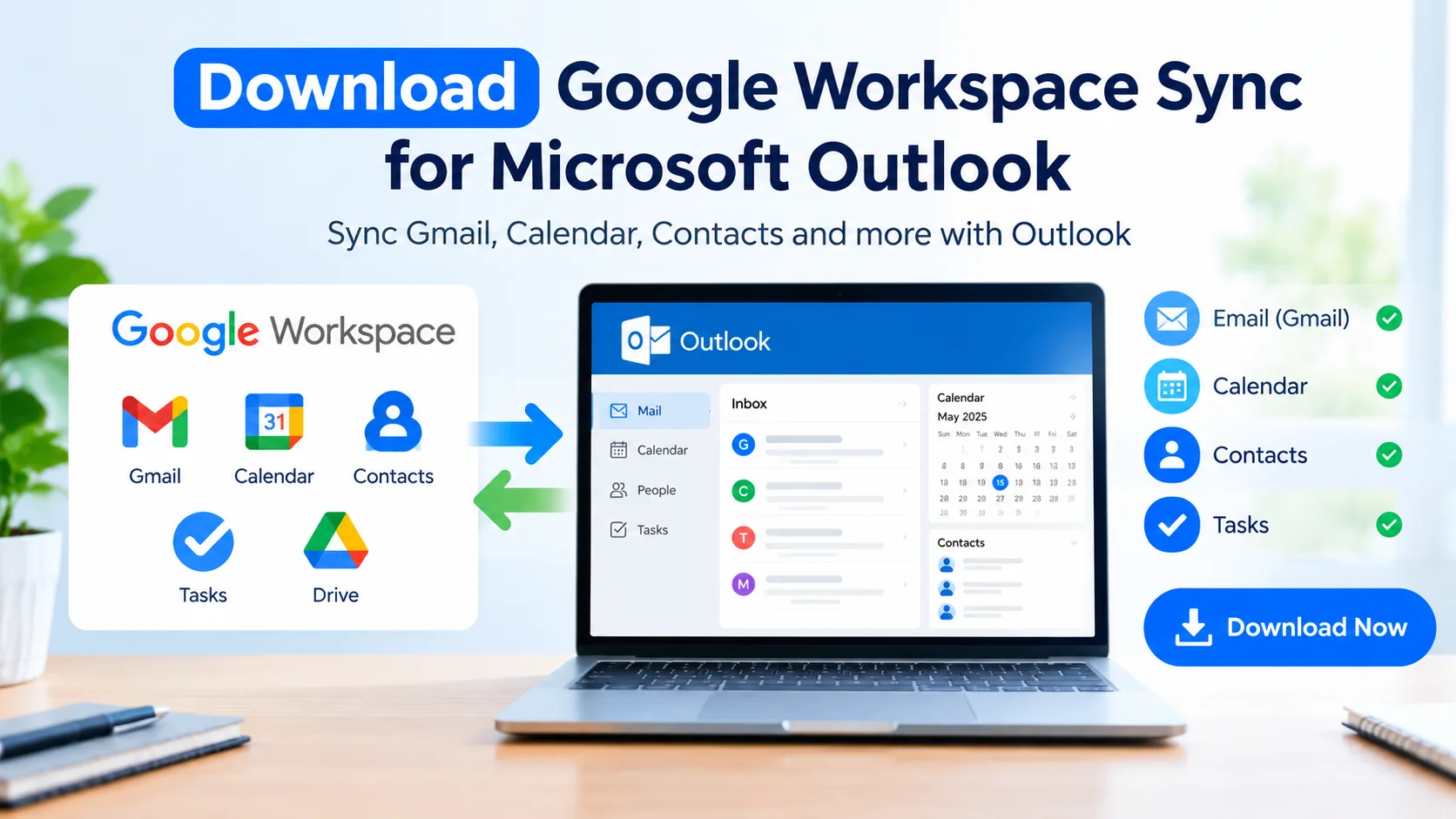
Download Google Workspace Sync for Microsoft Outlook is the first step for users who want to connect a Google Workspace account with Microsoft Outlook. Google Workspace Sync for Microsoft Outlook (GWSMO) helps synchronize supported Gmail, Google Calendar, Contacts, and other Google Workspace data with Outlook on Windows.
If you use Microsoft Outlook for email and productivity while your organization uses Google Workspace, GWSMO can provide a convenient way to work with Google services through the familiar Outlook interface.
What Is Google Workspace Sync for Microsoft Outlook?
Google Workspace Sync for Microsoft Outlook is a Google application designed for Google Workspace users who want to access supported Google services through Microsoft Outlook.
Depending on your organization’s configuration, GWSMO can synchronize:
- Gmail messages
- Google Calendar events
- Google Contacts
- Google Tasks
- Supported Google Workspace data
- Outlook profile information
It is primarily intended for Google Workspace accounts rather than standard personal Gmail accounts.
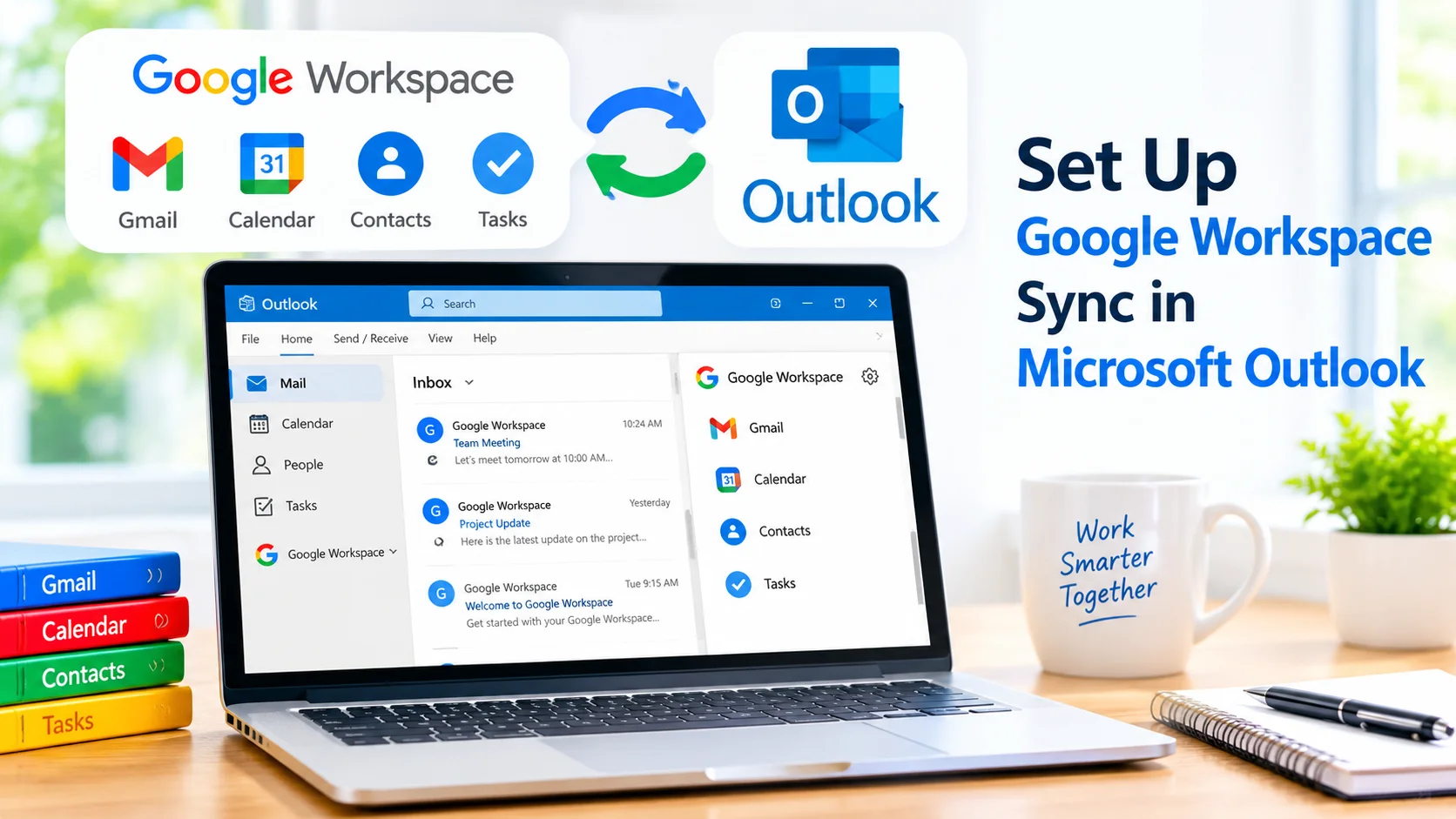
Learn how to use Google Workspace Sync in Microsoft Outlook to access Gmail, Calendar, Contacts, and other Google Workspace data with ease.
Download Google Workspace Sync for Microsoft Outlook
Before downloading GWSMO, make sure your Google Workspace administrator allows the application and that your account meets Google’s requirements.
The safest approach is to download the application from Google’s official website rather than from third-party download sites.
Google Workspace Sync for Microsoft Outlook official download page
Avoid downloading modified or repackaged versions of GWSMO because they may contain unwanted software or outdated components.
How to Download Google Workspace Sync for Microsoft Outlook
Follow these steps to download GWSMO:
1. Open the Official Google Download Page
Open Google’s official GWSMO download page in your web browser.
2. Download the Installer
Select the available download option for Google Workspace Sync for Microsoft Outlook.
The installer will download to your Windows computer.
3. Locate the Downloaded File
Open your Downloads folder and find the GWSMO installation file.
4. Start the Installation
Double-click the installer and follow the instructions displayed on the screen.
Windows may ask for permission before allowing the installer to run.
5. Sign In to Your Google Workspace Account
After installation, GWSMO will prompt you to sign in.
Enter your Google Workspace email address and complete the authentication process.
6. Configure Microsoft Outlook
Once your account has been authenticated, GWSMO can create or configure an Outlook profile for your Google Workspace account.
Follow the setup instructions and allow the synchronization process to begin.
How to Set Up Google Workspace Sync in Microsoft Outlook
After installing GWSMO, you may need to configure Outlook before using your Google Workspace account.
- Close Microsoft Outlook if it is running.
- Open the Google Workspace Sync setup application.
- Sign in with your Google Workspace account.
- Choose the information you want to synchronize.
- Configure mailbox or data-storage options if available.
- Complete the setup.
- Open Microsoft Outlook.
- Select the new Google Workspace profile.
- Allow Outlook to synchronize your Google data.
The initial synchronization may take some time, especially if your Google account contains a large mailbox or many calendar entries.
Learn how to set up Google Workspace Sync in Microsoft Outlook to sync Gmail, Calendar, Contacts, and Google Workspace data seamlessly.
What Can GWSMO Synchronize?
GWSMO is designed to synchronize several types of Google Workspace information with Outlook.
| Google Workspace Data | Outlook |
|---|---|
| Gmail | |
| Google Calendar | Calendar |
| Google Contacts | Contacts |
| Google Tasks | Tasks |
| Google Workspace account | Outlook profile |
The exact synchronization capabilities can depend on the version of GWSMO, Microsoft Outlook, and your organization’s Google Workspace configuration.
Common Problems After Installing GWSMO
Although installation is generally straightforward, users can sometimes encounter synchronization problems.
Outlook Does Not Show the Google Workspace Account
Check whether the correct Outlook profile was selected. You can also verify the profile through Windows’ Mail settings.
Gmail Messages Are Not Synchronizing
Check your internet connection and make sure you are signed into the correct Google Workspace account.
Large mailboxes may also require additional time to synchronize.
Google Calendar Is Not Updating
Restart Outlook and allow GWSMO to synchronize again. If the problem continues, check whether your administrator has restricted calendar synchronization.
Installation Is Blocked
If you are using a company-managed computer, your administrator may restrict software installation. Contact your Google Workspace or IT administrator if you cannot install GWSMO.
Tips Before Installing GWSMO
Before starting the installation, consider these recommendations:
- Use the official Google download source.
- Update Microsoft Outlook before installation.
- Make sure Windows has a stable internet connection.
- Confirm that your Google Workspace account is supported.
- Check with your administrator if you use a company-managed account.
- Close Outlook during installation.
- Allow enough time for the initial synchronization.
- Keep your Google and Microsoft software updated.
Is GWSMO Free?
Google provides Google Workspace Sync for Microsoft Outlook as part of its Google Workspace ecosystem. However, access to Google Workspace itself depends on the organization’s Google Workspace subscription and account configuration.
For business users, administrators may control whether GWSMO can be installed and used.
Google Workspace Sync vs IMAP
GWSMO and traditional IMAP connections are not exactly the same.
IMAP primarily provides email synchronization, while GWSMO is designed to integrate Google Workspace information with Microsoft Outlook, including supported calendar and contact functionality.
For organizations that depend on Google Workspace while using Outlook as their desktop email application, GWSMO can provide a more integrated solution.
Frequently Asked Questions
Where can I download Google Workspace Sync for Microsoft Outlook?
Download GWSMO from Google’s official download page. Avoid unofficial websites that distribute modified installers.
Can I use GWSMO with a personal Gmail account?
GWSMO is primarily designed for Google Workspace accounts. Personal Gmail users may need to use other supported methods for connecting Gmail with Outlook.
Does GWSMO work with Microsoft Outlook?
Yes. GWSMO is specifically designed to synchronize supported Google Workspace data with Microsoft Outlook on Windows.
Why is GWSMO not synchronizing?
Check your internet connection, Google Workspace account permissions, Outlook profile, and administrator settings. Restarting Outlook can also help resolve temporary synchronization problems.
Should I download GWSMO from a third-party website?
No. For security and reliability, use Google’s official GWSMO download source.
Conclusion
Download Google Workspace Sync for Microsoft Outlook provides a practical way for Google Workspace users to integrate supported Google services with Microsoft Outlook. After downloading GWSMO from Google’s official source, users can install the application, sign in with their Google Workspace account, configure an Outlook profile, and allow synchronization to complete.
For the safest installation, always use the official Google download page and check with your administrator if your organization manages Google Workspace or Windows devices.