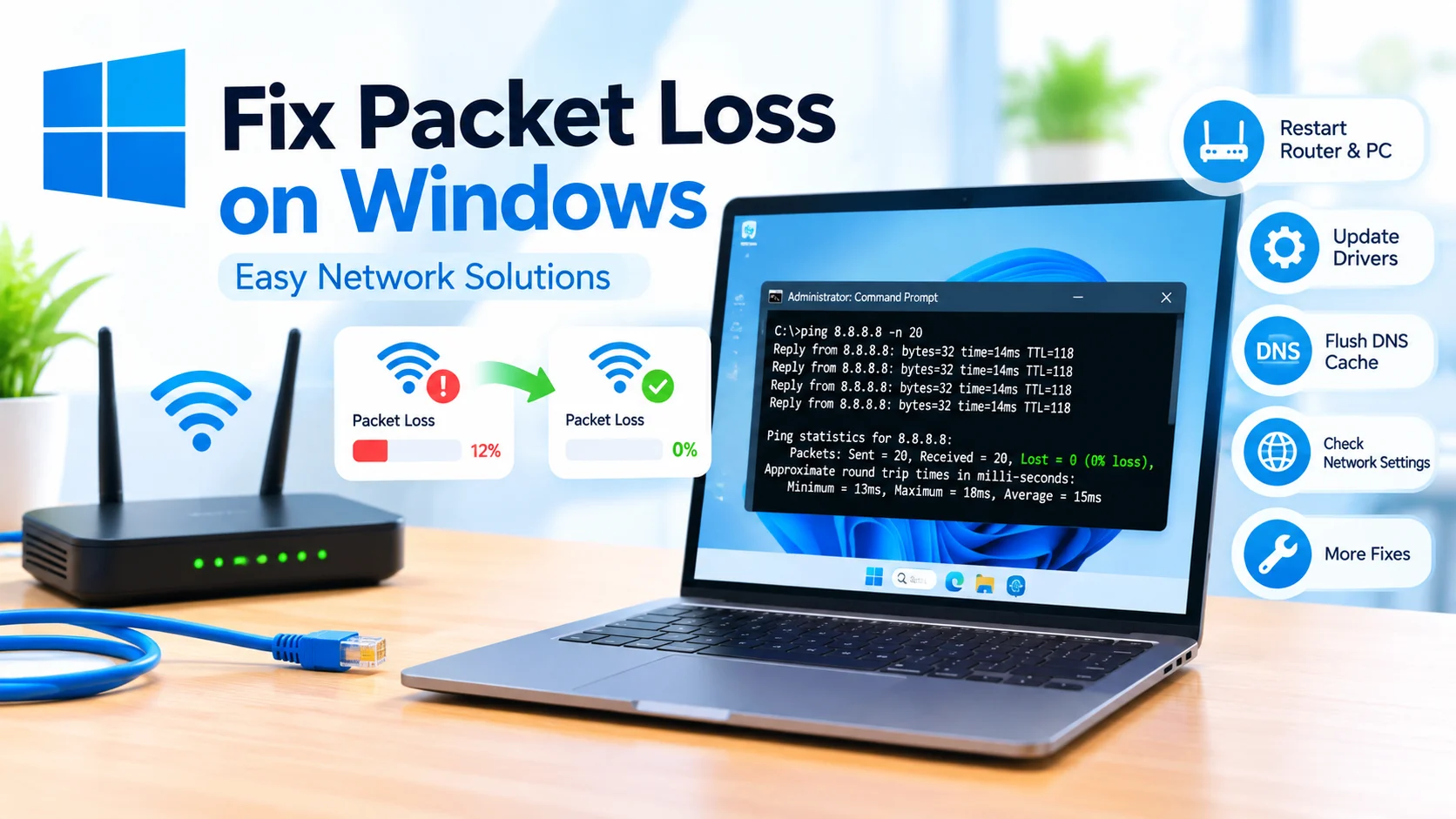
Fix Packet Loss on Windows by checking your network connection, restarting network hardware, updating drivers, flushing DNS, and troubleshooting Windows network settings. Packet loss can cause slow browsing, unstable video calls, lag in online games, and frequent connection drops.
When packets of data fail to reach their destination, your Windows PC may appear connected to the internet while applications continue to experience interruptions. Fortunately, several Windows troubleshooting steps can help identify and resolve the problem.
What Is Packet Loss?
Packet loss occurs when data packets traveling between your computer and a network destination fail to arrive successfully.
A small amount of packet loss can sometimes go unnoticed. However, significant or continuous packet loss may result in:
- Slow or interrupted internet connections
- Online gaming lag
- Video and audio call problems
- Websites loading slowly
- Downloads stopping unexpectedly
- Remote desktop disconnections
- Network timeouts
Packet loss can originate from your PC, Wi-Fi connection, router, network adapter, ISP, or the destination server.
How to Check for Packet Loss in Windows
Windows includes built-in networking commands that can help identify packet loss.
1. Open Command Prompt
Press Windows + R, type:
cmd
Press Enter.
You can also search for Command Prompt from the Start menu.
2. Run a Ping Test
Type:
ping 8.8.8.8 -n 20
Press Enter.
The command sends 20 packets to Google’s DNS server.
At the end of the test, check the Lost value. If Windows reports lost packets, your connection may be experiencing packet loss.
3. Test Your Router
To determine whether the problem is between your PC and router, find your default gateway with:
ipconfig
Look for Default Gateway.
Then run:
ping 192.168.1.1 -n 20
Replace 192.168.1.1 with your actual gateway address if necessary.
If packet loss occurs when pinging the router, the problem may involve your Wi-Fi connection, Ethernet cable, router, or network adapter.
1. Restart Your Router and PC
One of the simplest ways to fix packet loss is to restart your networking equipment.
Turn off your PC and router. Wait approximately 30 seconds, then turn the router back on. Allow it to reconnect to the internet before restarting your computer.
This can clear temporary network problems and refresh the connection.
2. Check Your Ethernet Cable
If you use a wired connection, inspect the Ethernet cable.
A damaged or loose cable can cause unstable connectivity and packet loss.
Try these steps:
- Disconnect the Ethernet cable.
- Check both connectors for damage.
- Reconnect the cable securely.
- Try another Ethernet port on the router.
- Test with a different Ethernet cable.
If packet loss disappears after replacing the cable, the original cable may have been defective.
3. Improve Your Wi-Fi Signal
Weak Wi-Fi signals can contribute to packet loss.
Move your computer closer to the router and avoid placing the router near large metal objects, thick walls, or devices that may interfere with wireless signals.
You can also try connecting to the 5 GHz or 6 GHz Wi-Fi band if your router and PC support it.
For devices far away from the router, the 2.4 GHz band may provide better range.
4. Update the Network Adapter Driver
An outdated or corrupted network driver can cause connectivity problems.
To update your network driver:
- Right-click Start.
- Select Device Manager.
- Expand Network adapters.
- Right-click your network adapter.
- Select Update driver.
- Choose Search automatically for drivers.
- Restart your PC.
For the most reliable driver, you can also check the support website of your computer or network adapter manufacturer.
Learn how to fix Windows driver problems by updating, reinstalling, rolling back, and troubleshooting drivers to restore stable PC performance.
5. Disable and Re-Enable the Network Adapter
Restarting the network adapter can resolve temporary driver or connection issues.
Open Device Manager, expand Network adapters, right-click your network adapter, and select Disable device.
Wait a few seconds and select Enable device.
Run the ping test again to see whether packet loss has improved.
6. Flush the DNS Cache
A corrupted or outdated DNS cache can cause certain network problems.
Open Command Prompt as Administrator and run:
ipconfig /flushdns
You should see a message confirming that the DNS Resolver Cache was successfully flushed.
You can then restart your browser and test the connection again.
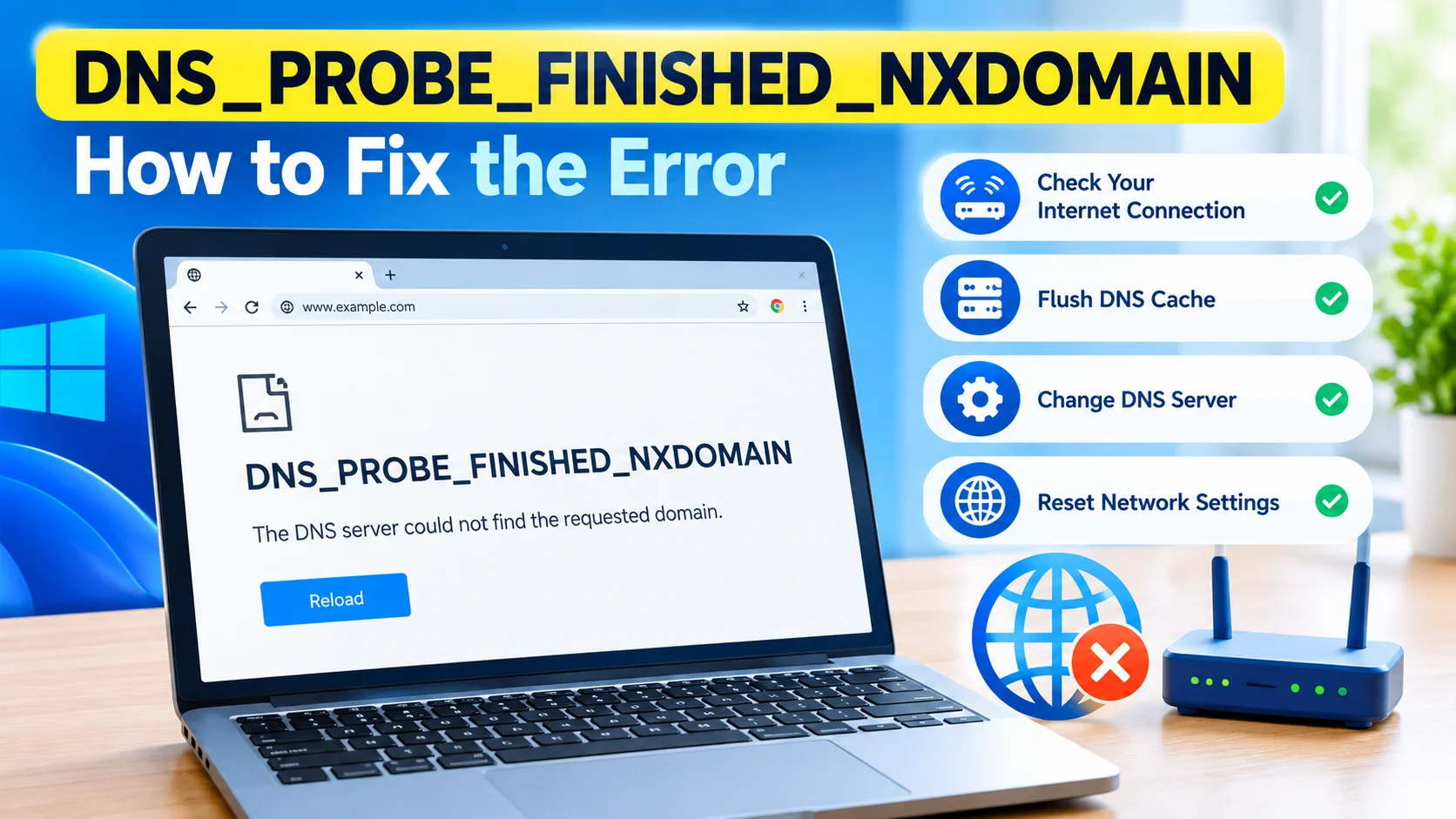
Learn how to flush DNS cache in Windows using simple Command Prompt commands to fix website loading, DNS, and internet connection problems.
7. Reset Windows Network Settings
Windows provides commands that can reset important networking components.
Open Command Prompt as Administrator and run:
netsh winsock reset
Then run:
netsh int ip reset
Finally, restart Windows.
These commands can repair problems involving the Winsock catalog and TCP/IP configuration.
8. Renew Your IP Address
A problematic IP configuration can sometimes cause network instability.
Run these commands in an elevated Command Prompt:
ipconfig /release
Then:
ipconfig /renew
Finally, check your connection again.
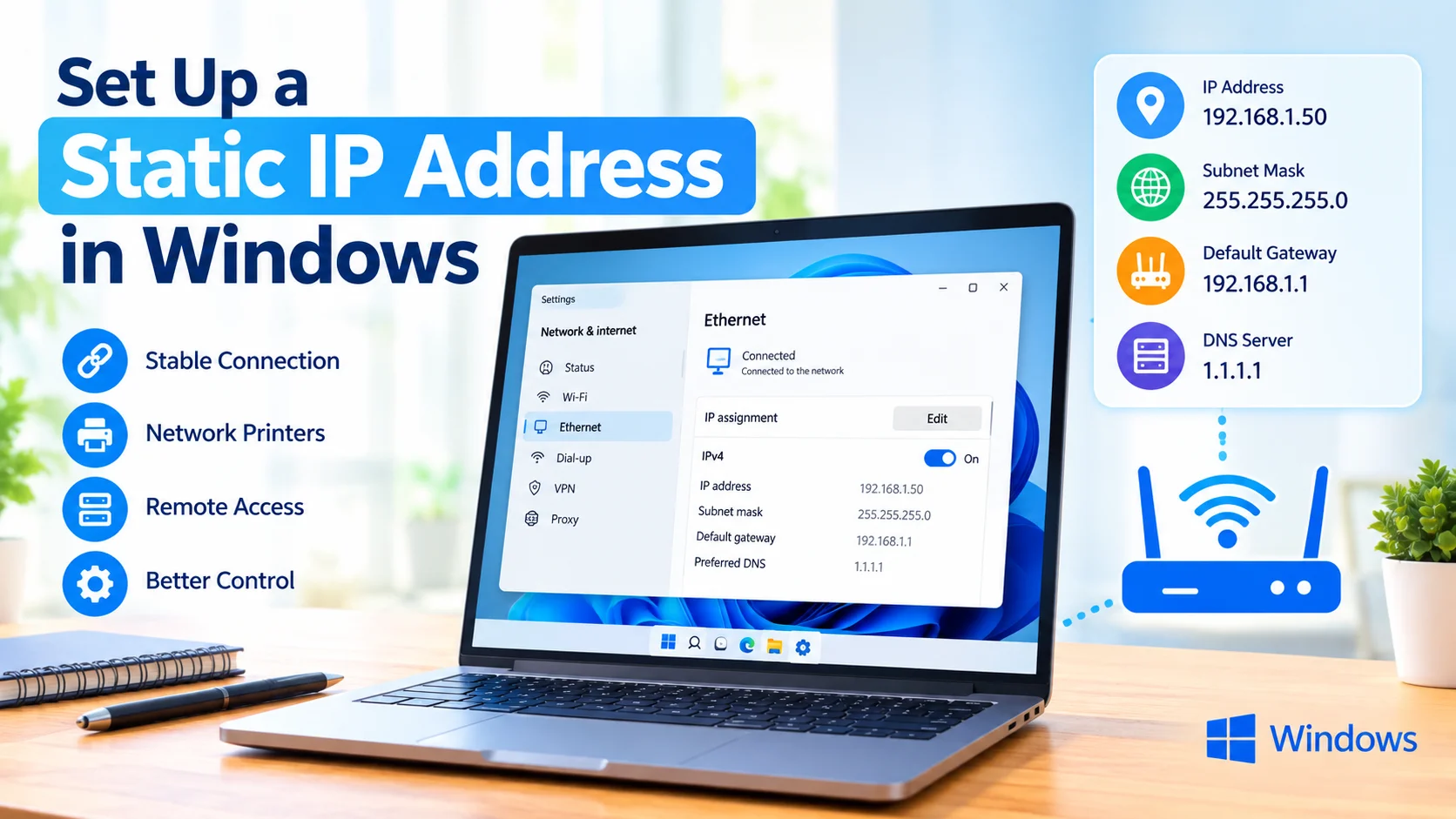
Learn how to set up a static IP address in Windows with simple steps to configure IPv4 settings and maintain a stable network connection.
9. Close Applications Using High Network Bandwidth
Heavy network activity can affect other applications.
Check for programs that may be consuming significant bandwidth, including:
- Cloud synchronization tools
- Game launchers
- Windows downloads
- Large file transfers
- Streaming applications
- Backup software
- Torrent applications
Pause unnecessary downloads and run another packet-loss test.
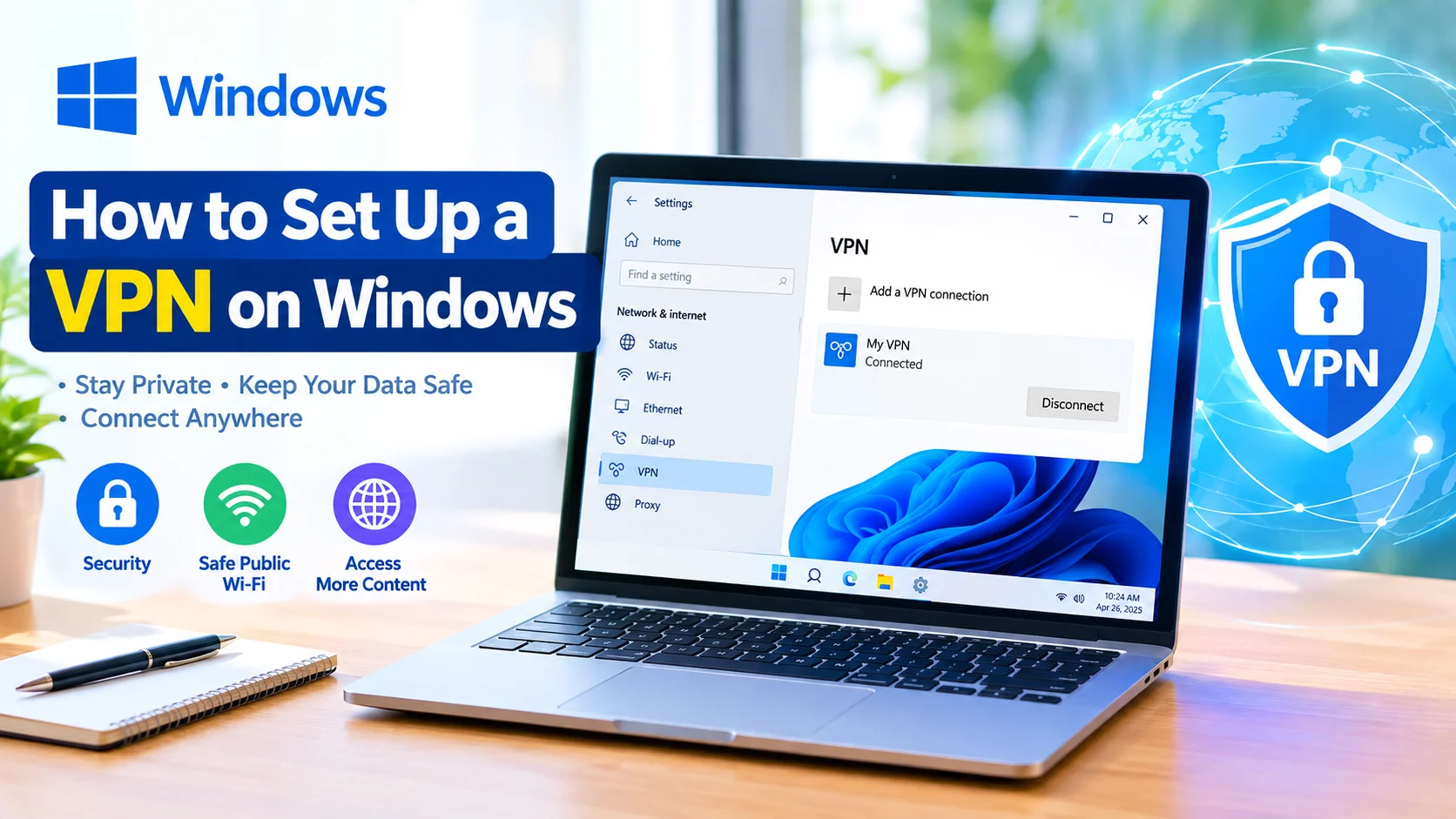
10. Disable VPN or Proxy Connections
A VPN can introduce additional network routing and may increase latency or packet loss.
Temporarily disconnect your VPN and test the connection again.
You can also check Windows proxy settings by opening:
Settings > Network & internet > Proxy
Make sure an unexpected proxy configuration is not being used.
11. Run Windows Network Troubleshooting
Windows includes built-in tools that can help diagnose common network problems.
Open:
Settings > Network & internet
Check the available network troubleshooting options and follow the recommended steps.
Windows may identify problems with the adapter, network configuration, or internet connection.
Learn how to troubleshoot home network problems in Windows by checking Wi-Fi, cables, routers, DNS, IP settings, and common connection issues.
12. Test With Another Device
Connect another computer or smartphone to the same network and perform a similar test.
If multiple devices experience packet loss, the problem may be related to:
- Your router
- Modem
- ISP
- Wi-Fi interference
- Internet service infrastructure
If only your Windows PC experiences packet loss, focus on the computer’s network adapter, drivers, cables, and Windows configuration.
13. Contact Your Internet Service Provider
If packet loss continues after troubleshooting your PC and router, contact your ISP.
Provide them with your test results and explain when the packet loss occurs.
For example, mention whether it happens:
- All day
- Only during peak hours
- Only over Wi-Fi
- Only with certain websites
- During online gaming
- During video calls
This information can help the provider determine whether the problem is occurring within its network.
How to Reduce Packet Loss on Windows
To minimize future packet-loss problems:
- Keep Windows and network drivers updated.
- Use Ethernet when possible.
- Place your Wi-Fi router in an open location.
- Avoid unnecessary background downloads.
- Restart networking equipment when problems appear.
- Replace damaged Ethernet cables.
- Keep router firmware updated.
- Avoid excessive Wi-Fi interference.
- Monitor packet loss during troubleshooting.
Frequently Asked Questions
What causes packet loss on Windows?
Common causes include weak Wi-Fi signals, damaged Ethernet cables, network adapter problems, outdated drivers, router issues, network congestion, and ISP problems.
How do I test packet loss in Windows?
Open Command Prompt and run ping 8.8.8.8 -n 20. Check the final result for the number of packets lost.
Can updating a network driver fix packet loss?
Yes. An outdated, incompatible, or corrupted network adapter driver can contribute to connection instability. Updating the driver may resolve the problem.
Is packet loss caused by Wi-Fi?
Wi-Fi can cause packet loss when the signal is weak or there is wireless interference. Testing the same connection through Ethernet can help determine whether Wi-Fi is responsible.
How much packet loss is normal?
For most internet activities, consistent packet loss is undesirable. Even relatively small amounts can become noticeable during online gaming, voice calls, video conferences, and remote connections.
Final Thoughts
Fix Packet Loss on Windows by first determining where the packet loss occurs. Test your PC, router, and internet connection separately instead of immediately changing advanced Windows settings.
Start with simple solutions such as restarting your router, checking cables, improving Wi-Fi signal strength, and updating your network adapter driver. If the problem continues, use commands such as ping, ipconfig, and netsh to diagnose and reset Windows networking components.
If packet loss affects multiple devices on the same network, the router or ISP may be responsible. When only one Windows computer is affected, troubleshooting the network adapter and Windows configuration is usually the best place to start.