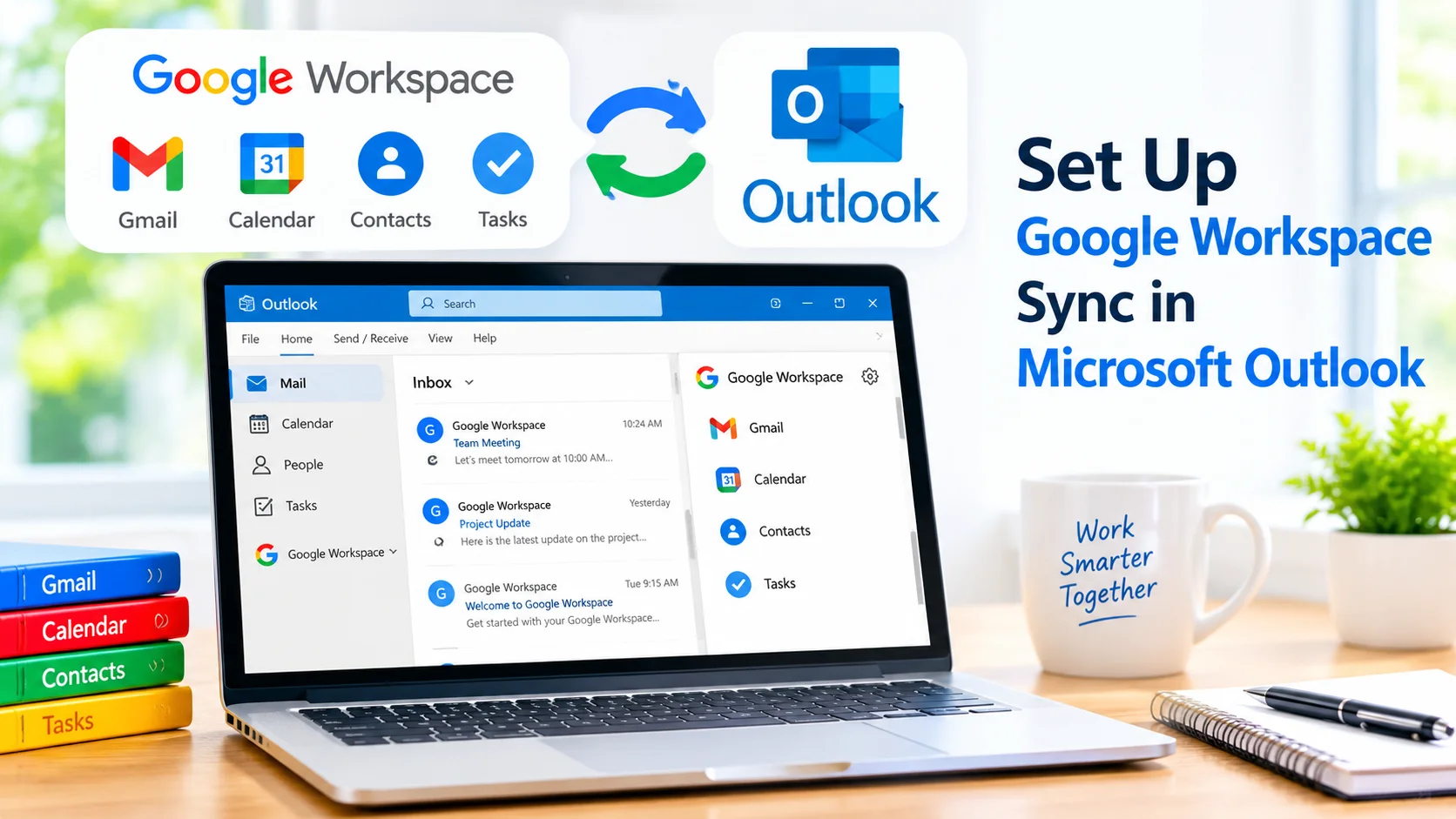
Set Up Google Workspace Sync in Microsoft Outlook to access your Google Workspace email, calendar, and contacts directly from Outlook. Google Workspace Sync for Microsoft Outlook (GWSMO) is designed for Google Workspace users who prefer Microsoft Outlook as their desktop email and productivity application.
With GWSMO, you can work with Gmail messages, Google Calendar events, contacts, and other Workspace data without constantly switching between applications. This can be especially useful for businesses and organizations that use Google Workspace while employees are familiar with Outlook.
What Is Google Workspace Sync for Microsoft Outlook?
Google Workspace Sync for Microsoft Outlook is a synchronization tool that connects Google Workspace accounts with Microsoft Outlook.
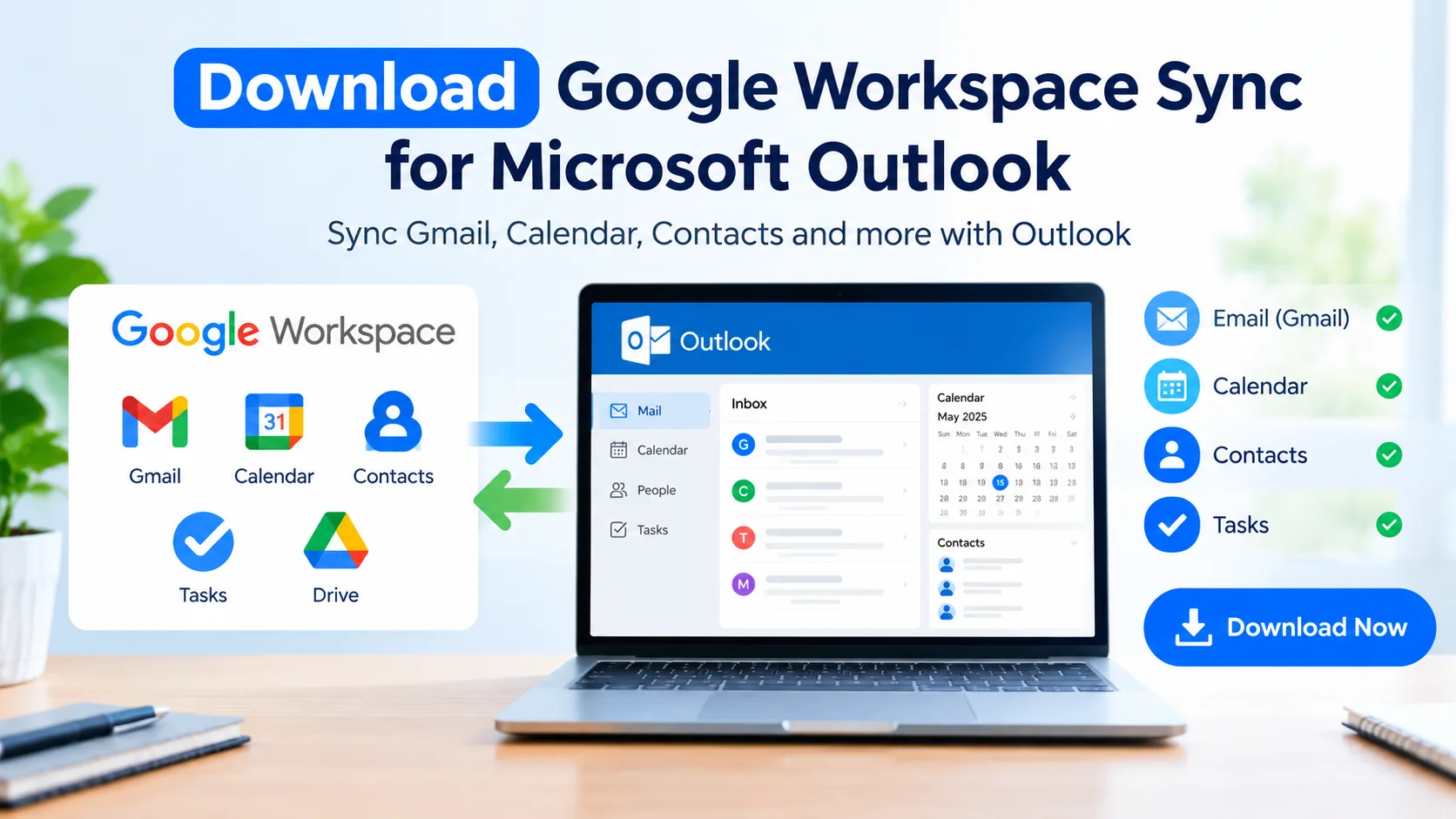
After configuration, supported Google Workspace information can appear inside Outlook. Depending on your account and configuration, you can work with:
- Gmail email messages
- Google Calendar
- Google Contacts
- Google Tasks
- Google Workspace account information
- Multiple Outlook profiles and data
The synchronization process allows Outlook to communicate with your Google Workspace account while keeping supported information available across both services.
Learn how Google Workspace Sync for Microsoft Outlook connects Gmail, Calendar, Contacts, and other Workspace data with Outlook for easier productivity.
Before You Set Up Google Workspace Sync
Before installing and configuring GWSMO, make sure your computer and account are ready.
You should have:
- An active Google Workspace account.
- Permission to use Google Workspace Sync for Microsoft Outlook.
- Microsoft Outlook installed on your Windows PC.
- An internet connection.
- Administrator access if your organization requires software installation permissions.
Your Google Workspace administrator may also need to enable or allow the required services for your organization.
How to Set Up Google Workspace Sync in Microsoft Outlook
1. Download Google Workspace Sync
Start by obtaining Google Workspace Sync for Microsoft Outlook from Google’s official Google Workspace resources.
Download the installer and save it to your Windows computer.
Close Microsoft Outlook before beginning the installation if it is currently running.
Learn how to download Google Workspace Sync for Microsoft Outlook and connect Gmail, Calendar, Contacts, and other Workspace data with Outlook.
2. Install Google Workspace Sync
Open the downloaded installer and follow the installation instructions.
Windows may display a security confirmation before allowing the program to run. Review the information and continue if you obtained the installer from an official Google source.
The installer will place the necessary GWSMO components on your computer.
3. Sign In to Your Google Workspace Account
After installation, the setup process will ask you to sign in.
Enter your Google Workspace email address and continue through the Google authentication process.
Depending on your organization’s security configuration, you may need to complete additional verification, such as two-step verification.
4. Create an Outlook Profile
During setup, GWSMO can create or configure an Outlook profile associated with your Google Workspace account.
Choose the appropriate options for your organization and continue.
If you already have other Outlook profiles, pay attention to which profile GWSMO configures so that you do not accidentally use the wrong account.
5. Choose Data to Synchronize
The setup process may provide options for selecting the information that should be synchronized.
Depending on the available configuration, you may be able to manage synchronization for items such as:
- Calendar
- Contacts
- Notes
- Tasks
Select the data you need and continue with the setup.
6. Open Microsoft Outlook
After GWSMO finishes configuring the account, open Microsoft Outlook.
Select the Google Workspace profile if Outlook asks which profile you want to use.
Your Google Workspace information should begin synchronizing with Outlook.
The initial synchronization may take some time, particularly when the account contains a large amount of email, calendar data, or contacts.
How to Check Whether Google Workspace Sync Is Working
After Outlook opens, check whether your Google Workspace data is available.
Start by opening the Mail section and checking whether recent Gmail messages appear.
Then check:
- Calendar for Google Calendar events.
- People or Contacts for synchronized contacts.
- Tasks if task synchronization is enabled.
- Folders and labels to verify that your mail organization is available.
If new information appears in Outlook after changes are made in Google Workspace, synchronization is working.
Common Google Workspace Sync Problems
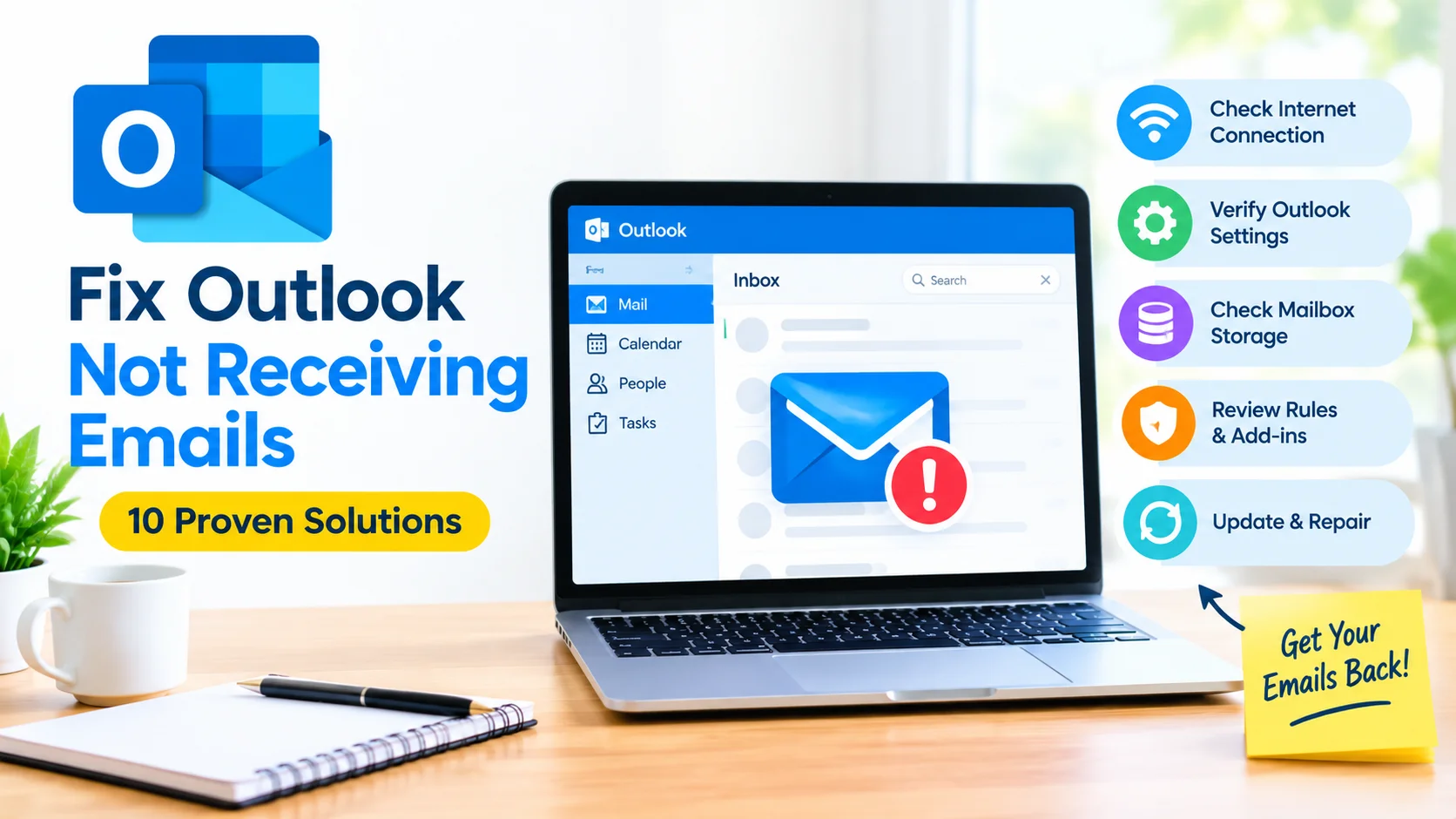
Sometimes GWSMO may not synchronize correctly. Several basic troubleshooting steps can help.
Check Your Internet Connection
GWSMO requires an active internet connection to synchronize information with Google Workspace.
If Outlook is not updating, verify that websites load normally in your browser.
Restart Microsoft Outlook
Close Outlook completely and reopen it.
A simple restart can resolve temporary synchronization problems.
Verify Your Google Workspace Account
Make sure you are signed in with the correct Google Workspace account.
This is particularly important if you use multiple Google accounts on the same computer.
Check Administrator Settings
Organizations may restrict access to certain Google Workspace services or synchronization features.
If you cannot complete the setup, contact your Google Workspace administrator to confirm that GWSMO is permitted for your account.
Allow Synchronization to Finish
The first synchronization can take considerably longer than subsequent updates.
Avoid assuming that something is broken simply because all messages or calendar events do not appear immediately.
Benefits of Using Google Workspace with Outlook
Using GWSMO can be useful for organizations that rely on Google Workspace but prefer the Outlook interface.
Some advantages include:
- Accessing Gmail through Outlook.
- Managing Google Calendar from Outlook.
- Working with contacts in one application.
- Maintaining an Outlook-based desktop workflow.
- Reducing the need to switch between multiple applications.
However, synchronization features and supported functionality can vary depending on your Google Workspace configuration and the version of Outlook you use.
Google Workspace Sync vs. Standard Outlook Account Setup
Google Workspace Sync is different from simply adding an email account to Outlook.
GWSMO is specifically designed to integrate supported Google Workspace data with Outlook. A basic email configuration may provide access to email but does not necessarily provide the same synchronization experience for Google Calendar, Contacts, and other Workspace information.
For organizations using Google Workspace extensively, GWSMO may therefore provide a more appropriate Outlook integration.
Tips for a Reliable Setup
For a smoother experience, follow these recommendations:
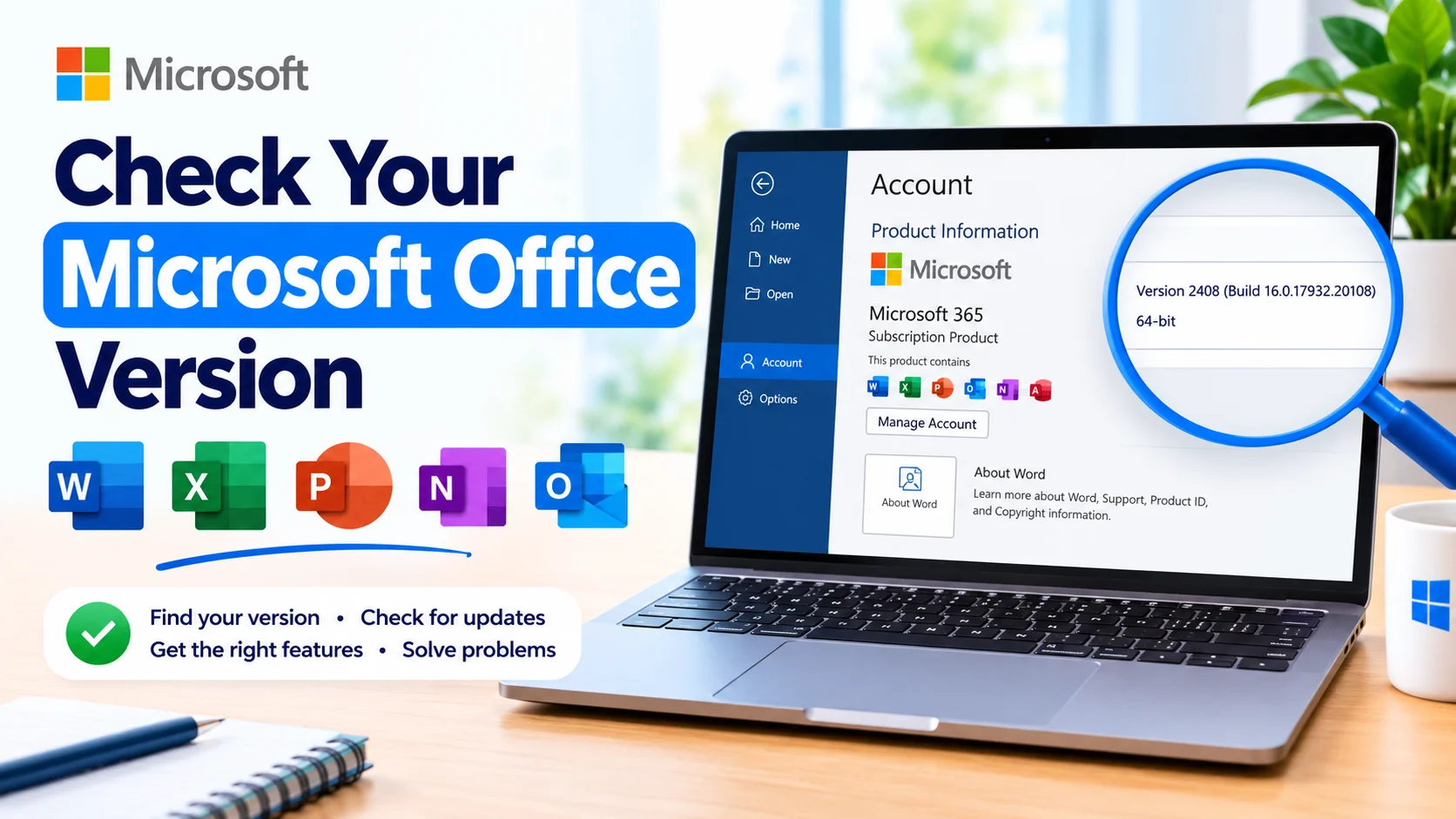
- Keep Microsoft Outlook updated.
- Use the latest supported version of GWSMO.
- Download installation software from trusted Google sources.
- Maintain a stable internet connection.
- Avoid interrupting the initial synchronization.
- Check Google Workspace administrator policies when working with a managed account.
- Keep your Google account security information up to date.
Frequently Asked Questions
Can I use Google Workspace with Microsoft Outlook?
Yes. Google Workspace users can use Google Workspace Sync for Microsoft Outlook to integrate supported Google Workspace data with Outlook.
Does GWSMO synchronize Gmail with Outlook?
Yes. GWSMO is designed to synchronize supported Gmail information with Microsoft Outlook.
Can Google Calendar appear in Outlook?
Yes. Google Workspace Sync can synchronize supported Google Calendar information with Outlook.
Why is Google Workspace Sync not working?
Possible causes include an internet connection problem, incorrect account configuration, administrator restrictions, outdated software, or an incomplete initial synchronization.
Do I need administrator permission?
It depends on how your computer and Google Workspace account are managed. Business and school computers may have policies that restrict software installation or account synchronization.
Final Thoughts
Setting up Google Workspace Sync in Microsoft Outlook provides a convenient way to combine Google Workspace services with the familiar Outlook desktop experience. Once GWSMO is installed and configured, supported Gmail, Calendar, and contact information can be accessed through Outlook.
For the best results, use supported software versions, verify your Google Workspace permissions, and allow the initial synchronization to complete before troubleshooting.