Remove Software Leftovers After Uninstallation to clean up files, folders, temporary data, and registry entries that may remain after a Windows program is removed. Although uninstalling software normally removes the main application, some components can remain on your PC.
Cleaning these leftovers can help recover disk space, reduce clutter, and prevent old configuration files from interfering with future installations.
Why Software Leftovers Remain After Uninstallation
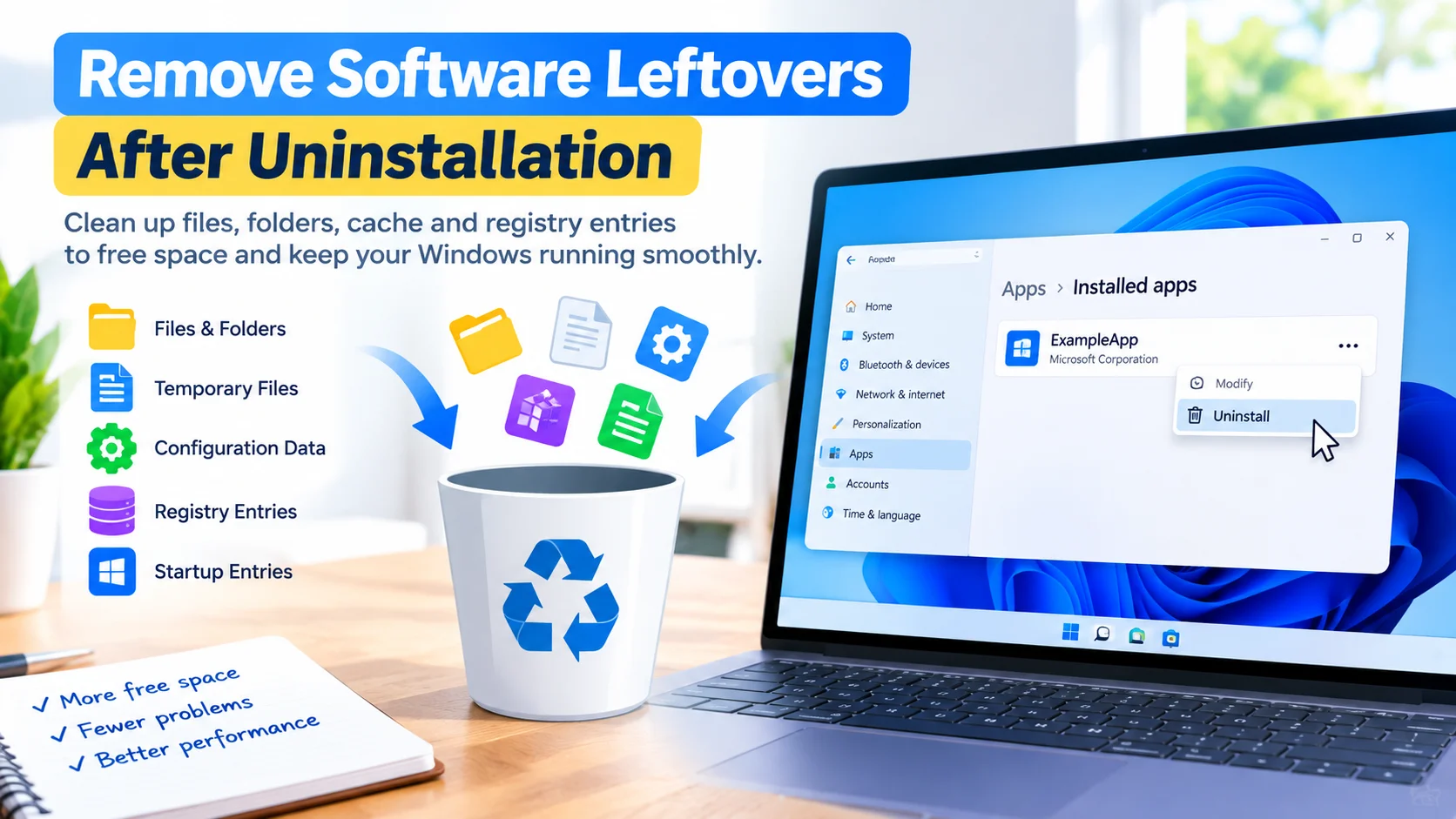
Windows applications can store data in several different locations. The standard uninstaller may remove the main program but leave behind:
- Configuration files
- Temporary files
- User profile data
- Application folders
- Log files
- Cache files
- Registry entries
- Update components
- Startup entries
Not every leftover file is harmful, so you should avoid deleting folders or registry entries unless you are confident they belong to the uninstalled application.
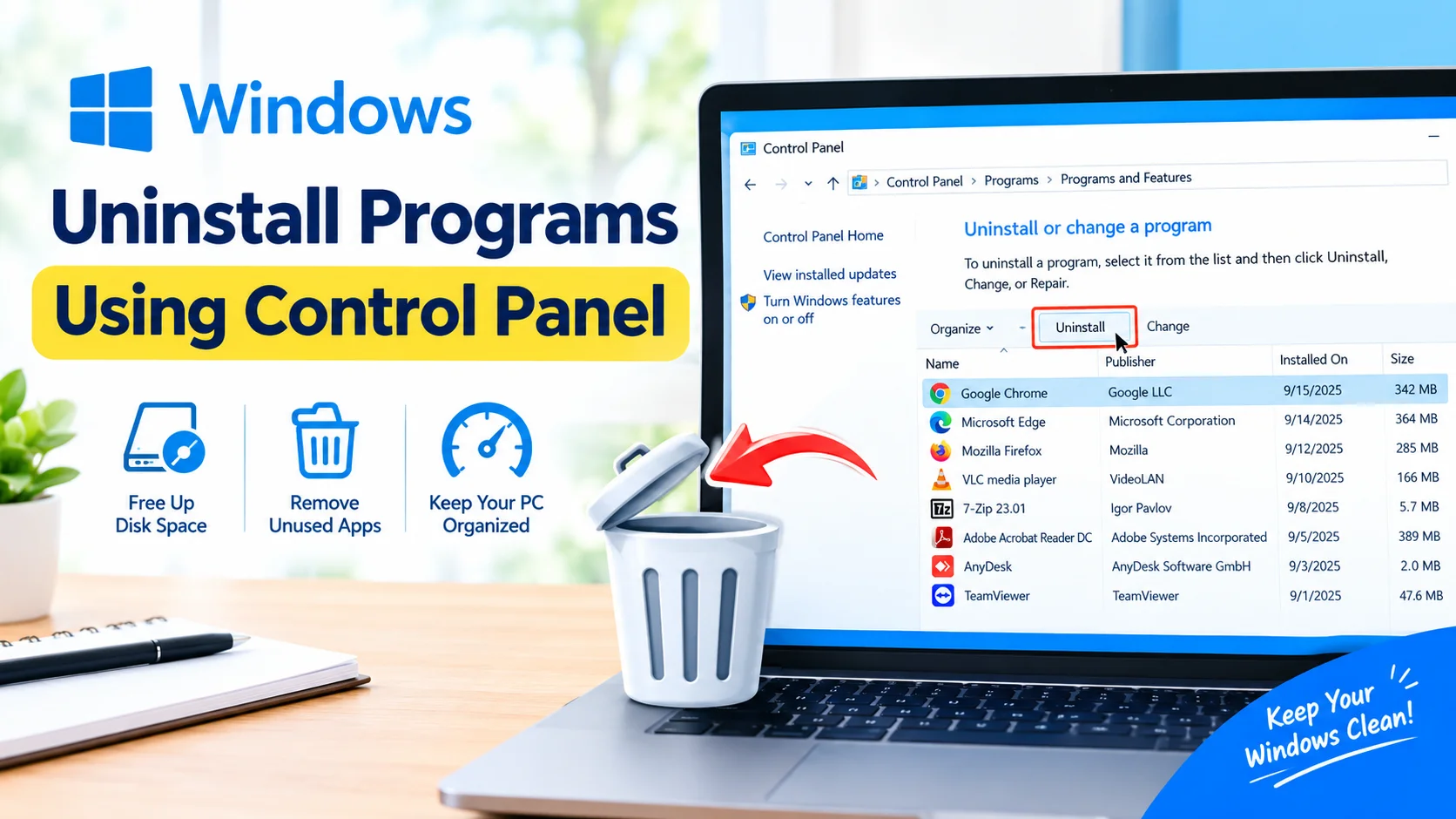
Learn how to uninstall software completely in Windows by removing apps, leftover files, folders, temporary data, and unwanted components safely.
Step 1: Uninstall the Program Normally
Always start with the program’s official uninstaller.
- Press Windows + I to open Settings.
- Select Apps.
- Open Installed apps.
- Find the program you want to remove.
- Click the three-dot menu next to it.
- Select Uninstall.
- Follow the instructions provided by the application.
Restart Windows afterward if the uninstaller requests it.
Step 2: Check the Program Files Folders
After uninstalling the application, check whether its installation folder remains.
Common locations include:
C:\Program Files
C:\Program Files (x86)
Look for a folder clearly associated with the software you removed.
For example, if you uninstalled an application named ExampleApp, you might find:
C:\Program Files\ExampleAppOnly remove the folder if you are certain it belongs to the uninstalled program.
Step 3: Check AppData for Leftover Files
Some applications store settings and cache files inside your Windows user profile.
Press Windows + R, enter:
%AppData%and press Enter.
Also check:
%LocalAppData%Look for folders associated with the application you removed.
You may find configuration files, cached data, logs, or other application-specific information.
Step 4: Check the ProgramData Folder
Some applications store shared data in:
C:\ProgramDataThis folder may be hidden by default.
If you find a folder belonging to the uninstalled software, verify that it is no longer required before deleting it.
Be especially careful with folders belonging to drivers, security software, hardware utilities, and Microsoft components.
Step 5: Remove Temporary Files
Temporary files can also remain after an application has been removed.
Open Settings > System > Storage > Temporary files.
Windows will scan your system and show categories of temporary data that can be removed.
Review the available categories and select only the files you no longer need.
Learn how to safely clean up temporary system files in Windows to free disk space, remove unnecessary data, and improve PC performance.
Step 6: Check Startup Entries
Some applications leave background components or startup entries behind.
Open Task Manager by pressing:
Ctrl + Shift + EscSelect Startup apps and look for entries related to the software you removed.
If an entry clearly belongs to an uninstalled application, investigate it before attempting to remove it. Some startup entries may belong to shared components that other applications still use.
Step 7: Be Careful With the Windows Registry
The Windows Registry can contain settings left behind by uninstalled programs.
To open Registry Editor, press Windows + R, type:
regeditand press Enter.
However, manually deleting registry entries can cause Windows or other applications to malfunction if the wrong key is removed.
Before changing the registry:
- Create a restore point.
- Back up the relevant registry key.
- Confirm the entry belongs to the removed application.
- Do not delete Microsoft or Windows system entries simply because they look unfamiliar.
For most users, registry cleaning should not be the first method used to remove software leftovers.
Step 8: Search for the Application Name
You can use Windows Search or File Explorer to find remaining files associated with the application.
Search for the exact program name or publisher name.
For example:
ExampleApp
Example Software
Review each result carefully before deleting anything. A file with a similar name does not necessarily belong to the application you removed.
Step 9: Restart Windows
After removing confirmed leftovers, restart your computer.
A restart can release files that were still being used by background processes and allows Windows to reload its configuration.
Should You Use Third-Party Uninstallers?
Third-party uninstall tools can scan for leftover files and registry entries after an application is removed. They may be useful when a program’s standard uninstaller fails or leaves substantial remnants.
However, choose reputable software and review the items it wants to delete. Automatically removing every detected registry entry or system file is not always safe.
What You Should Not Delete
Avoid deleting files simply because they appear old or unfamiliar.
Do not manually remove:
- Windows system folders
- Unknown DLL files
- Hardware drivers
- Microsoft shared components
- Security software components
- Registry entries without verification
- Folders used by other installed applications
If you are unsure, leave the item alone and research its purpose first.
Benefits of Removing Software Leftovers
Cleaning confirmed leftovers can provide several benefits:
- Frees unnecessary disk space
- Removes obsolete configuration files
- Reduces application clutter
- Helps troubleshoot failed reinstallations
- Removes old cache and log files
- Keeps your Windows installation organized
For most computers, however, a few leftover files are unlikely to cause noticeable performance problems.
Final Thoughts
Remove Software Leftovers After Uninstallation by first using the application’s normal uninstaller, then checking common locations such as Program Files, AppData, ProgramData, and temporary storage. Be particularly cautious when dealing with the Windows Registry.
The safest approach is to remove only files and folders that you can confidently identify as belonging to the software you already uninstalled.