

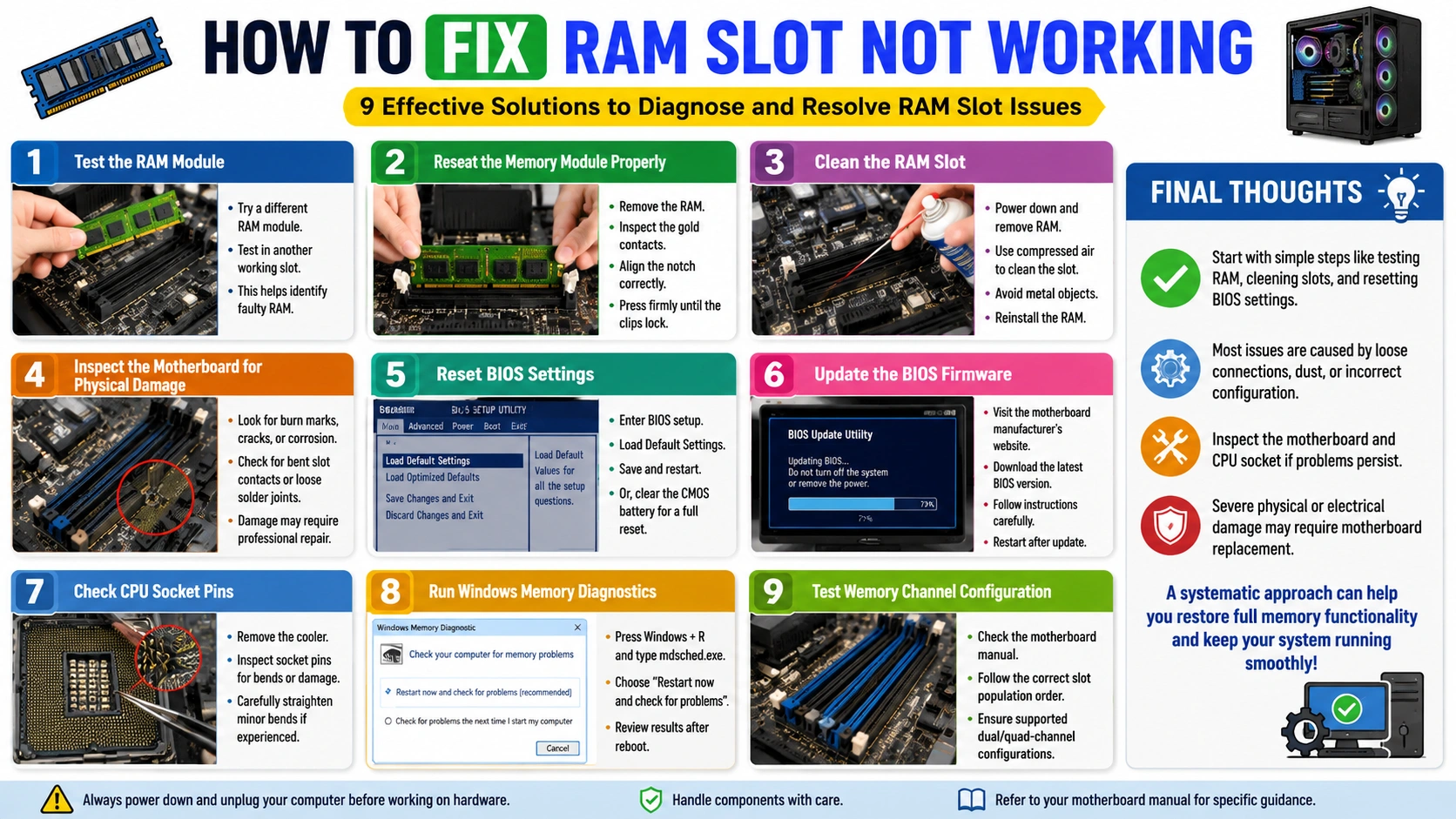
Fix RAM Slot Not Working issues can lead to system instability, memory detection errors, boot failures, and unexpected crashes. If your computer recognizes memory in one slot but not another, the problem may be related to hardware issues, BIOS settings, dust accumulation, or motherboard damage.
In many cases, the system may also produce Motherboard Error Beep Codes during startup. These beep patterns are diagnostic signals that indicate hardware problems, including RAM installation failures, memory incompatibility, or defective memory slots. Understanding these codes can help identify the source of the issue more quickly.
This guide explains how to Fix RAM Slot Not Working problems using proven troubleshooting methods that work on both desktop and laptop computers. By following these steps, you can diagnose the cause accurately and restore proper memory functionality without replacing components unnecessarily.
What Causes a RAM Slot to Stop Working?
Several hardware and software-related issues can cause a RAM slot to stop functioning properly. Understanding the underlying cause can help you troubleshoot the problem more effectively and avoid unnecessary component replacements.
Common causes include:
- Dust and debris accumulated inside the memory slot
- Improperly seated or incorrectly installed RAM modules
- Bent motherboard or CPU socket pins affecting memory channels
- Faulty or incompatible RAM sticks
- Incorrect BIOS or UEFI configuration settings
- Memory controller issues within the processor
- Physical damage to the motherboard circuitry
- Outdated BIOS firmware causing memory compatibility problems
- Electrical damage resulting from power surges or unstable power supplies
In some cases, the system may also generate Motherboard Error Beep Codes during startup, indicating memory-related hardware failures. These diagnostic codes can provide valuable clues about whether the issue originates from the RAM module, memory slot, or motherboard itself.
Identifying the root cause is the first step toward applying the correct Fix RAM Slot Not Working solution and restoring normal system performance.
Signs That a RAM Slot Is Not Working
When a memory slot becomes faulty, your computer may exhibit various performance and startup issues. Recognizing these symptoms early can help you diagnose the problem before it leads to more serious hardware failures.
Common signs of a faulty RAM slot include:
- Computer fails to boot properly
- Continuous motherboard beep codes during startup
- Less RAM detected than physically installed
- Blue Screen of Death (BSOD) errors
- Frequent system freezes and crashes
- Memory-related application errors
- BIOS or UEFI not recognizing installed RAM
- Unexpected system restarts
- Reduced overall system performance
If these symptoms occur only when a RAM module is installed in a specific slot, the slot itself may be defective rather than the memory stick.
Before assuming the motherboard is damaged, consider performing a Reset BIOS Settings on PC Safely procedure. Incorrect BIOS memory settings can sometimes prevent RAM slots from functioning correctly or cause the system to detect only part of the installed memory. Resetting the BIOS to its default configuration can help eliminate configuration-related issues and restore proper memory detection.
Solution 1: Verify the RAM Module Is Working
Before attempting more advanced repairs, the first step to Fix RAM Slot Not Working issues is verifying that the RAM module itself is functioning correctly. A faulty memory stick can produce symptoms that closely resemble a defective RAM slot.
Follow these steps:
- Power off the computer completely.
- Disconnect the power cable and remove the battery if applicable.
- Remove all installed RAM modules.
- Insert one RAM stick into a known working memory slot.
- Start the system and check whether it boots successfully.
- Repeat the process with each RAM module individually.
If every RAM module works properly in another slot, the memory sticks are likely healthy. In that case, the issue is more likely related to the motherboard slot, memory channel, or motherboard circuitry.
Testing memory modules individually is an essential diagnostic step because it helps Fix RAM Slot Not Working problems by ruling out faulty RAM before moving on to more complex motherboard troubleshooting.
Solution 2: Reseat the Memory Module Properly
Improper RAM installation is one of the most common reasons for memory detection problems. Before assuming the motherboard is damaged, try reseating the memory module correctly. This simple procedure can often Fix RAM Slot Not Working issues by restoring a proper electrical connection between the RAM stick and the memory slot.
Follow these steps:
- Turn off the computer completely.
- Disconnect the power cable and any connected peripherals.
- Remove the RAM module from the affected slot.
- Inspect the gold contacts for dirt, dust, or signs of damage.
- Align the notch on the RAM module with the key in the memory slot.
- Firmly press the module into place until both retention clips lock securely.
After reinstalling the memory, restart the computer and check whether the RAM slot is detected correctly in the BIOS or operating system.
Reseating the module is a quick and effective way to Fix RAM Slot Not Working problems caused by loose connections, improper installation, or minor contact issues.
Solution 3: Clean the RAM Slot
Dust accumulation inside a memory slot can interfere with electrical connections and prevent the motherboard from detecting installed RAM correctly. Cleaning the slot is one of the simplest ways to Fix RAM Slot Not Working issues and restore normal memory functionality.
To clean the RAM slot:
- Power down the computer completely.
- Disconnect the power cable from the system.
- Remove all installed RAM modules.
- Use compressed air to carefully blow dust and debris out of the memory slot.
- Avoid inserting metal tools or sharp objects into the slot, as they can damage the contacts.
- Inspect the slot for visible dirt or contamination.
- Reinstall the RAM module securely and ensure the retention clips lock into place.
After cleaning, restart the computer and check whether the memory is detected properly. In many cases, users can Fix RAM Slot Not Working problems simply by removing dust that blocks proper contact between the RAM module and motherboard slot.
For long-term reliability, regularly clean your computer’s internal components and follow best practices to Clean PC Hardware Safely Without Damaging Components. Proper maintenance helps prevent future memory detection issues and improves overall system stability.
Solution 4: Inspect the Motherboard for Physical Damage
If cleaning and reseating the memory modules do not resolve the issue, carefully inspect the motherboard for signs of physical damage. Hardware defects can prevent a memory slot from functioning properly and may require professional repair. This step is important when trying to Fix RAM Slot Not Working problems that are not caused by RAM modules or BIOS settings.
Carefully examine the motherboard and look for:
- Burn marks around the memory slots
- Cracked or damaged motherboard traces
- Corrosion caused by moisture or liquid exposure
- Bent or damaged RAM slot contacts
- Loose or broken solder joints
- Swollen or leaking capacitors near the memory area
Use a flashlight to inspect the memory slots closely, paying particular attention to the contact pins inside the slot. Even minor physical damage can interrupt communication between the motherboard and the RAM module.
If visible damage is present, it may be difficult to Fix RAM Slot Not Working issues through software troubleshooting alone. In such cases, professional motherboard repair or complete motherboard replacement may be necessary to restore proper memory functionality and system stability.
Solution 5: Reset BIOS Settings
Incorrect BIOS or UEFI settings can sometimes prevent memory slots from functioning correctly. If the system is not detecting installed RAM or certain memory channels are unavailable, resetting the BIOS to its default configuration may help Fix RAM Slot Not Working issues caused by misconfigured settings.
To reset BIOS settings:
- Restart the computer and enter the BIOS or UEFI setup menu.
- Locate the Load Default Settings, Load Optimized Defaults, or similar option.
- Select the option to restore default BIOS settings.
- Save the changes and exit the BIOS.
- Allow the computer to restart normally.
Alternatively, you can perform a complete BIOS reset by clearing the CMOS:
- Turn off the computer and disconnect power.
- Open the computer case.
- Locate the CMOS battery on the motherboard.
- Remove the battery for several minutes.
- Reinstall the battery and power on the system.
A BIOS reset often helps Fix RAM Slot Not Working problems by restoring default memory settings, memory timings, and voltage configurations. If the issue was caused by incorrect BIOS adjustments, the affected RAM slot may become fully functional again after the reset.
For additional guidance, you can also refer to your motherboard manufacturer’s documentation on how to Reset BIOS Settings on PC Safely before making configuration changes.
Solution 6: Update the BIOS Firmware
Motherboard manufacturers regularly release BIOS updates that improve hardware stability, memory compatibility, and overall system performance. If you are trying to Fix RAM Slot Not Working issues, updating the BIOS firmware may resolve memory detection problems caused by outdated motherboard software.
To update the BIOS:
- Visit your motherboard manufacturer’s official support website.
- Download the latest BIOS version available for your motherboard model.
- Read the release notes and update instructions carefully.
- Install the BIOS update according to the manufacturer’s guidelines.
- Restart the computer after the update is complete.
Many BIOS updates include fixes for memory training, RAM compatibility, and memory channel detection. As a result, updating the firmware can sometimes Fix RAM Slot Not Working problems without requiring hardware replacement.
For additional information about firmware updates and memory compatibility, review the official support resources provided by Intel at https://www.intel.com/support and AMD at https://www.amd.com/support. These resources contain troubleshooting guides and compatibility recommendations for modern processors and chipsets.
After updating the BIOS, enter the BIOS setup and verify that all installed memory is detected correctly. If the RAM slot begins functioning normally, the issue was likely caused by a firmware or compatibility problem rather than physical motherboard damage.
Solution 7: Check CPU Socket Pins
Modern processors typically include an integrated memory controller that communicates directly with the motherboard’s RAM slots. Because of this design, bent or damaged CPU socket pins can interfere with specific memory channels and cause one or more RAM slots to stop working. Checking the socket pins is an important step when attempting to Fix RAM Slot Not Working issues, especially if multiple memory slots fail at the same time.
Follow these steps carefully:
- Power off the computer and disconnect all power sources.
- Remove the CPU cooler according to the manufacturer’s instructions.
- Carefully remove the processor if necessary.
- Inspect the CPU socket using a bright light or magnifying glass.
- Look for bent, damaged, or misaligned socket pins.
- If you have experience handling delicate hardware, carefully straighten minor bends using appropriate precision tools.
- Reinstall the CPU and cooler, then test the system again.
Even a single bent pin can prevent the memory controller from communicating with certain RAM channels. As a result, the motherboard may fail to detect memory installed in specific slots.
If multiple RAM slots stop working simultaneously and other troubleshooting methods have failed, CPU socket damage is a common cause. Correcting bent pins may help Fix RAM Slot Not Working problems and restore full memory functionality without replacing the motherboard.
Solution 8: Run Windows Memory Diagnostics
Memory testing can help identify hidden hardware issues that may affect system stability and memory detection. While the primary purpose of this tool is to test RAM modules, it can also assist in diagnosing problems when attempting to Fix RAM Slot Not Working issues.
Follow these steps:
- Press Windows + R to open the Run dialog box.
- Type
mdsched.exeand press Enter. - Select Restart Now and Check for Problems.
- Allow Windows to restart and perform the memory test automatically.
- Wait for the diagnostic process to complete.
- Review the test results after Windows boots back into the operating system.
The built-in Windows Memory Diagnostic tool checks for memory errors that could cause crashes, blue screen errors, or boot failures. If the test detects problems, the issue may be related to a faulty RAM module rather than the motherboard slot.
For additional information about memory diagnostics and troubleshooting, visit Microsoft’s support resources at https://support.microsoft.com/windows.
Although this test primarily evaluates RAM modules, it can provide valuable clues when trying to Fix RAM Slot Not Working problems by helping rule out defective memory sticks and identifying underlying hardware issues that affect system performance.
Solution 9: Test Memory Channel Configuration
Many modern motherboards use dual-channel or quad-channel memory architecture to improve performance. If RAM modules are installed in the wrong slots, the system may fail to recognize all installed memory or incorrectly report a RAM slot problem. Verifying the memory channel configuration is an important step when trying to Fix RAM Slot Not Working issues.
Check your motherboard manual to verify:
- The correct RAM slot population order
- Supported memory configurations
- Dual-channel or quad-channel requirements
- Recommended slots for single, dual, or multiple RAM modules
- Memory capacity limitations for each channel
To test the configuration:
- Power off the computer and disconnect the power supply.
- Remove the RAM modules.
- Consult the motherboard manual for the recommended slot arrangement.
- Reinstall the memory modules according to the manufacturer’s guidelines.
- Restart the system and check whether all memory is detected correctly.
Using the wrong slot arrangement can prevent the motherboard from recognizing installed memory, even when the RAM modules and slots are fully functional. In some cases, correcting the memory configuration is enough to Fix RAM Slot Not Working problems without any additional repairs.
For the most accurate configuration information, refer to your motherboard manufacturer’s official documentation. Proper memory channel setup ensures maximum performance, system stability, and reliable RAM detection.
When to Replace the Motherboard
If none of the troubleshooting methods resolve the problem, the RAM slot may be permanently damaged. In such cases, replacing the motherboard is often the most practical and reliable solution.
Consider motherboard replacement when:
- Physical damage is visible on the motherboard
- Multiple RAM slots fail simultaneously
- Electrical burns or scorch marks are present
- Memory channels stop functioning completely
- Professional diagnostics confirm motherboard failure
- The system cannot detect RAM despite using known working memory modules
A damaged motherboard can also contribute to a Hardware Compatibility Issue on Windows PC, causing memory recognition problems, system instability, and unexpected crashes. When memory-related hardware faults affect the motherboard’s circuitry or memory controller pathways, software fixes are unlikely to resolve the issue.
Although advanced board-level repairs are sometimes possible, they are often expensive and may not guarantee long-term reliability. For most users, replacing the motherboard is a more cost-effective and dependable solution for restoring full system functionality.
How to Prevent RAM Slot Problems
Preventive maintenance is one of the best ways to avoid memory-related issues and extend the lifespan of your motherboard. Taking a few simple precautions can help keep RAM slots functioning properly and reduce the risk of hardware failures.
Follow these best practices:
- Clean dust from the computer regularly
- Use a quality surge protector or UPS
- Avoid forcing RAM modules into memory slots
- Update BIOS firmware when recommended by the manufacturer
- Handle hardware components using anti-static precautions
- Keep the system in a cool, well-ventilated environment
- Turn off and unplug the PC before installing or removing RAM
- Use compatible memory modules recommended for your motherboard
- Periodically inspect the motherboard for signs of damage or corrosion
One of the most effective preventive measures is to Clean PC Hardware Safely Without Damaging Components. Dust buildup can block airflow, increase operating temperatures, and interfere with electrical connections inside RAM slots. Regular cleaning using compressed air and proper anti-static handling techniques helps maintain stable system performance and prevents memory detection issues.
Proper care and maintenance can significantly extend motherboard lifespan while reducing the likelihood of RAM slot failures in the future.
Final Thoughts
Learning how to Fix RAM Slot Not Working issues can save both time and money by helping you avoid unnecessary hardware replacements. By following a systematic troubleshooting process, you can identify whether the problem originates from the RAM module, motherboard slot, BIOS configuration, CPU socket pins, or memory channel setup.
Start with the simplest solutions, such as testing individual RAM modules, reseating memory sticks, and cleaning the RAM slots. If the issue persists, proceed with more advanced troubleshooting steps, including resetting BIOS settings, updating firmware, inspecting CPU socket pins, and verifying memory channel configurations. These methods can often Fix RAM Slot Not Working problems without requiring expensive repairs.
In many cases, a simple cleaning procedure, BIOS reset, or memory configuration adjustment is enough to restore full functionality. However, if you discover physical motherboard damage, burnt components, or failed memory channels, motherboard replacement may be the only reliable long-term solution.
By applying the solutions outlined in this guide, you can successfully Fix RAM Slot Not Working issues, improve system stability, and ensure your computer detects and utilizes all installed memory correctly.