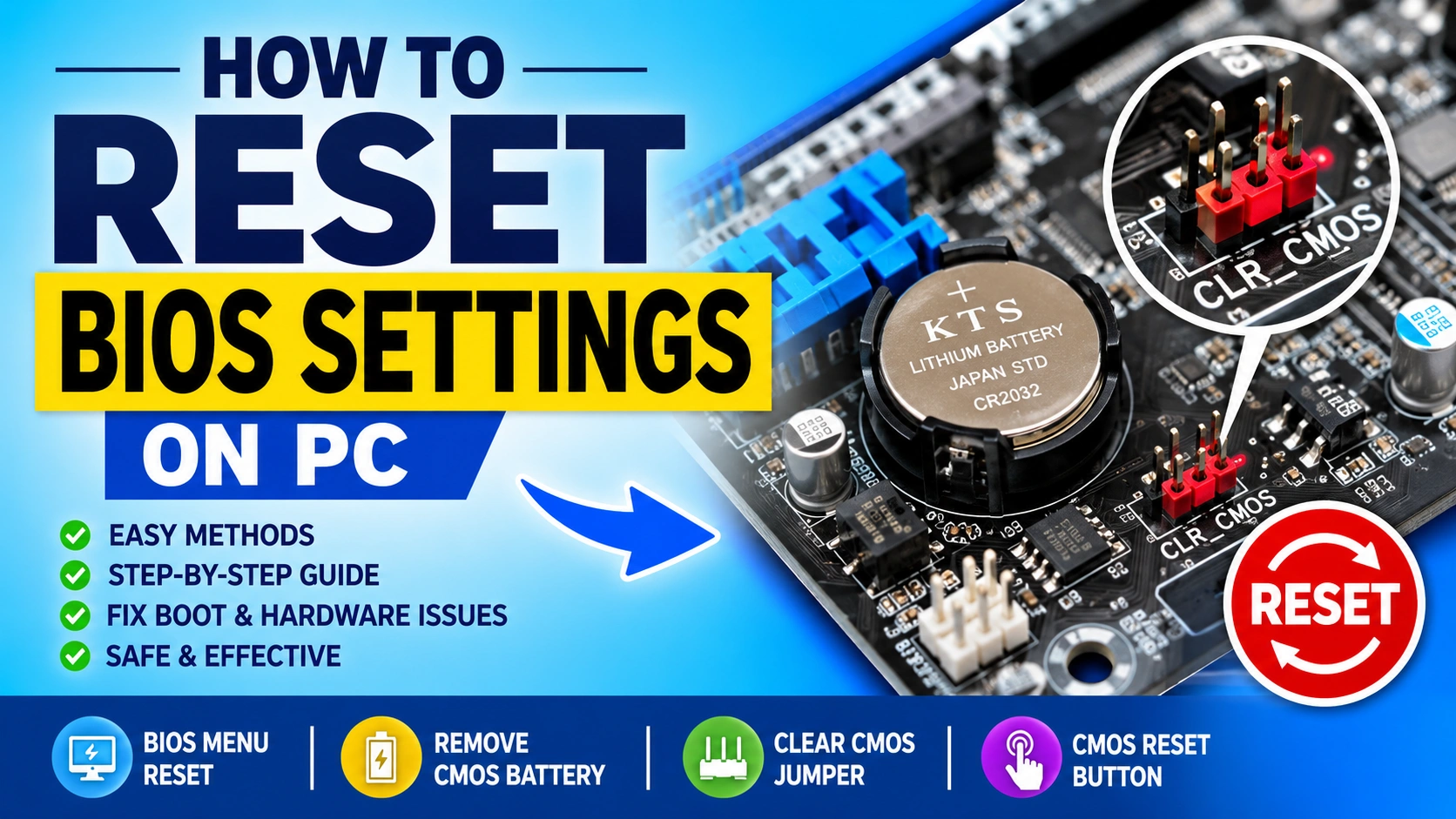
BIOS settings control how your computer’s hardware interacts with the operating system during startup and normal operation. When BIOS settings become misconfigured, they can lead to various problems such as boot failures, hardware detection errors, system instability, and reduced performance. Understanding how to reset BIOS settings on a PC is an essential troubleshooting skill that can help restore factory-default configurations and resolve many common hardware and startup issues. In this guide, you’ll learn several safe and effective methods to reset BIOS settings and get your computer running properly again.
This guide explains several safe methods to reset BIOS settings on a desktop or laptop computer.
What Happens When You Reset BIOS Settings?
When you reset BIOS settings, the motherboard restores all BIOS or UEFI configurations to their factory-default values. This process removes any custom settings that may be causing hardware conflicts, startup issues, or system instability.
Resetting BIOS settings can help resolve a variety of problems, including:
- Boot device errors that prevent Windows from loading
- Unstable CPU or memory overclocking settings
- Hardware detection issues involving SSDs, HDDs, RAM, or graphics cards
- Incorrect BIOS configurations that affect system performance
- Problems occurring after a failed BIOS update
- Startup crashes, freezing, or reboot loops
A BIOS reset essentially gives your motherboard a fresh configuration, allowing the system to start with the manufacturer’s recommended settings.
It is important to note that resetting BIOS does not delete Windows, personal files, applications, or data stored on your SSD or HDD. The process only affects motherboard settings such as boot order, memory profiles, fan controls, and hardware configuration options.
Method 1: Reset BIOS Settings Through BIOS Menu
The easiest and safest method for how to reset BIOS settings on PC is by using the built-in BIOS or UEFI setup utility. Most modern motherboards provide an option to restore factory-default settings directly from the BIOS interface.
Step 1: Enter BIOS Setup
To access the BIOS menu:
- Shut down your computer completely.
- Turn the computer back on.
- Immediately press the BIOS access key repeatedly during startup.
Common BIOS keys include:
- Delete (Del)
- F2
- F10
- Esc
- F12
The correct key depends on your motherboard or laptop manufacturer. A brief message such as “Press DEL to enter Setup” may appear during startup.
Step 2: Locate the Default Settings Option
Once inside the BIOS or UEFI interface, navigate to the settings menu and look for an option that restores factory defaults.
Common names include:
- Load Setup Defaults
- Load Optimized Defaults
- Restore Factory Settings
- Reset to Default
- Load Default Configuration
The exact wording and location may vary depending on the motherboard manufacturer and BIOS version.
Step 3: Save Changes and Restart
After selecting the default settings option:
- Confirm the reset when prompted.
- Save the changes.
- Press F10 if required to save and exit.
- Allow the computer to restart automatically.
The motherboard will now load the factory-default BIOS settings, which can help resolve configuration-related startup and hardware issues.
Step 3: Save Changes
- Select the default settings option.
- Confirm the reset.
- Press F10 to save and exit.
- Restart the PC.
The BIOS settings will now return to factory defaults.
Method 2: Reset BIOS Using the CMOS Battery
If you cannot access the BIOS menu or the system fails to boot properly, removing the CMOS battery is another reliable method for how to reset BIOS settings on PC. This process clears the stored BIOS configuration and restores factory-default settings.
Step 1: Turn Off the Computer
Before working inside your computer:
- Shut down the system completely.
- Disconnect the power cable from the power supply.
- Remove the laptop battery if it is removable.
- Press and hold the power button for a few seconds to discharge any remaining power.
Step 2: Open the Computer Case
Access the motherboard by opening the computer.
- For desktop PCs, remove the side panel of the case.
- For laptops, consult the manufacturer’s service manual before opening the device to avoid damaging internal components.
Step 3: Remove the CMOS Battery
Locate the CMOS battery on the motherboard. It is typically a silver coin-shaped battery, usually a CR2032 model.
- Carefully release the retaining clip.
- Remove the battery from its socket.
- Wait approximately 5–10 minutes.
This allows the motherboard to clear the stored BIOS settings.
Step 4: Reinstall the Battery
After waiting:
- Insert the CMOS battery back into its slot.
- Reconnect the power cable.
- Reinstall the laptop battery if applicable.
- Turn on the computer.
The BIOS settings should now be restored to their default values.
Method 3: Reset BIOS Using the Clear CMOS Jumper
Many desktop motherboards include a dedicated Clear CMOS jumper that provides a quick way to reset BIOS settings without removing the battery.
Step 1: Power Off the Computer
- Shut down the PC completely.
- Disconnect the power cable.
- Ensure no power is reaching the motherboard before proceeding.
Step 2: Locate the CMOS Jumper
Find the CMOS reset jumper on the motherboard.
Common labels include:
- CLR_CMOS
- CLEAR CMOS
- JBAT1
- CLRTC
If you cannot locate the jumper, refer to the motherboard manual for its exact position.
Step 3: Move the Jumper
To clear the BIOS settings:
- Move the jumper cap from pins 1–2 to pins 2–3.
- Leave it in the reset position for approximately 10 seconds.
- Return the jumper cap to its original position.
This process clears the stored CMOS memory.
Step 4: Restart the Computer
- Reconnect the power cable.
- Turn on the computer.
- Enter BIOS if necessary to verify that default settings have been restored.
The motherboard should automatically load factory-default BIOS settings.
Method 4: Use the Motherboard CMOS Reset Button
Many modern gaming, workstation, and enthusiast motherboards include a dedicated CMOS Reset button. This is often the fastest method for how to reset BIOS settings on PC.
Steps to Reset BIOS with a CMOS Reset Button
- Shut down the computer completely.
- Disconnect the power cable.
- Locate the CMOS Reset button on the rear I/O panel or directly on the motherboard.
- Press and hold the button for several seconds.
- Reconnect the power cable.
- Start the computer normally.
The motherboard will clear the BIOS configuration and restore factory-default settings automatically.
When to Use the CMOS Reset Button
This method is especially useful when:
- The system fails to boot after overclocking.
- BIOS settings prevent normal startup.
- Hardware changes cause compatibility issues.
- You need a quick BIOS reset without opening the computer case.
Because no disassembly is required, the CMOS Reset button is often the safest and most convenient BIOS reset method available.
Common Problems Fixed by Resetting BIOS
One of the main reasons users search for how to reset BIOS settings on PC is to troubleshoot hardware and startup problems. Restoring BIOS settings to their factory defaults can resolve various issues caused by incorrect configurations, failed overclocking attempts, or hardware conflicts.
Boot Device Not Found Errors
An incorrect boot order can prevent the computer from locating the operating system. Resetting BIOS restores the default boot configuration, often allowing Windows to load normally again.
RAM Detection Problems
Improper memory settings, incompatible XMP profiles, or incorrect voltage configurations may cause system instability or prevent the computer from starting. A BIOS reset restores safe memory settings that improve compatibility.
CPU Overclocking Failures
Unstable CPU overclock settings can result in crashes, boot loops, or complete startup failure. Resetting BIOS removes custom overclock settings and restores the processor to its default operating parameters.
Hardware Recognition Issues
Sometimes the motherboard may fail to detect hardware components correctly. Resetting BIOS can restore proper recognition of:
- SSDs and HDDs
- Graphics cards (GPUs)
- RAM modules
- USB devices
- Expansion cards
BIOS Configuration Errors
Accidental changes to advanced BIOS settings can create a wide range of system issues. Loading factory defaults removes problematic configurations and restores a stable baseline for troubleshooting.
Startup Crashes and System Instability
Unexpected freezes, random restarts, and startup crashes can sometimes be traced back to BIOS misconfigurations. A reset often eliminates these issues by returning all settings to their recommended values.
Things to Do After Resetting BIOS
After completing how to reset BIOS settings on PC, the motherboard will be operating with factory-default settings. Some important options may need to be reviewed and reconfigured to ensure optimal performance and compatibility.
Verify System Date and Time
A BIOS reset may restore the default date and time. Incorrect values can affect software licensing, internet connectivity, and Windows updates.
Check Boot Order Settings
Confirm that the correct storage device containing Windows is selected as the primary boot device.
Review SATA Mode Configuration
Some systems require specific SATA modes such as:
- AHCI
- RAID
- IDE (legacy systems)
Using the wrong mode may prevent Windows from booting properly.
Re-enable XMP or EXPO Profiles
If your RAM supports memory overclocking profiles, you may need to re-enable:
- Intel XMP
- AMD EXPO
This allows the memory to operate at its rated speed instead of default settings.
Adjust Fan Control Settings
Fan curves and cooling profiles are often reset to default values. Verify that cooling settings match your preferred balance of performance and noise levels.
Enable Virtualization Features
Users running virtual machines may need to re-enable options such as:
- Intel VT-x
- Intel VT-d
- AMD-V
- SVM Mode
These features are commonly disabled after a BIOS reset.
Save and Test the System
Once all required settings have been verified:
- Save the BIOS configuration.
- Restart the computer.
- Confirm that Windows loads correctly.
- Check that all hardware components are functioning as expected.
Taking a few minutes to review these settings can help ensure the system operates efficiently after the BIOS reset process.
Frequently Asked Questions
Does Resetting BIOS Delete Windows?
No. Resetting BIOS only restores the motherboard’s configuration settings to their factory defaults. It does not remove Windows, installed programs, personal files, or any data stored on your SSD or HDD. However, you may need to reconfigure settings such as boot order after the reset.
Is Resetting BIOS Safe?
Yes. Resetting BIOS is generally a safe and commonly recommended troubleshooting procedure. Whether you use the BIOS menu, CMOS battery removal, CMOS jumper, or a dedicated reset button, the process is designed to restore stable default settings without damaging the motherboard or other hardware components.
Can a BIOS Reset Fix Boot Problems?
In many cases, yes. Startup issues are often caused by incorrect BIOS settings, failed overclocking attempts, or misconfigured boot options. Restoring the default BIOS configuration can resolve problems such as boot loops, “Boot Device Not Found” errors, and operating system startup failures.
Will Resetting BIOS Improve Performance?
Resetting BIOS can improve system stability if incorrect settings were negatively affecting performance. However, it does not automatically make a computer faster. Any custom performance settings, such as CPU overclocking or XMP memory profiles, may need to be re-enabled after the reset.
How Long Does a BIOS Reset Take?
Most BIOS reset procedures take only a few minutes to complete. Resetting through the BIOS menu is usually the fastest method, while removing the CMOS battery may require waiting 5–10 minutes before reinstalling it.
Do I Need to Reconfigure BIOS After Resetting?
Yes. After resetting BIOS, it is a good idea to verify important settings such as:
- System date and time
- Boot order
- SATA or NVMe configuration
- XMP or EXPO memory profiles
- Fan control settings
- Virtualization features
Some systems may require these settings to be adjusted before they operate optimally.
What Should I Do If My PC Still Won’t Boot After Resetting BIOS?
If the computer still fails to start after a BIOS reset, additional troubleshooting may be necessary. Check the storage drive, RAM modules, power supply, motherboard connections, and hardware compatibility. In some cases, updating or recovering the BIOS firmware may also be required.
Conclusion
Knowing how to reset BIOS settings on PC is a valuable troubleshooting skill that can help resolve a wide range of hardware and startup-related issues. Incorrect BIOS configurations can lead to boot failures, hardware detection problems, system instability, and performance concerns, making a BIOS reset one of the most effective first steps when diagnosing PC problems.
Whether you choose to reset the BIOS through the BIOS menu, remove the CMOS battery, use the Clear CMOS jumper, or press a dedicated CMOS reset button, each method restores the motherboard’s factory-default settings and can quickly eliminate configuration-related errors. These procedures are generally safe, straightforward, and suitable for both beginners and experienced PC users.
After completing the reset, remember to verify important settings such as the system date and time, boot order, storage configuration, memory profiles, and virtualization options. Taking a few minutes to review these settings ensures your computer operates correctly and delivers optimal performance.
By understanding and applying the methods covered in this guide, you can confidently troubleshoot BIOS-related issues and restore your PC to a stable, functional state.


