

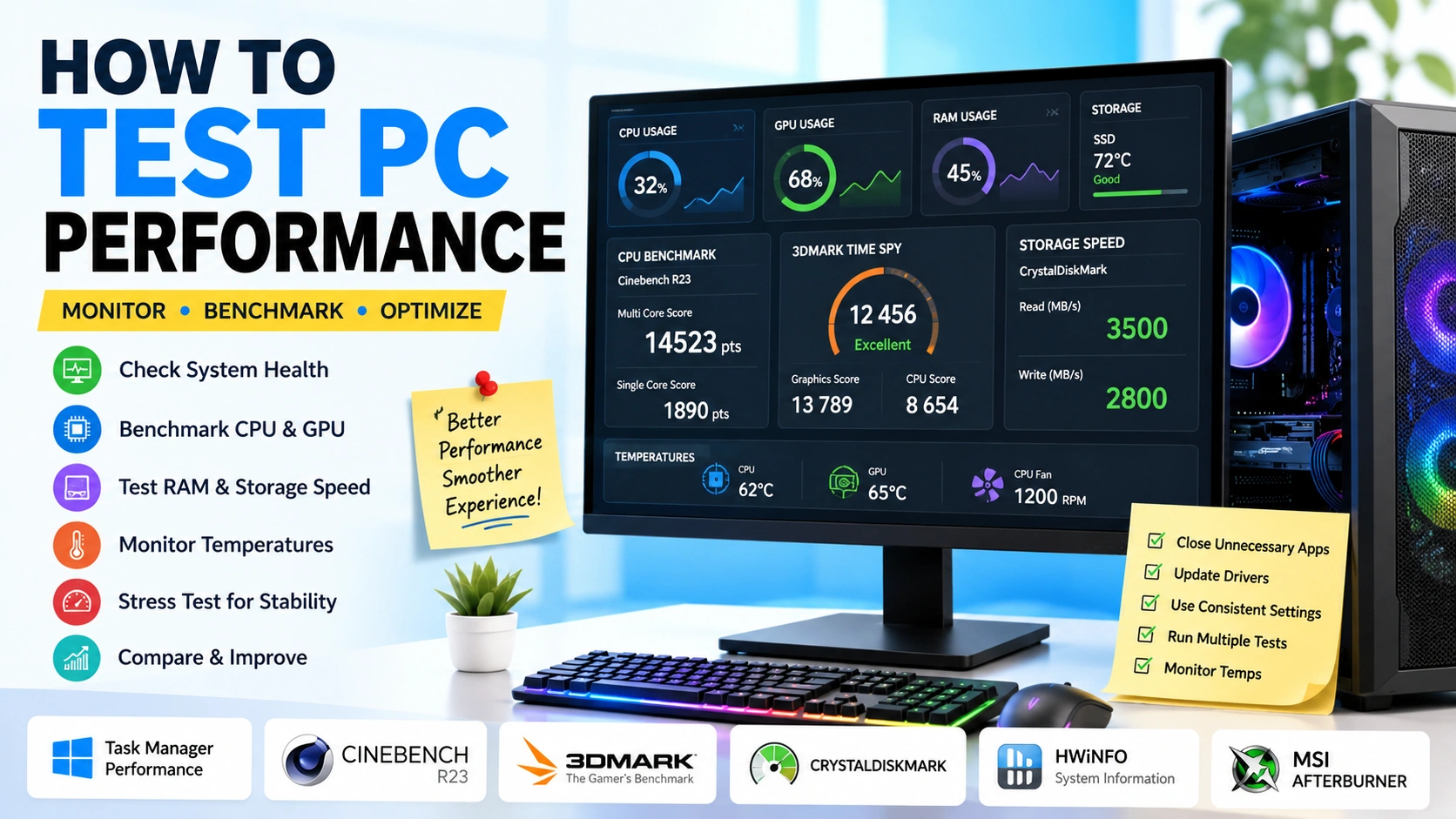
A slow computer can affect productivity, gaming, content creation, and everyday tasks. Understanding how to test PC performance helps identify hardware limitations, software issues, and opportunities for optimization. Knowing how to test PC performance correctly allows you to detect bottlenecks, monitor hardware health, and determine whether upgrades are necessary. If your system recently experienced memory-related problems, you may also want to read Fix RAM Slot Not Working before running performance benchmarks.
Whether you use Windows for work or gaming, learning how to test PC performance provides valuable insights into your computer’s overall health. This guide explains the best methods, benchmarking tools, and diagnostic techniques to accurately evaluate system speed, stability, and overall PC performance.
Why Learning How to Test PC Performance Matters
Understanding how to test PC performance is essential for maintaining a fast, stable, and reliable computer. Regular performance testing helps you identify hardware limitations, diagnose system issues, and determine whether upgrades can improve overall performance.
Testing performance helps you:
- Measure CPU and GPU capabilities
- Detect hardware bottlenecks
- Compare performance before and after upgrades
- Identify overheating issues
- Evaluate storage speed
- Troubleshoot slow system behavior
- Verify system stability under load
By learning how to test PC performance, you can make informed decisions about hardware upgrades, system maintenance, and optimization. Regular performance testing ensures your PC operates at its full potential and delivers the best possible user experience.
1. Test PC Performance Using Windows Performance Monitor
Windows includes a built-in tool called Performance Monitor.
To access it:
- Press Windows + R
- Type perfmon
- Press Enter
Performance Monitor provides detailed information about:
- CPU usage
- Memory consumption
- Disk activity
- Network utilization
This is one of the easiest ways to learn how to test PC performance without installing additional software.
2. How to Test PC Performance Through Task Manager
Task Manager offers one of the quickest ways to learn how to test PC performance using built-in Windows tools. It provides a real-time overview of system resources, allowing you to monitor hardware usage and identify performance bottlenecks.
If you notice unusually high memory usage or missing RAM capacity, hardware issues could be the cause. In such situations, our guide on Fix RAM Slot Not Working can help diagnose memory slot problems that directly impact overall PC performance.
Steps to Check Performance Using Task Manager
- Press Ctrl + Shift + Esc
- Select the Performance tab
- Review the resource usage graphs and hardware statistics
You Can Monitor
- Processor speed
- Memory usage
- Disk performance
- GPU utilization
- Network activity
Monitoring these metrics is an effective way to understand how to test PC performance and determine whether your system is operating efficiently. High resource usage may indicate software conflicts, background processes, insufficient hardware resources, or other limitations that can reduce overall performance.
3. Use Cinebench to Test PC Performance and CPU Benchmarking
Cinebench is one of the most trusted benchmark tools for users who want to learn how to test PC performance, particularly CPU performance. Developed by Maxon, this benchmarking software evaluates processor capabilities using real-world rendering workloads.
Cinebench measures:
- Single-core performance
- Multi-core performance
- Rendering capabilities
By analyzing these results, you can determine how efficiently your processor handles demanding tasks such as video editing, 3D rendering, and multitasking.
After running the benchmark, compare your score with similar processors to determine whether your CPU performs as expected. If your score is significantly lower than average, it may indicate overheating, background processes consuming resources, outdated drivers, or hardware-related issues affecting overall system performance.
Official Website: https://www.maxon.net
Using Cinebench regularly is an excellent way to understand how to test PC performance and track the impact of hardware upgrades, BIOS changes, or system optimizations over time.
4. Benchmark Graphics Performance with 3DMark
If you want to learn how to test PC performance for gaming and graphics-intensive workloads, 3DMark is one of the most popular benchmarking tools available. It is widely used by gamers, PC enthusiasts, and hardware reviewers to evaluate GPU performance under realistic gaming conditions.
Benefits of using 3DMark include:
- Gaming benchmark scores
- Graphics stress testing
- Hardware comparison charts
- DirectX performance analysis
3DMark helps determine whether your graphics card is performing correctly and whether it can handle modern games and demanding visual applications. The benchmark generates detailed scores that make it easy to compare your system against similar hardware configurations.
For gamers experiencing crashes, poor frame rates, or launch issues, benchmarking can help identify whether the graphics card is the source of the problem. If certain games fail to start properly, you may also find our guide on Solve Windows Error 0xc000007b Game Crash Fix helpful.
Official Website: https://www.3dmark.com
Using 3DMark regularly is an effective way to understand how to test PC performance, monitor GPU health, and measure the impact of driver updates, hardware upgrades, or overclocking adjustments.
5. Test Storage Speed with CrystalDiskMark for PC Performance
If you want to understand how to test PC performance, storage benchmarking is one of the most important steps. CrystalDiskMark is a widely used tool that measures SSD and HDD speed, helping you evaluate how fast your system reads and writes data.
CrystalDiskMark measures:
- Sequential read speeds
- Sequential write speeds
- Random access performance
- SSD and HDD efficiency
Storage performance plays a major role in system responsiveness. Even if your CPU and GPU are powerful, a slow drive can make your computer feel laggy during boot time, file transfers, and application loading.
A slow drive is often one of the hidden causes of poor system performance. In some cases, Windows services or background errors may also reduce storage efficiency. If you experience system-related issues during testing, you may also check Fix Windows Error 0x80070422 Service Not Running for potential system service fixes.
By regularly using CrystalDiskMark, you can better understand how to test PC performance and determine whether upgrading to an SSD or NVMe drive will significantly improve your system speed.
Official Website: https://crystalmark.info
6. Monitor Temperatures During Performance Testing for PC Stability
Understanding how to test PC performance is not complete without monitoring system temperatures. High temperatures can cause thermal throttling, which significantly reduces CPU and GPU performance during benchmarking or heavy workloads.
When testing your system, it is important to monitor key hardware metrics to ensure stable and accurate results.
Use monitoring tools to check:
- CPU temperature
- GPU temperature
- Fan speeds
- Voltage levels
Popular monitoring tools include:
- HWMonitor
- HWiNFO
- Open Hardware Monitor
These tools help you detect overheating issues that may not be visible during normal usage but can severely affect benchmark results and gaming performance.
If temperatures exceed safe limits, performance testing results may become inaccurate. In such cases, improving cooling through better airflow, cleaning dust from components, or upgrading thermal solutions is recommended before continuing further tests.
Overheating issues can also sometimes be linked to system instability or background services not functioning properly. If your system shows unusual behavior during monitoring, you may also find Fix Windows Error 0x80070422 Service Not Running useful for diagnosing related service issues.
Monitoring temperatures is a crucial step in learning how to test PC performance, ensuring that your CPU and GPU deliver consistent and reliable results under load.
7. Run a System Stability Stress Test for PC Performance Evaluation
A key step in learning how to test PC performance is running a system stability stress test. While basic benchmarks measure speed, stress testing focuses on long-term stability under maximum load conditions.
Stress testing reveals hidden issues that may not appear during normal usage or standard benchmarking.
Common stress-testing tools include:
- Prime95
- AIDA64
- OCCT
These tools push your CPU, GPU, and memory to their limits to simulate extreme workloads.
Stress testing helps identify:
- Overheating under full load
- Unstable overclocks
- Power supply problems
- Hardware failures
If your system crashes, freezes, or throttles during stress tests, it may indicate deeper hardware or cooling issues that need to be resolved before further optimization.
System stability testing is an essential part of understanding how to test PC performance because it ensures that your computer is not only fast but also reliable under demanding conditions. A system that performs well in benchmarks but fails stress tests may require cooling improvements or hardware adjustments.
8. Evaluate Gaming Performance with FPS Monitoring for PC Performance
When learning how to test PC performance, gaming performance evaluation is essential because it reflects real-world usage. One of the most effective ways to measure this is through FPS (Frames Per Second) monitoring.
Frame rates provide real-world performance data that shows how smoothly your system runs games under different workloads.
Tools such as:
- MSI Afterburner
- RivaTuner Statistics Server
- Steam FPS Counter
allow you to monitor:
- Average FPS
- Minimum FPS
- GPU usage
- CPU usage
Tracking FPS in real time helps you understand whether your system is performing efficiently or if bottlenecks exist between the CPU and GPU. Low or unstable FPS may indicate outdated drivers, overheating, or hardware limitations.
9. Compare Results with Online Benchmark Databases for PC Performance
Another important step in understanding how to test PC performance is comparing your benchmark results with online databases. This helps you determine whether your system is performing within expected standards.
After benchmarking, compare your scores with other systems to identify performance gaps or potential issues.
Benchmark databases help determine:
- Expected performance levels
- Hardware ranking
- Potential hardware issues
Useful benchmark resources include:
- UserBenchmark
- PassMark
- CPU-Monkey
By comparing your results with global datasets, you gain a clearer understanding of your system’s strengths and weaknesses. This step is crucial for validating upgrades and ensuring your PC delivers optimal performance.
Comparison testing provides valuable context for benchmark results and completes the process of learning how to test PC performance effectively.
Common Reasons for Poor PC Performance in Windows Systems
When learning how to test PC performance, it is equally important to understand what causes poor results. If your benchmarks show low scores or unstable system behavior, several underlying issues may be affecting your computer’s overall performance.
Common causes of poor PC performance include:
- Outdated drivers
- Background applications consuming resources
- Insufficient RAM capacity
- Thermal throttling due to overheating
- Malware infections or unwanted software
- Failing storage devices (HDD or SSD degradation)
- Incorrect or unstable Windows configuration
Each of these issues can significantly reduce system responsiveness, slow down applications, and create inconsistent benchmark results. Identifying the root cause is a key step in understanding how to test PC performance effectively and accurately.
System errors can also reduce overall responsiveness. For example, users experiencing application launch failures should check Solve Windows Error 0xc000007b Game Crash Fix, while Windows Update problems may be resolved using Fix Windows Error 0x80070422 Service Not Running.
By combining performance testing with proper troubleshooting, you can ensure your PC runs at optimal speed and stability.
Best Practices When Testing PC Performance for Accurate Results
To properly understand how to test PC performance, you need to follow consistent testing practices. Without proper setup, benchmark results can become inaccurate or misleading, especially when background processes interfere with system resources.
For accurate results:
- Close unnecessary applications
- Update drivers beforehand
- Use consistent benchmark settings
- Run multiple test sessions
- Monitor temperatures during tests
These steps ensure that your system is evaluated under controlled conditions, giving you reliable performance data for CPU, GPU, storage, and memory.
Background Windows features can sometimes interfere with benchmarking results. Even minor system processes can impact performance measurements and lead to inconsistent outcomes. If copy-and-paste functionality or clipboard behavior becomes unstable during testing, see Clipboard History Not Working Fix for troubleshooting steps.
Following these best practices is essential for learning how to test PC performance accurately and ensures that your benchmark results truly reflect your system’s real capabilities.
Conclusion
Learning how to test PC performance is essential for diagnosing system issues, measuring hardware upgrades, and ensuring long-term stability. A properly tested system helps you understand whether your PC is running efficiently or if there are hidden bottlenecks affecting speed and responsiveness.
Windows provides built-in monitoring tools such as Task Manager and Performance Monitor, which offer quick insights into CPU, memory, disk, and GPU usage. For deeper analysis, third-party applications like Cinebench, 3DMark, and CrystalDiskMark deliver accurate benchmarking results for CPU, GPU, and storage performance.
By combining these tools, you can fully understand how to test PC performance across all major hardware components and make informed decisions about upgrades, optimization, or troubleshooting.
After optimizing your hardware and software performance, consider exploring Best Productivity Apps for Windows to maximize efficiency and get the most value from your improved system performance.
A well-tested and well-optimized PC ensures smoother multitasking, better gaming experiences, and improved overall productivity.