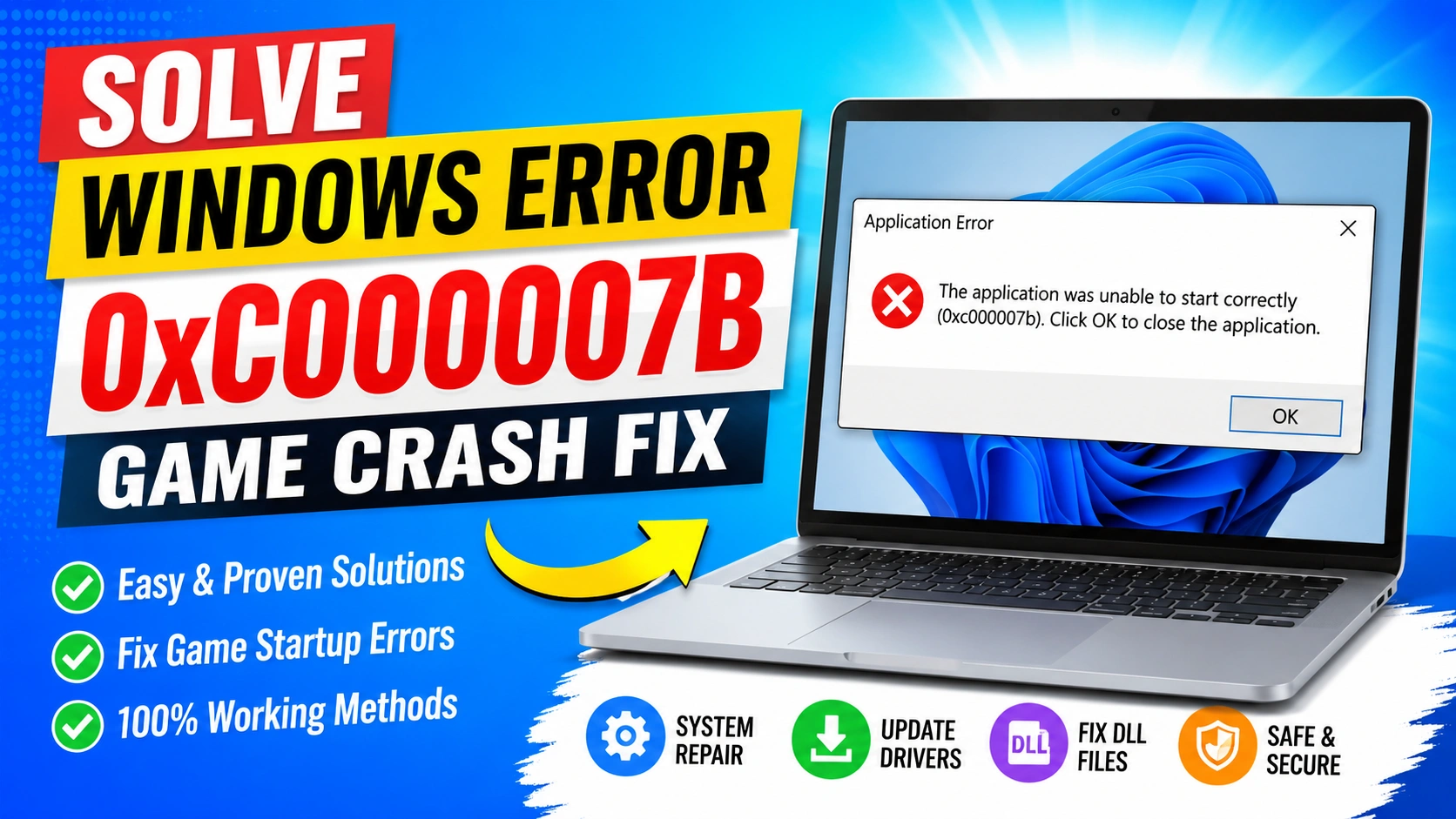
Windows Error 0xc000007b is one of the most frustrating problems gamers encounter when launching games or applications. Instead of loading properly, the game immediately crashes and displays an error message stating that the application was unable to start correctly.
The good news is that this issue is usually fixable without reinstalling Windows. In this guide, you’ll learn how to perform a complete Solve Windows Error 0xc000007b Game Crash Fix using proven troubleshooting methods that work on both Windows 10 and Windows 11.
What Is Windows Error 0xc000007b?
Windows Error 0xc000007b is a startup error that occurs when Windows cannot properly load the files required by an application.
The problem often appears when there is a conflict between 32-bit and 64-bit files, missing system components, corrupted DLL files, or damaged Windows installations.
Common error messages include:
- The application was unable to start correctly (0xc000007b)
- Error code 0xc000007b
- Game crashes immediately after launch
- Application startup failed
Why Does Windows Error 0xc000007b Occur?
Several issues can trigger this error:
- Corrupted DirectX files
- Missing Visual C++ Redistributables
- Damaged .NET Framework components
- Corrupted system files
- Incorrect DLL files
- Mixing 32-bit and 64-bit application files
- Outdated graphics drivers
- Failed Windows updates
- Malware infections
Identifying the root cause helps apply the correct Solve Windows Error 0xc000007b Game Crash Fix.
Fix 1: Restart Your Computer
Before making advanced changes, restart Windows.
A simple reboot can reload system files and clear temporary glitches causing startup failures.
Steps:
- Save your work.
- Click Start.
- Select Power.
- Choose Restart.
After rebooting, try launching the game again.
Fix 2: Run the Game as Administrator
Some games require elevated permissions to access system resources.
Steps:
- Right-click the game shortcut.
- Select Properties.
- Open the Compatibility tab.
- Check Run this program as an administrator.
- Click Apply.
- Launch the game.
Many startup-related issues are resolved through administrator access.
Fix 3: Reinstall Microsoft Visual C++ Redistributables
To ensure you install the latest supported packages, download them directly from the official Microsoft Visual C++ Redistributable page. Installing both x86 and x64 versions can resolve many compatibility issues associated with Windows Error 0xc000007b.
Steps:
- Open Control Panel.
- Select Programs and Features.
- Uninstall existing Microsoft Visual C++ Redistributables.
- Download the latest versions from Microsoft’s official website.
- Install both x86 and x64 versions.
- Restart your PC.
After installation, test the game again.
Fix 4: Reinstall DirectX
Games rely heavily on DirectX components.
Corrupted DirectX files can trigger startup errors.
Steps:
- Download the DirectX End-User Runtime installer.
- Run the installer.
- Follow the setup instructions.
- Restart Windows.
DirectX repairs often provide an effective Solve Windows Error 0xc000007b Game Crash Fix.
Fix 5: Repair System Files Using SFC
Windows includes a built-in tool for repairing corrupted system files.
Steps:
- Open Command Prompt as Administrator.
- Enter:
sfc /scannow
- Press Enter.
- Wait for the scan to finish.
- Restart your computer.
The System File Checker automatically repairs damaged Windows components.
If Windows system files continue to cause errors, you may also find it helpful to read our guide on How to Fix Windows Update Stuck in Windows 10 & 11. Many update-related issues can lead to corrupted system components that trigger Error 0xc000007b.
Fix 6: Use DISM Repair Commands
If SFC cannot resolve the issue, use DISM.
Steps:
Open Command Prompt as Administrator and run:
DISM /Online /Cleanup-Image /RestoreHealth
Wait until the process completes.
Restart your computer and launch the game again.
Fix 7: Update Graphics Drivers
Outdated GPU drivers may prevent games from launching correctly.
Steps:
- Press Windows + X.
- Select Device Manager.
- Expand Display Adapters.
- Right-click your graphics card.
- Choose Update Driver.
- Install available updates.
You can also download the latest drivers directly from your GPU manufacturer.
Network interruptions during driver downloads can sometimes create installation problems. If you experience connectivity issues, check our tutorial on How to Reset Network Settings to Fix Internet Problems before updating your drivers again.
Outdated or corrupted graphics drivers are a common cause of Windows Error 0xc000007b. If your graphics card is experiencing additional problems such as display glitches, driver crashes, or poor gaming performance, you may also want to read our guide on GPU Not Working in Windows for more advanced troubleshooting steps.
Fix 8: Reinstall the Affected Game
Corrupted game files can generate the 0xc000007b error.
Steps:
- Uninstall the game.
- Delete leftover game folders.
- Restart Windows.
- Download a fresh copy.
- Install the game again.
A clean installation replaces missing or damaged files.
Fix 9: Check for Windows Updates
Microsoft regularly releases fixes for compatibility issues.
Steps:
- Open Settings.
- Select Windows Update.
- Click Check for Updates.
- Install all available updates.
- Restart the computer.
Keeping Windows updated improves game stability and system compatibility.
Additional Troubleshooting Tips
If the error persists, try these solutions:
- Temporarily disable antivirus software
- Scan for malware
- Verify game files through Steam or Epic Games Launcher
- Perform a Clean Boot
- Reinstall .NET Framework
- Restore Windows using System Restore
These advanced methods can resolve stubborn startup problems.
If other Windows features are also malfunctioning, you may be dealing with broader system corruption. You can troubleshoot related issues using our guides on How to Fix Clipboard History Not Working and Microsoft Word Keeps Freezing.
In some cases, the error may not be related to game files at all. Hardware-related issues, particularly graphics card problems, can prevent games from launching correctly. If you suspect your graphics card is malfunctioning, check out our detailed article on GPU Not Working in Windows to diagnose and fix common GPU issues.
How to Prevent Windows Error 0xc000007b
To reduce future occurrences:
- Keep Windows updated
- Install software only from trusted sources
- Update graphics drivers regularly
- Avoid downloading random DLL files
- Use reputable antivirus protection
- Maintain sufficient free disk space
Regular maintenance keeps Windows running smoothly and prevents application launch failures.
Keeping your system optimized is essential for gaming performance. You may also want to explore our list of Best Productivity Apps for Windows to improve overall system efficiency and daily workflow.
Keeping graphics drivers updated is one of the best ways to prevent application startup errors and game crashes. If you notice performance drops, screen flickering, or driver failures, our GPU Not Working in Windows guide can help you identify and resolve the underlying problem before it affects your games.
Conclusion
Windows Error 0xc000007b can prevent games from launching and significantly impact your gaming experience. Fortunately, most cases are caused by damaged system files, missing Visual C++ packages, DirectX issues, or outdated drivers.
By following the methods in this Solve Windows Error 0xc000007b Game Crash Fix guide, you can identify the cause and restore normal game functionality. Start with the simple fixes, then move on to system repairs if necessary. In most situations, one of these solutions will successfully eliminate the error and allow your games to launch normally again.