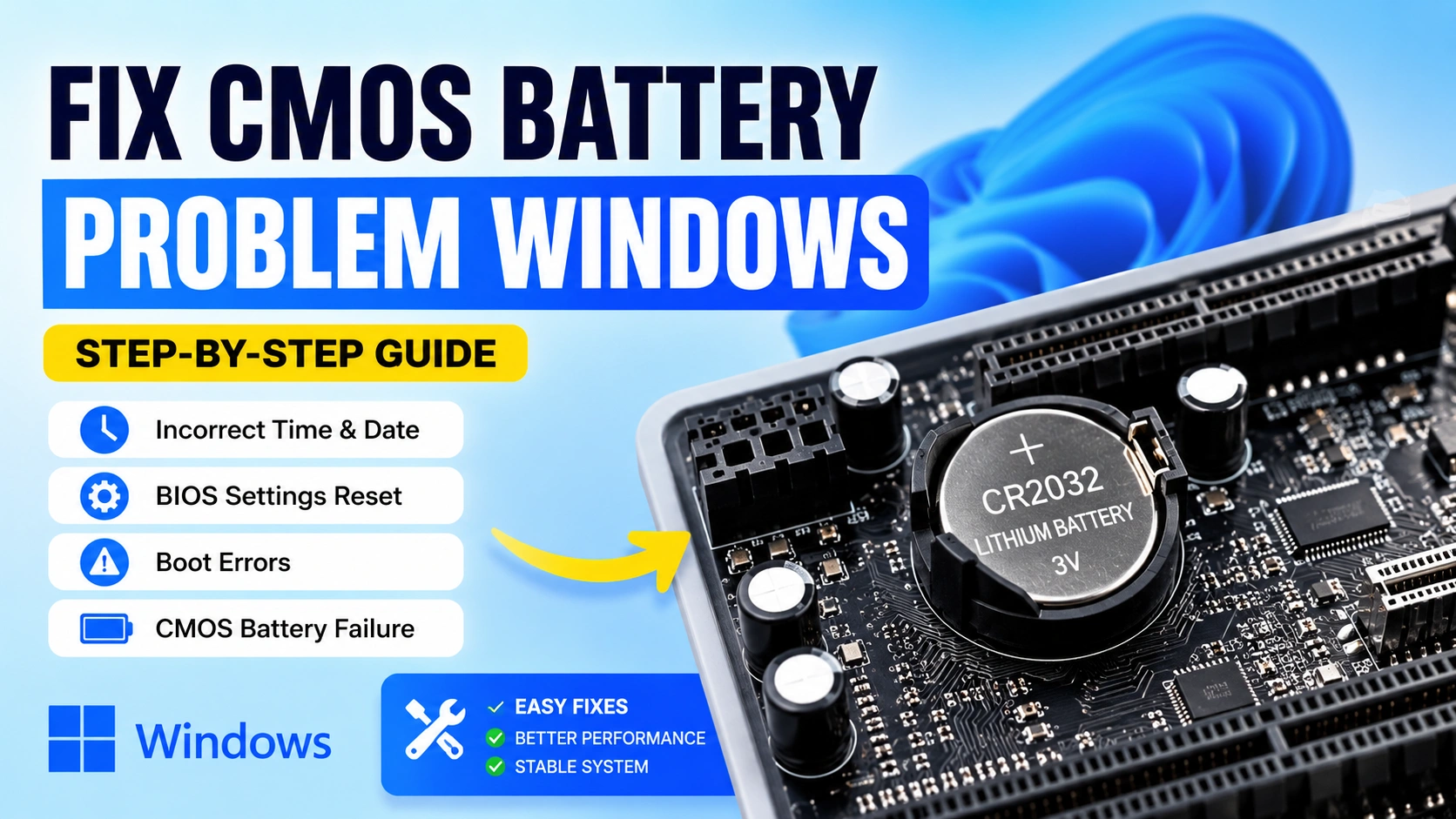
A failing CMOS battery can cause various startup and configuration issues on a computer. If you notice incorrect system time, BIOS settings resetting, boot errors, or hardware detection problems, it may be time to Fix CMOS Battery Problem Windows. Fortunately, diagnosing and resolving this issue is usually straightforward.
This guide explains the causes, symptoms, and step-by-step methods to Fix CMOS Battery Problem Windows and restore normal system operation.
What Is a CMOS Battery?
A CMOS battery is a small coin-cell battery, typically a CR2032, installed on a computer’s motherboard. Its purpose is to supply power to the CMOS (Complementary Metal-Oxide Semiconductor) memory chip, which stores essential BIOS or UEFI settings even when the computer is powered off.
These settings include the system date and time, boot order, hardware configuration, and other firmware preferences required for the computer to start correctly. The battery ensures that this information remains saved when the PC is unplugged or disconnected from power.
When the CMOS battery becomes weak or fails completely, the motherboard can no longer retain these settings. As a result, users may experience problems such as incorrect system time, BIOS settings resetting to default values, startup warnings, or boot-related errors each time the computer is turned on.
Understanding the role of the CMOS battery is the first step in diagnosing and fixing BIOS-related issues that can affect overall system stability and performance.
Common Symptoms of CMOS Battery Failure
Before attempting to Fix CMOS Battery Problem Windows, look for these common signs:
- Incorrect date and time after every restart
- BIOS settings reset to default
- Boot device errors
- BIOS checksum errors
- Startup warning messages
- Hardware detection problems
- Frequent requests to enter BIOS setup
If several of these symptoms occur simultaneously, the CMOS battery is often the cause.
What Causes CMOS Battery Problems?
Several factors can cause CMOS battery failure over time. Understanding these causes can help you diagnose issues early and prevent unexpected BIOS or startup problems.
Battery Age
The most common cause of CMOS battery failure is natural aging. Most CMOS batteries, typically CR2032 lithium coin-cell batteries, have a lifespan of three to ten years depending on motherboard design, power consumption, and environmental conditions. As the battery ages, its voltage gradually decreases until it can no longer maintain the CMOS memory.
Power Surges
Electrical surges and unstable power conditions can damage motherboard components, including circuits associated with CMOS memory and battery management. Frequent power fluctuations may accelerate battery wear and contribute to BIOS-related issues.
Long-Term Storage
Computers that remain unused for extended periods may experience CMOS battery discharge. Even when a PC is turned off, the battery continuously supplies a small amount of power to preserve BIOS settings. Over time, this can significantly reduce battery capacity.
Extreme Temperatures
Excessive heat is one of the primary factors that shorten battery lifespan. High operating temperatures inside a computer case can accelerate chemical degradation within the battery, reducing its ability to hold a charge. Extremely cold conditions can also negatively affect battery performance.
Defective Battery
Although relatively rare, some CMOS batteries may fail earlier than expected due to manufacturing defects or poor-quality materials. A defective battery can cause BIOS settings to reset even when the battery is relatively new.
Motherboard Issues
In some cases, the battery itself is not the problem. Damaged battery holders, corroded contacts, or faults within the motherboard circuitry can prevent the CMOS battery from supplying power correctly, resulting in symptoms similar to battery failure.
Improper Battery Installation
If the battery is installed incorrectly or does not make proper contact with the battery holder, the motherboard may lose BIOS settings whenever power is disconnected. Always ensure the battery is inserted with the correct polarity and seated securely.
Identifying the root cause of CMOS battery problems can help determine whether a simple battery replacement is sufficient or if additional motherboard troubleshooting is required.
How to Fix CMOS Battery Problem Windows
Follow these troubleshooting methods in order.
Check Date and Time Settings
One of the easiest ways to identify a CMOS battery issue is by checking system time.
- Restart the computer.
- Enter BIOS or UEFI settings.
- Verify the current date and time.
- Save settings and shut down.
- Disconnect power for several minutes.
- Restart and check if settings remain.
If the date and time reset repeatedly, the battery may be failing.
Inspect BIOS Error Messages
Many motherboards display warnings such as:
- CMOS Checksum Error
- CMOS Battery Failure
- Time and Date Not Set
- BIOS Settings Reset
These messages strongly indicate the need to Fix CMOS Battery Problem Windows by replacing the battery.
Reset BIOS Settings
Corrupted BIOS settings can sometimes mimic battery-related issues.
Steps to Reset BIOS
- Restart the PC.
- Enter BIOS setup.
- Locate Load Default Settings.
- Save changes.
- Reboot Windows.
If problems persist after resetting BIOS, continue with battery inspection.
Locate the CMOS Battery
Power off the computer completely before opening the case.
The CMOS battery is typically:
- A CR2032 coin-cell battery
- Located near PCIe slots
- Installed directly on the motherboard
Remove the side panel carefully to access the motherboard.
Test the CMOS Battery
To properly Fix CMOS Battery Problem Windows, verify battery voltage.
A healthy CR2032 battery typically measures:
- 3.0V to 3.3V = Good
- Below 2.8V = Replace Soon
- Below 2.5V = Replace Immediately
Use a multimeter if available.
Replace the CMOS Battery
Replacing the battery is often the most effective way to Fix CMOS Battery Problem Windows.
Replacement Steps
- Turn off the computer.
- Disconnect power cables.
- Ground yourself to prevent static damage.
- Remove the old battery carefully.
- Insert a new CR2032 battery.
- Ensure correct polarity.
- Reassemble the system.
- Start the computer.
After replacement, enter BIOS and configure settings as needed.
Reconfigure BIOS Settings
A new battery may reset all BIOS values.
Check and configure:
- System date and time
- Boot order
- SATA mode
- XMP memory profile
- Fan settings
- Virtualization options
Save changes before exiting BIOS.
Update BIOS Firmware
In some cases, BIOS bugs can create symptoms similar to battery failure.
Visit your motherboard manufacturer’s support page and install the latest BIOS version following official instructions.
Always:
- Use stable power
- Follow manufacturer guidelines
- Avoid interrupting the update process
Check Motherboard Battery Holder
Sometimes the battery itself is not the problem.
Inspect the holder for:
- Bent contacts
- Corrosion
- Dust buildup
- Physical damage
Clean gently using compressed air if necessary.
Verify Windows Time Synchronization
After replacing the battery, ensure Windows can synchronize time properly.
Windows Time Sync Steps
- Open Settings.
- Select Time & Language.
- Click Date & Time.
- Enable automatic time setting.
- Click Sync Now.
This helps maintain accurate system time.
Advanced Troubleshooting
If replacing the battery does not Fix CMOS Battery Problem Windows, investigate other hardware issues.
Inspect the Motherboard
Look for:
- Swollen capacitors
- Burn marks
- Corrosion
- Damaged traces
Motherboard damage can cause CMOS-related errors.
Check Power Supply Stability
An unstable power supply may interfere with motherboard operation.
Monitor:
- Unexpected shutdowns
- Random reboots
- Voltage irregularities
Consider testing with a known-good PSU.
Clear CMOS Manually
Many motherboards include a CMOS reset jumper.
General Procedure
- Turn off the computer.
- Disconnect power.
- Move the CMOS jumper.
- Wait 10 seconds.
- Return jumper to original position.
- Restart and configure BIOS.
Consult the motherboard manual for exact instructions.
How to Prevent Future CMOS Battery Problems
To avoid needing to Fix CMOS Battery Problem Windows again:
- Replace aging batteries proactively.
- Keep the PC in a cool environment.
- Use a surge protector.
- Avoid long-term storage without power.
- Periodically verify BIOS settings.
- Update BIOS when recommended by the manufacturer.
Preventive maintenance can significantly extend motherboard reliability.
Frequently Asked Questions
How long does a CMOS battery last?
Most CMOS batteries last between three and ten years depending on usage and environmental conditions.
Can a dead CMOS battery prevent Windows from booting?
Yes. Incorrect BIOS settings caused by a dead battery may prevent the system from locating the boot drive.
What battery is commonly used on motherboards?
Most desktop motherboards use a CR2032 lithium coin-cell battery.
Will replacing the CMOS battery delete my files?
No. Replacing the battery only affects BIOS settings and does not remove data stored on your SSD or HDD.
Can Windows report CMOS battery errors?
Windows typically does not directly report battery failures. Most warnings appear during startup through BIOS or UEFI messages.
Conclusion
Knowing how to Fix CMOS Battery Problem Windows is essential for resolving BIOS resets, incorrect system time, startup warnings, and configuration issues. In most cases, replacing the CMOS battery with a new CR2032 cell quickly restores normal operation. If problems continue after replacement, checking BIOS settings, motherboard condition, and power supply stability can help identify underlying hardware faults before they lead to more serious system failures.