

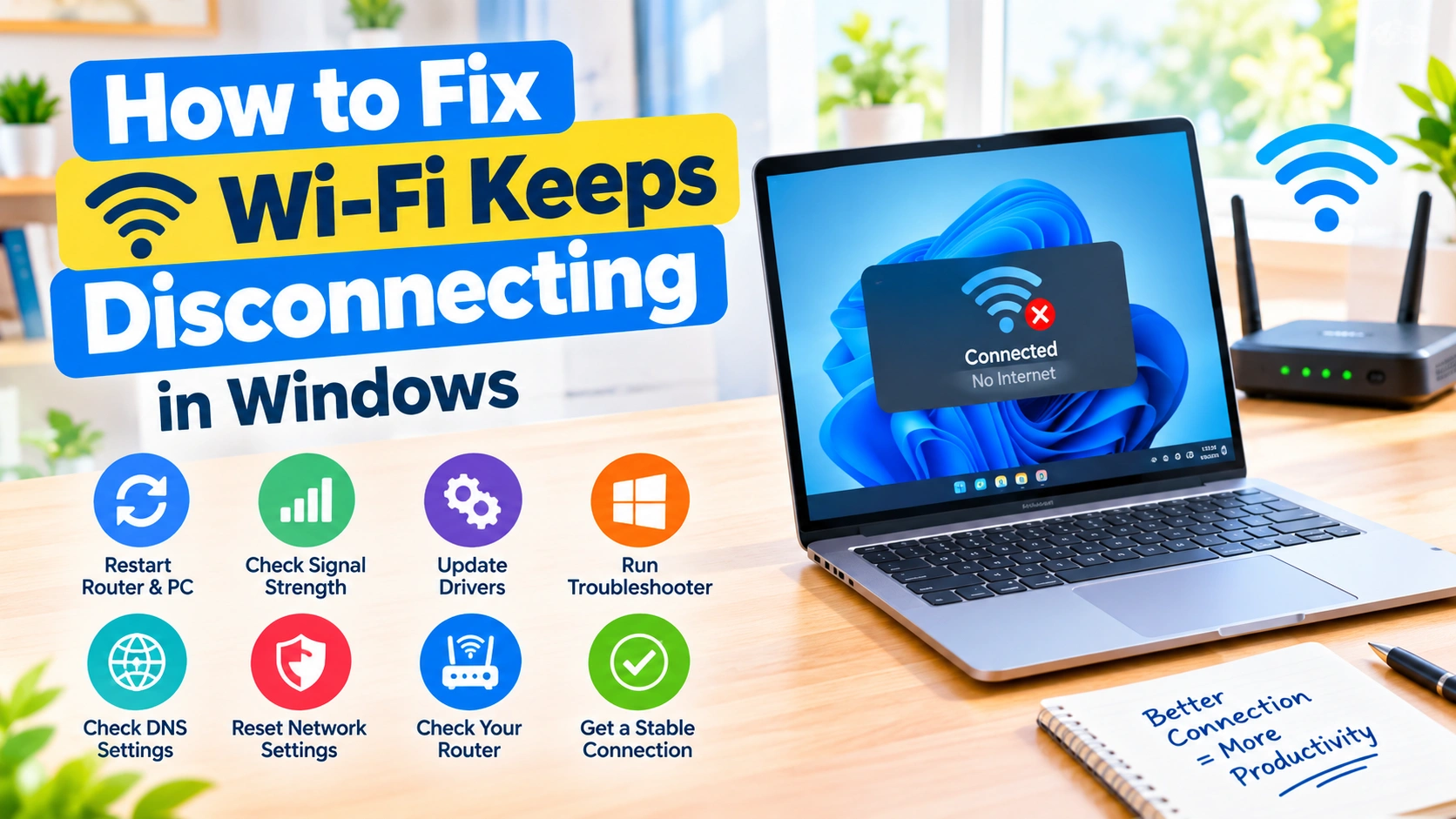
Wi-Fi keeps disconnecting in Windows can make browsing, streaming, downloads, and video calls frustrating. The problem may be caused by an outdated Wi-Fi driver, weak wireless signal, power-saving settings, router issues, network configuration, or wireless interference.
Fortunately, you can often fix frequent Wi-Fi disconnections without replacing your computer or router. In this guide, you’ll learn practical ways to troubleshoot and fix Wi-Fi that keeps disconnecting in Windows, from restarting your network equipment and updating drivers to resetting Windows network settings.
Why Does Wi-Fi Keep Disconnecting in Windows?
There isn’t always one single cause behind an unstable wireless connection. Common reasons include:
- Outdated or corrupted Wi-Fi drivers
- Windows power-saving settings
- Weak wireless signal
- Router or modem problems
- Network adapter configuration issues
- Incorrect TCP/IP or DNS settings
- Wireless interference
- Outdated Windows updates
- Problems with the Wi-Fi adapter itself
- Network congestion or an overloaded router
Before changing advanced settings, determine whether the problem affects only your Windows PC or every device connected to the same Wi-Fi network.
If phones, tablets, and other computers are also disconnecting, the router or internet connection may be the more likely source of the problem.
1. Restart Your Router and Computer
Start with the simplest troubleshooting step.
Turn off your Windows computer and unplug your router and modem from power. Wait approximately 30 seconds, reconnect the modem, and allow it to finish starting up. Then reconnect the router if it is a separate device.
Once the wireless network is available, restart your Windows PC and reconnect to Wi-Fi.
A restart can clear temporary network problems and refresh the connection between your computer, router, and internet service.
2. Check Your Wi-Fi Signal Strength
A weak Wi-Fi signal can cause intermittent connections, particularly when you’re far away from the router.
Check whether the connection becomes more stable when you move your computer closer to the router.
Walls, floors, furniture, appliances, and other wireless networks can interfere with Wi-Fi signals. If possible, place the router in a central, elevated location rather than inside a cabinet or behind large objects.
If your router supports both 2.4 GHz and 5 GHz networks, try connecting to the other frequency band. The 2.4 GHz band generally travels farther, while 5 GHz can provide faster speeds at shorter distances.
3. Forget and Reconnect to the Wi-Fi Network
Windows may occasionally retain incorrect or outdated wireless configuration information.
To forget the network in Windows 11:
- Open Settings.
- Select Network & internet.
- Choose Wi-Fi.
- Select Manage known networks.
- Find your wireless network.
- Click Forget.
- Return to the Wi-Fi settings.
- Select your network and reconnect.
- Enter the Wi-Fi password when prompted.
This creates a fresh wireless connection and can resolve problems caused by corrupted network profiles.
4. Disable Wi-Fi Adapter Power Saving
Windows can sometimes reduce power to a wireless adapter to save energy. Depending on the hardware and driver, this can contribute to repeated disconnections.
To check the setting:
- Right-click the Start button.
- Select Device Manager.
- Expand Network adapters.
- Find your wireless adapter.
- Right-click it and select Properties.
- Open the Power Management tab.
- Look for Allow the computer to turn off this device to save power.
- If available, clear the checkbox.
- Click OK.
Restart your computer and test the connection again.
If the disconnections stop, power management may have been interfering with the Wi-Fi adapter.
5. Update the Wi-Fi Driver
A faulty or outdated wireless driver can cause instability, especially after a Windows update or hardware change.
Open Device Manager, expand Network adapters, right-click your Wi-Fi adapter, and select Update driver.
You can also check your computer manufacturer’s support website for the latest wireless driver designed specifically for your model.
When installing drivers, use the manufacturer’s official website whenever possible. Avoid downloading drivers from unfamiliar third-party websites.
6. Roll Back the Wi-Fi Driver
If Wi-Fi problems started immediately after a driver update, the new driver could be responsible.
You can check whether Windows allows you to return to the previous driver:
- Open Device Manager.
- Expand Network adapters.
- Right-click your Wi-Fi adapter.
- Select Properties.
- Open the Driver tab.
- Look for Roll Back Driver.
- Follow the instructions if the option is available.
The rollback option may be unavailable if Windows does not have an earlier driver stored on the system.
7. Run the Windows Network Troubleshooter
Windows includes built-in troubleshooting tools that can identify common network problems.
Open Settings and go to System > Troubleshoot > Other troubleshooters.
Look for the available network or internet troubleshooting options and follow the instructions.
The troubleshooter may detect problems involving network configuration, adapters, or connectivity.
Although automated troubleshooting does not fix every problem, it is a useful first step before making more advanced changes.
8. Reset the Network Adapter
If your Wi-Fi adapter appears to be stuck or behaving incorrectly, disabling and re-enabling it can refresh the connection.
Open Settings > Network & internet > Advanced network settings.
Under the network adapters section, locate your Wi-Fi adapter and use the option to disable it. Wait several seconds, then enable it again.
Reconnect to your wireless network and see whether the connection remains stable.
9. Reset Network Settings in Windows
If individual troubleshooting steps haven’t helped, Windows provides a network reset feature.
Go to:
Settings > Network & internet > Advanced network settings > Network reset
Select Reset now and follow the instructions.
A network reset removes and reinstalls network adapters and returns certain networking settings to their defaults.
Keep in mind that you may need to reconnect to Wi-Fi networks afterward. Make sure you know your Wi-Fi password before performing a network reset.
10. Reset TCP/IP and Network Configuration
Windows network configuration can occasionally become corrupted.
You can use Windows Terminal or Command Prompt to refresh important network components.
Open Command Prompt or Windows Terminal as an administrator and run the appropriate commands individually.
Common troubleshooting commands include:
ipconfig /release
ipconfig /renew
ipconfig /flushdns
netsh winsock reset
Restart Windows after completing the commands.
These commands can refresh your IP configuration, clear cached DNS information, and reset the Winsock networking interface.
11. Check Your DNS Settings
DNS problems don’t normally cause the Wi-Fi radio itself to disconnect, but they can make an internet connection appear unreliable because websites and online services stop resolving.
If Wi-Fi remains connected but websites frequently fail to load, consider testing a different DNS configuration.
You can find DNS settings under:
Settings > Network & internet > Wi-Fi > Hardware properties
The exact options may vary depending on your Windows version and network configuration.
After changing DNS settings, test several websites and applications to determine whether the problem improves.
12. Install Pending Windows Updates
Microsoft regularly releases Windows updates that include security improvements, bug fixes, and hardware compatibility changes.
To check for updates:
- Open Settings.
- Select Windows Update.
- Click Check for updates.
- Install available updates.
- Restart the computer if Windows requests it.
If the Wi-Fi problem began after a recent update, however, note the update date and consider checking whether Microsoft or your PC manufacturer has published information about the issue.
13. Check Your Router
If your Windows computer is not the only device experiencing Wi-Fi problems, investigate the router.
Check the following:
- Restart the router.
- Make sure cables are securely connected.
- Check whether the router is overheating.
- Move the router away from sources of interference.
- Check for router firmware updates.
- Reduce the number of connected devices if the router is overloaded.
- Test another Wi-Fi frequency band if available.
If every device loses internet access at approximately the same time, contact your internet service provider to determine whether there is an outage or line problem.
14. Reduce Wireless Interference
Wireless interference can cause unstable connections even when your internet service is working correctly.
Potential sources include:
- Bluetooth devices
- Wireless speakers
- Cordless phones
- Microwaves
- Nearby Wi-Fi networks
- Wireless cameras
- Other high-traffic wireless equipment
Try changing your router’s Wi-Fi channel if your router provides that option.
You can also experiment with moving the router or computer to a different location.
15. Check Whether a VPN Is Causing the Problem
A VPN changes how network traffic travels between your computer and the internet. In some situations, VPN software or its network adapter can contribute to connectivity problems.
Temporarily disconnect your VPN and test the Wi-Fi connection.
If the connection becomes stable, update the VPN application or check its network settings. You may also want to contact the VPN provider for troubleshooting assistance.
Do not uninstall security software unnecessarily; first determine whether it is actually related to the problem.
16. Test the Wi-Fi Adapter
If none of the software troubleshooting methods work, the wireless adapter itself could be experiencing a hardware problem.
You can test this by connecting the computer to another Wi-Fi network, such as a different trusted network.
If the computer disconnects from multiple unrelated Wi-Fi networks while other devices remain stable, the issue may be specific to the computer’s wireless hardware, driver, or configuration.
For desktop computers, you can also test with another compatible Wi-Fi adapter if one is available.
17. Use Ethernet as a Diagnostic Test
Connecting your computer directly to the router with an Ethernet cable can help determine whether the problem is related specifically to Wi-Fi.
If Ethernet works reliably while Wi-Fi repeatedly disconnects, the internet connection itself may be functioning correctly. The issue is more likely related to the wireless adapter, driver, signal, router configuration, or wireless interference.
This simple test can save time by narrowing down the source of the problem.
Common Fixes at a Glance
| Problem | Possible Solution |
|---|---|
| Weak Wi-Fi signal | Move closer to the router |
| Wi-Fi disconnects during sleep | Check adapter power management |
| Problem started after driver update | Roll back the driver |
| Windows network settings are corrupted | Perform a network reset |
| Websites fail but Wi-Fi stays connected | Check DNS settings |
| Every device disconnects | Restart or troubleshoot the router |
| Only one PC disconnects | Check its driver and adapter |
| Connection improves near router | Investigate signal strength or interference |
| Wi-Fi fails on multiple networks | Check the adapter or driver |
When Should You Replace the Wi-Fi Adapter?
Replacing hardware should generally be considered after you’ve ruled out software and configuration problems.
A replacement may make sense if:
- The adapter repeatedly disappears from Device Manager.
- The computer disconnects from multiple known-good networks.
- The latest compatible driver does not resolve the issue.
- Other devices work normally on the same network.
- The wireless hardware shows signs of physical damage.
For laptops, contact the manufacturer or a qualified technician before opening the computer if the wireless adapter is integrated into the system.
Frequently Asked Questions
Why does my Wi-Fi keep disconnecting in Windows?
Wi-Fi keeps disconnecting in Windows for several possible reasons, including outdated network drivers, weak Wi-Fi signals, router problems, power-saving settings, wireless interference, or incorrect network configuration. Restarting the router, updating the Wi-Fi driver, and resetting network settings can often help.
How do I stop Windows from disconnecting from Wi-Fi?
Check your Wi-Fi adapter’s power management settings and disable the option that allows Windows to turn off the adapter to save power. You should also update the wireless driver and make sure Windows is fully updated.
Why does my Wi-Fi disconnect but Ethernet works?
If Ethernet works normally while Wi-Fi repeatedly disconnects, the problem is likely related to the wireless connection rather than your internet service. Check the Wi-Fi adapter, driver, signal strength, router settings, and possible wireless interference.
Can an outdated Wi-Fi driver cause disconnecting?
Yes. An outdated, corrupted, or incompatible Wi-Fi driver can cause frequent disconnections and other wireless problems. Updating the driver from your computer manufacturer’s website can help improve connection stability.
Should I reset my network settings in Windows?
A network reset can help when Windows has corrupted or incorrect network configurations. It should generally be used after simpler troubleshooting steps have failed because it removes and reinstalls network adapters and resets certain network settings.
Why does Wi-Fi disconnect when my computer goes to sleep?
Windows may use power-saving features to reduce power consumption, which can affect the Wi-Fi adapter. Check the adapter’s Power Management settings in Device Manager and review Windows power settings if the connection consistently drops after sleep or wake.
How can I tell if my router is causing Wi-Fi disconnections?
Check whether other phones, tablets, or computers connected to the same router also lose their Wi-Fi connection. If multiple devices disconnect, restart the router and check its cables, firmware, signal coverage, and connection to your internet provider.
Does a weak Wi-Fi signal cause frequent disconnections?
Yes. A weak or unstable wireless signal can cause slow speeds and repeated disconnections. Try moving closer to the router, reducing obstacles between the device and router, or switching between the available 2.4 GHz and 5 GHz networks.
Will resetting Windows network settings delete my files?
No. A Windows network reset does not normally delete your personal files. However, it resets network adapters and related settings, so you may need to reconnect to Wi-Fi networks and reconfigure certain networking software afterward.
Final Thoughts
Wi-Fi that keeps disconnecting in Windows can be caused by anything from a weak wireless signal to driver problems or incorrect network settings. The fastest approach is to troubleshoot systematically rather than changing many settings at once.
Start by restarting your router and PC, checking signal strength, and reconnecting to the Wi-Fi network. If the problem continues, investigate the wireless driver, power management settings, Windows network configuration, and router.
If other devices also disconnect, focus on the router or internet connection. If only your Windows PC is affected, concentrate on its Wi-Fi adapter, drivers, and network settings.
With a few targeted tests, you can usually narrow down the cause and restore a more reliable wireless connection without immediately replacing your hardware.