

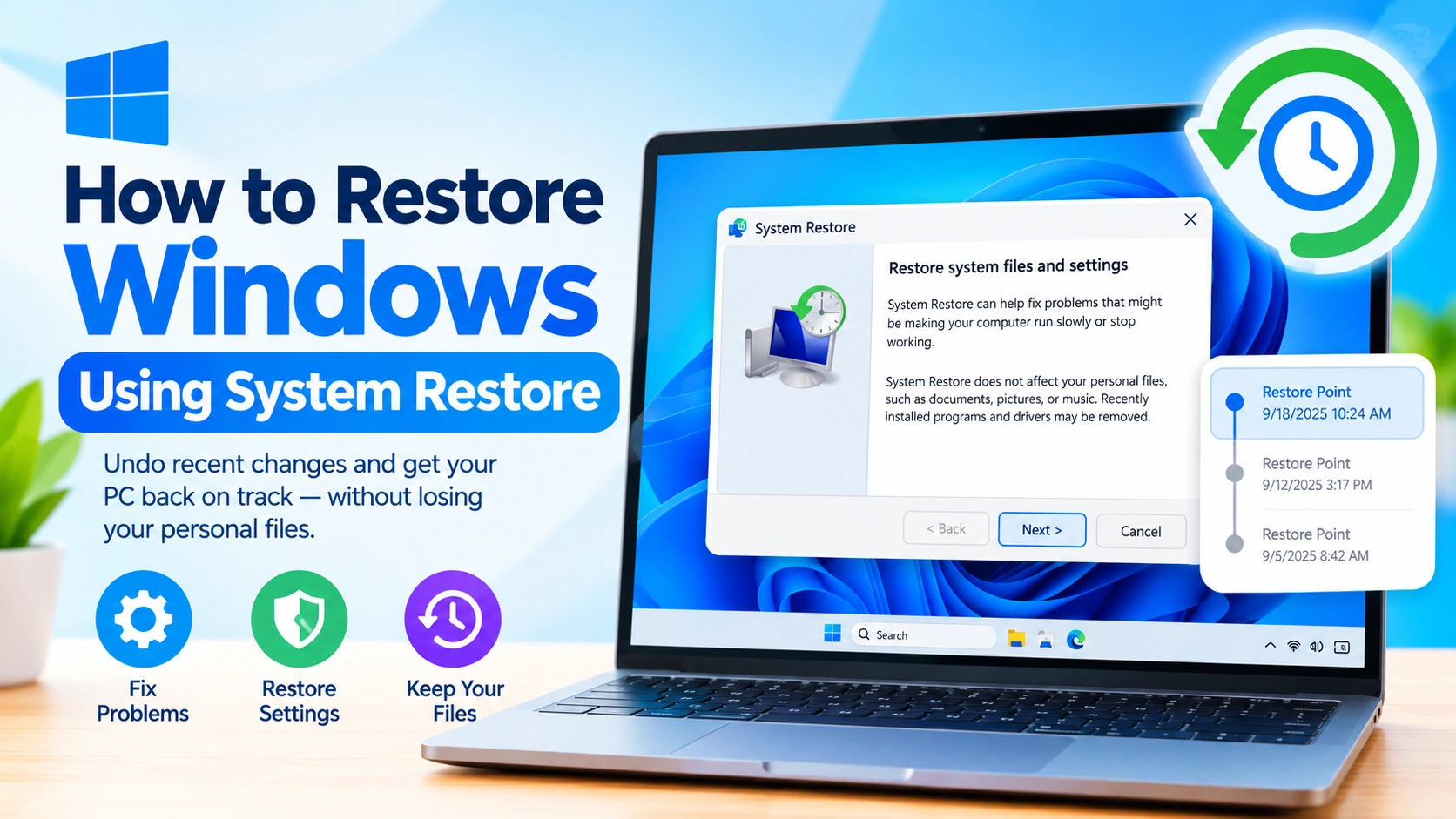
System Restore is a built-in Windows recovery feature that can help undo recent system changes without affecting your personal files. If your computer starts experiencing crashes, driver problems, software conflicts, or unexpected Windows errors after an update or installation, restoring the system to an earlier restore point can often help.
Unlike a factory reset, System Restore is designed to roll back important system settings while leaving personal documents, photos, and other files untouched.
In this guide, you’ll learn how to restore Windows using System Restore, how restore points work, what System Restore changes, and what to do if the feature does not work normally.
What Is System Restore?
System Restore is a Windows recovery tool that creates or uses restore points containing snapshots of important system information.
A restore point can include:
- Windows system files
- Registry settings
- Installed drivers
- Certain program files
- System configuration settings
- Windows update-related changes
When you perform a System Restore, Windows attempts to return these components to the state they were in when the selected restore point was created.
Your personal files, such as documents, pictures, videos, and music, are generally not removed by System Restore. However, applications, drivers, or updates installed after the selected restore point may be affected.
When Should You Use System Restore?
System Restore can be useful when a Windows problem began shortly after a specific change.
Consider using it if you recently:
- Installed a problematic application
- Updated or installed a device driver
- Installed a Windows update
- Changed important system settings
- Experienced new crashes or blue-screen errors
- Encountered unexpected startup problems
- Noticed that Windows became unstable after a software installation
System Restore is not intended to recover deleted personal files or remove all malware. Other recovery methods are more appropriate for those situations.
Before You Restore Windows
Before starting, save your work and close open applications.
It is also a good idea to make sure you know which changes occurred before the problem appeared. For example, if Windows started crashing immediately after installing a graphics driver, a restore point created before that installation may be useful.
If Windows is currently working, you can also create a backup of important personal files before troubleshooting.
How to Restore Windows Using System Restore
The exact menus can vary slightly between Windows versions, but the general process is similar.
Step 1: Open System Restore
Press Windows + R to open the Run dialog.
Type:
rstrui.exe
Press Enter.
Windows should open the System Restore wizard.
You can also search Windows for Create a restore point and open the corresponding system properties window. From there, select System Restore.
Step 2: Choose a Restore Point
The System Restore wizard displays available restore points.
Select a restore point from before the Windows problem started.
If you do not see enough restore points, look for an option such as Show more restore points, if available.
Pay attention to the date and description of each restore point. A point created immediately before a driver installation or software change may be particularly relevant.
Step 3: Check Affected Programs
Select the option to Scan for affected programs if it is available.
Windows can show programs, drivers, or updates that may be removed or restored as part of the process.
This step is useful because it helps you understand what will change before you continue.
Step 4: Start the Restoration
After selecting the restore point, click Next.
Review the information carefully and select Finish to begin the restoration.
Windows may display a warning that System Restore cannot normally be interrupted after it starts.
Confirm that you want to proceed.
Step 5: Wait for Windows to Restart
Windows will restart the computer and begin restoring the selected system state.
The process may take several minutes. Avoid turning off the computer while System Restore is running.
When Windows starts again, you should see a message indicating whether the restoration was successful.
What Happens After System Restore?
After Windows completes the restoration, test the problem that originally caused you to use System Restore.
For example, if a newly installed driver caused crashes, check whether the crashes continue.
You should also check whether important applications and devices still work correctly.
If the original problem is gone, avoid immediately reinstalling the software or driver that caused the issue until you understand why the problem occurred.
Does System Restore Delete Personal Files?
Generally, System Restore does not delete personal files such as photos, documents, videos, or music.
However, it can affect software, drivers, Windows updates, and system settings installed after the selected restore point.
For this reason, System Restore should not be treated as a replacement for a regular file backup.
If you need to recover a deleted document or photo, use an appropriate file-recovery or backup solution instead.
How to Undo a System Restore
If System Restore causes another problem, Windows may provide an option to undo the restoration.
Open System Restore again and check whether an option to Undo System Restore is available.
Keep in mind that the availability of this option can depend on how Windows started and what recovery actions have already been performed.
What If System Restore Does Not Work?
Sometimes System Restore fails to complete or reports that no changes were made.
If that happens, try the following steps.
Try a Different Restore Point
The selected restore point may be damaged or may not contain the changes you need.
If several restore points are available, try an earlier one.
Temporarily Disable Conflicting Security Software
In some situations, security software can interfere with system changes. If you suspect this is happening, check the software manufacturer’s guidance before temporarily changing its protection settings.
Do not leave your computer unnecessarily unprotected.
Run System Restore From Safe Mode
If Windows is unstable during normal startup, Safe Mode may provide a better environment for troubleshooting.
You can access Windows recovery options through:
Settings → System → Recovery → Advanced startup
From the recovery environment, you can access additional troubleshooting tools.
Use Windows Recovery Environment
If Windows cannot start normally, the Windows Recovery Environment can provide access to System Restore.
Depending on your Windows installation, you may see options such as:
Troubleshoot → Advanced options → System Restore
Select System Restore and follow the instructions to choose an available restore point.
What If There Are No Restore Points?
If Windows reports that no restore points are available, System Restore may not be able to help.
Possible reasons include:
- System Protection was disabled
- No restore point was created
- Existing restore points were deleted
- Disk space limitations removed older restore points
- Windows configuration changes affected System Protection
In this situation, consider other Windows recovery options such as uninstalling a recent update, using Startup Repair, restoring from a backup, or resetting Windows when appropriate.
How to Prevent Future Windows Problems
System Restore works best as one part of a broader recovery strategy.
Consider these habits:
Create Backups
Keep copies of important personal files on an external drive or another trusted backup location.
A restore point is not a complete backup.
Be Careful With Drivers
Download drivers from your PC manufacturer’s website or the hardware manufacturer’s official support channels whenever possible.
Avoid installing drivers from unknown websites.
Create Restore Points Before Major Changes
Before making significant system changes, you can manually create a restore point.
Search Windows for Create a restore point, select the appropriate system drive, and use Create to make a restore point.
Keep Windows Updated
Regular Windows updates can provide security improvements, bug fixes, and compatibility updates.
If an update causes a problem, however, Windows recovery tools can help you troubleshoot the change.
System Restore vs. Reset This PC
System Restore and Reset this PC serve different purposes.
System Restore rolls certain system components and settings back to an earlier point in time while generally preserving personal files.
Reset this PC is a more extensive recovery option that can reinstall Windows and may remove applications and settings. Depending on the reset option selected, personal files may also be removed.
For a problem that started after a recent driver, application, or system change, System Restore may be a more targeted troubleshooting step.
For severe or persistent Windows problems, other recovery options may be necessary.
Frequently Asked Questions
Does System Restore remove viruses?
System Restore should not be considered a complete malware-removal solution. If you suspect your computer is infected, use reputable security software and follow appropriate malware-removal procedures.
How long does System Restore take?
A System Restore can take several minutes, although the exact time depends on the computer and the amount of system information being restored.
Will System Restore remove my documents?
System Restore is designed to restore system-related files and settings rather than personal files. Nevertheless, maintaining a separate backup of important files is always recommended.
Can I use System Restore if Windows won’t start?
Yes. When Windows cannot start normally, you may be able to access System Restore through the Windows Recovery Environment.
How far back can System Restore go?
The available restoration period depends on which restore points exist on your computer. Windows does not necessarily maintain an unlimited history of restore points.
Why can’t I find System Restore?
System Restore may be disabled, unavailable, or configured differently on your Windows installation. Searching for Create a restore point is one way to check whether System Protection is available.
Final Thoughts
Knowing how to restore Windows using System Restore can save time when a computer develops problems after a recent software installation, driver update, or system change. By selecting an appropriate restore point, Windows can roll back certain system components without generally affecting personal files.
However, System Restore is only one recovery tool. For the best protection, combine it with regular backups, careful software installation, reliable security practices, and Windows recovery options.