

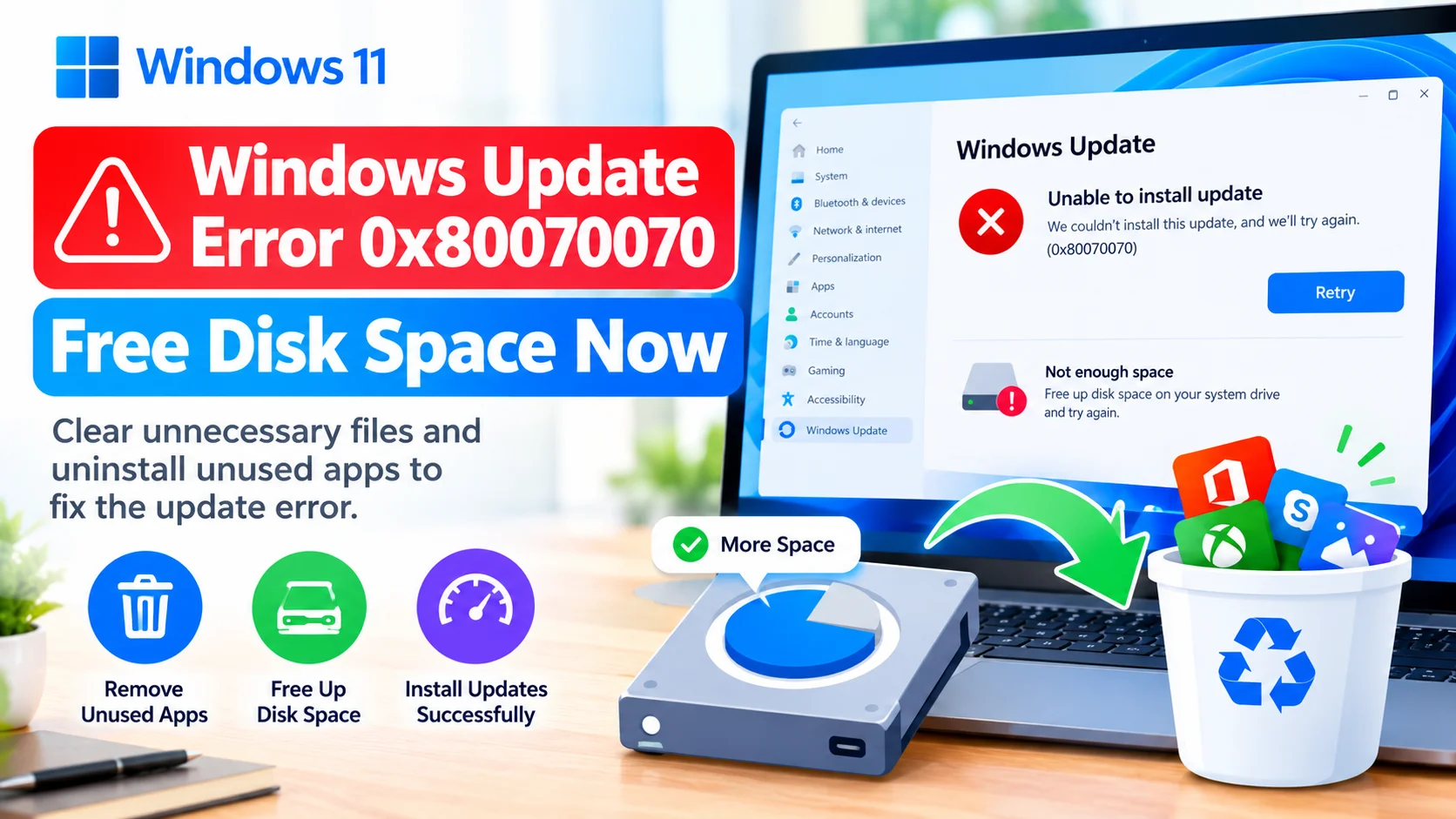
Windows Update Error Code 0x80070070 usually appears when Windows does not have enough available storage space to download or install an update. Large feature updates can require several gigabytes of temporary working space, even when the update itself appears relatively small.
If your Windows update fails with Error Code 0x80070070, freeing space on the system drive is one of the first troubleshooting steps to try. This guide explains how to safely reclaim storage and retry Windows Update.
What Does Windows Update Error Code 0x80070070 Mean?
The error code 0x80070070 generally indicates that there is insufficient disk space available for the Windows update process.
Windows may need extra space for:
- Downloading update packages
- Extracting installation files
- Creating temporary files
- Preparing the new Windows version
- Completing installation and cleanup
The problem commonly occurs when the C: drive is nearly full.
Check Available Disk Space
Before removing files, check how much storage is available.
- Press Windows + E to open File Explorer.
- Select This PC.
- Find the Windows (C:) drive.
- Check the amount of free space.
If the system drive has very little free space, remove unnecessary files before trying the update again.
Run Windows Storage Cleanup
Windows includes built-in tools for removing temporary and unnecessary files.
- Press Windows + I to open Settings.
- Select System.
- Click Storage.
- Select Temporary files.
- Allow Windows to calculate the removable files.
- Select files you no longer need.
- Click Remove files.
Be careful when selecting items such as Downloads, because removing them can permanently delete files stored in that folder.
Use Disk Cleanup
You can also use the classic Disk Cleanup utility.
- Press Windows + S.
- Search for Disk Cleanup.
- Open the utility.
- Select the C: drive.
- Click Clean up system files.
- Select the C: drive again if prompted.
- Choose appropriate temporary and system files.
- Click OK and confirm the cleanup.
After the cleanup finishes, restart your computer.
Remove Unused Applications
Large applications and games can consume significant amounts of storage.
To uninstall programs:
- Open Settings.
- Go to Apps > Installed apps.
- Sort the applications by size.
- Find programs you no longer use.
- Select the application.
- Click the Uninstall option.
- Follow the on-screen instructions.
Avoid uninstalling drivers or applications that you do not recognize.
Free up space by removing unused software in Windows. Learn how to safely uninstall unwanted apps and recover valuable disk space.
Move Personal Files to Another Drive
Photos, videos, installers, and other large files can quickly fill the system drive.
Consider moving large personal files to:
- Another internal drive
- An external USB drive
- A network location
- A trusted cloud-storage service
After moving the files, empty the Recycle Bin to actually recover the storage space.
Delete Temporary Files Manually
Windows also stores temporary files that can sometimes occupy substantial space.
Press Windows + R, enter:
%temp%
Press Enter, select files that can be deleted, and remove them. Some files may be in use by Windows or another application. If Windows says a file cannot be deleted, skip it rather than forcing the deletion.
You can also check:
C:\Windows\Temp
Administrative permission may be required for some files.
Turn On Storage Sense
Storage Sense can automatically remove unnecessary temporary files.
- Open Settings.
- Select System > Storage.
- Turn on Storage Sense.
- Open its configuration options if you want to customize automatic cleanup.
This can help prevent the system drive from becoming critically low on space again.
Restart Windows and Try the Update Again
After freeing storage:
- Restart the computer.
- Open Settings.
- Select Windows Update.
- Click Check for updates.
- Download and install the available update.
If the update now has enough working space, error 0x80070070 may no longer occur.
What If Error 0x80070070 Still Appears?
If you have freed substantial storage but Windows Update continues to display the error, additional troubleshooting may be necessary.
Try these steps:
- Restart Windows Update-related services.
- Run the Windows Update troubleshooter.
- Repair corrupted Windows system files.
- Reset Windows Update components.
- Check whether another update is already waiting for installation.
- Disconnect unnecessary external storage devices temporarily.
For system-file problems, you can run System File Checker from an elevated Command Prompt:
sfc /scannow
You can also use DISM to repair the Windows component store:
DISM /Online /Cleanup-Image /RestoreHealth
Restart Windows after these commands complete and check for updates again.
How Much Free Space Should You Have?
There is no single amount of free space that guarantees every Windows update will install successfully because storage requirements vary by update and system configuration.
As a practical precaution, avoid running the system drive nearly full. Keeping a healthy amount of free space gives Windows room for update downloads, temporary installation files, and other system operations.
Final Thoughts
Windows Update Error Code 0x80070070 is commonly associated with insufficient available disk space. Start by checking the free space on the C: drive, then use Storage settings, Disk Cleanup, uninstall unused applications, and move large personal files when necessary.
Once sufficient storage is available, restart the computer and try Windows Update again. If the error remains, continue with Windows Update troubleshooting and system-file repair steps.