

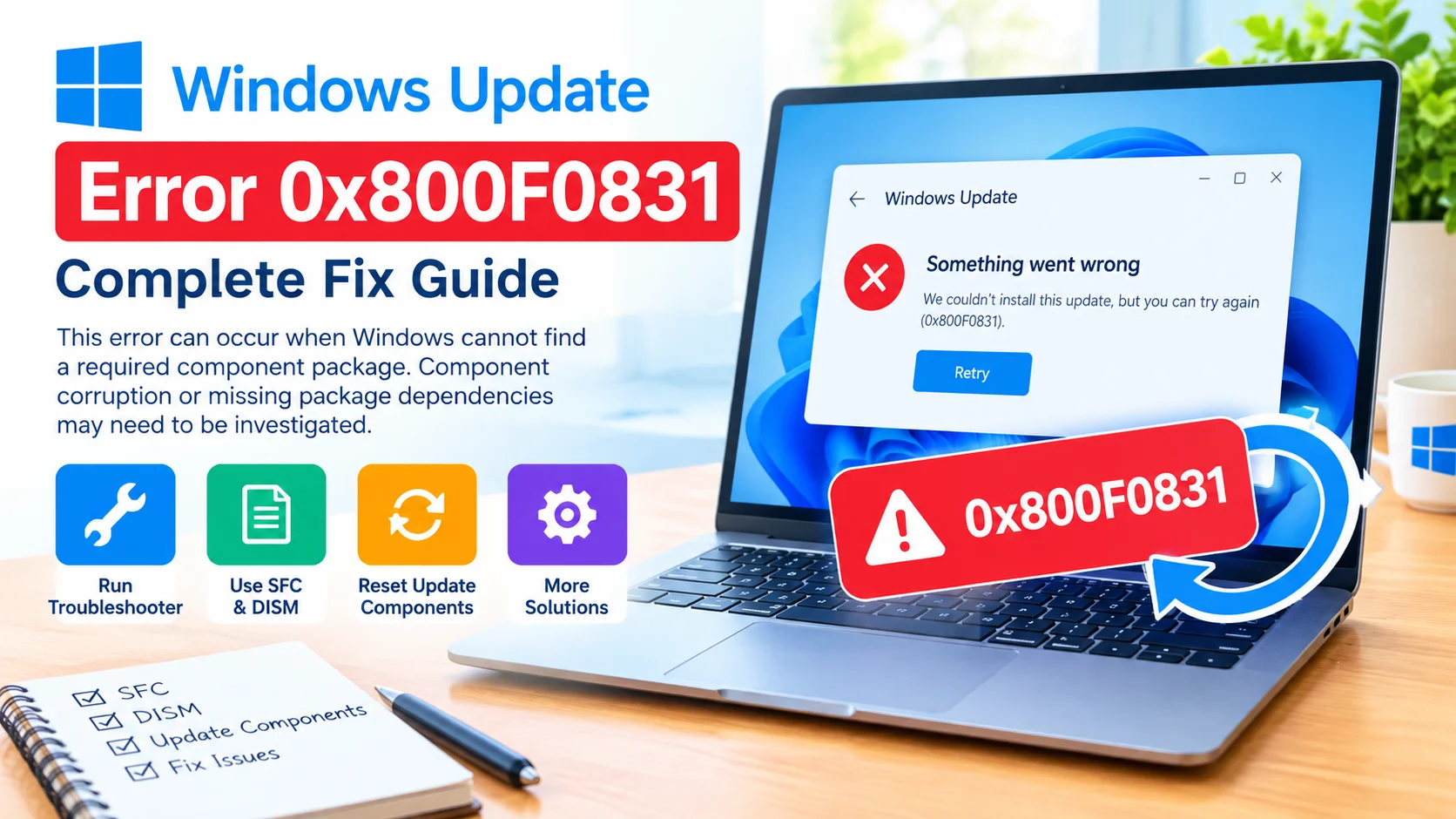
Windows Update Error 0x800F0831 can appear when Windows cannot locate a required component package or one of its dependencies. The problem may occur during a Windows Update, feature installation, cumulative update, or system component repair.
This error is commonly associated with corrupted component files, missing packages, damaged Windows servicing components, or dependencies that Windows cannot resolve. Fortunately, several built-in troubleshooting methods can help identify and repair the underlying problem.
What Is Windows Update Error 0x800F0831?
Error 0x800F0831 is a Windows servicing error that indicates a required package or component dependency could not be found or properly processed.
In simple terms, Windows is trying to install or repair a component but cannot access everything it needs to complete the operation.
Possible causes include:
- Corrupted Windows system files
- Missing component packages
- Damaged Windows Component Store
- Incomplete previous updates
- Problems with Windows Update components
- Missing package dependencies
- Interrupted update installations
- Problems with the Windows servicing stack
The exact cause can vary from one computer to another.
How to Fix Windows Update Error 0x800F0831
Try the following solutions in order. Restart Windows after completing major repairs and then check Windows Update again.
1. Run Windows Update Troubleshooter
Windows includes a built-in troubleshooter that can detect common update problems.
- Press Windows + I to open Settings.
- Select System.
- Open Troubleshoot.
- Select Other troubleshooters.
- Find Windows Update.
- Click Run.
- Follow the instructions on screen.
- Restart your computer.
Try Windows Update again after the troubleshooter finishes.
2. Run System File Checker
Corrupted system files can prevent Windows from installing update packages correctly.
Open Command Prompt as Administrator and run:
sfc /scannowWait until the scan reaches 100 percent.
If SFC finds damaged files, Windows will attempt to repair them automatically. Restart the computer and try the update again.
Learn how to run Windows System File Checker (SFC) to scan and repair corrupted system files and troubleshoot common Windows problems.
3. Repair the Windows Component Store With DISM
If SFC cannot repair the problem, use Deployment Image Servicing and Management (DISM).
Open Command Prompt as Administrator and execute:
DISM /Online /Cleanup-Image /RestoreHealthThe process can take some time. Do not close Command Prompt while the repair is running.
After DISM completes, run:
sfc /scannowRestart Windows and check for updates.
4. Reset Windows Update Components
Damaged temporary update files can interfere with package installation. You can reset the main Windows Update services and cache.
Open Command Prompt as Administrator and run:
net stop wuauserv
net stop bits
net stop cryptsvc
net stop msiserver
Then rename the update cache folders:
ren C:\Windows\SoftwareDistribution SoftwareDistribution.old
ren C:\Windows\System32\catroot2 catroot2.old
Restart the required services:
net start wuauserv
net start bits
net start cryptsvc
net start msiserver
Restart your PC and try Windows Update again.
5. Check the Windows Component Store
Because error 0x800F0831 can involve missing or damaged component packages, checking the Component Store can provide additional information.
Run:
DISM /Online /Cleanup-Image /ScanHealthYou can also run:
DISM /Online /Cleanup-Image /CheckHealthIf DISM reports corruption that can be repaired, use:
DISM /Online /Cleanup-Image /RestoreHealthThen restart Windows.
6. Check the CBS Log for Missing Packages
If the error continues, Windows servicing logs can provide clues about the missing component.
The CBS.log file is located at:
C:\Windows\Logs\CBS\CBS.logOpen the file with a text editor and search for terms such as:
0x800F0831or:
CBS_E_STORE_CORRUPTIONYou may also find references to a specific package or dependency. That information can help determine which Windows component is causing the update failure.
Avoid randomly downloading component packages from unofficial websites. Installing an incorrect package can create additional servicing problems.
7. Install the Required Windows Update Manually
If a specific cumulative update repeatedly fails, identify its KB number in Windows Update history.
Go to:
Settings → Windows Update → Update history
Find the failed update and note its KB number.
You can then search for the corresponding update in the official Microsoft Update Catalog and install the correct package manually.
Make sure the update matches your Windows version and system architecture.
8. Make Sure Windows Has Completed Previous Updates
An interrupted or partially installed update can leave Windows in an inconsistent servicing state.
Open:
Settings → Windows Update → Update history
Look for updates that repeatedly failed or remain pending.
Restart Windows and allow any pending update operations to finish before attempting another update.
9. Perform an In-Place Windows Repair
If SFC, DISM, Windows Update reset procedures, and manual updates do not resolve 0x800F0831, an in-place repair may be worth considering.
An in-place repair reinstalls Windows system components while generally preserving personal files, installed applications, and settings.
Before starting a repair installation:
- Back up important files.
- Use installation media appropriate for your Windows version.
- Ensure there is enough free disk space.
- Follow Microsoft’s installation instructions carefully.
This approach can repair deeper Windows component problems without immediately performing a clean installation.
Why Does Error 0x800F0831 Keep Returning?
If the error repeatedly comes back after repairs, the underlying issue may involve a specific missing package or dependency rather than ordinary temporary Windows Update cache corruption.
Pay particular attention to the CBS log and the KB number of the failed update. These details can help narrow down which component Windows is unable to locate.
Frequently Asked Questions
What does Windows Update error 0x800F0831 mean?
It generally indicates that Windows cannot find or process a required component package or dependency during a servicing operation.
Can SFC fix error 0x800F0831?
SFC can repair corrupted protected system files, but it may not resolve a missing Windows component package by itself. DISM may be needed to repair the Component Store.
Is it safe to delete the SoftwareDistribution folder?
Resetting Windows Update by stopping the appropriate services and renaming the SoftwareDistribution folder is a common troubleshooting procedure. Windows can recreate the folder when the update service starts again.
Should I download a missing Windows package from a third-party website?
It is safer to obtain Windows updates and installation components from Microsoft or trusted official sources rather than downloading system packages from unknown websites.
Does 0x800F0831 mean Windows must be reinstalled?
Not necessarily. SFC, DISM, Windows Update component resets, manual update installation, and an in-place repair can potentially resolve the problem without a clean installation.
Conclusion
Windows Update Error 0x800F0831 is often related to a missing, corrupted, or unresolved Windows component package. Start with Windows Update Troubleshooter, then use SFC and DISM to repair system and component corruption. If the error remains, resetting Windows Update components, checking CBS.log, and identifying the failed KB update can provide more useful diagnostic information.
For persistent cases, an in-place Windows repair can address deeper servicing problems while avoiding an immediate clean installation.