

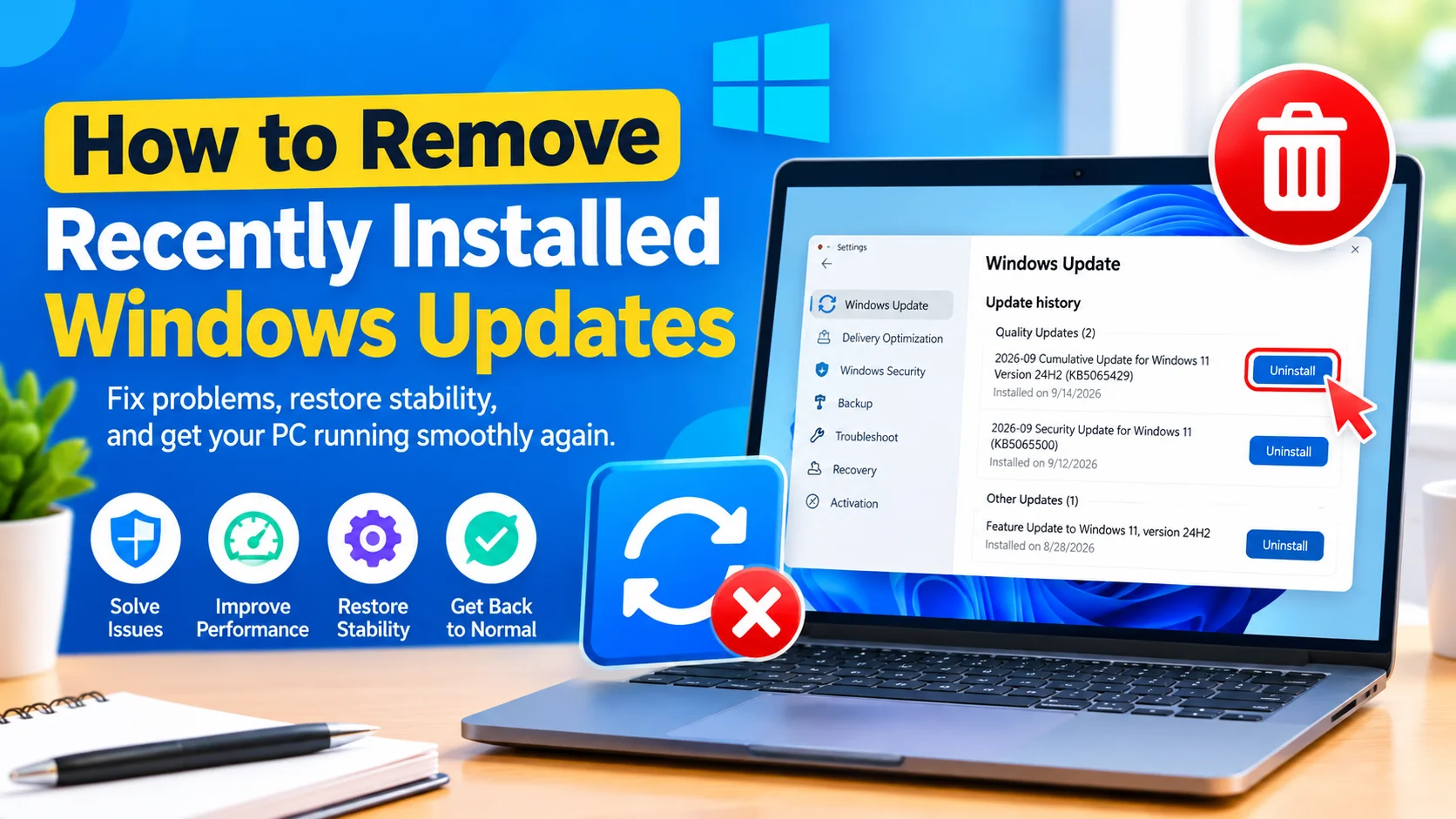
Remove Recently Installed Windows Updates when a recent Windows update causes unexpected problems such as application crashes, driver conflicts, startup errors, network issues, or system instability. Although Windows updates are designed to improve security and reliability, an update can occasionally create compatibility problems on certain computers.
If the problem started shortly after Windows installed an update, removing the recently installed update can help determine whether it is responsible. Windows includes several built-in recovery options that allow you to uninstall certain updates without reinstalling the entire operating system.
In this guide, you’ll learn how to safely remove recently installed Windows updates using Windows Settings, Control Panel, Command Prompt, and Windows Recovery Environment.
Why Remove a Recently Installed Windows Update?
Most Windows updates are installed without causing problems, but hardware and software configurations vary between computers. A particular update may conflict with an older driver, application, security tool, or system component.
You may want to remove a recent update if you notice:
- Windows becomes unstable after an update
- Programs suddenly stop working
- A device or driver stops functioning correctly
- Wi-Fi or Bluetooth problems appear
- Windows repeatedly crashes
- The computer becomes unusually slow
- Startup problems occur after an update
- A previously working feature stops responding
- A blue screen appears after installing an update
Before uninstalling an update, remember that updates often contain important security fixes. If removing one resolves the problem, check for a newer replacement update or permanent fix rather than leaving the problematic update removed indefinitely.
Check Which Updates Were Recently Installed
Before removing anything, identify when the problem started and which update was installed around that time.
Check Update History in Windows 11
- Press Windows + I to open Settings.
- Select Windows Update.
- Click Update history.
- Expand the available update categories.
- Look for updates installed shortly before the problem appeared.
Pay particular attention to the installation date and update identification number, such as a KB number.
For example, you may see an entry similar to:
2026-09 Cumulative Update for Windows 11 Version 24H2 (KBxxxxxxx)
Write down the KB number before uninstalling the update.
Method 1: Remove a Recent Update Through Settings
The easiest method is to use Windows Settings.
- Press Windows + I.
- Open Windows Update.
- Select Update history.
- Scroll down and click Uninstall updates.
- Find the update you want to remove.
- Click Uninstall next to the update.
- Confirm the operation.
- Restart your computer if Windows requests it.
After restarting, test the feature or application that was experiencing problems.
Important Note
Not every Windows update can be removed. Some updates are permanent because they are integrated into the operating system or are required for other components.
If the Uninstall option is unavailable, try another recovery method.
Method 2: Remove an Update Using Control Panel
Depending on your Windows version and configuration, you can also uninstall updates through the traditional Control Panel.
- Press Windows + R.
- Type:
appwiz.cpl- Press Enter.
- Select View installed updates on the left.
- Find the update you want to remove.
- Right-click the update.
- Select Uninstall.
- Follow the instructions displayed on screen.
- Restart Windows.
This method is particularly useful if the Settings application is not working correctly.
Method 3: Uninstall an Update Using Command Prompt
Advanced users can use Command Prompt to identify and remove certain updates.
Step 1: Open Command Prompt as Administrator
- Open Start.
- Search for Command Prompt.
- Right-click it.
- Select Run as administrator.
Step 2: List Installed Updates
Enter:
wmic qfe list brief /format:tableOn Windows versions where WMIC is unavailable, you can use:
powershell "Get-HotFix | Select-Object HotFixID,InstalledOn,Description"Look for the KB number associated with the update.
Step 3: Remove the Update
You can use the Windows Update Standalone Installer:
wusa /uninstall /kb:1234567Replace 1234567 with the actual KB number.
For example:
wusa /uninstall /kb:5000000Follow the prompts and restart the computer when required.
Do not copy the example KB number blindly. Always replace it with the KB number belonging to the update you actually want to remove.
Method 4: Remove a Windows Update From Recovery Environment
If Windows cannot start normally after an update, you may still be able to remove the update through Windows Recovery Environment.
Enter Windows Recovery Environment
If Windows starts:
- Open Settings.
- Go to System > Recovery.
- Select Advanced startup.
- Click Restart now.
Alternatively, you can hold Shift while selecting Restart from the Start menu’s power options.
After Windows restarts:
- Select Troubleshoot.
- Choose Advanced options.
- Select Uninstall Updates.
You may see options such as:
- Uninstall latest quality update
- Uninstall latest feature update
Start with the latest quality update if the problem appeared after a recent monthly update.
Follow the instructions and allow Windows to restart.
Quality Updates vs. Feature Updates
Windows updates generally fall into different categories, and understanding the difference can help you choose the appropriate recovery option.
Quality Updates
Quality updates are typically smaller updates containing security improvements, reliability fixes, and bug fixes.
If your computer suddenly develops a problem shortly after a monthly Windows update, uninstalling the latest quality update may be appropriate for troubleshooting.
Feature Updates
Feature updates introduce larger changes to Windows and can significantly change system components.
If a major Windows version upgrade caused compatibility problems, Windows may provide an option to roll back the feature update.
The availability of rollback options depends on your Windows installation and how long ago the upgrade occurred.
What to Do If Windows Won’t Start After an Update
If Windows cannot boot normally, don’t repeatedly force shutdowns unless necessary.
Try these recovery options:
- Start Windows Recovery Environment.
- Select Troubleshoot.
- Choose Advanced options.
- Try Uninstall Updates.
- If that does not solve the problem, consider Startup Repair.
- You can also try System Restore if restore points are available.
If you recently installed a driver or application at the same time as the Windows update, that software may also be responsible for the problem.
How to Prevent the Problematic Update From Immediately Returning
After uninstalling an update, Windows may eventually offer it again.
This is because uninstalling an update does not necessarily permanently block future installation.
Instead of permanently disabling Windows Update, a better approach is usually to:
- Check Microsoft’s documentation for the specific KB number.
- Install newer cumulative updates when available.
- Update affected hardware drivers.
- Update applications that stopped working.
- Check whether Microsoft has published a known issue or workaround.
- Use Windows Update troubleshooting tools when appropriate.
Avoid leaving Windows without security updates for an extended period simply because one update caused a temporary compatibility problem.
Should You Uninstall a Windows Update?
Removing an update can be useful as a troubleshooting step, especially when a problem began immediately after installation.
However, uninstalling updates should not become a routine maintenance procedure.
Before removing an update, consider:
- When did the problem begin?
- Which update was installed around that time?
- Does the update address an important security vulnerability?
- Could a driver or third-party application be responsible?
- Is a newer update available?
- Can the problem be reproduced consistently?
If removing the update fixes the problem, document the KB number and monitor Windows for a replacement update.
What If the Uninstall Option Is Missing?
If Windows does not allow you to uninstall an update, there are several possible reasons.
The update may:
- Be required by Windows
- Have been superseded by another update
- No longer support rollback
- Be integrated into another system component
- Be outside the available rollback period
In this situation, don’t attempt to delete Windows update files manually. Doing so can damage the operating system.
Instead, consider using System Restore, Startup Repair, or another supported Windows recovery option.
Check Your Drivers After Removing an Update
Sometimes an update exposes an existing driver compatibility problem rather than directly causing the failure.
After removing the update, check important hardware components such as:
- Graphics adapters
- Wi-Fi adapters
- Bluetooth devices
- Chipset drivers
- Audio devices
- Storage controllers
- USB controllers
Open Device Manager by pressing Windows + X and selecting Device Manager.
Look for devices displaying a warning icon. If a device is malfunctioning, installing a compatible driver from the computer or hardware manufacturer’s official website may provide a more permanent solution.
Create a Restore Point Before Major Changes
Before making significant system changes, consider creating a restore point if System Protection is enabled.
To check:
- Press Windows + R.
- Enter:
sysdm.cpl- Open the System Protection tab.
- Select your Windows system drive.
- Click Create.
- Give the restore point a descriptive name.
- Click Create again.
A restore point is not a replacement for a complete backup, but it can provide another recovery option if a configuration change causes problems.
Frequently Asked Questions
Can I remove the latest Windows update?
Yes, Windows provides supported options for uninstalling certain recent quality and feature updates. However, some updates cannot be removed.
Will uninstalling a Windows update delete my personal files?
Normally, uninstalling a Windows update does not delete your personal documents, photos, or other files. Nevertheless, maintaining a current backup is recommended before making significant system changes.
How do I know which Windows update caused the problem?
Check Settings > Windows Update > Update history and compare update installation dates with when the problem first appeared. This does not prove that a particular update caused the problem, but it can help identify a useful troubleshooting candidate.
Can I uninstall multiple Windows updates?
Windows may allow certain updates to be removed, but removing multiple updates unnecessarily can increase security and compatibility risks. Troubleshoot one suspected update at a time when possible.
What should I do if Windows won’t boot after an update?
Enter Windows Recovery Environment and try Troubleshoot > Advanced options > Uninstall Updates. You can also consider Startup Repair or System Restore if the appropriate options are available.
Will Windows reinstall an update after I uninstall it?
It may eventually offer the update again, particularly if Microsoft continues distributing it. Check for a newer version or an official fix if the original update caused compatibility problems.
Final Thoughts
Removing a recently installed Windows update can be an effective way to troubleshoot problems that appear immediately after an update. Start by checking Windows Update history, identify the relevant KB number, and use Windows’ built-in uninstall options whenever possible.
For computers that still start normally, Settings > Windows Update > Update history > Uninstall updates is usually the simplest approach. If Windows cannot boot, Windows Recovery Environment provides additional recovery options.
Most importantly, treat update removal as a troubleshooting measure rather than a permanent solution. Once the underlying compatibility issue is resolved, keeping Windows updated helps maintain security and system reliability.