

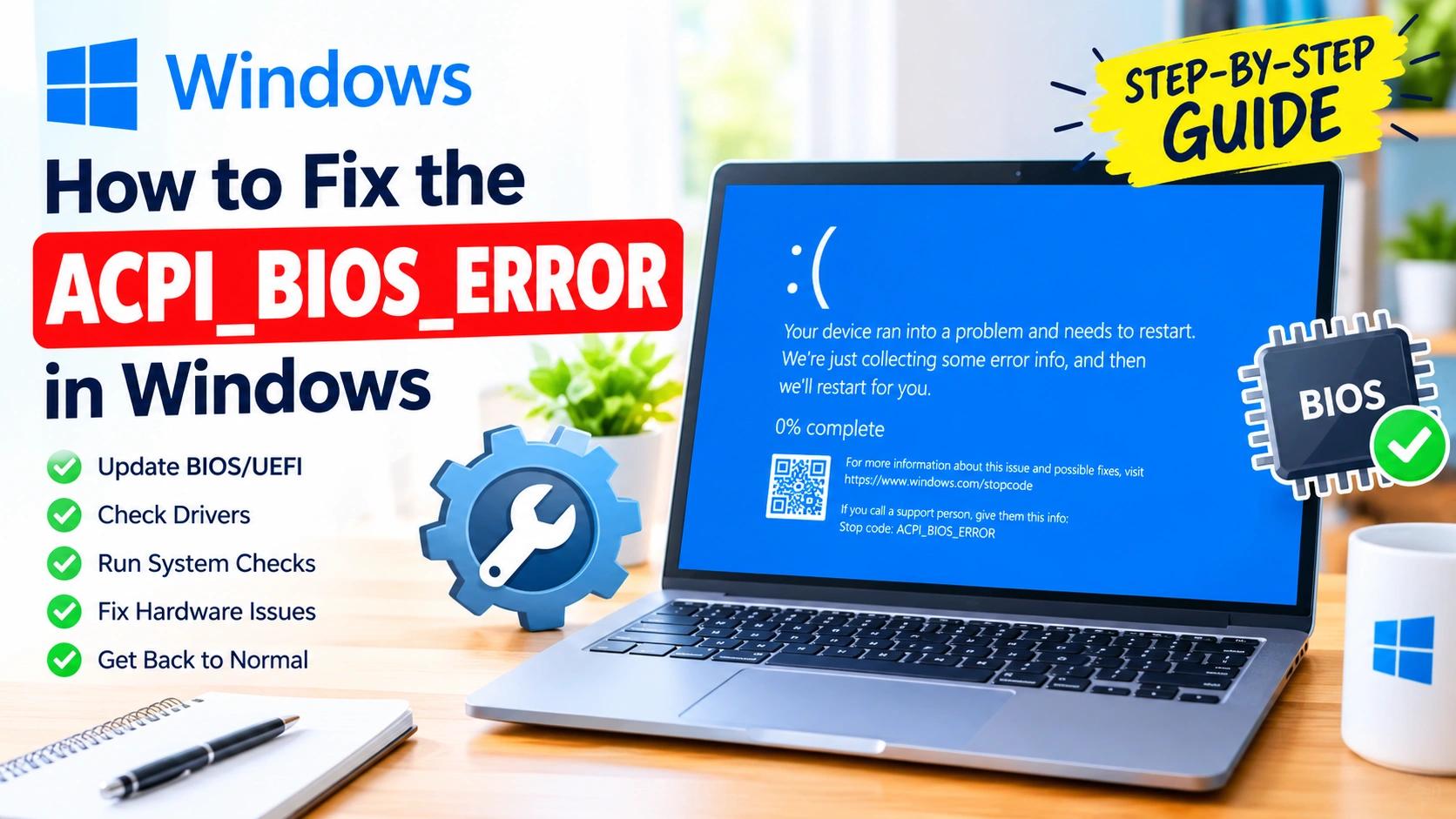
Seeing the ACPI_BIOS_ERROR blue screen in Windows can be frustrating, especially when your computer repeatedly crashes during startup or shortly after installing an update. This error is commonly associated with firmware, BIOS/UEFI settings, hardware compatibility, drivers, or Windows configuration problems.
The good news is that you can often resolve the issue without replacing hardware. This guide explains what causes the error and walks you through practical troubleshooting steps, starting with the safest solutions.
What Is the ACPI_BIOS_ERROR?
ACPI_BIOS_ERROR is a Windows Blue Screen of Death (BSOD) error that typically indicates a problem involving Advanced Configuration and Power Interface (ACPI). ACPI is a standard that allows Windows to communicate with your computer’s firmware and manage hardware functions such as power states, sleep, battery management, and device configuration.
The error may appear with the stop code:
ACPI_BIOS_ERROR
It can occur when Windows detects an incompatibility or communication problem between the operating system, BIOS/UEFI firmware, and hardware.
Common Causes of ACPI_BIOS_ERROR
Several issues can trigger this BSOD, including:
- Outdated or incompatible BIOS/UEFI firmware
- Incorrect BIOS settings
- A recent Windows update
- Incompatible device drivers
- Faulty or improperly installed hardware
- Corrupted Windows system files
- Memory or storage problems
- Overclocking or aggressive firmware settings
- Compatibility problems after changing hardware
- An outdated motherboard chipset driver
If the problem started immediately after a BIOS update, Windows update, or hardware upgrade, that recent change is an important clue.
1. Restart Your Computer
Before making advanced changes, perform a normal restart.
A temporary firmware or hardware initialization problem can sometimes cause a single ACPI-related crash. If Windows starts normally afterward and the error does not return, you may not need to make additional changes.
If the blue screen continues appearing, proceed with the following steps.
2. Disconnect Recently Added Hardware
If the problem started after installing new hardware, temporarily disconnect it.
Examples include:
- USB devices
- External storage drives
- Expansion cards
- Docking stations
- New memory modules
- Wi-Fi or Bluetooth adapters
- Recently installed internal components
Shut down the computer completely before disconnecting internal hardware.
If Windows starts normally after removing a component, reconnect devices one at a time to identify the source.
3. Enter BIOS or UEFI and Load Default Settings
Incorrect firmware settings can interfere with ACPI communication.
To access BIOS/UEFI:
- Restart your computer.
- Press the appropriate firmware key during startup.
- Common keys include F2, Delete, F10, or Esc, depending on the manufacturer.
- Look for an option such as Load Optimized Defaults, Load Setup Defaults, or Restore Defaults.
- Apply the default settings.
- Save the changes and restart.
The exact menu names vary between motherboard and computer manufacturers.
Be careful with firmware settings
If you have manually configured settings such as boot mode, storage configuration, virtualization, fan profiles, or memory overclocking, restoring defaults may change them.
If Windows uses a specific storage or boot configuration, avoid changing unrelated settings unless you know what they do.
4. Disable Overclocking
Overclocking can sometimes cause instability that manifests as unexpected BSODs.
If you have overclocked your:
- CPU
- RAM
- GPU
return the system to its default configuration.
This includes memory profiles such as XMP or similar memory-overclocking profiles. If the ACPI_BIOS_ERROR started after enabling a performance profile, temporarily disable it and test Windows again.
5. Update Your BIOS or UEFI Firmware
An outdated BIOS/UEFI version is one of the most important things to investigate when dealing with ACPI-related problems.
Manufacturers sometimes release firmware updates that improve:
- Windows compatibility
- ACPI implementation
- Power management
- CPU support
- Memory compatibility
- Hardware stability
- Device initialization
Visit your computer or motherboard manufacturer’s official support website and locate the exact model.
Before updating firmware, carefully read the manufacturer’s instructions.
Important BIOS update precautions
A BIOS update is more sensitive than installing a normal Windows application. Make sure:
- You download firmware for the exact model.
- Your computer has stable power.
- You follow the manufacturer’s instructions.
- You do not turn off the computer during the update.
- You understand any manufacturer-specific recovery procedure.
If the computer is already unstable, avoid experimenting with firmware settings unnecessarily.
6. Update Windows
If Windows itself has compatibility problems, installing the latest available updates may resolve them.
Go to:
Settings > Windows Update
Select Check for updates and install available updates.
Restart the computer afterward.
If the ACPI_BIOS_ERROR began immediately after a particular Windows update, however, updating further may not be the best first step. In that situation, consider rolling back the problematic update.
7. Roll Back a Recent Windows Update
If the BSOD began immediately after Windows installed an update, removing the latest update can help determine whether it caused the problem.
If you can still access Windows:
- Open Settings.
- Go to Windows Update.
- Open Update history.
- Select Uninstall updates.
- Identify a recently installed update.
- Select Uninstall if the option is available.
- Restart your computer.
Avoid removing security updates without a good reason. If the computer is unusable, Windows Recovery Environment may provide additional recovery options.
8. Start Windows in Safe Mode
Safe Mode loads Windows with a limited set of drivers and services. This can help determine whether a third-party driver or startup component is involved.
If Windows cannot start normally, enter Windows Recovery Environment by interrupting the normal boot process or using recovery media.
Then navigate to:
Troubleshoot > Advanced options > Startup Settings > Restart
After restarting, select the option for Safe Mode.
If the computer works reliably in Safe Mode but crashes during normal startup, a driver, service, or software component becomes a stronger suspect.
9. Update Device Drivers
Outdated or incompatible drivers can contribute to system instability.
Pay particular attention to:
- Chipset drivers
- Storage controller drivers
- Graphics drivers
- Network drivers
- Power-management components
- Motherboard-specific drivers
For important system drivers, prefer the computer or motherboard manufacturer’s official support page.
Avoid installing random driver packages from unfamiliar websites.
10. Run System File Checker
Corrupted Windows system files can cause unexpected system behavior.
Open Command Prompt as administrator and run:
sfc /scannowWait until the scan finishes.
If Windows reports that it found and repaired corrupted files, restart the computer and check whether the ACPI_BIOS_ERROR returns.
11. Use DISM to Repair the Windows Image
If System File Checker cannot repair all corrupted files, use the Deployment Image Servicing and Management tool.
Open an elevated Command Prompt and run:
DISM /Online /Cleanup-Image /RestoreHealthAllow the process to complete. It may take some time.
Afterward, run:
sfc /scannowRestart Windows when both operations are complete.
12. Check Your RAM
Faulty or unstable memory can cause a wide range of BSODs.
Windows includes a built-in memory diagnostic tool.
Press Windows + R, enter:
mdsched.exeThen choose the option to restart and check for memory problems.
If errors are detected, test individual memory modules if your computer allows it. A recently installed RAM module is particularly worth investigating if the ACPI_BIOS_ERROR began after a memory upgrade.
13. Check Your Storage Drive
Storage problems can also cause Windows crashes and corrupted system files.
You can use Windows’ built-in disk checking tool.
Open Command Prompt as administrator and run:
chkdsk C: /scanThis performs an online scan of the Windows drive.
If Windows reports storage errors, investigate the drive’s health using the diagnostic tools provided by its manufacturer.
14. Remove Recently Installed Software
If the problem appeared after installing a low-level utility, temporarily uninstall it.
Pay particular attention to software that interacts closely with hardware, such as:
- Hardware monitoring tools
- Overclocking utilities
- Fan-control applications
- Virtualization software
- Third-party security software
- System optimization utilities
- RGB or motherboard control software
Restart Windows after uninstalling the suspected application.
15. Use System Restore
If the problem appeared recently and System Restore is enabled, restoring Windows to an earlier restore point may help.
Search Windows for:
Create a restore point
Open the System Properties window and select System Restore.
Choose a restore point created before the ACPI_BIOS_ERROR began.
System Restore can reverse certain system changes without deleting your personal documents, although applications, drivers, and settings installed after the restore point may be affected.
16. Check for Hardware Changes
If you recently upgraded or replaced hardware, consider reversing the change temporarily.
For example, if the error appeared after installing:
- New RAM
- A new SSD
- A different CPU
- A PCIe expansion card
- A replacement motherboard
returning to the previous configuration can help identify whether the new component or firmware configuration is responsible.
For desktop computers, make sure internal components are properly seated and connected.
17. Reset Windows as a Last Resort
If you’ve tried firmware, driver, system-file, and hardware troubleshooting without success, Windows recovery options may be necessary.
Windows provides Reset this PC, which can reinstall Windows while offering options regarding personal files.
Before resetting:
- Back up important files.
- Make sure you have access to necessary account credentials.
- Record important application licenses or configuration information.
- Disconnect unnecessary external devices.
A Windows reset should generally be considered after less disruptive troubleshooting has failed.
What to Do If ACPI_BIOS_ERROR Happens During Startup
If Windows crashes before you can reach the desktop, work through the recovery options in this order:
- Disconnect recently added peripherals.
- Enter Windows Recovery Environment.
- Try Startup Repair.
- Boot into Safe Mode.
- Remove a recently installed driver or update.
- Use System Restore if available.
- Check BIOS/UEFI settings.
- Investigate BIOS/UEFI firmware updates.
- Test RAM and storage.
- Consider Windows recovery or reset options.
This approach helps avoid making unnecessary changes before identifying the likely cause.
How to Prevent ACPI_BIOS_ERROR in the Future
You can reduce the likelihood of similar problems by following a few maintenance practices:
- Keep Windows reasonably up to date.
- Install chipset and device drivers from trusted sources.
- Check manufacturer documentation before updating BIOS/UEFI.
- Avoid unnecessary overclocking.
- Keep backups of important files.
- Create restore points before major system changes.
- Avoid questionable driver-update utilities.
- Record BIOS settings before changing firmware configuration.
- Test new hardware if problems begin immediately after installation.
Frequently Asked Questions
What does ACPI_BIOS_ERROR mean?
ACPI_BIOS_ERROR generally indicates a problem involving communication or compatibility between Windows, system firmware, and hardware through ACPI.
Can a BIOS update fix ACPI_BIOS_ERROR?
Yes, a BIOS/UEFI update can resolve some ACPI compatibility problems, particularly when the manufacturer has released firmware specifically addressing Windows compatibility, power management, or hardware initialization.
Can outdated drivers cause ACPI_BIOS_ERROR?
They can contribute to system instability. Chipset, storage, graphics, and other hardware-related drivers are especially worth checking.
Is ACPI_BIOS_ERROR caused by Windows?
Not necessarily. The underlying problem can involve Windows, firmware, drivers, hardware, or a combination of these components.
Should I reset BIOS settings?
Loading BIOS/UEFI defaults can be useful if the problem was caused by an incorrect configuration or overclocking. However, make note of important custom settings before resetting them.
Can faulty RAM cause this BSOD?
Faulty or unstable RAM can cause many different Windows crashes. If the problem started after a memory upgrade or memory configuration change, testing the RAM is worthwhile.
What if ACPI_BIOS_ERROR keeps coming back?
Recurring crashes deserve a systematic investigation. Check recent hardware and software changes, update or roll back relevant drivers, inspect BIOS/UEFI firmware, test memory and storage, and use Windows recovery tools if necessary.
Final Thoughts
The ACPI_BIOS_ERROR usually points toward an interaction between Windows, firmware, drivers, and hardware rather than a single universal problem. Start with simple changes such as disconnecting recently added hardware, restoring BIOS defaults, checking Windows updates, and entering Safe Mode.
If those steps don’t solve the problem, move on to driver troubleshooting, system-file repairs, memory and storage diagnostics, and BIOS/UEFI investigation. When the error began immediately after a specific change, reversing that change is often one of the most useful diagnostic steps.
With a methodical approach, you can narrow down whether the problem is coming from Windows, firmware configuration, drivers, or physical hardware and choose the least disruptive solution.