

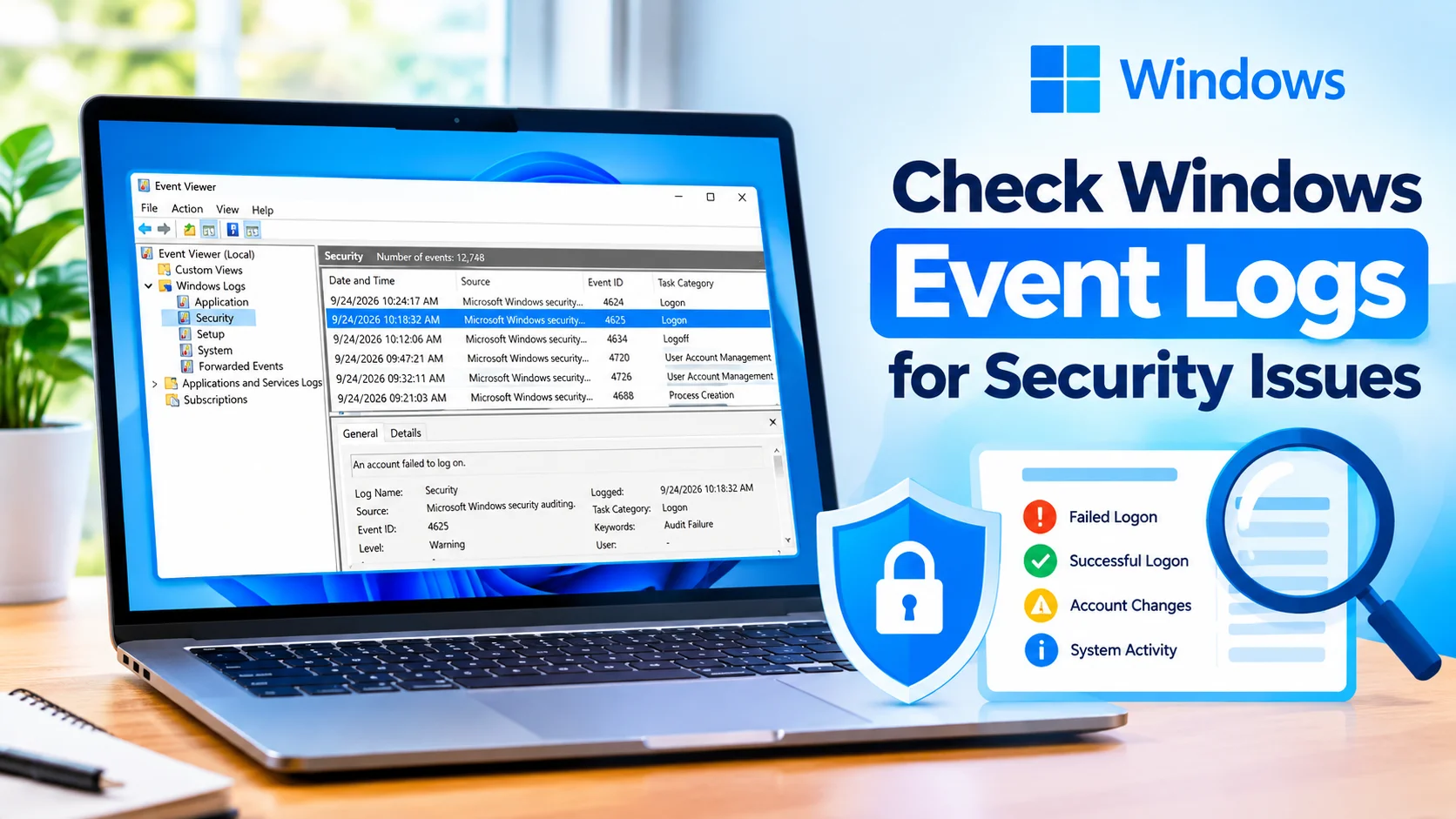
Check Windows Event Logs for Security Issues to identify unusual login attempts, account changes, system activity, and other events that may require investigation. Windows includes a built-in tool called Event Viewer that lets you review detailed records without installing additional software.
Windows Event Logs can provide useful information about successful and failed sign-ins, administrative activity, application errors, and system changes. By regularly reviewing important security events, you can better understand what is happening on your computer and investigate suspicious activity when necessary.
What Are Windows Event Logs?
Windows Event Logs are records created by Windows and installed applications. They can contain information about system operations, warnings, errors, authentication attempts, and security events.
The main logs available in Event Viewer include:
- Application – Records events generated by applications.
- System – Contains information about Windows services, drivers, and hardware.
- Security – Records security-related events such as logon attempts and account activity.
- Setup – Contains information about Windows installation and update processes.
- Forwarded Events – Stores events forwarded from other computers when event forwarding is configured.
For security investigations, the Security log is particularly important.
How to Open Windows Event Viewer
You can open Event Viewer using several methods.
Method 1: Use Windows Search
- Press the Windows key.
- Type Event Viewer.
- Select Event Viewer from the search results.
- Expand Windows Logs in the left pane.
Method 2: Use Run
- Press Windows + R.
- Type
eventvwr.msc. - Press Enter.
- Event Viewer will open.
How to Check the Security Log
After opening Event Viewer:
- Expand Windows Logs.
- Select Security.
- Review the events listed in the center panel.
- Look at the Date and Time, Source, Event ID, and Task Category columns.
- Double-click an event to view its details.
Security logs can contain a large number of entries, so filtering is usually more useful than manually reviewing every event.
Important Windows Security Event IDs
Certain Event IDs can be useful when investigating account and authentication activity.
Event ID 4624 – Successful Logon
Event ID 4624 indicates that a user account successfully logged on.
A single successful logon is not necessarily suspicious. Check the account, logon type, source information, and time to determine whether the activity is expected.
Event ID 4625 – Failed Logon
Event ID 4625 indicates a failed logon attempt.
Multiple failed attempts involving the same account or originating from an unexpected source may deserve further investigation.
Event ID 4634 – Logoff
Event ID 4634 indicates that a logon session was terminated.
This can help establish when an account session ended.
Event ID 4648 – Logon Using Explicit Credentials
Event ID 4648 can indicate that a process attempted to log on using explicitly supplied credentials.
Review the associated account, process, and timing when this event appears unexpectedly.
Event ID 4720 – User Account Created
Event ID 4720 records the creation of a user account.
An unexpected account creation can be important when investigating unauthorized changes to a Windows system.
Event ID 4726 – User Account Deleted
Event ID 4726 records the deletion of a user account. Compare the event with known administrative activity before treating it as suspicious.
How to Filter Security Events
Filtering makes Event Viewer much easier to use.
- Open Event Viewer.
- Go to Windows Logs > Security.
- Select Filter Current Log from the Actions pane.
- Enter one or more Event IDs in the field.
- Select an appropriate time range if needed.
- Click OK.
For example, entering 4625 can help you find failed logon events without scrolling through unrelated security records.
What Security Issues Should You Look For?
When reviewing Windows Event Logs, pay attention to patterns rather than isolated events.
Look for:
- Repeated failed logon attempts.
- Logins at unusual times.
- Unexpected account creation.
- Changes to user privileges.
- Administrative activity that you do not recognize.
- Repeated security-related warnings.
- Logons associated with unfamiliar accounts.
- Unexpected remote access activity.
- Security events that occur shortly before or after a system problem.
An unusual event does not automatically mean the computer has been compromised. Windows and legitimate applications can generate large numbers of security events during normal operation.
Check Event Details Carefully
When you open an event, examine the available information instead of relying only on the Event ID.
Depending on the event, useful fields may include:
- Account Name
- Account Domain
- Logon Type
- Source Network Address
- Workstation Name
- Process Name
- Time Created
- Event ID
- Failure Reason
The exact information varies by event type and Windows configuration.
Save Events for Further Investigation
If you find an event that needs further investigation, you can save it rather than relying on memory.
Right-click the relevant event or use the available actions to save the event information. Windows can save individual events in the .evtx format, which can later be opened with Event Viewer.
Saving relevant events can be useful when comparing activity over time or troubleshooting a recurring security problem.
Use PowerShell to Check Security Events
PowerShell can also help you search Windows event logs.
For example, to retrieve recent failed logon events, open PowerShell and run:
Get-WinEvent -FilterHashtable @{LogName='Security'; Id=4625} -MaxEvents 20
To review recent successful logon events:
Get-WinEvent -FilterHashtable @{LogName='Security'; Id=4624} -MaxEvents 20
These commands can be useful when Event Viewer contains a large number of records.
How to Investigate Suspicious Events
If you discover an event that you do not recognize, avoid assuming that it represents an attack immediately.
Instead:
- Record the Event ID and timestamp.
- Check which account generated the event.
- Review the logon type or process information.
- Check whether the activity matches something you recently did.
- Look for related events immediately before and after it.
- Search for repeated occurrences of the same event.
- Review other security tools, such as Microsoft Defender, for additional information.
- If necessary, investigate the affected account or device further.
Correlating several events is generally more useful than interpreting one event in isolation.
Keep Security Logs Available
Security logs can eventually overwrite older events depending on the configured log size and retention settings. If you are investigating an incident, preserve relevant logs before they are overwritten.
You can also configure appropriate logging and retention policies on systems that require more detailed auditing.
Windows Event Logs vs Antivirus Alerts
Event Viewer and antivirus software serve different purposes.
Windows Event Logs provide detailed records of Windows and application activity, while antivirus and endpoint security software can detect and report malicious files, suspicious behavior, and other security threats.
Using both sources can provide more context during an investigation.
Compare Windows Event Logs vs Antivirus Alerts, learn what each detects, and discover how to use both for investigating suspicious activity and security issues.
Final Thoughts
Checking Windows Event Logs for security issues is a useful way to understand account activity and system events. The Security log is especially valuable for reviewing authentication attempts, account changes, and other security-related activity.
Focus on patterns, timestamps, accounts, and related events rather than treating every warning or error as evidence of a security problem. Regularly reviewing important events can also make it easier to recognize unusual activity when it occurs.