

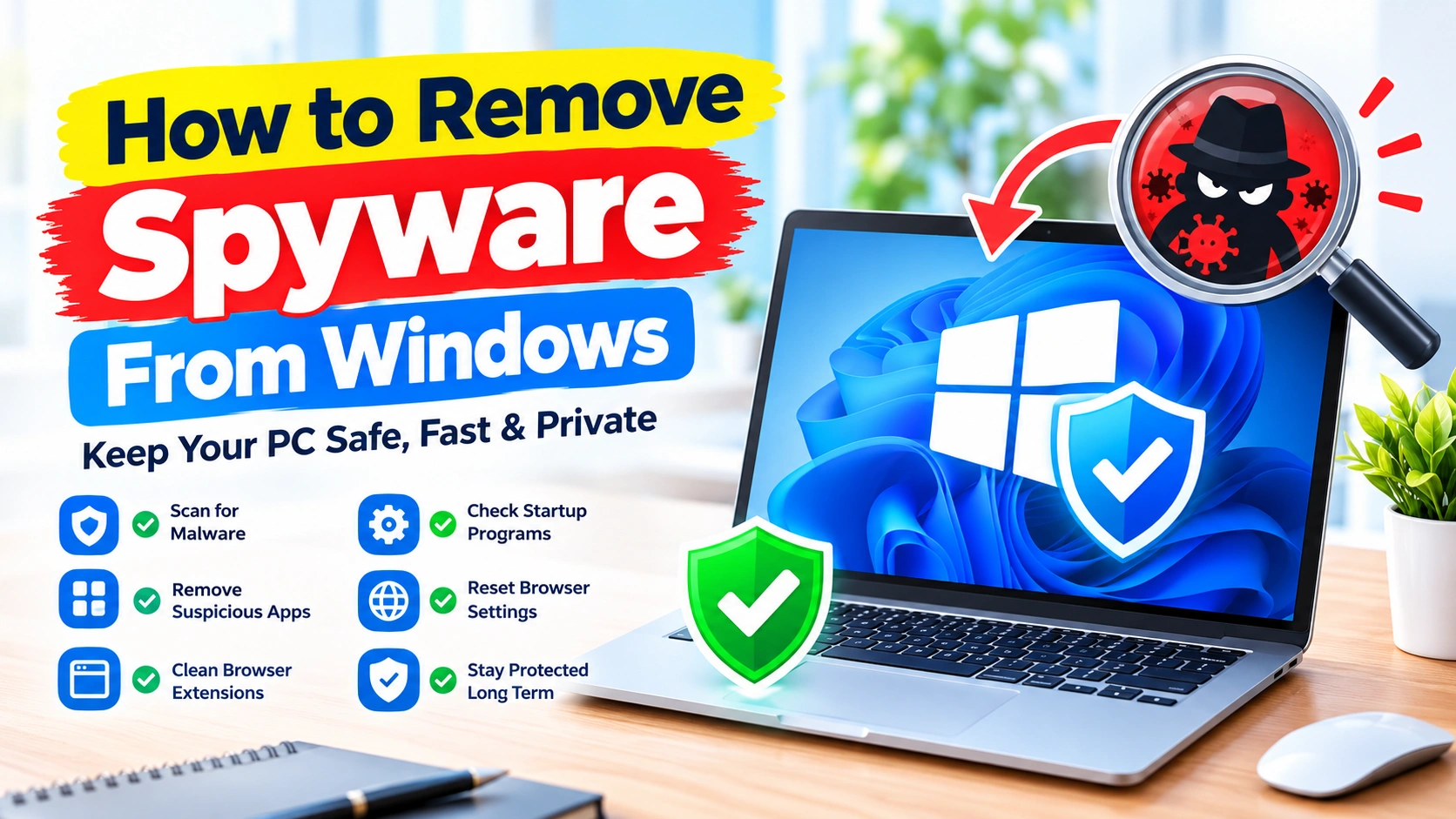
Spyware can quietly monitor your computer activity, collect personal information, track browsing behavior, or interfere with normal Windows operation. Unlike some obvious malware, spyware may run in the background without showing clear warning signs.
If you suspect that your Windows PC has spyware, it is important to remove it carefully rather than simply deleting unfamiliar files. This guide explains how to remove spyware from Windows using built-in security features, Safe Mode, browser cleanup, and other practical troubleshooting steps.
What Is Spyware?
Spyware is unwanted software designed to collect information from a computer without appropriate user knowledge or consent. Depending on the type, it may monitor browsing activity, record keystrokes, collect credentials, change browser settings, or track system usage.
Spyware can arrive through malicious downloads, fake software updates, suspicious email attachments, compromised websites, bundled applications, or deceptive browser extensions.
Common symptoms include:
- Unexpected browser redirects
- New browser extensions you did not install
- Unusual advertisements and pop-ups
- Slow Windows performance
- Unknown programs running in the background
- Changes to the browser homepage or search engine
- Unexplained network activity
- Security settings being disabled
- Unknown startup applications
- Frequent browser crashes
A single symptom does not necessarily mean that spyware is installed. However, several unexplained changes appearing together deserve investigation.
Before Removing Spyware
If you strongly suspect an infection, take a few precautions before starting.
Disconnect From the Internet
Temporarily disconnect Wi-Fi or unplug the Ethernet cable if you believe the computer is actively communicating with an unknown service.
This can reduce the ability of malicious software to communicate with external servers while you investigate.
You can reconnect when Windows security tools need an internet connection to download updated malware definitions.
Avoid Logging Into Sensitive Accounts
Until the computer has been checked, avoid entering passwords for banking, email, work, or other important accounts on the potentially compromised device.
If you have already entered sensitive credentials while spyware may have been active, consider changing those passwords from a different trusted device.
1. Run a Full Microsoft Defender Scan
Microsoft Defender Antivirus is built into supported versions of Windows and is a good first step when spyware is suspected.
To perform a full scan:
- Open Windows Security.
- Select Virus & threat protection.
- Choose Scan options.
- Select Full scan.
- Click Scan now.
- Allow the scan to complete.
- Follow Windows Security’s instructions if threats are detected.
A full scan examines considerably more files than a quick scan, although the process can take some time.
Do not interrupt the scan simply because the computer appears slower during the process.
2. Run a Microsoft Defender Offline Scan
Some malicious programs attempt to remain active while Windows is running. Microsoft Defender Offline provides another way to examine the system by restarting Windows and performing a scan outside the normal Windows environment.
To use it:
- Open Windows Security.
- Go to Virus & threat protection.
- Select Scan options.
- Choose Microsoft Defender Antivirus (offline scan).
- Click Scan now.
- Save your work before Windows restarts.
The computer will restart and perform the offline scan.
This option can be particularly useful when malware interferes with normal security software or repeatedly returns after removal.
3. Check Protection History
After scanning, review Microsoft’s detection history.
Open:
Windows Security → Virus & threat protection → Protection history
Look for recently detected threats and review the actions taken by Windows Security.
Pay attention to whether a detected item was:
- Quarantined
- Removed
- Blocked
- Allowed
- Still requiring action
If Windows reports that a threat requires attention, follow the recommended remediation steps rather than simply dismissing the warning.
4. Remove Suspicious Applications
Spyware can sometimes arrive as part of another application.
To review installed programs in Windows 11:
- Open Settings.
- Select Apps.
- Choose Installed apps.
- Sort applications by installation date.
- Look for software you do not recognize.
- Research an unfamiliar application before removing it.
- Uninstall software that you have confirmed is unwanted.
Do not remove Windows system components simply because their names look unfamiliar. Many legitimate Windows components have technical names that may not be immediately recognizable.
If you are unsure about a program, check its publisher and installation date before making a decision.
5. Check Windows Startup Apps
Some unwanted software attempts to launch automatically whenever Windows starts.
Open:
Settings → Apps → Startup
Review the applications listed there.
You can disable a startup application if you do not want it launching automatically.
Another useful option is Task Manager:
- Press Ctrl + Shift + Esc.
- Select Startup apps.
- Review the listed programs.
- Check their publisher information.
- Disable suspicious or unnecessary startup entries.
Disabling a startup item does not necessarily uninstall it. It simply prevents the application from launching automatically.
6. Inspect Running Processes
Task Manager can help identify unusual activity.
Press:
Ctrl + Shift + Esc
Then select Processes.
Look for processes consuming unusually high CPU, memory, disk, or network resources.
However, do not assume that a process is spyware simply because its name looks unfamiliar. Windows and legitimate applications run many background processes.
Before terminating an unknown process, research its exact filename and publisher.
If a suspicious process returns immediately after being terminated, perform a security scan instead of repeatedly ending the process manually.
7. Remove Suspicious Browser Extensions
Spyware and unwanted software can modify web browsers through extensions.
Check extensions in your installed browsers.
Google Chrome
Open:
Menu → Extensions → Manage Extensions
Review each extension and remove anything you do not recognize or no longer need.
Microsoft Edge
Open:
Menu → Extensions → Manage extensions
Disable or remove suspicious extensions.
Mozilla Firefox
Open:
Menu → Add-ons and themes → Extensions
Remove extensions that you did not intentionally install.
Browser extensions have significant access to browser data, so only keep extensions that you trust and actually use.
8. Reset Your Browser
If spyware has changed your homepage, search engine, new-tab page, or other browser settings, resetting the browser can help restore normal configuration.
Before resetting, save important bookmarks and review any passwords or other browser data that you need to retain.
A browser reset can remove unwanted configuration changes, but it does not replace a malware scan. If spyware is installed elsewhere in Windows, resetting the browser alone will not remove it.
9. Check for Suspicious Proxy Settings
Unwanted software can sometimes change network configuration.
In Windows, open:
Settings → Network & internet → Proxy
Review the configured proxy settings.
If you never intentionally configured a proxy and discover an unexpected setting, investigate it.
Do not automatically remove every proxy configuration. Some organizations, VPN applications, security products, and business networks legitimately use proxy settings.
10. Use Safe Mode for Difficult Cases
If suspicious software starts automatically and interferes with normal Windows operation, Safe Mode can make troubleshooting easier.
Safe Mode starts Windows with a limited set of drivers and services.
To access Windows recovery options:
- Open Settings.
- Go to System → Recovery.
- Select Advanced startup → Restart now.
- Choose Troubleshoot.
- Select Advanced options.
- Choose Startup Settings.
- Restart the PC.
- Select the appropriate Safe Mode option.
Once in Safe Mode, run another security scan and investigate suspicious applications.
Keep in mind that some security features may operate differently in Safe Mode, so use it primarily as a troubleshooting environment rather than as a permanent solution.
11. Check for Unwanted Scheduled Tasks
Some unwanted software uses Windows Task Scheduler to launch programs automatically.
You can inspect scheduled tasks by searching Windows for:
Task Scheduler
Open the application and review tasks that you recognize as suspicious.
Pay particular attention to tasks that:
- Launch an unfamiliar executable
- Run from an unusual folder
- Have a strange or meaningless name
- Start automatically at login
- Run scripts you do not recognize
Do not delete scheduled tasks simply because they look technical. Windows and legitimate applications use many scheduled tasks.
Research the task and its associated executable before removing it.
12. Check Your Hosts File
Advanced spyware can modify network-related Windows files.
The Windows hosts file is located at:
C:\Windows\System32\drivers\etc\hosts
A normal hosts file can contain legitimate entries, so do not delete or replace it blindly.
If you find unexpected entries redirecting well-known domains, investigate them carefully and compare the file with a known-good configuration.
This step is more appropriate for advanced users because incorrect modifications can interfere with normal network access.
13. Update Windows and Security Definitions
Keeping Windows and security software updated is an important part of malware protection.
Open:
Settings → Windows Update
Install available security updates and restart the computer when required.
Also ensure that Microsoft Defender’s security intelligence is current before performing another scan.
Outdated security definitions can reduce the ability of security software to recognize newer threats.
14. Consider a Second Malware Scanner
If Microsoft Defender does not resolve the problem but suspicious behavior continues, a reputable second-opinion malware scanner can provide additional analysis.
Use security software from a trusted vendor and download it from the vendor’s official website.
Avoid downloading supposed anti-spyware tools from random advertisements, pop-ups, file-sharing websites, or suspicious download pages. Fake security programs are themselves a common source of malware.
Run the second scanner after installation and follow its recommendations.
15. Remove Accounts or Applications You Do Not Recognize
Review your Windows account configuration if you suspect someone may have installed software manually.
Open:
Settings → Accounts
Review users and account-related settings.
You should also check applications with remote-access functionality. Remote-support programs can be legitimate, but an unfamiliar remote-access application deserves investigation.
Do not delete an account or application until you have confirmed what it belongs to.
16. Change Important Passwords After Cleanup
If spyware may have captured passwords or keystrokes, removing the software does not undo information that may already have been collected.
After cleaning the computer, consider changing important passwords from a trusted device.
Prioritize:
- Primary email
- Microsoft account
- Banking and financial services
- Password manager
- Social media
- Work accounts
- Cloud storage
Use unique passwords and enable multifactor authentication wherever possible.
17. Check Your Accounts for Suspicious Activity
After changing passwords, review recent account activity.
Look for:
- Unknown login locations
- Unrecognized devices
- Password-reset notifications
- New recovery email addresses
- Unexpected security changes
- Messages you did not send
- Purchases you did not authorize
If you discover suspicious activity, follow the affected service’s account recovery and security procedures.
18. Use System Restore Carefully
System Restore can sometimes help reverse recent system changes, but it should not be treated as a guaranteed spyware removal method.
A restore point may not remove every type of malware, and restoring Windows does not necessarily undo compromised online accounts or stolen credentials.
Use System Restore when appropriate for reversing a known recent system change, while continuing to use dedicated security scanning.
19. Reset or Reinstall Windows if Necessary
If spyware repeatedly returns, Windows security tools cannot remove it, or you cannot trust the integrity of the operating system, a Windows reset or clean installation may be appropriate.
Before doing this:
- Back up important personal documents.
- Do not blindly copy suspicious executable files.
- Make sure you have access to important account credentials.
- Verify that important files are backed up.
- Prepare installation or recovery media if necessary.
- Reinstall applications from trusted sources.
- Apply Windows updates.
- Enable security protections before restoring normal activity.
A clean installation provides a stronger starting point than repeatedly removing individual suspicious files.
20. Protect Windows From Future Spyware
Removing spyware is only part of the solution. Prevention reduces the chance of another infection.
Keep Windows Updated
Install Windows security updates regularly.
Download Software Carefully
Use official developer websites or trusted application stores whenever possible.
Avoid Pirated Software
Cracked applications, unauthorized activators, and modified installers are common malware distribution channels.
Be Careful With Email Attachments
Do not open unexpected attachments simply because they appear to come from a familiar company.
Review Browser Extensions
Only install extensions that you genuinely need and trust.
Keep Microsoft Defender Enabled
Do not disable Windows security protections merely to install questionable software.
Use Multifactor Authentication
MFA provides an additional layer of protection when an account password is exposed.
Back Up Important Files
Maintain backups of important documents so that you have recovery options if malware causes additional damage.
How to Tell Whether Spyware Has Been Removed
After completing the cleanup, monitor the computer for several days.
Positive signs include:
- Suspicious pop-ups stop appearing
- Browser settings remain unchanged
- Unknown applications no longer return
- Security scans remain clean
- Unexpected startup programs disappear
- System performance returns to normal
- Unusual network activity stops
- Security settings remain enabled
If suspicious behavior continues despite multiple scans and cleanup attempts, do not assume that the computer is safe. Consider obtaining professional malware analysis or performing a clean Windows installation.
What Not to Do When Removing Spyware
Avoid these common mistakes:
Do not delete random system files.
Removing a legitimate Windows component can create additional problems.
Do not install multiple full-time antivirus programs.
They can conflict with one another and negatively affect system performance.
Do not trust suspicious pop-up warnings.
A browser message claiming that your PC is infected may itself be a scam.
Do not repeatedly enter passwords on a suspected infected computer.
Use another trusted device when changing important credentials.
Do not download cracked removal tools.
A fake security utility can make the infection worse.
Do not assume that a clean quick scan proves the system is safe.
Use a full scan and, when appropriate, an offline scan.
Frequently Asked Questions
Can Windows Defender remove spyware?
Microsoft Defender can detect and remove many forms of malware, including some spyware. Running a full scan and, when appropriate, an offline scan provides a more thorough check than relying only on a quick scan.
How do I know if my Windows PC has spyware?
Possible warning signs include unexplained browser changes, unknown applications, suspicious extensions, unusual system activity, and repeated security warnings. These symptoms can also have legitimate causes, so use security scans to investigate rather than assuming that spyware is responsible.
Can spyware survive a Windows reset?
A properly performed clean installation provides a much stronger cleanup than simply deleting individual files. However, compromised online accounts, malicious files restored from backups, or infected external devices can create new problems afterward.
Should I use Safe Mode to remove spyware?
Safe Mode can be useful when unwanted software interferes with normal Windows operation. It is primarily a troubleshooting environment and should be combined with proper security scanning.
Should I change my passwords after removing spyware?
If spyware may have captured passwords or keystrokes, changing important passwords is a sensible precaution. Use a trusted device and enable multifactor authentication where available.
Can spyware slow down a computer?
Yes. Spyware and other unwanted software can consume CPU, memory, disk, or network resources. However, slow performance alone does not prove that spyware is installed.
Is it safe to delete an unknown Windows process?
No. An unfamiliar process is not automatically malicious. Research the process, its executable location, and its publisher before removing or disabling it.
Final Thoughts
The safest approach to removing spyware from Windows is to combine several steps rather than relying on one action. Start with Microsoft Defender, perform a full scan, use an offline scan when appropriate, inspect installed applications and browser extensions, and investigate suspicious startup or scheduled activity.
If the infection continues returning or the system cannot be trusted, backing up important personal files and performing a clean Windows installation may provide a more reliable recovery path.
After cleanup, update Windows, use reputable software, protect important accounts with strong passwords and multifactor authentication, and maintain regular backups. These habits can significantly reduce the impact of future malware infections.