

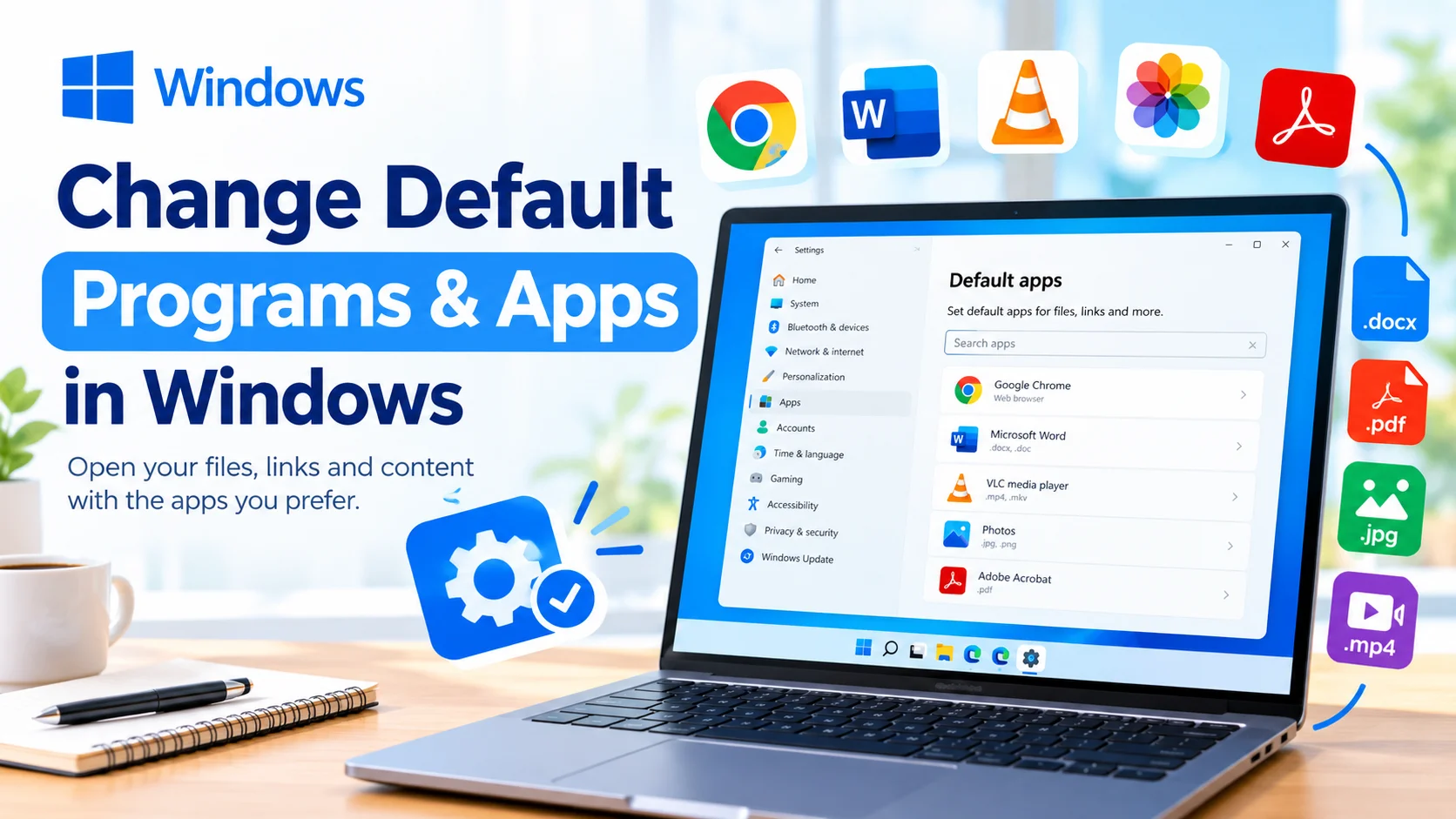
Windows lets you change default programs and apps in Windows so your preferred software automatically opens specific files, links, and other types of content. For example, you can set Chrome or another browser as the default for web links, VLC for video files, or Microsoft Word for documents.
If Windows keeps opening files with an application you do not prefer, changing the default app can make everyday tasks much easier. You can configure defaults from Windows Settings without uninstalling the existing programs.
What Are Default Programs in Windows?
A default program is the application Windows automatically uses when you open a particular file type, link, or supported protocol.
For example:
.docxfiles can open with Microsoft Word..pdffiles can open with your preferred PDF reader..jpgand.pngfiles can open with an image viewer.- Web links can open with your preferred browser.
- Music files can open with a selected media player.
Changing default applications does not remove other programs from your computer. It simply tells Windows which application should be used automatically.
How to Change Default Apps in Windows 11
Windows 11 provides a dedicated Default apps section in Settings.
Step 1: Open Windows Settings
Press Windows + I on your keyboard to open Settings.
You can also open the Start menu and select Settings.
Step 2: Open Default Apps
In Settings, select:
Apps > Default apps
You will see options for selecting default applications and configuring file associations.
Step 3: Select an Application
Use the search box to find the application you want to configure.
For example, you could search for:
- Google Chrome
- Microsoft Edge
- VLC media player
- Microsoft Word
- Adobe Acrobat
Select the application from the results.
Step 4: Choose File Types or Link Types
Windows will display file extensions and protocols associated with the application.
Select the file type or link type you want to change.
For example, you might select:
.pdf
Windows will show the application currently associated with that file type.
Step 5: Select Your Preferred App
Choose the application you want Windows to use.
Confirm the selection if Windows displays a confirmation prompt.
Repeat these steps for other file types or protocols you want to change.
How to Set a Default Browser
If you want another browser to handle websites and web links, you can change its default settings.
Go to:
Settings > Apps > Default apps
Search for your preferred browser and select it.
Depending on your Windows version and browser, you may see several web-related file types and protocols. Review the available options and select your preferred browser where appropriate.
This allows supported web links and web-related files to open with the browser you choose.
How to Set a Default App for a Specific File Type
You can also change the application associated with a particular file extension.
Open:
Settings > Apps > Default apps
Then search for the file extension, such as:
.pdf.jpg.mp4.txt.docx.xlsx
Select the current default application and choose another compatible application.
This method is useful when you only want to change one file association instead of changing an application’s entire set of defaults.
How to Set Defaults by File Type
Windows can also organize default applications according to file extension.
Open Settings > Apps > Default apps, then locate the option to choose defaults by file type.
Find the extension you want to configure and select the application currently assigned to it.
Choose your preferred program from the available applications.
This gives you more precise control over how different types of files are opened.
How to Reset Default Apps
If you have changed many file associations and want to return to Windows’ recommended settings, you can reset the defaults.
Go to:
Settings > Apps > Default apps
Look for the option to reset default applications to Microsoft’s recommended defaults.
Keep in mind that resetting defaults can change associations you previously configured, so review your settings afterward if you use specialized applications.
What to Do If Your Preferred App Does Not Appear
Sometimes an application may not appear in the list of available programs.
Try these solutions:
Reinstall the Application
If the application is installed incorrectly, reinstalling it may restore its Windows file associations.
Update the Application
Install the latest version of the software. Some applications register their supported file types during installation or updates.
Check the File Type
Make sure the program actually supports the file extension you are trying to associate with it.
For example, an image editor may support .jpg files but not every image format.
Use the Open With Option
You can also right-click a file and select:
Open with > Choose another app
Select your preferred application and, when available, enable the option to always use that application for the selected file type.
How to Change Default Apps Safely
Changing default applications is generally straightforward, but there are a few things to consider.
First, make sure the application you select can properly handle the file type. Setting an incompatible application as the default can make files difficult to open.
Second, avoid changing system-related file associations unless you understand their purpose. Some extensions are used by Windows and installed software.
Finally, keep important applications updated to improve compatibility and security.
Why Change Default Programs in Windows?
Changing default applications can improve your Windows experience in several ways.
Faster Access
Your files automatically open with the software you prefer, reducing unnecessary prompts.
Better Compatibility
You can choose an application specifically designed to handle certain file formats.
More Control
Windows gives you control over which programs handle different file types and web protocols.
Easier Workflows
If you frequently use a particular browser, media player, document editor, or image viewer, setting it as the default can save time.
Frequently Asked Questions
How do I change the default program in Windows?
Open Settings > Apps > Default apps, select an application or file type, and choose the program you want Windows to use by default.
How do I change which app opens a file?
Right-click the file, select Open with, choose another application, and select the option to always use that application when it is available.
Can I change the default browser in Windows?
Yes. Open Settings > Apps > Default apps, select your preferred browser, and configure the relevant web-related file types and protocols.
Will changing a default app uninstall the old program?
No. Changing a default application only changes which program Windows uses automatically. The previous application remains installed unless you uninstall it separately.
Can I change defaults for individual file types?
Yes. Windows allows you to configure default applications for individual file extensions, giving you more control over how different files are opened.
Conclusion
Knowing how to change default programs and apps in Windows gives you greater control over your everyday workflow. Windows allows you to assign preferred applications to specific file types, links, and supported protocols through the Default apps settings.
Whether you want a different browser, PDF reader, media player, or document application, changing the default program can make Windows more convenient without removing any existing software.