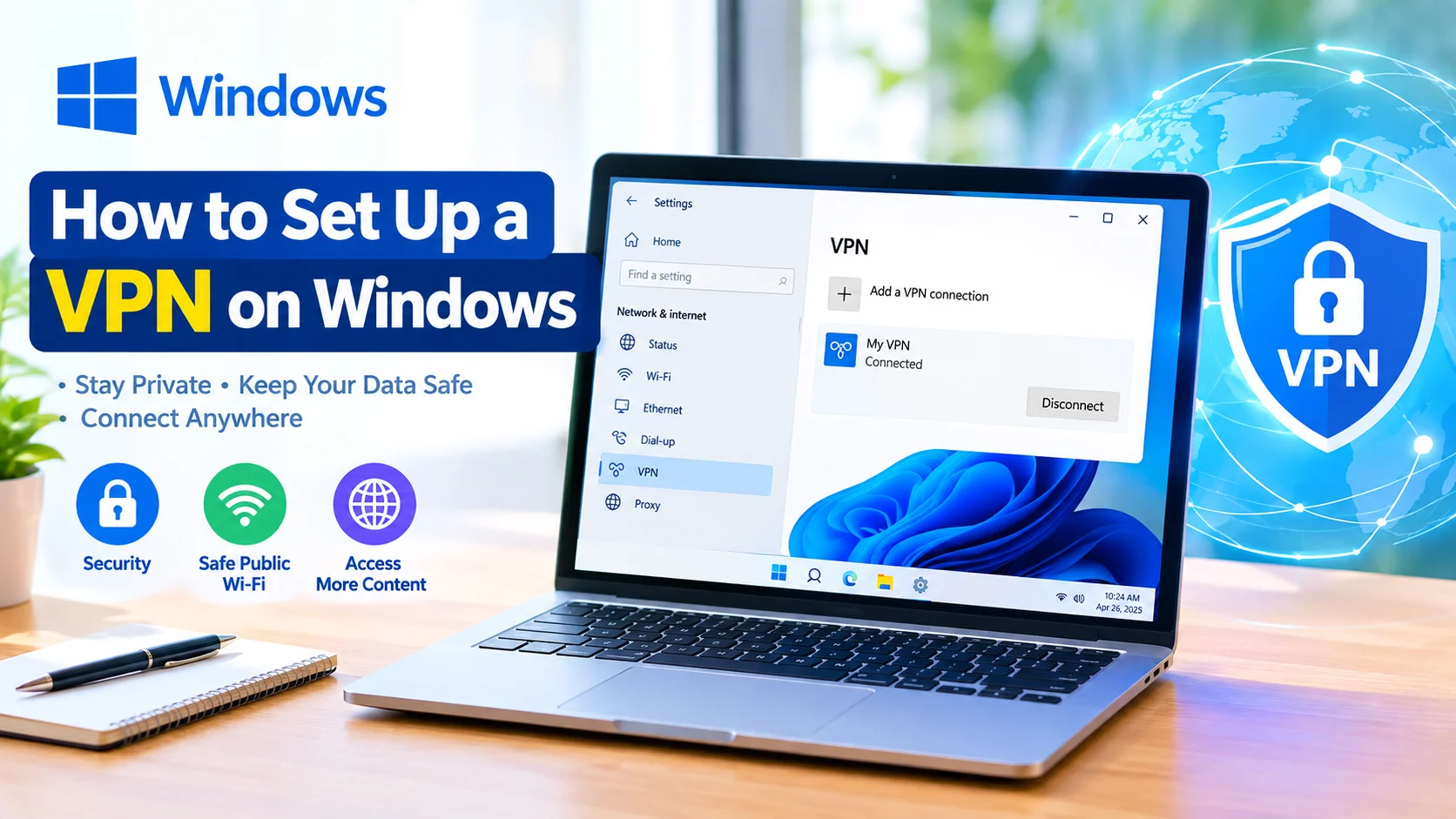
How to Set Up a VPN on Windows is a useful skill for anyone who wants to protect their internet connection, especially when using public Wi-Fi. Windows includes built-in VPN settings that allow you to connect to a VPN service without necessarily installing a separate VPN application.
A VPN, or Virtual Private Network, creates an encrypted connection between your Windows PC and a VPN server. This can help protect data traveling across an untrusted network and provide a more private connection.
What You Need Before Setting Up a VPN
Before configuring a VPN on Windows, make sure you have:
- A Windows 10 or Windows 11 PC
- An active VPN subscription or access to a VPN server
- The VPN server address
- Your VPN username and password, if required
- The VPN protocol supported by your VPN provider
Your VPN provider may give you additional information, such as a connection type, certificate, shared secret, or configuration file.
How to Set Up a VPN on Windows
Windows lets you create a VPN connection through the Settings application.
1. Open Windows Settings
Press Windows + I to open Settings.
On Windows 11, select:
Network & internet > VPN
On Windows 10, go to:
Settings > Network & Internet > VPN
2. Add a VPN Connection
Select Add VPN or Add a VPN connection.
Windows will display a form where you can enter the VPN connection details.
3. Choose the VPN Provider
For the VPN provider, select:
Windows (built-in)
This option allows Windows to manage the VPN connection directly.
4. Enter the VPN Connection Name
In the Connection name field, enter a recognizable name, such as:
My VPN
The name is only used to identify the connection on your computer.
5. Enter the VPN Server Address
Enter the server address supplied by your VPN provider.
It may look similar to:
vpn.example.com
Use the exact server address provided by your VPN service.
6. Select the VPN Type
Choose the VPN protocol required by your provider.
Common options can include:
- IKEv2
- L2TP/IPsec
- SSTP
- PPTP
The available options and security characteristics vary by Windows version and VPN service. Follow your provider’s recommended configuration rather than choosing a protocol randomly.
7. Select a Sign-In Method
Under Type of sign-in info, choose the authentication method required by your VPN provider.
For example, you may need:
- Username and password
- Certificate
- Smart card
- Other supported credentials
Enter the required information carefully.
8. Save the VPN Connection
After entering the configuration details, select Save.
The new VPN connection should now appear under Windows VPN settings.
How to Connect to the VPN
After creating the VPN profile:
- Open Settings.
- Select Network & internet.
- Choose VPN.
- Find your VPN connection.
- Select Connect.
- Enter your credentials if Windows requests them.
Windows will attempt to establish a connection with the VPN server.
Once connected, Windows should indicate that the VPN connection is active.
How to Disconnect a VPN
When you no longer need the VPN:
- Open Settings.
- Go to Network & internet > VPN.
- Find the active VPN connection.
- Select Disconnect.
You can reconnect later from the same location.
How to Check Whether the VPN Is Connected
You can verify the connection by opening:
Settings > Network & internet > VPN
Look for the VPN profile and its connection status.
You can also check your network connection from the Windows taskbar. Keep in mind that a VPN connection being active does not automatically guarantee complete online anonymity or security.
What to Do If the VPN Will Not Connect
If your Windows VPN fails to connect, try these troubleshooting steps:
Check Your Internet Connection
Make sure your normal internet connection is working before troubleshooting the VPN.
Verify the Server Address
A single typo in the VPN server address can prevent the connection from working.
Check Your Username and Password
Confirm that your VPN credentials are correct and that your account is active.
Confirm the VPN Protocol
The VPN protocol configured in Windows must match what the server supports.
Restart Windows
A simple restart can resolve temporary network or VPN service problems.
Check Firewall or Security Software
Firewall and security settings can sometimes interfere with VPN connections. Check your security software configuration without disabling protection unnecessarily.
Contact Your VPN Provider
If the configuration is correct but the connection still fails, your VPN provider can confirm the required server address, protocol, authentication method, and other settings.
Built-In Windows VPN vs VPN Apps
Windows’ built-in VPN feature is useful when you have specific connection details from an organization or VPN provider.
A dedicated VPN application may be easier for consumers because it can automatically manage servers, authentication, protocol selection, and other settings.
The right option depends on the VPN service and how you intend to use it.
Tips for Using a VPN Safely
A VPN can improve privacy on networks you do not fully trust, but it is not a complete security solution.
Follow these practices:
- Use a reputable VPN provider.
- Keep Windows updated.
- Use strong, unique account credentials.
- Enable multi-factor authentication when available.
- Avoid installing unknown VPN software.
- Keep your antivirus and firewall protection enabled.
- Read the VPN provider’s privacy policy.
- Remember that HTTPS and other security protections are still important.
Frequently Asked Questions
Does Windows have a built-in VPN?
Yes. Windows includes built-in VPN configuration options that allow users to create VPN profiles and connect to compatible VPN servers.
Is a VPN necessary on Windows?
A VPN is not required for normal Windows operation. It can be useful when you want an encrypted connection to a VPN server, particularly when using networks you do not fully trust.
Can I use a free VPN on Windows?
Some VPN providers offer free plans, but features, server availability, speed, and privacy policies vary. Review the provider’s terms and privacy practices before using one.
Why does my Windows VPN keep disconnecting?
Possible causes include an unstable internet connection, incorrect VPN settings, server problems, authentication issues, or network interference. Checking the VPN configuration and provider requirements is a good starting point.
Does a VPN make me completely anonymous?
No. A VPN can hide your IP address from websites and encrypt traffic between your device and the VPN server, but it does not provide complete anonymity. Websites, online accounts, cookies, and other technologies can still identify or track activity.
Conclusion
Learning how to set up a VPN on Windows gives you another way to manage your network connection and protect traffic between your computer and a VPN server. Windows provides built-in VPN settings, while dedicated VPN applications can simplify configuration for many users.
For the best results, use the server address, protocol, and authentication details supplied by your VPN provider and keep your Windows security features enabled.