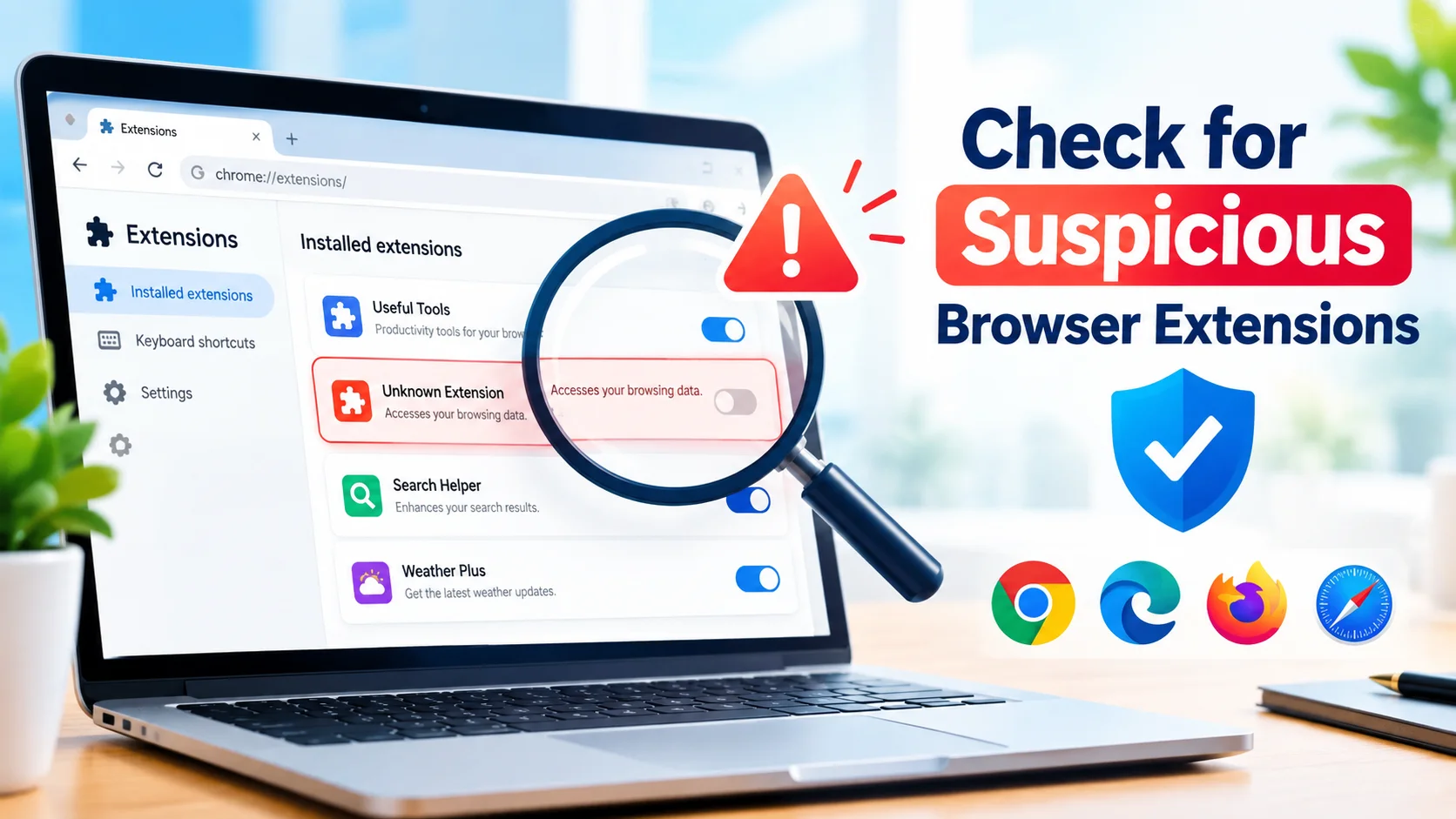
Check for Suspicious Browser Extensions regularly to protect your browser from unwanted ads, tracking, redirects, and other security risks. Browser extensions can add useful features, but poorly designed, outdated, or malicious extensions may access sensitive browsing data or change browser settings without your knowledge.
If your browser suddenly displays unfamiliar ads, redirects searches, changes the homepage, or becomes unusually slow, an installed extension could be responsible. Fortunately, you can review your extensions and remove anything you do not recognize or trust.
What Are Browser Extensions?
Browser extensions are small software components that add features to browsers such as Google Chrome, Microsoft Edge, Mozilla Firefox, and other Chromium-based browsers.
Extensions can provide useful functions, including:
- Password management
- Grammar and spelling assistance
- Screenshot tools
- Shopping features
- Productivity tools
- Web page translation
- Privacy and security features
However, extensions can also request permissions that allow them to read or modify website content. This makes it important to install extensions only from trustworthy sources.
Signs of a Suspicious Browser Extension
An extension may deserve closer inspection if you notice unusual browser behavior.
Common warning signs include:
- Unwanted pop-up advertisements
- Frequent redirects to unfamiliar websites
- Changes to your homepage or search engine
- New toolbars appearing unexpectedly
- Slower browser performance
- Unknown extensions appearing in the browser
- Search results containing unusual advertisements
- Extensions requesting excessive permissions
- An extension you do not remember installing
- Browser settings changing without your permission
One warning sign does not necessarily prove that an extension is malicious. However, several unexpected changes should prompt you to investigate.
1. Review Installed Extensions
Start by opening your browser’s extension management page.
Google Chrome
Enter the following address in Chrome:
chrome://extensions/
Review the complete list of installed extensions.
Microsoft Edge
Enter:
edge://extensions/
Check each extension and look for software you do not recognize.
Mozilla Firefox
Open the menu and select Add-ons and themes, then choose Extensions.
The exact interface can change between browser versions, but the goal is the same: review everything currently installed.
2. Remove Extensions You Do Not Recognize
If you find an extension that you never installed or no longer need, consider removing it.
Select Remove or the equivalent option in your browser’s extension manager.
Do not keep an extension simply because you are unsure whether it is necessary. If you cannot identify its purpose or source, investigate it before allowing it to remain installed.
3. Check the Extension’s Permissions
Permissions are one of the most important things to examine.
Depending on its purpose, an extension may request access to:
- Website content
- Browsing activity
- Tabs and windows
- Downloads
- Clipboard information
- Browser settings
A permission request is not automatically dangerous. Some legitimate extensions require broad access to perform their intended functions.
However, be cautious when an extension requests permissions that do not appear necessary for what it does.
For example, a simple calculator extension generally should not need extensive access to every website you visit.
4. Check the Developer and Source
Look at the extension’s developer information and where it came from.
Be cautious if:
- The developer information is unclear
- The extension has recently changed ownership
- The extension was installed from an unfamiliar website
- Its description contains suspicious claims
- The extension has very few credible reviews
- Its support page appears abandoned
Whenever possible, install extensions through the browser’s official extension marketplace rather than downloading unknown extension files from random websites.
5. Review Recent Browser Changes
Suspicious extensions sometimes reveal themselves through unexpected browser changes.
Check whether your:
- Default search engine changed
- Homepage changed
- New tab page changed
- Search results look different
- Pop-ups increased
- Browser redirects became common
If these changes started shortly after installing an extension, temporarily disabling or removing that extension can help determine whether it is responsible.
6. Disable an Extension Before Removing It
If you are unsure about an extension, you can disable it first.
Turn the extension off and continue using the browser normally. If the suspicious behavior disappears, the extension may be involved.
After confirming that you do not need it, remove it completely.
Disabling an extension is useful for troubleshooting because it lets you test browser behavior without immediately deleting the extension.
7. Keep Your Browser Updated
Browser updates often include security improvements and vulnerability fixes.
Keep your browser updated to the latest available version. Also check whether important extensions have been updated recently.
An abandoned extension may become a security risk if it no longer receives maintenance or compatibility updates.
8. Check for Extensions Installed by Other Software
Some unwanted programs can install browser extensions without clearly explaining what they are doing.
If a suspicious extension repeatedly returns after removal, check your computer for recently installed applications.
Open Settings > Apps > Installed apps in Windows and review unfamiliar programs.
Remove software that you do not recognize, but avoid uninstalling essential Windows components or applications unless you have confirmed what they are.
9. Scan Your PC for Malware
If suspicious browser behavior continues after removing an extension, the problem may not be limited to the browser.
Run a security scan using a reputable antivirus or Windows security tool.
A malware scan can help identify unwanted software that may be modifying browser settings, installing extensions, or causing redirects.
Scan your PC for malware in Windows using Quick, Full, Custom, and Offline scans. Learn how to detect and remove viruses and other threats.
10. Reset Browser Settings if Problems Continue
If your browser continues behaving strangely after removing suspicious extensions, resetting browser settings may help.
A browser reset can restore important settings to their defaults and remove certain unwanted configuration changes.
Before resetting the browser, make sure you understand what information may be affected and back up important browser data when appropriate.
How to Avoid Suspicious Browser Extensions
Prevention is easier than dealing with unwanted extensions later.
Follow these practices:
- Install extensions only when you need them.
- Download extensions from reputable sources.
- Check the developer before installing.
- Review requested permissions.
- Read recent user reviews carefully.
- Remove extensions you no longer use.
- Keep your browser updated.
- Avoid installing extensions recommended by suspicious pop-ups.
- Do not install software simply because a website claims it is required to view content.
- Periodically review your installed extensions.
Are All Unknown Extensions Dangerous?
No. An unfamiliar extension is not automatically malicious.
An extension may have been installed by another person using the computer, included with legitimate software, or forgotten after a previous installation.
The important question is whether you can identify its purpose, source, developer, and permissions. If you cannot establish that an extension is trustworthy or necessary, removing it is generally safer than leaving it installed.
What to Do After Removing a Suspicious Extension
After removing an unwanted extension:
- Restart your browser.
- Check the homepage and search engine.
- Test several websites.
- Look for unexpected redirects or pop-ups.
- Review the extension list again.
- Run a malware scan if suspicious behavior continues.
- Change important passwords if you have reason to believe sensitive browsing information may have been exposed.
If an extension had extensive access to sensitive websites, consider changing passwords from a trusted device and enabling multi-factor authentication where available.
Final Thoughts
Check for Suspicious Browser Extensions regularly to reduce the risk of unwanted browser activity and privacy problems. Review installed extensions, examine their permissions, verify their developers, and remove software you do not recognize or need.
If browser problems continue after removing suspicious extensions, investigate recently installed applications and run a malware scan. Keeping your browser, operating system, and security software updated can also provide an important layer of protection.