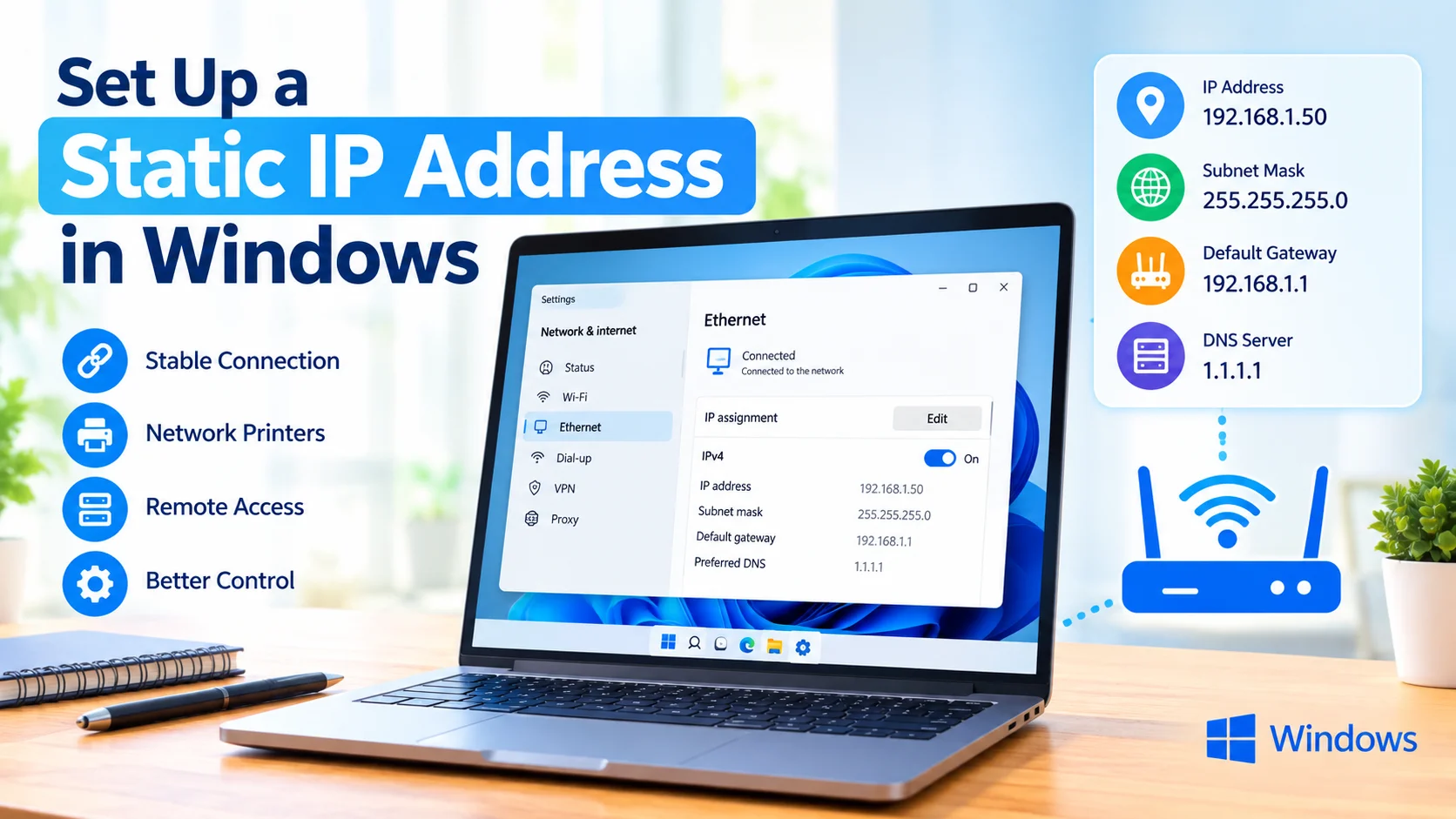
Set Up a Static IP Address in Windows when you need a computer to consistently use the same local network address. A static IP can be useful for devices that need reliable network access, such as file servers, printers, remote-access systems, and computers running local services.
Windows normally receives an IP address automatically from your router using DHCP. While automatic addressing works for most users, the assigned address can change. Configuring a static IP manually gives the computer a fixed address on your local network.
What Is a Static IP Address?
A static IP address is an IP address that remains manually assigned to a device instead of being automatically provided by a DHCP server.
For example, a home network might use addresses such as:
- IP address:
192.168.1.50 - Subnet mask:
255.255.255.0 - Default gateway:
192.168.1.1 - Preferred DNS server:
1.1.1.1
The correct values depend on your router and network configuration. Do not copy these values blindly.
Why Use a Static IP Address?
A static IP address can be useful in several situations.
Reliable Local Network Access
If other devices need to connect to your PC using its IP address, keeping the address fixed makes the connection more predictable.
Network Printers and Shared Devices
Static addressing can make it easier to locate network printers, storage devices, and other equipment.
Remote Access
A computer hosting a service may benefit from having a consistent local IP address.
Troubleshooting
A fixed address can also make certain network configurations easier to manage and troubleshoot.
Check Your Current Network Configuration
Before changing your IP settings, record your existing network information.
- Press Windows + R.
- Type
cmd. - Press Enter.
- Run:
ipconfig /all
- Find the network adapter you are currently using.
- Note the IPv4 Address, Subnet Mask, Default Gateway, and DNS Servers.
You can use this information to understand your current network configuration before making changes.
Set Up a Static IP Address in Windows Using Settings
Modern versions of Windows provide an easy way to configure a static IP through Settings.
- Press Windows + I to open Settings.
- Select Network & internet.
- Choose Wi-Fi if you are connected wirelessly, or select Ethernet if you are using a network cable.
- Open the properties for your active network connection.
- Find IP assignment.
- Select Edit.
- Change the setting from Automatic (DHCP) to Manual.
- Turn on IPv4.
- Enter the required IP information.
- Select Save.
Your network administrator or router configuration should determine the appropriate IP address, subnet prefix length, gateway, and DNS servers.
Understanding the IP Settings
Windows may ask for several pieces of information when configuring a manual IPv4 address.
IP Address
This identifies your computer on the local network.
For example:
192.168.1.50
The address must be appropriate for your network and must not already be assigned to another device.
Subnet Prefix Length
Windows commonly uses:
24
for networks equivalent to the traditional 255.255.255.0 subnet mask.
However, your network may use a different configuration.
Gateway
The default gateway is normally your router’s local IP address.
For example:
192.168.1.1
The correct gateway depends on your network.
Preferred DNS
DNS translates domain names into IP addresses. You can use your network’s DNS server or another trusted DNS service.
Examples include:
1.1.1.1
8.8.8.8
Choose DNS servers appropriate for your network and requirements.
Learn how to flush the DNS cache in Windows to fix website loading, connection, and DNS errors using a simple Command Prompt command.
Set a Static IP Address Using Control Panel
You can also configure a static IP using the traditional Windows network settings.
- Open Control Panel.
- Select Network and Internet.
- Open Network and Sharing Center.
- Select Change adapter settings.
- Right-click your active network adapter.
- Select Properties.
- Select Internet Protocol Version 4 (TCP/IPv4).
- Click Properties.
- Select Use the following IP address.
- Enter the IP address, subnet mask, and default gateway.
- Select Use the following DNS server addresses if you want to configure DNS manually.
- Enter your preferred DNS addresses.
- Click OK.
- Close the remaining network windows.
The new configuration should take effect shortly after you save the settings.
Verify the Static IP Address
After configuring the address, verify that Windows is using the expected information.
Open Command Prompt and run:
ipconfig
Look for the active network adapter and check its IPv4 address.
You can also test connectivity with:
ping 192.168.1.1
Replace 192.168.1.1 with your actual gateway address.
If the ping succeeds, your computer can communicate with the gateway.
Check Internet Connectivity
Open a web browser and visit a few websites. If websites do not load, check your gateway and DNS settings.
You can also test DNS resolution with:
nslookup example.com
If the command returns DNS information, name resolution is working.
Learn how to check your internet connection speed in Windows and test download, upload, ping, and network performance to identify slow connection issues.
Avoid IP Address Conflicts
One of the most important considerations when assigning a static IP is avoiding duplicate addresses.
For example, if your router has already assigned 192.168.1.50 to another device and you manually assign the same address to your PC, both devices can experience network problems.
Before choosing a static address, check your router’s DHCP configuration. If possible, select an address outside the DHCP pool or create a DHCP reservation for the computer.
Static IP vs DHCP Reservation
A manually configured static IP is not the only way to keep a device at the same address.
A DHCP reservation allows your router to consistently assign the same IP address to a particular device based on its network adapter’s MAC address.
This can be easier to manage because the router remains responsible for assigning network settings.
For many home networks, a DHCP reservation is a convenient alternative to manually configuring every device.
How to Return Windows to Automatic IP
If the static configuration causes connectivity problems, you can return the computer to automatic addressing.
In Windows Settings:
- Open Settings.
- Select Network & internet.
- Open your active Wi-Fi or Ethernet connection.
- Find IP assignment.
- Select Edit.
- Choose Automatic (DHCP).
- Save the settings.
Windows will then request network information automatically from the DHCP server.
Troubleshooting Static IP Problems
If your internet connection stops working after setting a static IP, check these items:
- Confirm that the IP address belongs to the correct subnet.
- Verify the default gateway.
- Check the subnet prefix length.
- Make sure another device is not using the same IP address.
- Verify the DNS server addresses.
- Restart the network adapter.
- Restart the router if necessary.
- Use
ipconfig /allto inspect the configuration. - Test the gateway with
ping. - Return to DHCP if you cannot determine the correct settings.
A static IP should be configured according to the actual network rather than copied from another computer.
Frequently Asked Questions
Does Windows need a static IP?
No. Most Windows computers work correctly with automatic DHCP addressing. A static IP is mainly useful when a device needs a predictable local address.
Can I use any IP address for my Windows PC?
No. The address must belong to the correct network range and should not conflict with another device.
Does a static IP improve internet speed?
Generally, no. A static local IP primarily provides consistent addressing. It does not normally increase your internet connection speed.
Can I change back to DHCP?
Yes. Windows allows you to switch the IP assignment back to Automatic (DHCP).
Should I use a static IP or DHCP reservation?
It depends on your network. A static IP is configured directly on the computer, while a DHCP reservation lets the router consistently assign an address to a specific device.
Conclusion
Setting up a static IP address in Windows can provide a consistent local network address for computers that need predictable connectivity. Before making the change, record your existing network settings and confirm the correct IP range, gateway, and DNS information.
For home networks, a DHCP reservation may be a simpler alternative. If you manually configure a static IP, always make sure the address does not conflict with another device and verify the connection after saving the settings.