

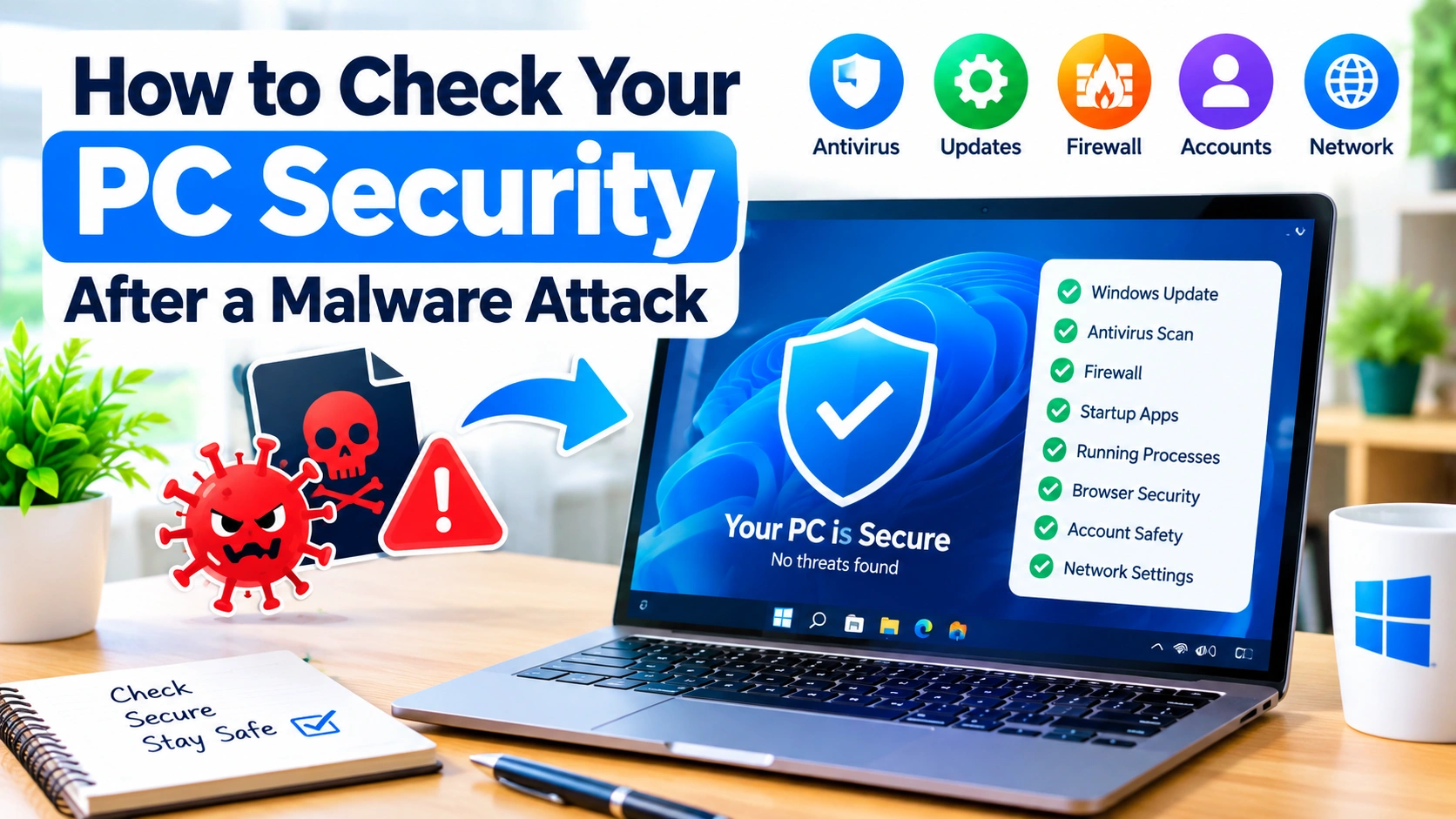
A malware infection can leave more than a single suspicious file behind. Even after removing the original threat, your Windows PC may still have unwanted startup programs, changed security settings, compromised accounts, browser extensions, or other traces that deserve attention.
Knowing how to check your PC security after a malware attack can help you identify remaining risks and restore your computer to a safer state. This guide explains practical checks you can perform in Windows 11 and Windows 10 without immediately reinstalling the operating system.
Why You Should Check Your PC After Malware Removal
Removing malware is an important first step, but it does not always mean that everything associated with an attack has disappeared.
Malware may have:
- Modified Windows security settings
- Added unwanted startup applications
- Installed malicious browser extensions
- Created scheduled tasks
- Changed browser settings
- Added suspicious user accounts
- Stolen saved passwords or session cookies
- Disabled security software
- Changed network or DNS settings
- Left potentially unwanted programs behind
For this reason, treat malware removal as the beginning of a security check rather than the final step.
1. Disconnect the PC From the Internet if the Threat Is Active
If you believe malware is currently running, disconnect the affected PC from the internet before performing extensive troubleshooting.
You can:
- Turn off Wi-Fi.
- Disconnect the Ethernet cable.
- Avoid logging into sensitive accounts from the affected computer.
- Use another trusted device for password changes when possible.
Disconnecting the computer can reduce the opportunity for active malware to communicate with external servers or download additional components.
If you only discovered an old malware detection and the computer is currently stable, you can continue with the security checks below while keeping the situation under observation.
2. Update Windows Before Running a Full Security Scan
An outdated operating system can contain known security weaknesses.
Open:
Settings → Windows Update
Select Check for updates and install available security and system updates.
Restart the computer if Windows requests it.
After restarting, check Windows Update again. Some updates are installed in stages, so a second check can reveal additional updates.
Keeping Windows updated also ensures that Microsoft Defender and other built-in security components can receive current protection information.
3. Check Microsoft Defender’s Security Status
Windows includes Microsoft Defender Antivirus, which provides built-in protection against malware.
Open:
Windows Security → Virus & threat protection
Check the current protection status.
Look for warnings involving:
- Real-time protection
- Cloud-delivered protection
- Tamper Protection
- Virus and threat protection
- Protection updates
If protection features are disabled unexpectedly, investigate why before simply switching them back on.
Malware sometimes attempts to disable security software to make continued operation easier.
4. Run a Full Virus Scan
A Quick Scan can be useful for routine checks, but after a confirmed malware incident, a Full Scan provides a more comprehensive examination.
Go to:
Windows Security → Virus & threat protection → Scan options
Select:
Full scan
Then select Scan now.
A full scan can take considerably longer than a quick scan, especially on systems containing many files.
Avoid using the computer heavily while the scan is running if possible.
5. Use Microsoft Defender Offline Scan
If you suspect that malware is difficult to remove while Windows is running, Microsoft Defender Offline can provide another layer of checking.
Go to:
Windows Security → Virus & threat protection → Scan options
Select:
Microsoft Defender Antivirus (offline scan)
Then select Scan now.
Windows will restart and perform the scan outside the normal Windows environment.
This can be useful for threats that attempt to hide their activity while the operating system is running normally.
6. Review Recent Threat Detections
After scanning, inspect the protection history.
Open:
Windows Security → Virus & threat protection → Protection history
Review recent detections carefully.
Pay attention to:
- Detection name
- File location
- Detection date
- Threat severity
- Whether the item was quarantined
- Whether an action is still required
Do not automatically restore quarantined files simply because you recognize their filename.
A legitimate-looking filename can sometimes be used by malicious software.
7. Check Installed Applications
Malware may arrive bundled with software or install additional programs.
Open:
Settings → Apps → Installed apps
Sort the applications by installation date if that option is available.
Look for programs you do not recognize, especially applications installed around the time the infection occurred.
Before removing an unfamiliar program, search for its publisher and verify whether it belongs to Windows, your hardware manufacturer, or software you intentionally installed.
Avoid deleting random program folders manually because doing so can leave services, startup entries, or registry components behind.
8. Review Startup Applications
A common persistence technique is starting unwanted software automatically when Windows boots.
Open:
Settings → Apps → Startup
Review the applications listed there.
You can also open Task Manager:
- Right-click the Start button.
- Select Task Manager.
- Open Startup apps.
Pay attention to unfamiliar entries or programs with publishers you do not recognize.
However, do not disable every unknown-looking startup item. Some legitimate drivers and utilities have technical names that are not immediately recognizable.
Research an entry before disabling it.
9. Check Running Processes
Task Manager can also help you identify unusual processes.
Press:
Ctrl + Shift + Esc
Then open the Processes tab.
Look for:
- Unexpected applications
- Unusually high CPU usage
- Unusually high memory usage
- Unknown processes
- Programs running when you are not using them
If you find a suspicious process, right-click it and select Open file location when available.
The file location can provide useful clues.
Do not assume that a process is malware simply because its name looks unfamiliar. Windows and third-party applications use many technical process names.
10. Inspect Windows Services
Some malware attempts to maintain persistence through Windows services.
Press:
Windows + R
Enter:
services.msc
Then press Enter.
Review services that were recently installed or have unusual names.
Pay particular attention to services associated with software you do not remember installing.
Do not randomly stop or disable Windows services. Disabling essential services can cause Windows or installed applications to malfunction.
Research suspicious services before changing their configuration.
11. Check Scheduled Tasks
Scheduled Tasks can automatically launch programs at specific times, during startup, or when certain events occur.
Press:
Windows + R
Enter:
taskschd.msc
Press Enter.
Open Task Scheduler Library and inspect recently created or suspicious tasks.
Look for tasks that:
- Launch unfamiliar executables
- Run from unusual folders
- Have meaningless names
- Trigger unexpectedly often
- Point to deleted or missing files
Again, avoid deleting tasks solely because their names are unfamiliar. Some legitimate applications create scheduled tasks during installation.
12. Review Browser Extensions
Browser extensions can introduce security and privacy problems, particularly if an extension was installed without your knowledge.
Check the extensions installed in your browsers.
For Chrome, open the extensions management page.
For Edge, open:
Extensions → Manage extensions
Remove extensions that:
- You did not install
- Have suspicious publishers
- Redirect searches
- Change your homepage
- Display unexpected advertisements
- Request excessive permissions
If your browser continues behaving strangely after removing an extension, consider resetting its settings.
13. Check Your Browser Settings
Malware and potentially unwanted programs can change browser configuration.
Review:
- Homepage
- Default search engine
- New-tab behavior
- Notification permissions
- Proxy settings
- Saved extensions
- Site permissions
- Download location
Unexpected changes can indicate that unwanted software modified your browser.
Also review saved passwords and payment information from a trusted device if you suspect credential theft.
14. Inspect DNS and Network Settings
Malware can sometimes modify network configuration to redirect traffic.
Open:
Settings → Network & internet
Review your active network connection.
Then check DNS configuration.
If you manually configured a trusted DNS service, confirm that the configuration has not unexpectedly changed.
You can also inspect the Windows network configuration from Command Prompt:
ipconfig /all
Look at the listed DNS servers.
An unfamiliar DNS server does not automatically mean that your computer is infected. Some VPNs, security products, routers, ISPs, and enterprise networks intentionally use custom DNS servers.
15. Check the Windows Firewall
Open:
Windows Security → Firewall & network protection
Make sure the firewall is enabled for the network profiles you use.
You can inspect advanced firewall rules by searching Windows for:
Windows Defender Firewall with Advanced Security
Review unusual inbound or outbound rules, particularly rules created around the time of the malware incident.
Do not delete legitimate rules without understanding what application or Windows component uses them.
16. Look for Unknown User Accounts
An attacker who gained sufficient access could potentially create or modify accounts.
Open:
Settings → Accounts → Other users
Review the accounts listed on the computer.
Look for accounts you do not recognize.
You can also inspect local accounts through:
Computer Management → Local Users and Groups → Users
If you discover an unfamiliar administrator account, treat the situation seriously and investigate before continuing normal use of the computer.
17. Review Administrator Permissions
Check which accounts have administrative privileges.
An account with administrator rights has significantly greater control over Windows than a standard user account.
If an unfamiliar account has administrator privileges, do not simply ignore it.
Document the account name and investigate its origin.
If you believe an attacker obtained administrator-level access, consider performing a deeper incident-response process or reinstalling Windows rather than assuming the machine is clean.
18. Check for Suspicious Hosts File Changes
Windows uses a hosts file that can override normal DNS resolution.
The file is located at:
C:\Windows\System32\drivers\etc\hosts
Open it carefully with a text editor running as administrator.
Most ordinary Windows installations do not require numerous custom website mappings.
If you see unexpected entries redirecting websites to unfamiliar IP addresses, investigate them.
Do not delete legitimate entries blindly, especially on managed computers or systems using specialized software.
19. Check Proxy Configuration
Unexpected proxy settings can redirect web traffic.
Open:
Settings → Network & internet → Proxy
Review the configuration.
If you never intentionally configured a proxy but one is enabled, investigate which application or administrator configured it.
Some security software, corporate networks, VPNs, and privacy tools legitimately use proxies, so the presence of a proxy alone does not prove malware infection.
20. Check for Unexpected Remote Access Software
Review installed applications for remote-access tools you did not intentionally install.
Examples of legitimate remote-access applications include software used by IT departments and technical-support providers.
If an unfamiliar remote-access application appeared during the malware incident, investigate it immediately.
Also review whether remote access features are enabled on the computer.
For example:
Settings → System → Remote Desktop
If you never use Remote Desktop, make sure its configuration matches your intended setup.
21. Check Windows Security Event Logs
Windows Event Viewer can provide additional information about account activity and system events.
Press:
Windows + R
Enter:
eventvwr.msc
Then press Enter.
Useful areas include:
Windows Logs → Security
and
Windows Logs → System
Look for unusual events around the time the malware infection occurred.
Event logs can be difficult to interpret, so do not assume that every warning or error represents an attack.
Instead, correlate suspicious events with known changes to your computer.
22. Check Your Important Accounts From a Clean Device
If malware may have captured passwords, checking the PC itself is not enough.
Use a separate trusted device to review important accounts.
Prioritize:
- Primary email
- Microsoft account
- Google account
- Banking accounts
- Payment services
- Social media
- Cloud storage
- Work accounts
Change passwords for accounts that may have been exposed.
Use unique passwords rather than reusing the same password across multiple websites.
23. Enable Multi-Factor Authentication
Multi-factor authentication can provide additional protection if a password is compromised.
Where available, enable MFA or two-step verification on important accounts.
Authenticator applications and security keys can provide stronger protection than relying only on passwords.
After changing passwords, review active sessions and sign out devices you do not recognize.
24. Review Saved Browser Passwords and Sessions
If the malware was capable of stealing browser data, saved passwords and active sessions may have been exposed.
From a trusted device, review your important accounts and revoke unfamiliar sessions.
If you use a password manager, consider changing the master password if there is credible evidence that the infected computer had access to it.
Do not assume that changing only your Windows login password protects online accounts.
25. Check for Unexpected Data Encryption or File Changes
Some malware attacks involve ransomware or destructive behavior.
Review important folders such as:
- Documents
- Pictures
- Desktop
- Downloads
- Work folders
- External backup locations
Look for:
- Unexpected file extensions
- Renamed files
- Missing files
- New ransom notes
- Unusual encrypted files
If you suspect ransomware, avoid repeatedly opening or modifying affected files. Disconnect the computer from networks and preserve evidence before attempting extensive recovery.
26. Check Your Backup System
A malware incident is also an opportunity to verify whether your backups are actually usable.
Check whether you have:
- Offline backups
- External-drive backups
- Cloud backups
- Windows backup data
- Application-specific backups
Make sure backups contain files that you can actually restore.
A backup that cannot be restored when needed should not be considered a complete recovery strategy.
27. Remove Temporary and Suspicious Files Carefully
After malware has been removed, Windows may contain temporary files associated with the infection.
You can use Windows built-in storage cleanup tools rather than manually deleting system folders.
Open:
Settings → System → Storage → Temporary files
Review the categories before deleting anything.
Avoid downloading random “PC cleaner” applications simply because a website claims your computer is infected. Some questionable cleanup utilities can create additional security or privacy problems.
28. Run a Second-Opinion Malware Scan
If the original malware detection was serious, a second security scanner can provide additional assurance.
Use reputable security software from a known vendor and download it from the vendor’s official website.
Avoid running many antivirus programs with real-time protection simultaneously because they can interfere with one another.
A second-opinion scanner can be used as an additional diagnostic layer rather than as a replacement for a properly configured primary security solution.
29. Check Whether Windows Security Settings Were Changed
After an infection, compare important security settings with your normal configuration.
Review:
- Microsoft Defender status
- Firewall status
- Real-time protection
- Tamper Protection
- Windows Update
- User Account Control
- SmartScreen
- Account security
- Browser security settings
Unexpectedly disabled protections deserve further investigation.
30. Know When a Windows Reset Is Safer
Sometimes the safest recovery option is not trying to manually identify every change.
Consider a Windows reset or clean installation when:
- Malware repeatedly returns
- Security tools cannot remove the threat
- Unknown administrator accounts remain
- System files have been heavily modified
- You suspect credential theft
- Remote-access malware was discovered
- You cannot determine what the attacker changed
- The computer remains unstable or suspicious
Before resetting Windows, back up important personal files carefully.
Do not blindly restore every executable, installer, script, or unknown file from the old system.
31. When to Get Professional Help
Professional assistance may be appropriate when the computer contains sensitive business information, financial information, customer data, or other valuable data.
You should also consider professional incident response when:
- Multiple computers are infected
- A business network is affected
- Ransomware is involved
- Administrator credentials may have been compromised
- You discover unauthorized remote access
- Sensitive information may have been stolen
- The infection repeatedly comes back
For an organization, disconnecting affected systems and preserving evidence may be more important than immediately wiping them.
A Practical Post-Malware Security Checklist
Use this checklist after removing malware:
- Disconnect the computer if an active infection is suspected
- Install Windows security updates
- Update Microsoft Defender
- Run a Full Scan
- Run Microsoft Defender Offline if necessary
- Review Protection History
- Check installed applications
- Review startup programs
- Inspect running processes
- Check Windows services
- Review Scheduled Tasks
- Inspect browser extensions
- Check browser settings
- Review DNS configuration
- Verify Windows Firewall
- Check user accounts
- Review administrator privileges
- Inspect proxy settings
- Check for unexpected remote-access software
- Review important security logs
- Change potentially exposed passwords
- Enable multi-factor authentication
- Sign out unfamiliar account sessions
- Check important files for unexpected changes
- Verify backups
- Run a reputable second-opinion scan
- Consider resetting Windows if trust cannot be restored
How to Know if Your PC Is Probably Clean
There is no single button that can prove a computer is completely free of malware.
However, confidence is higher when:
- Security software reports no active threats
- Windows is fully updated
- Security protections are enabled
- No unexplained applications are installed
- Startup entries look normal
- No suspicious scheduled tasks are present
- No unknown administrator accounts exist
- Network settings are expected
- Browser behavior is normal
- Important accounts have been secured
- No suspicious files or processes remain
- Backups are available
The goal is not simply to find one malicious file. The goal is to determine whether the system’s security configuration, accounts, applications, and network behavior have returned to a state you can reasonably trust.
Final Thoughts
Learning how to check your PC security after a malware attack is important because removing a detected threat does not necessarily address every change made during an infection.
Start with Windows updates, Microsoft Defender scans, security settings, installed applications, startup programs, scheduled tasks, browser extensions, network configuration, and user accounts. Then secure potentially exposed online accounts from a trusted device.
If you cannot confidently determine what the malware changed, a clean Windows installation may provide a more reliable recovery path than attempting to manually reverse every modification.
Most importantly, treat passwords and online accounts as potentially exposed when there is credible evidence that malware could have accessed them. Securing those accounts can be just as important as cleaning the computer itself.