

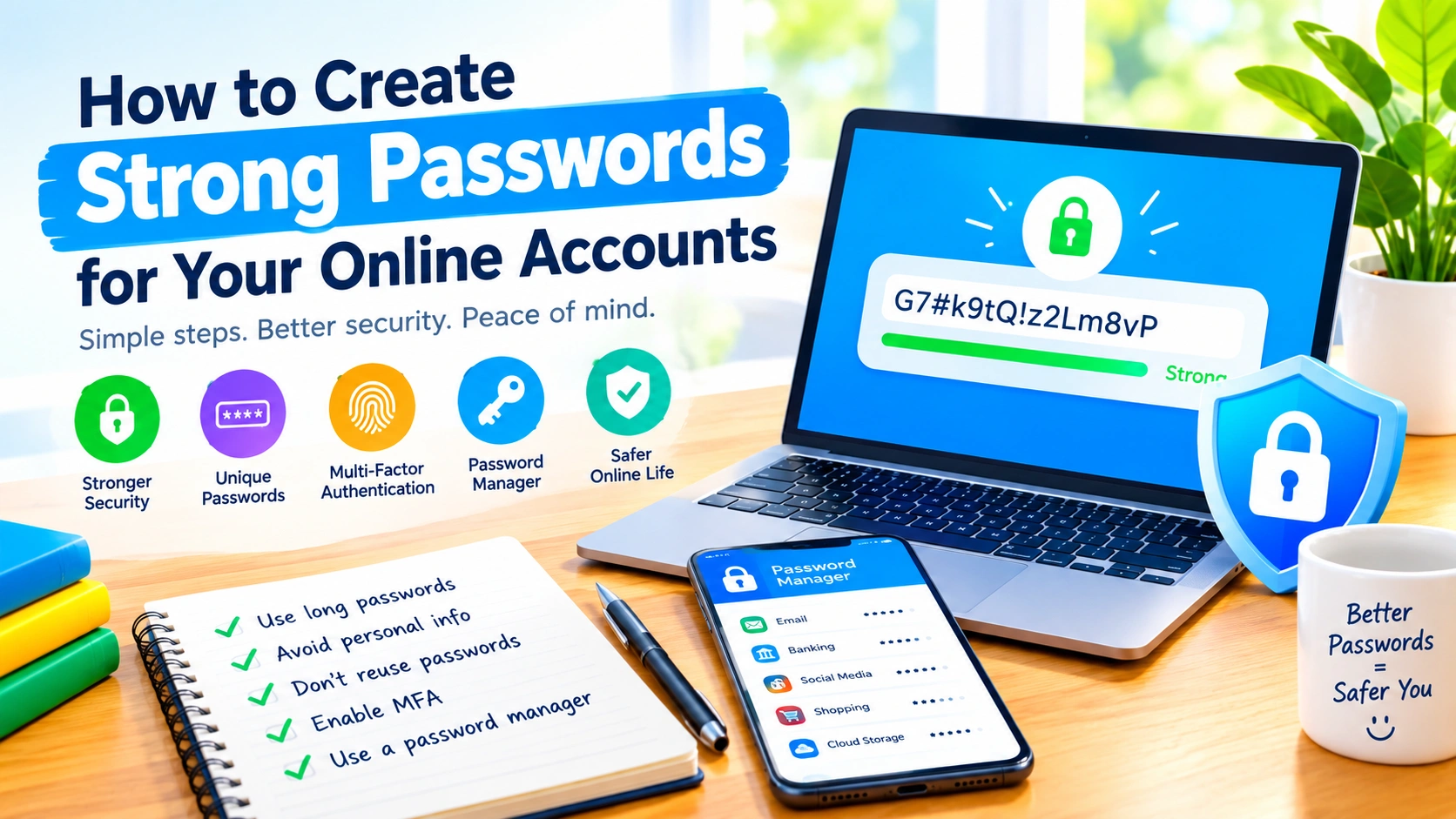
In today’s connected world, passwords are still one of the most important defenses protecting your online accounts. Email, social media, banking, shopping, cloud storage, and work accounts all contain information that you would not want strangers to access.
Unfortunately, many people still use short, predictable, or reused passwords. A single compromised password can become a much bigger problem when the same password is used across multiple websites.
The good news is that create strong passwords does not have to be difficult. With the right approach—and tools such as password managers and passkeys—you can make your accounts significantly harder to compromise while keeping your login routine manageable.
What Makes a Password Strong?
A strong password should be difficult for attackers to guess and should not be based on information that can easily be associated with you.
Important characteristics include:
- Length: Longer passwords generally provide more protection than short ones.
- Uniqueness: Each important account should have its own password.
- Unpredictability: Avoid obvious words, patterns, and personal information.
- Resistance to common attacks: Avoid passwords based on common phrases or predictable substitutions.
- No reuse: Never rely on the same password for multiple important accounts.
For example, a password such as Summer2026! may look complicated at first glance, but it follows an easily recognizable pattern. A longer, randomly generated password is much harder to predict.
Use Long Passphrases When Appropriate
One practical way to create a memorable password is to use a passphrase made from several unrelated words.
Instead of relying on a short password with predictable substitutions, you could construct a phrase from randomly selected words. For example:
river-cactus-lantern-orbit
The example above should not be used as an actual password. The important idea is the structure: several unrelated words create a longer password that can be easier to remember than a short string of complicated characters.
For accounts that support randomly generated passwords, however, letting a password manager generate the password is usually more convenient and avoids having to invent your own.
Never Reuse Your Passwords
Password reuse is one of the most important habits to eliminate.
Imagine that you use the same password for an online store, your email account, and a social media profile. If the store experiences a data breach and your password becomes available to attackers, they may try those same credentials on other services.
Using a unique password for every account limits the damage from a single compromised login.
At minimum, make sure your most important accounts have separate passwords, including:
- Primary email
- Banking and financial services
- Cloud storage
- Password manager
- Social media
- Work or school accounts
- Shopping accounts
Your email account deserves particular attention because it may be used to reset passwords for many of your other accounts.
Avoid Personal Information
Do not build passwords around information that other people could discover.
Avoid using:
- Your name
- Birthday
- Phone number
- Address
- Family members’ names
- Pet names
- Favorite sports teams
- Employer names
- School names
- Common nicknames
Information shared publicly on social media can sometimes make these passwords easier to guess.
Even adding a number or symbol to personal information does not necessarily make it secure. Michael1990! is still predictable if an attacker knows your name and birth year.
Don’t Use Common Password Patterns
Attackers do not simply try random combinations. Automated tools can test enormous numbers of common passwords and predictable variations.
Avoid patterns such as:
123456passwordqwertyPassword123admin123letmein- Repeated characters
- Sequential numbers
- Keyboard patterns
Replacing letters with obvious symbols is not a reliable way to transform a weak password into a strong one. For example, changing password to P@ssw0rd follows a well-known pattern.
Use a Password Manager
Remembering dozens of unique passwords is difficult. A password manager can solve this problem by generating and storing strong passwords for you.
A good password manager can typically:
- Generate random passwords
- Store passwords securely
- Fill login forms
- Synchronize credentials across approved devices
- Alert you about weak or reused passwords
- Help identify compromised credentials
- Store other sensitive login information
Instead of memorizing every password, you generally need to protect one primary credential or authentication method that unlocks your password vault.
Choose a reputable password manager and protect the account with a strong, unique password and multifactor authentication where available.
Turn On Multifactor Authentication
A strong password is important, but it should not be your only line of defense.
Multifactor authentication (MFA) requires an additional verification method when you sign in. Depending on the service, this could include an authenticator app, security key, biometric verification, or another authentication method.
MFA can provide valuable protection if your password is stolen or exposed.
Whenever an important account offers MFA, review the available options and enable an appropriate method.
For particularly sensitive accounts, hardware security keys or passkeys can provide strong protection against phishing and stolen-password attacks.
Consider Passkeys
Passkeys are increasingly becoming an alternative to traditional passwords.
Instead of typing a password, a passkey uses cryptographic credentials associated with your device or password manager. Signing in may involve a fingerprint, face recognition, device PIN, or another local authentication method.
One major advantage is that passkeys are designed to resist many forms of phishing because the underlying cryptographic credential is tied to the legitimate website or service.
If a service supports passkeys, consider using one alongside—or instead of—a traditional password, depending on the service’s available security options.
Change Passwords When There Is a Reason
You do not necessarily need to change every password on a fixed schedule simply because a certain number of months has passed.
Instead, prioritize changing passwords when there is a specific security reason, such as:
- The service reports a data breach
- You suspect your password has been exposed
- You accidentally shared the password
- You discover that the password is reused
- Someone else may have accessed your account
- You receive an unexpected security alert
If a password is exposed, changing it quickly can help prevent continued unauthorized access.
Check for Weak and Reused Passwords
Your password manager may provide a security dashboard that identifies passwords that are:
- Weak
- Reused
- Old
- Potentially compromised
Use these reports to prioritize improvements.
Start with critical accounts such as your email, financial services, cloud storage, and work accounts. Replace reused passwords with unique credentials and enable MFA wherever possible.
Be Careful With Password Reset Messages
Account security is not only about creating strong passwords. You also need to protect the process used to recover your accounts.
Attackers sometimes send convincing phishing messages pretending to be banks, social networks, retailers, or other online services. These messages may ask you to click a link and enter your password.
When you receive an unexpected password-reset message, avoid clicking links immediately. Instead, open the official website or application directly and check your account from there.
Remember: a strong password cannot protect you if you voluntarily give it to a phishing site.
Protect Your Password Manager Account
If you use a password manager, the security of that account becomes especially important.
Use a strong, unique master password or the strongest authentication method supported by the service. Enable MFA when available, and keep recovery information secure.
Never share your password-manager credentials through email, chat messages, or social media.
Also make sure your devices themselves are protected with screen locks, updates, and appropriate security features.
A Simple Password Security Checklist
Use this checklist to improve your online account security:
- Create a unique password for every important account.
- Prefer long, unpredictable passwords.
- Use a password manager to generate and store passwords.
- Avoid names, birthdays, and other personal information.
- Avoid common words and predictable patterns.
- Enable multifactor authentication.
- Use passkeys when supported and appropriate.
- Replace passwords that have been exposed or reused.
- Review security alerts promptly.
- Be cautious with password-reset links and login pages.
- Keep your devices and software updated.
Final Thoughts
Create strong passwords is one of the simplest ways to improve your online security, but password strength should be part of a broader security strategy.
The most practical approach is to use long, unique passwords, store them in a reputable password manager, enable multifactor authentication, and adopt passkeys where supported. Most importantly, avoid reusing the same password across different services.
You do not need to memorize dozens of complicated passwords. With the right tools and habits, you can make your online accounts substantially more difficult to compromise while making everyday sign-ins easier.