

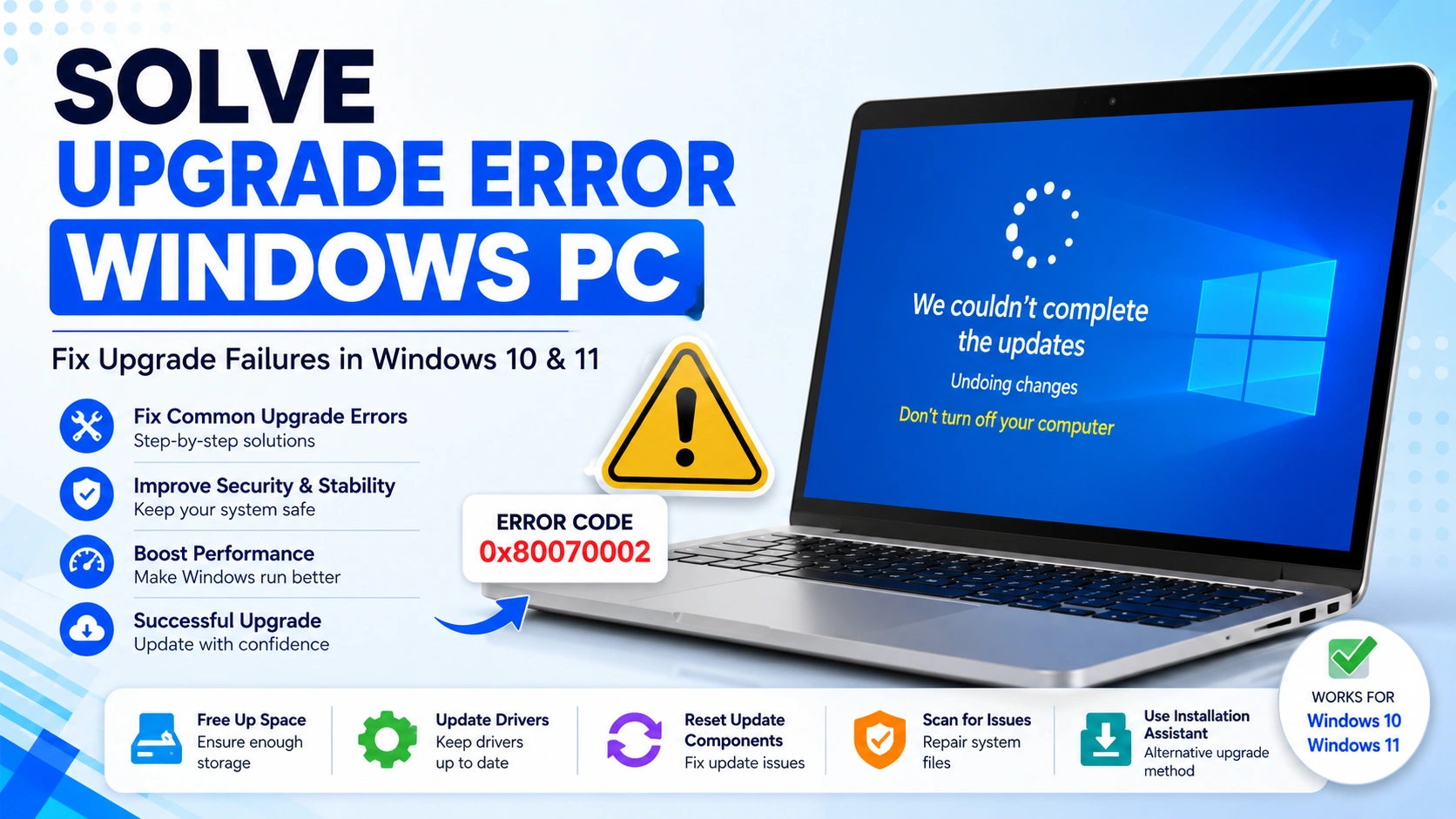
Windows upgrades are designed to improve security, performance, and stability. However, many users encounter frustrating installation failures during major Windows updates. If you need to Solve Upgrade Error Windows PC problems, this guide provides proven troubleshooting methods that work for both Windows 10 and Windows 11.
Before troubleshooting upgrade issues, it can be helpful to verify your system’s overall health and performance. Reviewing your PC’s hardware status, storage performance, and system stability can reveal underlying problems that may interfere with Windows upgrades. For a complete diagnostic process, read our guide on How to Test PC Performance.
Whether your upgrade gets stuck, fails with an error code, or rolls back automatically, the solutions below can help you complete the installation successfully.
What Causes Upgrade Error Windows PC Issues?
Before trying to Solve Upgrade Error Windows PC problems, it’s important to understand the common causes of upgrade failures.
Common causes include:
- Corrupted Windows Update files
- Insufficient disk space
- Outdated or incompatible drivers
- Damaged system files
- Third-party antivirus conflicts
- Hardware compatibility issues
- Faulty Windows Update services
- Unstable internet connections
- Incomplete previous updates
- Corrupted update cache folders
Corrupted update files and outdated drivers are among the most frequent reasons users need to Solve Upgrade Error Windows PC issues. Low storage space can also prevent Windows from downloading and installing large feature updates successfully.
In addition, damaged system files, disabled update services, and security software conflicts may interrupt the upgrade process and generate error codes.
If you encounter update-related problems during the upgrade, you may also find our guide on Fix Windows Update Error 0x80070002 helpful.
Understanding the root cause makes it easier to Solve Upgrade Error Windows PC issues quickly and prevent future upgrade failures.
1. Restart Your Computer and Retry
One of the easiest ways to Solve Upgrade Error Windows PC issues is to restart your computer and attempt the upgrade again. A simple reboot can clear temporary system glitches, refresh Windows services, and resolve minor conflicts that may be preventing the update from installing properly.
Steps:
- Save all open work.
- Restart your PC.
- Open Settings.
- Navigate to Windows Update.
- Click Check for Updates.
- Retry the upgrade process.
During the restart, Windows reloads essential services and clears temporary files that may have become stuck during a previous update attempt. This quick fix is often enough to Solve Upgrade Error Windows PC problems caused by temporary software conflicts or incomplete update processes.
Many upgrade failures disappear after a clean restart, making this the first troubleshooting step you should try before moving on to more advanced solutions.
2. Free Up Disk Space
Insufficient storage is one of the most common reasons Windows upgrades fail. If you want to Solve Upgrade Error Windows PC issues, ensuring adequate free space should be a priority. Major feature updates require several gigabytes of storage for installation files, temporary data, and backup files.
To Free Up Disk Space:
- Press Windows + R.
- Type cleanmgr and press Enter.
- Select your system drive.
- Remove temporary files.
- Empty the Recycle Bin.
Microsoft recommends maintaining at least 20 GB of available storage before installing large Windows feature updates. Freeing disk space can often Solve Upgrade Error Windows PC problems immediately.
3. Run Windows Update Troubleshooter
Windows includes a built-in diagnostic utility specifically designed to detect and repair update-related issues automatically.
Steps:
- Open Settings.
- Select System.
- Click Troubleshoot.
- Open Other Troubleshooters.
- Run Windows Update Troubleshooter.
The troubleshooter scans update services, verifies system settings, and repairs common problems that may prevent updates from installing. Running this tool is one of the quickest ways to Solve Upgrade Error Windows PC issues without advanced troubleshooting.
4. Repair Corrupted System Files
Corrupted Windows system files frequently cause upgrade failures and installation errors. Repairing these files can restore essential operating system components and help Solve Upgrade Error Windows PC problems.
Open Command Prompt as Administrator and run:
sfc /scannow
After the scan completes, execute:
DISM /Online /Cleanup-Image /RestoreHealth
The System File Checker (SFC) repairs damaged system files, while DISM restores corrupted Windows images. Together, these tools resolve many upgrade-related issues.
5. Reset Windows Update Components
Corrupted Windows Update caches often prevent updates from downloading or installing correctly. Resetting update components can clear damaged files and help Solve Upgrade Error Windows PC failures.
Open Command Prompt as Administrator and run:
net stop wuauserv
net stop bits
net stop cryptsvc
ren C:\Windows\SoftwareDistribution SoftwareDistribution.old
ren C:\Windows\System32\catroot2 catroot2.old
net start wuauserv
net start bits
net start cryptsvc
After running these commands, restart your computer and attempt the upgrade again.
Learn how to completely reset Windows Update components to fix failed updates, corrupted caches, download errors, and persistent Windows Update problems.
6. Disconnect Unnecessary Hardware
External devices occasionally create driver conflicts that interrupt the Windows upgrade process.
Temporarily disconnect:
- USB drives
- Printers
- Scanners
- External hard drives
- Gaming peripherals
Keep only essential devices connected, such as your keyboard, mouse, and monitor. This simple step can often Solve Upgrade Error Windows PC issues caused by hardware compatibility conflicts.
7. Update Device Drivers
Outdated drivers are among the leading causes of Windows upgrade failures. Updating drivers ensures compatibility with the latest Windows versions.
To Update Drivers:
- Press Windows + X.
- Open Device Manager.
- Expand hardware categories.
- Right-click devices.
- Select Update Driver.
Pay special attention to:
- Graphics drivers
- Storage controllers
- Network adapters
Driver updates frequently Solve Upgrade Error Windows PC problems and improve overall system stability.
8. Disable Third-Party Antivirus Temporarily
Security software can sometimes block upgrade files or interfere with Windows installation processes.
Before Upgrading:
- Disable antivirus protection temporarily.
- Pause firewall features if available.
- Retry the Windows upgrade.
Once the upgrade completes successfully, re-enable all security protections. This method can help Solve Upgrade Error Windows PC issues caused by overly aggressive security applications.
9. Use Windows Installation Assistant
If Windows Update continues to fail, Microsoft’s official Installation Assistant provides an alternative upgrade method.
Steps:
- Visit Microsoft’s Windows download page.
- Download Windows Installation Assistant.
- Launch the utility.
- Follow the on-screen upgrade wizard.
This tool bypasses many common Windows Update problems and is often successful when standard update methods fail. For persistent installation issues, using Installation Assistant can be one of the most effective ways to Solve Upgrade Error Windows PC problems and complete the upgrade successfully.
Common Upgrade Error Codes
Several error codes are frequently associated with Windows upgrade failures. Understanding what each code means can help you identify the root cause faster and apply the most effective fix.
| Error Code | Possible Cause |
|---|---|
| 0x80070070 | Insufficient storage space |
| 0x80070002 | Missing or corrupted update files |
| 0x80070005 | Permission or access denied issues |
| 0xC1900101 | Driver incompatibility |
| 0x80240034 | Windows Update download failure |
| 0x80073712 | Corrupted system files or update components |
Error 0x80070070
This error typically appears when there is not enough free space on the system drive to complete the upgrade. Running Disk Cleanup and removing unnecessary files usually resolves the problem.
Error 0x80070002
Error 0x80070002 occurs when Windows cannot locate required update files. Corrupted update caches, interrupted downloads, or damaged update components are common causes. If you encounter this issue, see our detailed guide on Fix Windows Update Error 0x80070002 for step-by-step solutions.
Error 0x80070005
This error indicates that Windows lacks the necessary permissions to install updates. Security software, incorrect user permissions, or damaged system files can trigger this issue.
Error 0xC1900101
This code is commonly linked to incompatible or outdated device drivers. Updating graphics, storage, and network drivers often resolves the problem before attempting the upgrade again.
Error 0x80240034
Windows may display this error when update downloads fail due to network interruptions, corrupted update caches, or Windows Update service problems.
Error 0x80073712
This error usually points to corrupted system files or damaged Windows Update components. Running SFC and DISM scans can help repair the affected files and restore normal update functionality.
Some upgrade failures may also be caused by disabled Windows services. If Windows Update services are not running correctly, review our guide on Fix Windows Error 0x80070422 Service Not Running, which explains how to restore essential update-related services.
By understanding these common error codes, you can quickly narrow down the source of the problem and more effectively Solve Upgrade Error Windows PC issues.
Additional Tips to Prevent Future Upgrade Errors
Preventing upgrade problems is often easier than fixing them after they occur. By following a few maintenance practices, you can improve system stability and reduce the chances of encountering Windows upgrade failures in the future.
Keep Drivers Updated Regularly
Outdated drivers can cause compatibility issues during major Windows upgrades. Regularly check for updates to graphics, network, storage, and chipset drivers to ensure your hardware remains compatible with the latest Windows releases.
Maintain Sufficient Free Disk Space
Windows feature updates require considerable storage space for installation files and temporary data. Keep at least 20–30 GB of free space available on your system drive to avoid upgrade interruptions.
Install Monthly Windows Updates
Installing cumulative updates and security patches helps keep Windows components current. Staying up to date can prevent issues that may later interfere with larger feature upgrades.
Avoid Abrupt Shutdowns During Updates
Never force a restart or power off your computer while Windows is installing updates. Interrupting the process can corrupt system files and create upgrade-related problems.
Create System Restore Points
Before installing major updates, create a restore point. This provides a recovery option if something goes wrong during the upgrade process.
Perform Regular Malware Scans
Malware infections can damage system files, disable essential services, and interfere with Windows Update operations. Running routine security scans helps maintain a healthy operating system.
Monitor System Stability
Frequent application crashes, driver failures, or system errors may indicate underlying issues that should be resolved before upgrading Windows. If your computer experiences recurring crashes, consider reading our guide on How to Fix NTDLL.dll Crash Errors on Windows, which covers one of the most common causes of application and system instability.
Following these best practices can significantly reduce the likelihood of future upgrade failures and help ensure that Windows updates install smoothly and successfully.
For official troubleshooting information, visit the Microsoft Windows Update support documentation.
Conclusion
Learning how to Solve Upgrade Error Windows PC issues can save hours of frustration and help you avoid unnecessary operating system reinstalls. Windows upgrade failures are often caused by common problems such as insufficient storage space, corrupted update files, outdated drivers, or damaged system components. Fortunately, these issues can usually be resolved using straightforward troubleshooting methods.
Start by applying the basic fixes, including restarting your computer, freeing up disk space, and running the Windows Update Troubleshooter. If the upgrade still fails, move on to more advanced solutions such as repairing corrupted system files, resetting Windows Update components, disconnecting unnecessary hardware, and updating device drivers.
By following the steps outlined in this guide, most users can successfully Solve Upgrade Error Windows PC problems and complete Windows updates without further complications. Regular system maintenance, timely driver updates, and routine Windows updates will also help prevent future upgrade errors and keep your PC running smoothly.