

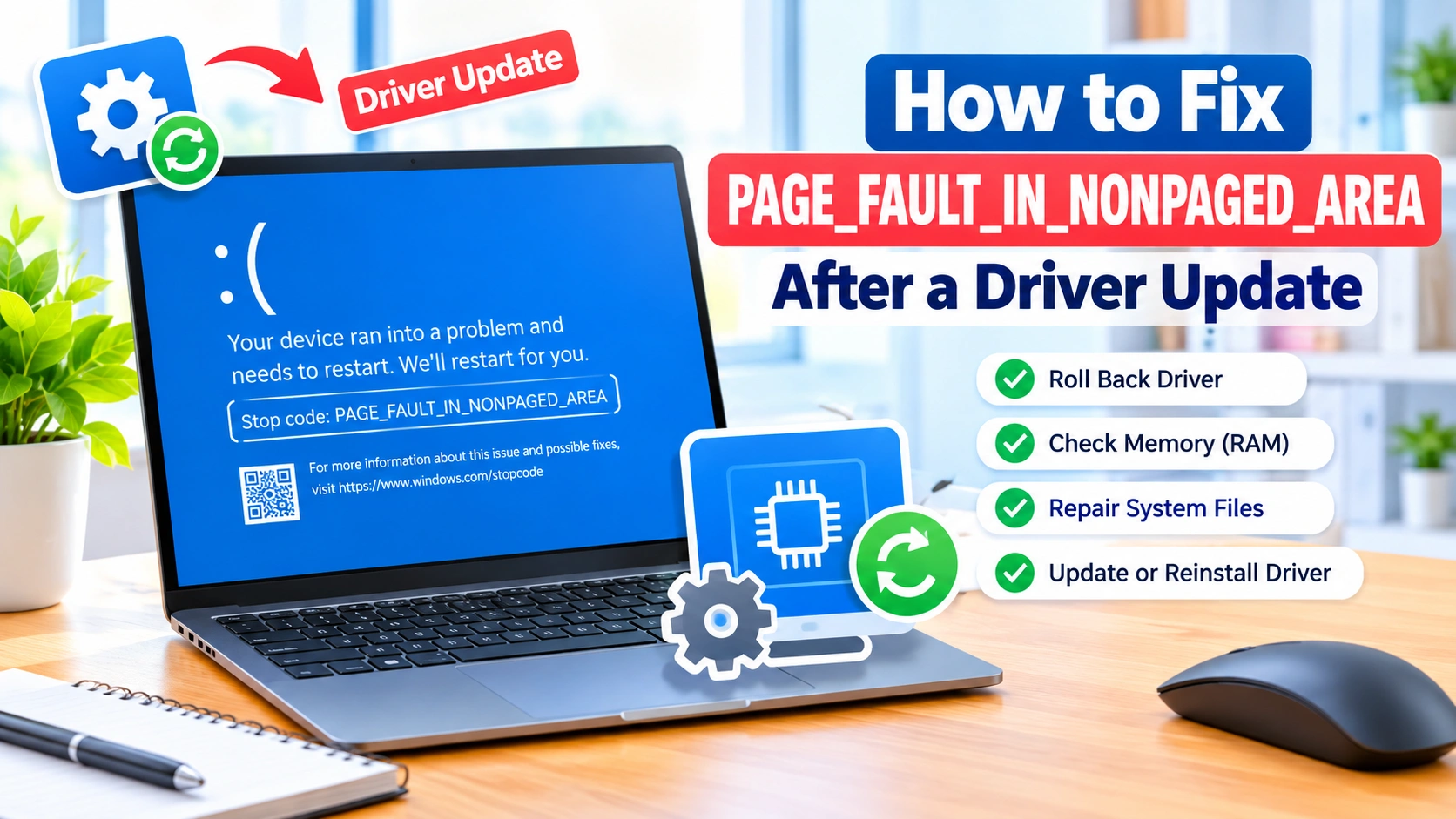
Seeing the PAGE_FAULT_IN_NONPAGED_AREA error after updating a driver can be frustrating, especially when Windows suddenly crashes with a Blue Screen of Death (BSOD). This error often indicates that Windows attempted to access a memory location that should have been available but could not be accessed correctly.
A recently updated or incompatible driver is one possible cause. Fortunately, you can often resolve the problem by rolling back the problematic driver, checking system files, testing your RAM, or installing a corrected driver version.
This guide explains how to fix PAGE_FAULT_IN_NONPAGED_AREA after a driver update and what to do if the error continues.
What Does PAGE_FAULT_IN_NONPAGED_AREA Mean?
The PAGE_FAULT_IN_NONPAGED_AREA error is a Windows stop code commonly associated with memory access problems.
The nonpaged area refers to a portion of Windows memory that should remain available in physical RAM and should not be moved to disk. If Windows or a driver attempts to access invalid or unavailable data in this area, the operating system may trigger a BSOD to protect the system.
A driver update can cause this problem when the new driver is:
- Incompatible with your Windows version
- Corrupted during installation
- Incorrectly configured
- Conflicting with another driver
- Incompatible with a particular hardware component
- Installed alongside damaged system files
The problem is not always caused by the driver itself. Faulty RAM, storage problems, antivirus software, or other system-level conflicts can also produce the same stop code.
Common Symptoms of PAGE_FAULT_IN_NONPAGED_AREA
You may encounter one or more of these symptoms:
- Windows suddenly displays a blue screen
- The computer restarts unexpectedly
- The crash happens shortly after installing a driver
- Windows repeatedly crashes during startup
- A specific hardware device stops working correctly
- The error appears while gaming or running demanding applications
- Windows becomes unstable after waking from sleep
The timing of the problem can provide an important clue. If the BSOD started immediately after a particular driver update, rolling back that driver should be one of your first troubleshooting steps.
1. Restart Your Computer
Before making significant changes, restart Windows normally if possible.
A temporary driver or memory problem may disappear after a reboot. If the system continues to crash, however, move on to the next troubleshooting steps.
If Windows cannot start normally, you may need to use Safe Mode.
2. Start Windows in Safe Mode
Safe Mode loads Windows with a limited set of drivers and services. This can help determine whether a recently installed driver is responsible for the crash.
To enter Safe Mode from Windows:
- Open Settings.
- Select System.
- Choose Recovery.
- Find Advanced startup.
- Select Restart now.
- After the computer restarts, select Troubleshoot.
- Choose Advanced options.
- Select Startup Settings.
- Click Restart.
- Choose the option for Safe Mode.
Once Windows starts in Safe Mode, you can investigate the recently updated driver without loading all normal drivers.
3. Roll Back the Recently Updated Driver
If the problem began after a driver update, rolling it back is one of the most useful fixes.
How to roll back a driver:
- Right-click the Start button.
- Open Device Manager.
- Locate the hardware associated with the recent update.
- Right-click the device and select Properties.
- Open the Driver tab.
- Select Roll Back Driver, if available.
- Follow the instructions to complete the process.
- Restart your computer.
The Roll Back Driver option may be unavailable if Windows does not have a previous driver version stored.
Pay particular attention to recently updated graphics, network, storage, chipset, and other hardware drivers.
4. Uninstall the Problematic Driver
If rolling back the driver is not possible, you can try uninstalling the device driver.
Open Device Manager, right-click the affected device, and select Uninstall device.
If Windows provides an option to remove the driver package, consider selecting it when appropriate. Then restart the computer.
Windows may automatically install a compatible driver after restarting. If it does not, download the correct driver directly from the hardware manufacturer’s official website.
Avoid downloading drivers from unknown third-party websites.
5. Install a Different Driver Version
The newest driver is not necessarily the right driver for every computer.
If the problem appeared after an update, check the manufacturer’s website for:
- An older stable driver
- A newer corrected driver
- A driver specifically designed for your Windows version
- Release notes mentioning known crash or compatibility problems
When installing a replacement driver, make sure it matches your exact hardware model and Windows architecture.
6. Run Windows Memory Diagnostic
Although a driver update may appear to cause the problem, defective or unstable RAM can also trigger PAGE_FAULT_IN_NONPAGED_AREA.
Windows includes a built-in memory testing tool.
To run Windows Memory Diagnostic:
- Press Windows + R.
- Type
mdsched.exe. - Press Enter.
- Select Restart now and check for problems.
Windows will restart and test your memory.
If the test reports memory problems, faulty RAM may need to be replaced or further tested. If you have recently installed new memory, checking whether the modules are properly seated and compatible with your system can also be worthwhile.
7. Run the System File Checker
Corrupted Windows system files can contribute to crashes and driver-related problems.
You can use System File Checker to scan and repair protected Windows files.
Run SFC:
- Open Terminal or Command Prompt as administrator.
- Enter:
sfc /scannow
- Press Enter.
- Wait for the scan to finish.
- Restart Windows.
Do not close the window while the scan is running.
If SFC reports that it could not repair some files, you can use the Deployment Image Servicing and Management tool.
Run:
DISM /Online /Cleanup-Image /RestoreHealth
After DISM completes, run sfc /scannow again.
8. Check Your Drive for Errors
Storage problems can sometimes contribute to memory-related crashes and corrupted files.
Windows provides the CHKDSK utility for checking a drive for file-system errors.
Open an administrator Command Prompt or Terminal and run:
chkdsk C: /scan
Allow the scan to finish and follow any recommendations Windows provides.
If significant disk errors are discovered, investigate the health of the drive before continuing to troubleshoot software.
9. Disconnect Recently Added Hardware
If the driver update was associated with recently installed hardware, temporarily disconnect that device if possible.
Examples include:
- USB adapters
- External storage devices
- Wi-Fi adapters
- Docking stations
- Printers
- Capture devices
- Expansion cards
Restart the computer after disconnecting the device. If the BSOD stops occurring, the hardware or its driver may be involved.
10. Check Windows Update
Sometimes a driver problem is resolved through a subsequent Windows update.
Open Settings > Windows Update and check for available updates.
Install appropriate updates and restart your computer.
If the issue began immediately after a Windows update rather than a manufacturer driver update, you may also need to investigate recently installed Windows updates as a separate cause.
11. Use System Restore
If System Restore was enabled before the driver update, you may be able to return Windows to an earlier working state.
System Restore can restore system files, drivers, and configuration settings without normally affecting personal documents.
Search Windows for Create a restore point, open the System Properties window, and select System Restore.
Choose a restore point created before the problematic driver was installed.
Remember that applications and drivers installed after the selected restore point may need to be reinstalled.
12. Check for Overclocking or Unstable Hardware Settings
Unstable hardware settings can make Windows crashes appear to be driver problems.
If you have overclocked your:
- CPU
- GPU
- RAM
temporarily return the system to its default settings.
Memory overclocking profiles can sometimes cause instability, particularly after hardware or firmware changes.
If the system becomes stable after returning to default settings, the configuration may have been contributing to the BSOD.
13. Temporarily Remove Third-Party Security Software
Some security applications install low-level drivers that interact closely with Windows.
If PAGE_FAULT_IN_NONPAGED_AREA continues after a driver update, third-party antivirus, endpoint security, or system utility software may be involved.
Do not leave your computer unprotected unnecessarily. If you test this possibility, use Windows Security or another appropriate protection method while troubleshooting.
14. Use Driver Verifier Carefully
Windows includes a tool called Driver Verifier that can help identify problematic drivers.
However, Driver Verifier is an advanced troubleshooting tool. It intentionally places additional stress on drivers and can cause repeated crashes when a faulty driver is detected.
It should therefore be used carefully, particularly on a computer that is already unstable.
If Driver Verifier causes Windows to repeatedly crash, you may need to enter Safe Mode and disable it.
For many users, rolling back the driver, installing a known-compatible version, and checking system memory are safer first steps.
15. Check the Minidump for the Driver Name
When Windows crashes, it may create a small memory dump containing information about the failure.
These files are commonly stored in:
C:\Windows\Minidump
A dump analysis tool can sometimes identify the driver associated with the crash.
Look for filenames that end in .sys. A particular driver appearing repeatedly in crash reports can provide an important clue.
However, do not assume that every driver mentioned in a crash analysis is automatically the root cause. A driver can sometimes appear in a crash because it was involved in the failure rather than because it originally caused the problem.
What If PAGE_FAULT_IN_NONPAGED_AREA Keeps Coming Back?
If the error continues even after rolling back the driver, broaden your troubleshooting.
Check the following:
- Test your RAM.
- Repair Windows system files.
- Check your storage drive.
- Remove recently installed hardware.
- Disable overclocking.
- Install compatible chipset and hardware drivers.
- Check for Windows updates.
- Review crash dump information.
- Test the computer in Safe Mode.
- Consider professional hardware diagnostics if crashes continue.
Repeated crashes across different drivers can indicate a deeper hardware or system problem rather than a single bad driver.
How to Prevent Driver-Related BSOD Errors
You can reduce the likelihood of future driver problems with a few precautions.
Create a Restore Point
Before installing major hardware drivers, create a restore point when System Protection is available.
Download Drivers From Trusted Sources
Use Windows Update or the official website of your computer or hardware manufacturer.
Avoid Unnecessary Driver-Updater Programs
Third-party driver-update utilities can sometimes install drivers that are not appropriate for a particular system. Manual installation from the hardware manufacturer can provide greater control.
Keep Windows Updated
Windows updates can include compatibility fixes and improvements that affect drivers and hardware.
Back Up Important Files
A BSOD does not normally erase personal files, but repeated crashes can increase the risk of data corruption. Maintain current backups of important documents.
Frequently Asked Questions
Can a driver update cause PAGE_FAULT_IN_NONPAGED_AREA?
Yes. An incompatible, corrupted, or faulty driver can trigger this stop code by causing invalid memory access. However, RAM problems, corrupted system files, storage issues, and other software or hardware conflicts can cause the same error.
What driver usually causes PAGE_FAULT_IN_NONPAGED_AREA?
There is no single driver responsible for every occurrence. Graphics, network, storage, chipset, and other low-level drivers can potentially be involved. Crash dump analysis can help identify which driver was active when the failure occurred.
Should I roll back my driver after a blue screen?
If the BSOD began immediately after a driver update, rolling back that driver is a reasonable troubleshooting step. If the Roll Back Driver option is unavailable, installing a known-compatible driver version may be an alternative.
Can bad RAM cause PAGE_FAULT_IN_NONPAGED_AREA?
Yes. Defective or unstable memory can produce memory-access errors and BSODs, including PAGE_FAULT_IN_NONPAGED_AREA. Windows Memory Diagnostic can provide an initial check of your RAM.
Can updating Windows fix the problem?
Sometimes. Windows updates may contain compatibility fixes or changes that resolve driver-related problems. However, if a specific driver is responsible, installing a compatible driver version may still be necessary.
Is PAGE_FAULT_IN_NONPAGED_AREA always caused by hardware?
No. Software problems, including faulty drivers and corrupted Windows system files, can cause this error. Hardware such as RAM or storage can also be responsible, so troubleshooting should consider both possibilities.
Final Thoughts
The PAGE_FAULT_IN_NONPAGED_AREA error after a driver update is often connected to a compatibility or stability problem, but the driver is not always the only possible cause.
Start with the simplest solutions: roll back the recently updated driver, use Safe Mode if necessary, and install a compatible driver version. If the problem remains, test your memory, repair Windows system files, check your storage, and investigate other recently changed hardware or software.
By working through these steps systematically, you can narrow down the source of the crash and restore Windows to a stable state without immediately resorting to a complete system reset.