

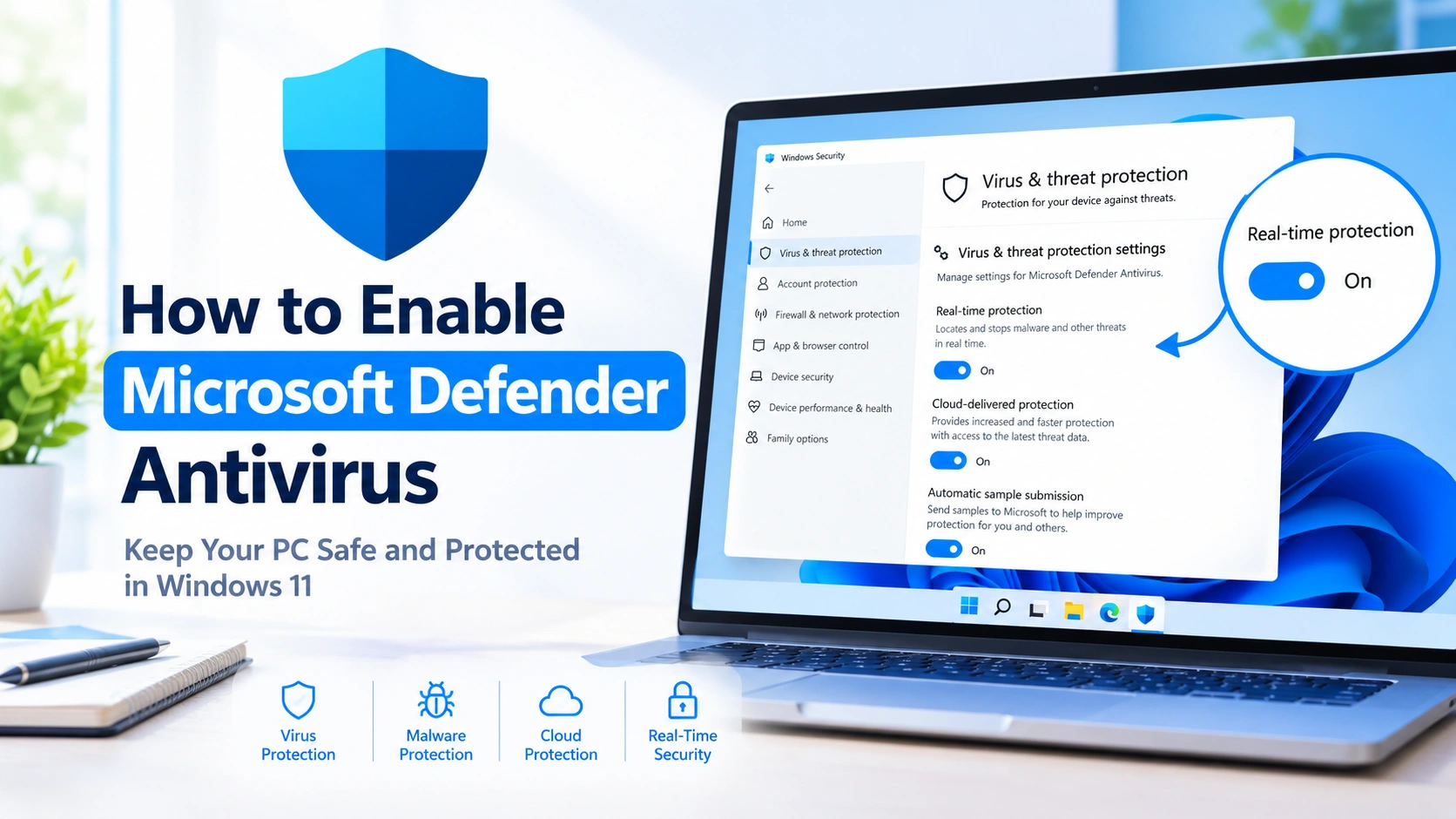
Microsoft Defender Antivirus is a built-in security feature in Windows 11 that helps protect your PC against viruses, malware, spyware, and other threats. It works through the Windows Security app and can provide real-time protection while you use your computer.
If Microsoft Defender Antivirus is disabled, your PC may not be fully protected. This can happen after installing third-party antivirus software, changing security settings, or temporarily disabling real-time protection.
Fortunately, you can usually enable Microsoft Defender Antivirus again through Windows Security.
What Is Microsoft Defender Antivirus?
Microsoft Defender Antivirus is Microsoft’s built-in antimalware solution for Windows 10 and Windows 11. It can monitor files and applications, detect suspicious activity, and respond to security threats.
The main protection feature is Real-time protection, which continuously checks files and programs as they are accessed or executed. Microsoft also recommends enabling Cloud-delivered protection and Automatic sample submission for optimal protection.
Windows Security also provides access to other security features, including Windows Firewall and ransomware protection.
Why Is Microsoft Defender Antivirus Disabled?
There are several possible reasons why Defender may not appear to be active:
- A third-party antivirus program is installed and active.
- Real-time protection was manually turned off.
- Security settings were changed.
- Windows Security is experiencing a temporary problem.
- A work or school administrator manages the device’s security policies.
- Another security product has registered itself as the active antivirus provider.
If a compatible third-party antivirus program is installed, Microsoft Defender Antivirus can automatically switch to disabled mode. Removing that antivirus should normally allow Defender to return to active mode.
How to Enable Microsoft Defender Antivirus
The easiest way to enable Microsoft Defender Antivirus is through Windows Security.
Step 1: Open Windows Security
Press the Windows key and type:
Windows Security
Select Windows Security from the search results.
The Windows Security app is built into Windows and provides access to Microsoft Defender Antivirus and other security features.
Step 2: Open Virus & Threat Protection
In Windows Security, select:
Virus & threat protection
This section contains the settings and status information for antivirus protection.
Step 3: Open Manage Settings
Under Virus & threat protection settings, select:
Manage settings
You should see several Microsoft Defender protection options.
Step 4: Turn On Real-Time Protection
Find Real-time protection.
Switch the toggle to:
On
Windows will immediately enable real-time antivirus monitoring.
Microsoft’s current instructions use this setting to manually turn Microsoft Defender Antivirus protection on or off.
Step 5: Enable Cloud-Delivered Protection
For additional protection, locate:
Cloud-delivered protection
Turn it On.
Cloud-based protection allows Microsoft Defender to use Microsoft’s online security intelligence when evaluating potential threats.
Step 6: Enable Automatic Sample Submission
Find:
Automatic sample submission
Turn it On if you want Windows to automatically submit suspicious samples to Microsoft for analysis.
Microsoft recommends Cloud-delivered protection and Automatic sample submission as part of its optimal protection settings.
How to Check Whether Microsoft Defender Is Active
After enabling the settings, you can verify your antivirus provider.
Open:
Windows Security → Virus & threat protection
You can also check the security providers section to see which antivirus product is protecting your device. Microsoft provides a Manage providers option for checking the security products registered with Windows Security.
Look for Microsoft Defender Antivirus as your active antivirus provider.
If Windows reports that another antivirus program is protecting your device, Defender may remain disabled because the third-party antivirus has taken over real-time protection.
Run a Quick Scan After Enabling Defender
Once Microsoft Defender is enabled, running a quick scan is a useful way to check your PC.
Go to:
Windows Security → Virus & threat protection → Quick scan
Windows Security will scan your system for common threats.
Microsoft also allows you to scan individual files and folders. In File Explorer, right-click a file or folder, select Show more options, and then choose Scan with Microsoft Defender.
What If Real-Time Protection Will Not Turn On?
If the Real-time protection switch refuses to stay enabled, check whether another antivirus application is installed.
1. Check for Third-Party Antivirus Software
Open Settings → Apps → Installed apps and look for antivirus or antimalware programs from other vendors.
A compatible non-Microsoft antivirus program can cause Microsoft Defender Antivirus to enter disabled mode automatically.
If you intentionally use another antivirus product, you generally should not try to run two real-time antivirus products simultaneously.
2. Restart Your Computer
A temporary Windows Security or service issue may sometimes disappear after restarting Windows.
Restart your PC and check:
Windows Security → Virus & threat protection
Then try enabling Real-time protection again.
3. Install Windows Updates
Keeping Windows updated is important because Windows Security receives security intelligence and other security-related updates through Microsoft’s update system.
Go to:
Settings → Windows Update
Select Check for updates and install available updates.
Restart your PC if Windows requests it.
4. Check the Security Providers
Open Windows Security and navigate to its provider information.
Check which application is currently registered as your antivirus provider. This can help determine whether Microsoft Defender is inactive because another antivirus product is installed.
5. Check Whether the PC Is Managed
If the computer belongs to a company, school, or organization, an administrator may control antivirus settings through security policies.
In that situation, you may not be able to change certain Defender settings yourself.
Should You Turn Off Microsoft Defender?
In normal circumstances, you should keep Microsoft Defender Antivirus enabled if it is your primary antivirus solution.
When real-time protection is disabled, files you open or download may not be checked immediately for threats. Microsoft warns that disabling Defender without another security product can leave the device vulnerable.
If you only need to prevent Defender from scanning a specific trusted file or folder, using an exclusion can be preferable to disabling the entire antivirus protection. Microsoft specifically notes that exclusions can be used instead of turning off the whole protection system.
How to Keep Microsoft Defender Working Properly
After enabling Microsoft Defender Antivirus, follow these basic practices:
- Keep Windows updated.
- Keep Real-time protection enabled.
- Enable Cloud-delivered protection.
- Enable Automatic sample submission.
- Run regular antivirus scans.
- Download software from trusted sources.
- Avoid opening suspicious email attachments.
- Keep important files backed up.
- Do not install multiple real-time antivirus products unnecessarily.
Windows Security also includes ransomware protection features such as Controlled folder access, which can help prevent untrusted applications from changing files in protected folders.
Frequently Asked Questions
Is Microsoft Defender Antivirus free?
Microsoft Defender Antivirus is built into Windows 10 and Windows 11, so you do not need to download a separate antivirus application to use the built-in antivirus protection.
Why can’t I turn on Microsoft Defender?
A third-party antivirus application may be registered as the active security provider. Check your installed antivirus software and the security provider information in Windows Security.
Does Microsoft Defender automatically turn on?
Windows can automatically enable Microsoft Defender when another security product is not installed or has expired. Microsoft also allows users to enable it manually through Windows Security.
Should Real-time protection be turned on?
Yes, if Microsoft Defender is your primary antivirus solution. Real-time protection continuously monitors files and programs for potential threats.
Can I scan a single file with Microsoft Defender?
Yes. Right-click the file in File Explorer, select Show more options, and choose Scan with Microsoft Defender.
Conclusion
Learning how to enable Microsoft Defender Antivirus is straightforward in Windows 11. Open Windows Security, go to Virus & threat protection, select Manage settings, and turn Real-time protection on.
For stronger protection, Microsoft recommends keeping Cloud-delivered protection and Automatic sample submission enabled as well. If Defender refuses to activate, check whether another antivirus program is currently installed and registered as the active security provider.
Keeping Microsoft Defender active, Windows updated, and regular scans enabled can provide an important layer of protection against common malware and other security threats.