

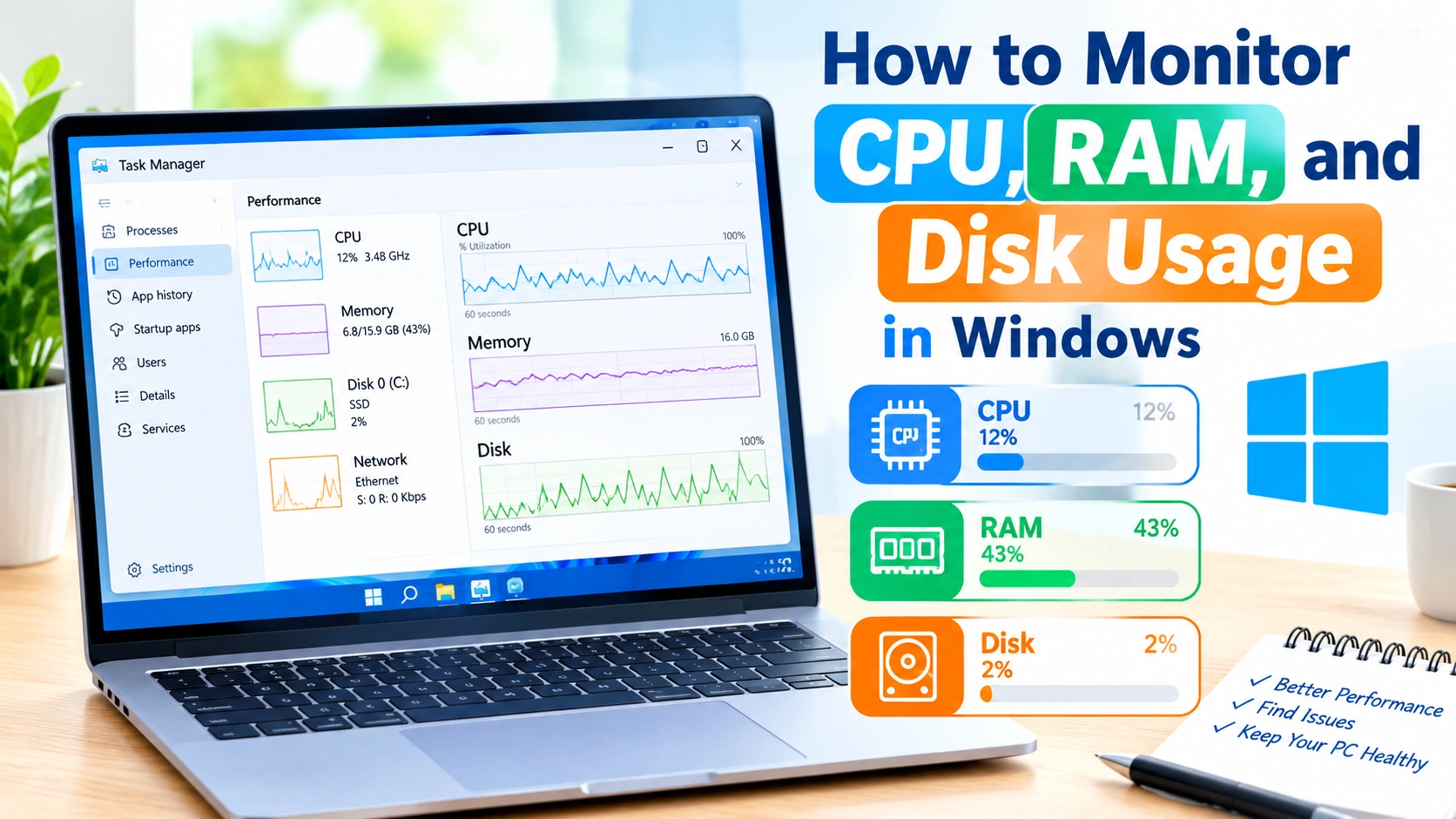
Keeping an eye on CPU, RAM, and disk usage is one of the easiest ways to understand how your Windows PC is performing. When a computer becomes slow, programs stop responding, games stutter, or applications take longer to open, checking system resource usage can help identify the cause.
Windows includes several built-in tools that let you monitor hardware activity without installing third-party software. You can use Task Manager, Resource Monitor, Performance Monitor, and other system utilities to examine resource consumption in real time.
In this guide, you’ll learn how to monitor CPU, RAM, and disk usage in Windows and how to interpret the information you see.
Why Monitor CPU, RAM, and Disk Usage?
Your computer’s performance depends on several hardware components working together. Monitoring resource usage can help you identify bottlenecks and problematic applications.
For example:
- High CPU usage may indicate a demanding application or background process.
- High RAM usage can cause applications to slow down when available memory becomes limited.
- High disk usage may be caused by file transfers, Windows processes, applications, or storage-related problems.
- Unusual resource activity can help identify programs that are consuming excessive system resources.
Regular monitoring can also help you determine whether a performance problem is temporary or happens repeatedly.
How to Monitor CPU, RAM, and Disk Usage With Task Manager
Task Manager is the simplest built-in Windows tool for checking system resource usage.
1. Open Task Manager
You can open Task Manager using several methods:
- Press Ctrl + Shift + Esc.
- Right-click the Start button and select Task Manager.
- Press Ctrl + Alt + Delete and choose Task Manager.
If Task Manager opens in a simplified view, select More details.
2. Open the Processes Tab
The Processes tab provides an overview of applications and background processes.
You can see columns such as:
- CPU
- Memory
- Disk
- Network
- GPU
Click a column heading to sort processes by resource consumption.
For example, clicking CPU can show which programs are currently using the most processor resources.
3. Check CPU Usage
The CPU column shows how much processor capacity each process is using.
A temporary increase in CPU usage is normal when performing demanding tasks such as:
- Video rendering
- Gaming
- Installing software
- Compressing files
- Running virtual machines
However, consistently high CPU usage while the PC is idle may indicate that a program or background process needs investigation.
4. Check RAM Usage
Task Manager labels RAM usage as Memory.
You can select the Performance tab and choose Memory to see more information, including:
- Total installed RAM
- Memory currently in use
- Available memory
- Memory speed
- Number of memory slots in use
- Memory committed by Windows
If available memory remains very low while you’re working, closing unnecessary applications may improve responsiveness.
5. Check Disk Usage
Select Disk under the Performance section to see storage activity.
Task Manager can show:
- Active time
- Read speed
- Write speed
- Drive capacity
- Drive type
- Current disk activity
In the Processes tab, a process showing high disk activity may help identify what is causing intensive storage operations.
How to Monitor Resources With Resource Monitor
Resource Monitor provides more detailed information than the basic Task Manager view.
Open Resource Monitor
Press Windows + R, type:
resmon
Then press Enter.
You can also search for Resource Monitor from the Windows Start menu.
Resource Monitor provides separate sections for CPU, Memory, Disk, and Network activity.
Monitor CPU Activity
The CPU tab shows individual processes and services using the processor.
You can examine:
- CPU usage
- Process IDs
- Services associated with processes
- Threads
- CPU time
This can be useful when Task Manager does not provide enough information to identify a resource-intensive process.
Monitor RAM Usage
The Memory section provides additional details about physical memory.
You can examine which processes are consuming RAM and how memory is being allocated.
If one application continually increases its memory consumption over time, it may be worth checking whether the application has a memory leak or another software issue.
Monitor Disk Activity
The Disk section can show which processes are reading from or writing to your storage drive.
You can inspect:
- Disk activity
- File names
- Read operations
- Write operations
- Disk response time
This can be particularly useful when Windows feels slow even though CPU usage is relatively low.
How to Monitor Performance With Windows Performance Monitor
Windows also includes Performance Monitor, a more advanced tool for tracking system performance.
Press Windows + R, enter:
perfmon
and press Enter.
Performance Monitor allows you to work with performance counters that measure different aspects of Windows and hardware activity.
Depending on your needs, you can monitor counters related to:
- Processor activity
- Memory usage
- Physical disk activity
- Processes
- System performance
Performance Monitor is especially useful when you want to observe system behavior over a longer period instead of checking a single moment.
Understanding CPU Usage
CPU usage represents how much of your processor’s available capacity is being used.
A low percentage does not necessarily mean the PC is performing perfectly, and a high percentage does not automatically mean there is a problem.
For example, CPU usage can legitimately become very high during demanding workloads.
Pay attention to sustained CPU usage and whether it corresponds with an activity you’re performing.
If CPU usage remains unusually high when you are not running demanding software, check the Processes tab in Task Manager to identify the responsible application or service.
Understanding RAM Usage
RAM provides temporary working space for Windows and applications.
When you open multiple programs, browsers, games, or large files, they consume memory.
High memory usage can become noticeable when there is not enough available RAM for your workload. Windows may then rely more heavily on virtual memory, which can contribute to slower performance.
When monitoring RAM, look beyond the percentage alone. Check which applications are using the most memory and whether the usage changes significantly over time.
Understanding Disk Usage
Disk usage is different from storage capacity.
A drive can have plenty of free space while still experiencing heavy disk activity.
For example, disk activity may increase when Windows is:
- Installing updates
- Searching or indexing files
- Downloading data
- Moving large files
- Loading applications
- Running security scans
If disk usage remains unusually high for long periods, identify the processes generating the activity before assuming that the storage drive itself is faulty.
What to Do When Resource Usage Is Too High
Once you identify a process using excessive resources, you can take several steps.
Close Unnecessary Applications
If you are not using a resource-intensive application, closing it may immediately reduce CPU, RAM, or disk usage.
Disable Unnecessary Startup Programs
Programs that automatically start with Windows can consume resources in the background.
Open Task Manager and select Startup apps to review applications that launch automatically.
Disable startup entries only when you understand what the application does and do not need it to start with Windows.
Restart Windows
A restart can clear temporary software problems and reset resource usage caused by applications or background processes.
Update Software
Outdated applications or drivers can sometimes cause performance problems. Install updates from trusted sources and restart the PC when necessary.
Check for Malware
Unexpected resource consumption can sometimes be associated with unwanted or malicious software. Use Windows Security or another reputable security solution to scan the computer.
Check Available Storage
Although free storage does not directly represent disk activity, keeping sufficient free space can help Windows and applications operate normally.
If the drive is nearly full, remove unnecessary files or move large personal files to another storage location.
How to Monitor Resource Usage While Gaming
Monitoring hardware usage can also help troubleshoot gaming performance.
Before starting a game, open Task Manager and observe the system’s normal resource usage. Then check CPU, memory, disk, and GPU activity while the game is running.
High CPU usage combined with low GPU utilization may indicate a CPU-related limitation in some workloads. Conversely, high GPU utilization can be expected in graphically demanding games.
RAM and disk activity can also help explain stuttering or long loading times.
For more advanced gaming diagnostics, dedicated hardware-monitoring applications can provide additional information such as temperatures, clock speeds, fan speeds, and frame rates.
How to Find the Cause of a Slow PC
When your computer becomes slow, avoid assuming that the CPU is always responsible.
Instead, check resources systematically:
- Open Task Manager.
- Check overall CPU usage.
- Sort processes by CPU usage.
- Check Memory usage.
- Sort processes by Memory.
- Check Disk activity.
- Identify applications consuming unusual resources.
- Close unnecessary applications.
- Restart Windows if the problem persists.
- Investigate the specific application or service responsible.
This approach makes it easier to determine whether the problem is related to processor load, memory pressure, storage activity, or a particular application.
Task Manager vs. Resource Monitor vs. Performance Monitor
Windows provides several tools for different levels of monitoring.
| Tool | Best For |
|---|---|
| Task Manager | Quick, real-time resource monitoring |
| Resource Monitor | Detailed CPU, RAM, and disk analysis |
| Performance Monitor | Advanced and longer-term performance monitoring |
For most everyday troubleshooting, Task Manager is enough. Resource Monitor is useful when you need more detail, while Performance Monitor is better suited to advanced diagnostics.
Tips for Better System Monitoring
Follow these practices when monitoring your PC:
- Check resource usage when the computer is idle and under load.
- Look for sustained high usage rather than short spikes.
- Identify the process responsible before closing or uninstalling software.
- Monitor several resources instead of focusing on CPU alone.
- Keep Windows and important applications updated.
- Maintain adequate free storage space.
- Scan for malware when resource usage appears unexplained.
- Record recurring performance problems so you can compare them over time.
Conclusion
Monitoring CPU, RAM, and disk usage is an important part of Windows troubleshooting and PC maintenance. With built-in tools such as Task Manager, Resource Monitor, and Performance Monitor, you can identify resource-intensive applications and better understand why your computer may be running slowly.
For everyday checks, start with Task Manager. If you need more detailed information, use Resource Monitor or Performance Monitor to investigate the problem further.
By regularly checking system resource usage, you can detect performance issues earlier and make more informed decisions about software, hardware upgrades, and PC maintenance.