

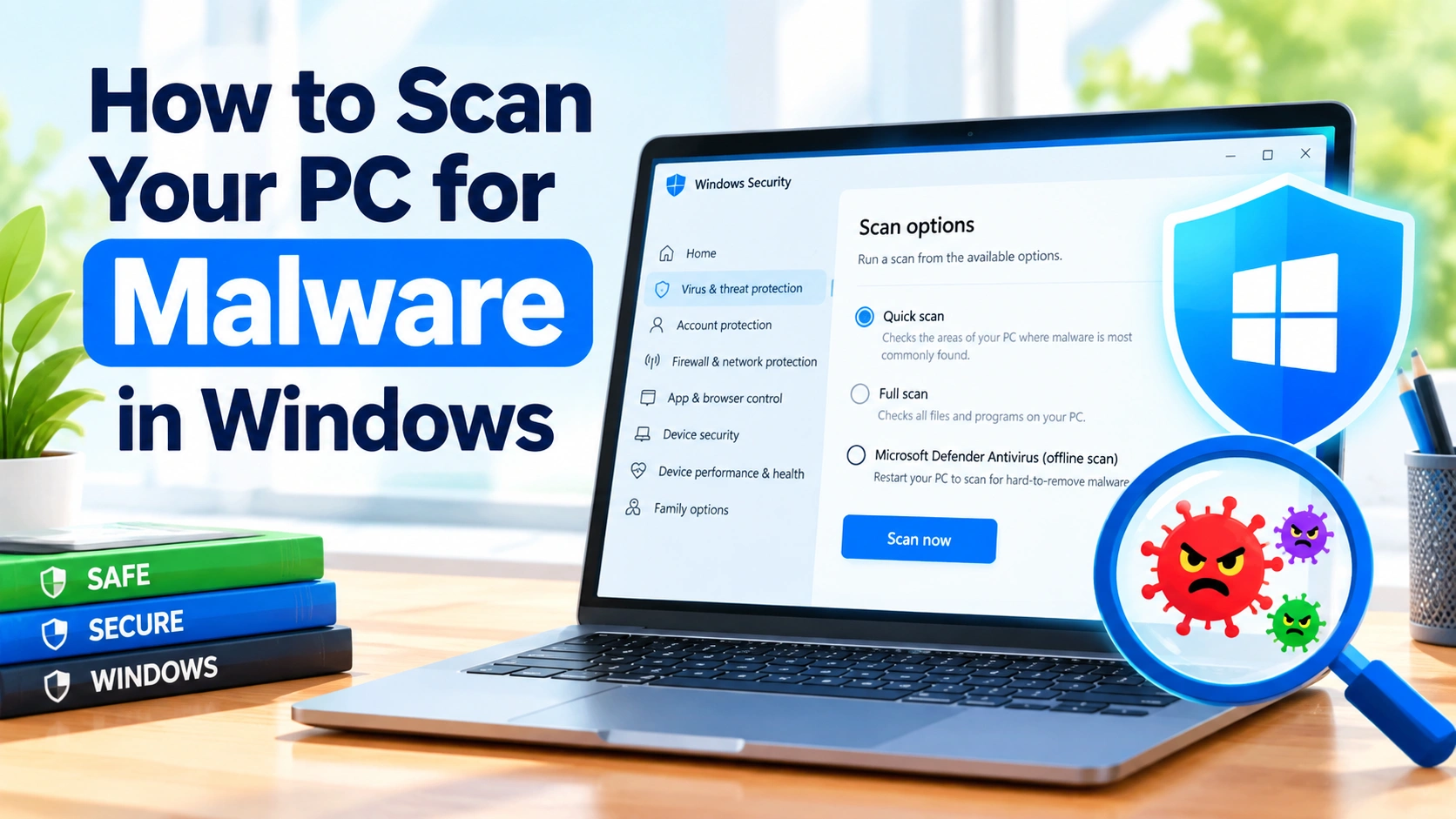
Malware can hide in downloaded files, browser extensions, email attachments, pirated software, and even seemingly harmless applications. If your Windows PC is behaving unusually—such as becoming slow, displaying unexpected pop-ups, or opening unfamiliar programs—running a malware scan is one of the first steps you should take.
Fortunately, Windows includes built-in security tools that can scan your computer for viruses, spyware, ransomware, and other unwanted software. You can also use additional security software for a second opinion when necessary.
This guide explains how to scan your PC for malware in Windows, including quick scans, full scans, offline scans, and practical steps to take if a threat is detected.
What Is Malware?
Malware is a broad term for malicious software designed to damage a computer, steal information, disrupt activities, or gain unauthorized access.
Common types of malware include:
- Viruses – Malicious programs that can spread by infecting files.
- Trojans – Programs that appear legitimate but perform harmful actions.
- Spyware – Software designed to monitor activity or collect information.
- Ransomware – Malware that can encrypt files and demand payment.
- Adware – Software that displays unwanted advertisements.
- Worms – Malware that can spread between computers and networks.
Not every unusual computer problem is caused by malware, but scanning your PC can help rule out one important source of trouble.
How to Scan Your PC for Malware Using Windows Security
Windows includes Windows Security, which provides built-in antivirus protection through Microsoft Defender Antivirus.
Step 1: Open Windows Security
Press the Windows key on your keyboard and type:
Windows Security
Select the Windows Security app from the search results.
You can also open it through:
Settings → Privacy & security → Windows Security
The exact menu names may vary slightly depending on your version of Windows.
Step 2: Open Virus & threat protection
In Windows Security, select Virus & threat protection.
This section provides access to malware scanning, protection settings, security updates, and scan history.
Step 3: Start a Quick Scan
Select Quick scan to check the areas of your PC where malware is most commonly found.
A quick scan is useful when you want to perform a routine security check without scanning every file on the computer.
The scan may take several minutes, depending on your PC and the amount of data being examined.
When the scan finishes, Windows Security will display the results.
How to Perform a Full Malware Scan
If you suspect that malware may be present, a full scan can provide a more comprehensive check.
- Open Windows Security.
- Select Virus & threat protection.
- Click Scan options.
- Select Full scan.
- Click Scan now.
A full scan examines files and programs throughout the system and can take considerably longer than a quick scan.
For this reason, it can be convenient to start a full scan when you don’t need to use your PC for other demanding tasks.
How to Scan a Specific File or Folder
You don’t always need to scan the entire computer.
If you downloaded a file and are unsure whether it is safe, you can scan it individually.
In File Explorer:
- Locate the file or folder.
- Right-click it.
- Select Scan with Microsoft Defender or the corresponding Windows Security scanning option.
- Wait for the scan to complete.
- Follow Windows Security’s recommendations if a threat is detected.
This is particularly useful for newly downloaded installers, archives, documents, or other files obtained from unfamiliar sources.
How to Run a Microsoft Defender Offline Scan
Some malware can be difficult to remove while Windows is running. In these situations, Microsoft Defender Offline can be useful.
An offline scan restarts the computer and performs a malware scan outside the normal Windows environment. This can make it harder for certain persistent threats to interfere with the scanning process.
To start an offline scan:
- Open Windows Security.
- Go to Virus & threat protection.
- Select Scan options.
- Choose Microsoft Defender Antivirus (offline scan).
- Select Scan now.
Save your work before starting because Windows will restart the PC.
After the scan finishes, Windows will restart and you can review the results in Windows Security.
How to Check Malware Scan Results
Windows Security keeps information about detected threats in its protection history.
To review it:
- Open Windows Security.
- Select Virus & threat protection.
- Look for Protection history.
- Review recent detections and actions.
Depending on the threat, Windows may quarantine or remove malicious software automatically.
If Windows asks you to take an action, read the detection details before proceeding.
What to Do If Windows Finds Malware
If a scan detects malware, don’t immediately assume that deleting one file has solved the problem.
Consider taking these steps:
1. Follow Windows Security’s Recommended Action
Windows Security may recommend quarantining or removing a detected item.
Follow the recommended action unless you have a specific reason to investigate the detection further.
2. Run Another Scan
After dealing with a detection, consider running another scan to check whether additional threats remain.
A full scan can be appropriate if the initial detection was unexpected or your computer continues to behave strangely.
3. Update Windows
Security updates can contain fixes that protect against newly discovered vulnerabilities.
Open:
Settings → Windows Update
Then check for available updates.
4. Update Your Applications
Outdated browsers, media players, PDF readers, and other applications can contain security vulnerabilities.
Keep software updated, particularly programs that regularly connect to the internet or open files from external sources.
5. Change Important Passwords if Necessary
If you believe malware may have compromised your accounts, consider changing important passwords from a device you trust.
Prioritize accounts such as email, banking, cloud storage, and other services containing sensitive information.
Enable two-factor authentication whenever it is available.
How Often Should You Scan Your Windows PC?
For many users, regularly using Windows’ built-in real-time protection is more important than manually starting scans every day.
A practical routine is:
- Real-time protection: Keep it enabled.
- Quick scan: Run one when you notice suspicious behavior or after downloading something questionable.
- Full scan: Use periodically or when you have a reason to suspect malware.
- Offline scan: Consider it when persistent or difficult-to-remove malware is suspected.
Windows Security can provide ongoing protection without requiring you to manually scan the computer every time you use it.
Signs Your PC May Have Malware
Malware doesn’t always produce obvious symptoms. However, some warning signs include:
- Unexpected pop-up advertisements
- New applications you don’t remember installing
- Browser redirects
- Unknown browser extensions
- Unusual system slowdowns
- Programs opening unexpectedly
- Disabled security software
- Unexpected network activity
- Files being renamed or becoming inaccessible
- Unexplained changes to browser settings
- Frequent crashes or unusual errors
Keep in mind that these symptoms can also have legitimate causes, such as failing hardware, problematic software, browser issues, or insufficient system resources.
How to Reduce the Risk of Malware
Scanning your PC is only part of staying secure. Good everyday habits can significantly reduce your exposure to malicious software.
Download Software From Trusted Sources
Whenever possible, download applications from their official websites or reputable app stores.
Be particularly cautious with modified applications, unofficial installers, cracks, and unknown software repositories.
Be Careful With Email Attachments
Don’t open unexpected attachments simply because they appear to come from someone you know. An account can potentially be compromised and used to distribute malicious files.
Keep Windows Updated
Install Windows security updates and restart your computer when necessary to complete important updates.
Avoid Suspicious Links
Be cautious with links received through email, messaging applications, social media, and unexpected pop-up windows.
Keep Real-Time Protection Enabled
Unless you have a specific security reason to change it, leave Windows’ built-in real-time malware protection enabled.
Running multiple antivirus programs with real-time protection simultaneously can also cause conflicts or unnecessary system overhead.
Quick Way to Scan Your PC for Malware
If you simply need the fastest procedure, follow these steps:
Windows Security → Virus & threat protection → Quick scan
For a deeper check:
Windows Security → Virus & threat protection → Scan options → Full scan
For suspected persistent malware:
Windows Security → Virus & threat protection → Scan options → Microsoft Defender Antivirus (offline scan)
Frequently Asked Questions
Does Windows have a built-in malware scanner?
Yes. Modern versions of Windows include Windows Security with Microsoft Defender Antivirus, which provides malware protection and scanning capabilities.
Is a quick scan enough?
A quick scan is useful for routine checks, but it doesn’t examine the computer in the same way as a full scan. If you have a specific reason to suspect malware, consider running a full scan.
How long does a full malware scan take?
The duration varies depending on your hardware, storage capacity, number of files, and other factors. A full scan can take significantly longer than a quick scan.
Can Windows Defender remove malware?
Microsoft Defender can detect and take action against many types of malicious software. Detected items may be quarantined or removed according to the security system’s recommendations.
Should I use another antivirus program?
Windows’ built-in protection provides a substantial baseline of security for many users. Additional security software may provide different features, but avoid running multiple real-time antivirus products simultaneously unless they are specifically designed to work together.
Final Thoughts
Knowing how to scan your PC for malware in Windows can help you respond quickly when something doesn’t seem right. Windows Security provides several useful options, from quick scans and full scans to Microsoft Defender Offline for situations involving potentially persistent threats.
For everyday protection, keep Windows updated, leave real-time security protection enabled, download software from trustworthy sources, and be cautious with unfamiliar links and attachments. If you notice suspicious behavior, start with a Windows Security scan and investigate any detected threats before continuing to use affected applications.