

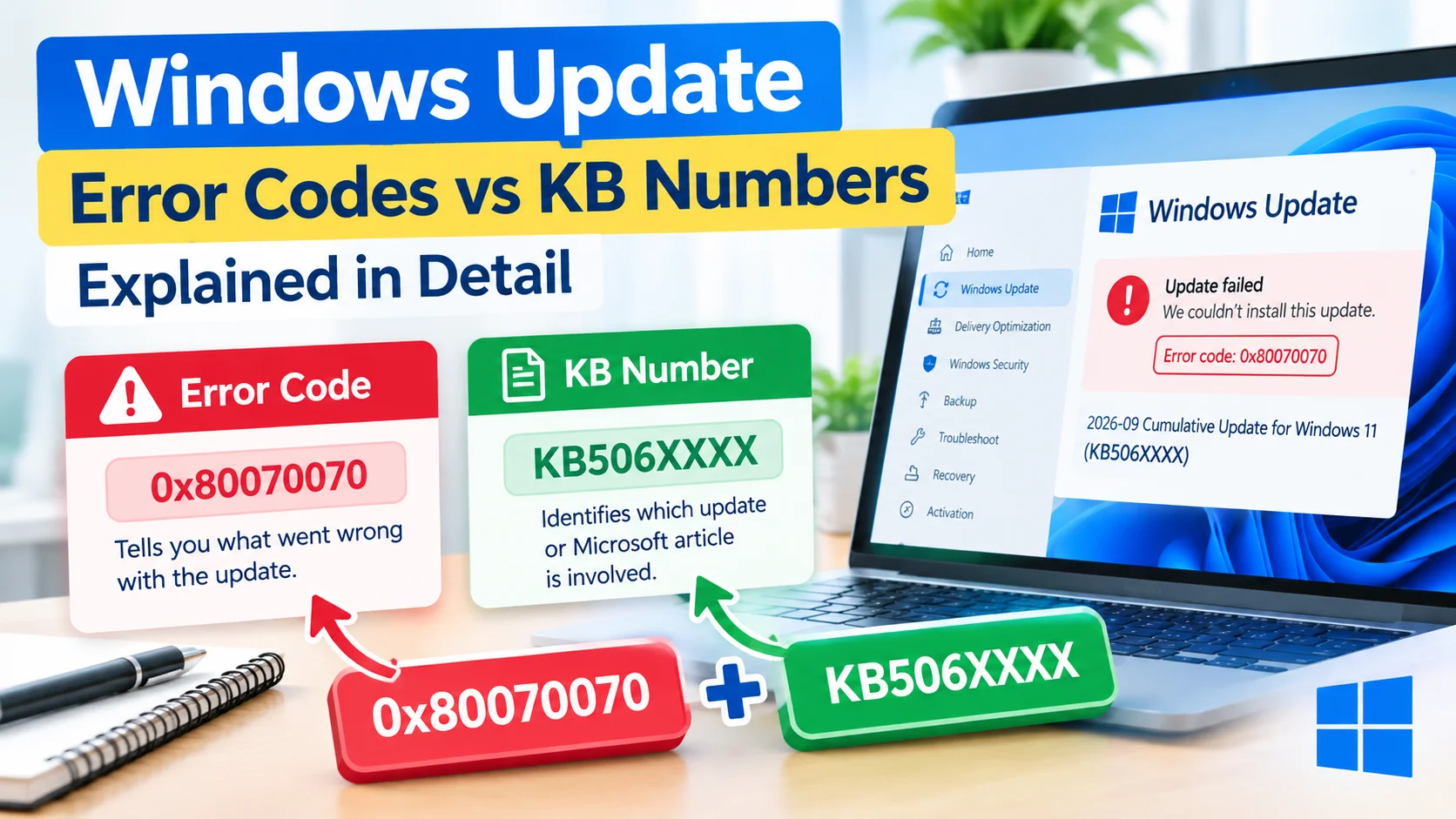
Windows Update Error Codes vs KB Numbers can be confusing because both appear when diagnosing Windows update problems, but they serve completely different purposes. An error code usually explains why an update failed, while a KB number identifies which Microsoft update or knowledge base article is involved.
Understanding the difference makes it easier to troubleshoot failed updates, find the correct Microsoft documentation, and determine whether a particular update has already been installed.
What Are Windows Update Error Codes?
Windows Update error codes are identifiers generated when Windows encounters a problem while checking for, downloading, installing, or configuring an update.
They commonly begin with 0x and contain hexadecimal characters. Examples include:
- 0x80070002 – Windows may be unable to find required update files.
- 0x80070070 – The system drive may not have enough free space.
- 0x80073712 – Windows component files may be damaged or missing.
- 0x8024402C – Windows Update may have difficulty connecting to update services.
- 0x800F081F – Required source files may be unavailable.
An error code is therefore primarily a troubleshooting clue.
Where Can You Find a Windows Update Error Code?
You may see an error code in several locations, including:
- Open Settings.
- Select Windows Update.
- Look for an update marked as failed.
- Select the update or Update history.
- Check the displayed error information.
The exact location and wording can vary between Windows versions.
What Are KB Numbers?
A KB number identifies a Microsoft Knowledge Base article or a specific Windows update. “KB” stands for Knowledge Base.
A typical update identifier looks like:
KB506XXXX
For example, Windows may display an update as:
2026-09 Cumulative Update for Windows 11 Version 24H2 for x64-based Systems (KB506XXXX)
The KB number helps identify the update itself rather than explaining why it failed.
KB information can help you:
- Identify a specific cumulative update.
- Search Microsoft’s support documentation.
- Check what an update contains.
- Determine whether an update applies to your Windows version.
- Research known issues associated with an update.
- Confirm whether a particular update is installed.
Windows Update Error Codes vs KB Numbers
The easiest way to understand the difference is to think of them as two different identifiers.
| Feature | Windows Update Error Code | KB Number |
|---|---|---|
| Main purpose | Identifies an update problem | Identifies an update or Microsoft article |
| Typical format | 0x80070002 | KB506XXXX |
| Indicates failure? | Usually | No |
| Helps troubleshoot? | Yes | Yes, indirectly |
| Identifies an update? | Not necessarily | Yes |
| Used in Microsoft documentation? | Yes | Yes |
| Example | 0x80070070 | KB506XXXX |
In simple terms:
Error code = What went wrong?
KB number = Which update is involved?
Can One Windows Update Have Both?
Yes. A single Windows update can have a KB number and an error code at the same time.
For example, Windows Update might attempt to install a cumulative update identified by a KB number. If the installation fails because the computer does not have enough disk space, Windows could display an error such as:
0x80070070
In this situation:
- The KB number identifies the update Windows attempted to install.
- The error code identifies the problem that prevented installation.
This distinction is important when searching for a solution.
How to Use an Error Code for Troubleshooting
When Windows Update fails, start with the error code.
Step 1: Record the Complete Error Code
Write down the entire code, including the 0x prefix.
For example:
0x80070070
Avoid searching only for part of the code because similar Windows Update errors can have different causes.
Step 2: Check the Basic Windows Update Troubleshooter
Windows includes troubleshooting tools that can detect and correct some common update problems.
Depending on your Windows version, open:
Settings > System > Troubleshoot > Other troubleshooters
Find Windows Update and run the available troubleshooter.
Step 3: Check Available Disk Space
Some errors occur because Windows does not have enough free space to download or install an update.
Check your system drive and remove unnecessary files if storage is low.
Step 4: Repair System Files
If Windows system files are damaged, update installation can fail.
Open Command Prompt as Administrator and run:
DISM /Online /Cleanup-Image /RestoreHealth
After DISM completes, run:
sfc /scannow
Restart Windows and try Windows Update again.
How to Use a KB Number for Troubleshooting
A KB number is particularly useful when you already know which update failed.
Step 1: Find the KB Number
Open:
Settings > Windows Update > Update history
Look for the failed or recently installed update and record its KB number.
Step 2: Search for the KB Number
Use the KB number when searching Microsoft’s support documentation.
For example, search for:
KB506XXXX Windows 11
This can help you locate information about the update, supported Windows versions, improvements, and known issues.
Step 3: Check Whether the Update Is Already Installed
You can also verify installed updates using Windows Settings or other built-in Windows management tools.
If the update is already installed, repeatedly attempting to install the same package may not solve the underlying problem.
Why Searching Only by KB Number Can Be Misleading
A KB number tells you which update is involved, but it does not necessarily explain why your computer could not install it.
Suppose Windows reports:
Update: KB506XXXX
Error: 0x80070070
Searching only for the KB number may tell you about the update’s contents, but searching for the error code can provide information about the installation failure.
A better search combines both identifiers:
KB506XXXX 0x80070070
This gives you a more specific troubleshooting starting point.
Why Searching Only by Error Code Can Also Be Incomplete
The opposite can happen too.
An error such as 0x80070002 can occur in different Windows Update situations. Knowing the affected KB number provides additional context.
For example, instead of searching only:
Windows Update error 0x80070002
you can search:
Windows Update KB506XXXX error 0x80070002
This narrows the research to the particular update involved.
How to Find Both Identifiers
When investigating a failed Windows Update, collect both pieces of information whenever possible.
Look in Settings > Windows Update > Update history and record:
- The name of the update.
- The KB number.
- The installation date.
- Whether the update failed or succeeded.
- The displayed error code.
Keeping this information together makes troubleshooting much easier.
Common Mistakes to Avoid
Confusing a KB Number With an Error Code
A KB number is not an error message.
For example:
KB506XXXXidentifies an update.0x80070070identifies an error condition.
They have different purposes.
Assuming Every KB Update Is a Problem
A KB number does not mean that an update is defective. It simply identifies an update or related Microsoft documentation.
Ignoring the Error Code
If an update fails, the error code can provide an important clue about what Windows encountered.
Downloading Random Update Files
Avoid downloading Windows update packages from unknown websites simply because they appear in search results. Use Microsoft’s official resources whenever possible.
Resetting Windows Update Without Checking the Error
Resetting update components can sometimes help, but it should not always be the first step. First identify the error and understand the circumstances surrounding the failure.
A Simple Windows Update Troubleshooting Workflow
Use this process when investigating a failed update:
1. Identify the KB number
Determine which update Windows was attempting to install.
2. Record the error code
Copy the complete Windows Update error code.
3. Check Windows Update history
Confirm when the update failed and whether other updates were affected.
4. Search for both identifiers
Use the KB number and error code together when researching the issue.
5. Check basic causes
Look at available storage, internet connectivity, restart requirements, and system configuration.
6. Repair Windows components if necessary
DISM and System File Checker can help repair damaged Windows components.
7. Retry Windows Update
After making the appropriate repair, check Windows Update again.
Frequently Asked Questions
Is a KB number the same as a Windows Update error code?
No. A KB number identifies a Microsoft update or Knowledge Base article, while an error code describes a problem encountered during an operation such as downloading or installing an update.
What does 0x80070070 mean?
This error can indicate that Windows does not have enough available disk space for the operation. Freeing space on the system drive can be an appropriate troubleshooting step.
Can a Windows update have both a KB number and an error code?
Yes. The KB number identifies the update, while the error code can identify why Windows could not successfully install or process it.
Should I search for the KB number or error code?
Ideally, search for both. The KB number identifies the specific update, while the error code provides information about the failure.
Where can I find Windows Update KB numbers?
Open Settings > Windows Update > Update history. Installed and failed updates can display their associated KB numbers.
Where can I find Windows Update error codes?
Check the failed update in Windows Update or Update history. Windows may display the error code alongside the failed update.
Final Thoughts
Understanding Windows Update Error Codes vs KB Numbers makes Windows troubleshooting more straightforward. An error code generally tells you what went wrong, while a KB number tells you which update is involved.
When an update fails, record both identifiers. Using the KB number + error code together provides more useful context than relying on either one alone and can make it easier to find the appropriate troubleshooting information.