

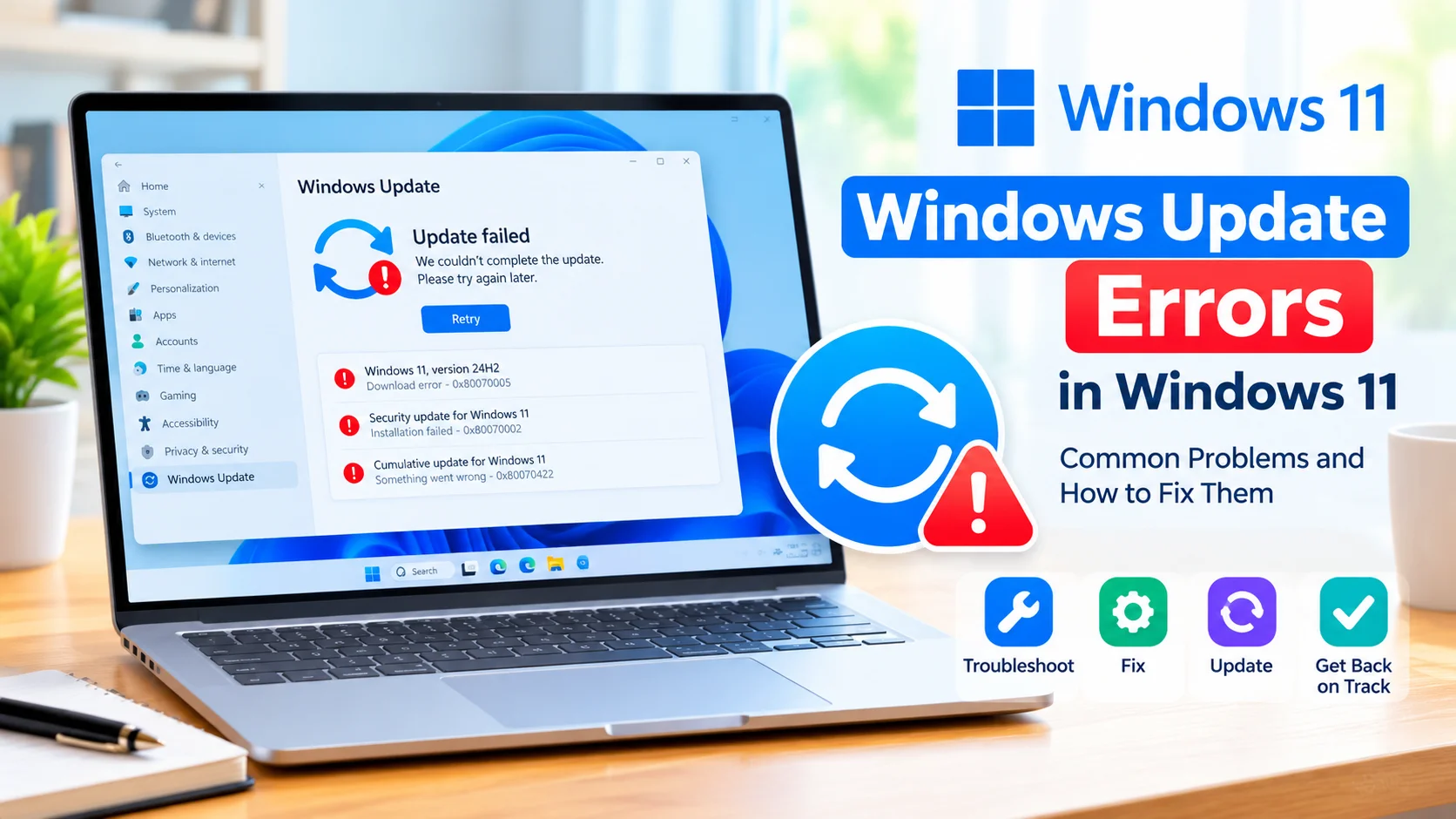
Windows Update Errors in Windows 11 can prevent your PC from downloading, installing, or completing important system updates. These problems may appear as error codes, failed installations, stuck downloads, repeated restarts, or messages saying that Windows could not complete an update.
Fortunately, many Windows Update problems can be resolved with built-in troubleshooting tools and a few practical steps. This guide explains common causes and reliable ways to get Windows Update working again.
What Causes Windows Update Errors in Windows 11?
Windows Update errors can happen for several reasons, including:
- Corrupted Windows Update files
- Insufficient storage space
- An unstable internet connection
- Damaged system files
- Problems with Windows Update services
- Outdated or incompatible drivers
- Conflicts with third-party security software
- An interrupted previous update
- Problems with the Windows component store
Identifying the cause is not always necessary. You can usually start with the simplest fixes and move to more advanced solutions if the problem continues.
1. Restart Your Windows 11 PC
A restart is one of the easiest ways to resolve temporary update problems.
Click Start > Power > Restart and allow Windows to boot normally. After restarting, open Settings > Windows Update and select Check for updates.
A restart can clear temporary processes and allow a previously interrupted update to continue.
2. Check Your Internet Connection
Windows Update requires a stable internet connection to download update files.
Try opening several websites in your browser. If your connection seems unreliable, restart your router or connect to another network if possible.
If you’re using a VPN, temporarily disconnecting it may also help determine whether the connection is interfering with Windows Update.
Learning how to check your internet connection speed can help you identify slowdowns, connection problems, Wi-Fi issues, and potential problems with your internet service.
3. Make Sure You Have Enough Storage
Windows updates may require several gigabytes of available storage.
To check your storage:
- Open Settings.
- Select System.
- Choose Storage.
- Review the available space on your system drive.
- Remove unnecessary temporary files if you need additional space.
Windows includes storage management features that can help remove files you no longer need.
4. Run the Windows Update Troubleshooter
Windows 11 includes a troubleshooter designed to identify common Windows Update problems.
Go to:
Settings > System > Troubleshoot > Other troubleshooters
Find Windows Update and select Run.
Follow the instructions provided by Windows. After the process finishes, restart your computer and try checking for updates again.
5. Check Windows Update Services
Windows Update depends on several background services. If an important service has stopped, updates may fail.
Press Windows + R, type services.msc, and press Enter.
Look for services such as:
- Windows Update
- Background Intelligent Transfer Service
- Cryptographic Services
If a required service is stopped, right-click it and select Start. If it is already running, restarting the service may help.
Avoid changing unrelated service settings unless you know what they do.
6. Repair Corrupted System Files
Damaged Windows system files can cause update installations to fail.
Windows provides the System File Checker (SFC) and Deployment Image Servicing and Management (DISM) tools for repairing system components.
Open Windows Terminal or Command Prompt as an administrator and run:
DISM /Online /Cleanup-Image /RestoreHealthAfter DISM completes, run:
sfc /scannowAllow each command to finish before starting the next one. Restart your PC afterward and check Windows Update again.
In this guide, you will learn how to safely Repair Corrupted System Files Windows 11 using built-in tools like SFC and DISM, along with advanced troubleshooting methods.
7. Reset Windows Update Components
If Windows Update repeatedly fails, its cached files may be damaged.
A more advanced troubleshooting method is to reset Windows Update components. This involves stopping update-related services, clearing certain update caches, and restarting the services.
Because this process uses administrative commands, carefully follow Microsoft’s current Windows troubleshooting guidance rather than deleting system folders manually.
8. Disconnect Unnecessary Hardware
External devices can occasionally interfere with Windows upgrades or driver installation.
Before trying a major update, disconnect unnecessary USB drives, printers, external storage devices, and other peripherals.
Keep essential devices such as your keyboard, mouse, and display connected.
9. Temporarily Check Third-Party Security Software
Some third-party antivirus or security applications can occasionally interfere with system updates.
If you use security software from another company, check its documentation for Windows Update compatibility before changing its settings.
Avoid leaving your computer unprotected. If you temporarily disable a security feature for troubleshooting, restore it as soon as testing is complete.
10. Install Available Driver Updates
A problematic or incompatible driver can sometimes contribute to Windows Update failures.
Check Settings > Windows Update > Advanced options > Optional updates for available driver updates.
You can also check your computer manufacturer’s support page for drivers specifically designed for your Windows 11 device.
Avoid installing drivers from unknown websites.
11. Check the Windows Update Error Code
Windows may display an error code when an update fails. The code can provide useful information about the underlying problem.
For example, Windows Update errors may indicate issues involving:
- Download failures
- Missing or damaged files
- Installation conflicts
- Restart requirements
- Insufficient storage
- Component corruption
Write down the exact error code before searching for a solution. A precise code is generally more useful than a general description such as “Windows Update isn’t working.”
12. Restart After Installing Updates
Some updates cannot finish until Windows restarts.
If Windows displays a Restart now option, save your work and restart the computer. Avoid shutting down the computer during an update installation unless Windows specifically instructs you to do so.
After restarting, return to Settings > Windows Update to check whether the update completed successfully.
When Windows Update Still Does Not Work
If Windows Update continues to fail after basic troubleshooting, consider Microsoft’s official support and recovery options. You may also need to investigate a particular error code or determine whether a recent driver, application, or system change caused the problem.
Before performing major repairs or reinstalling Windows, back up important personal files. This provides an additional layer of protection if more advanced troubleshooting becomes necessary.
Final Thoughts
Windows Update Errors in Windows 11 can be frustrating, but many problems are caused by temporary glitches, corrupted update components, insufficient storage, or damaged system files. Start with simple solutions such as restarting your PC, checking your connection, freeing storage, and running the Windows Update troubleshooter.
If those steps do not work, use tools such as DISM and SFC, check relevant services and drivers, and investigate the exact Windows Update error code. Taking a methodical approach can help restore updates without unnecessarily reinstalling Windows.