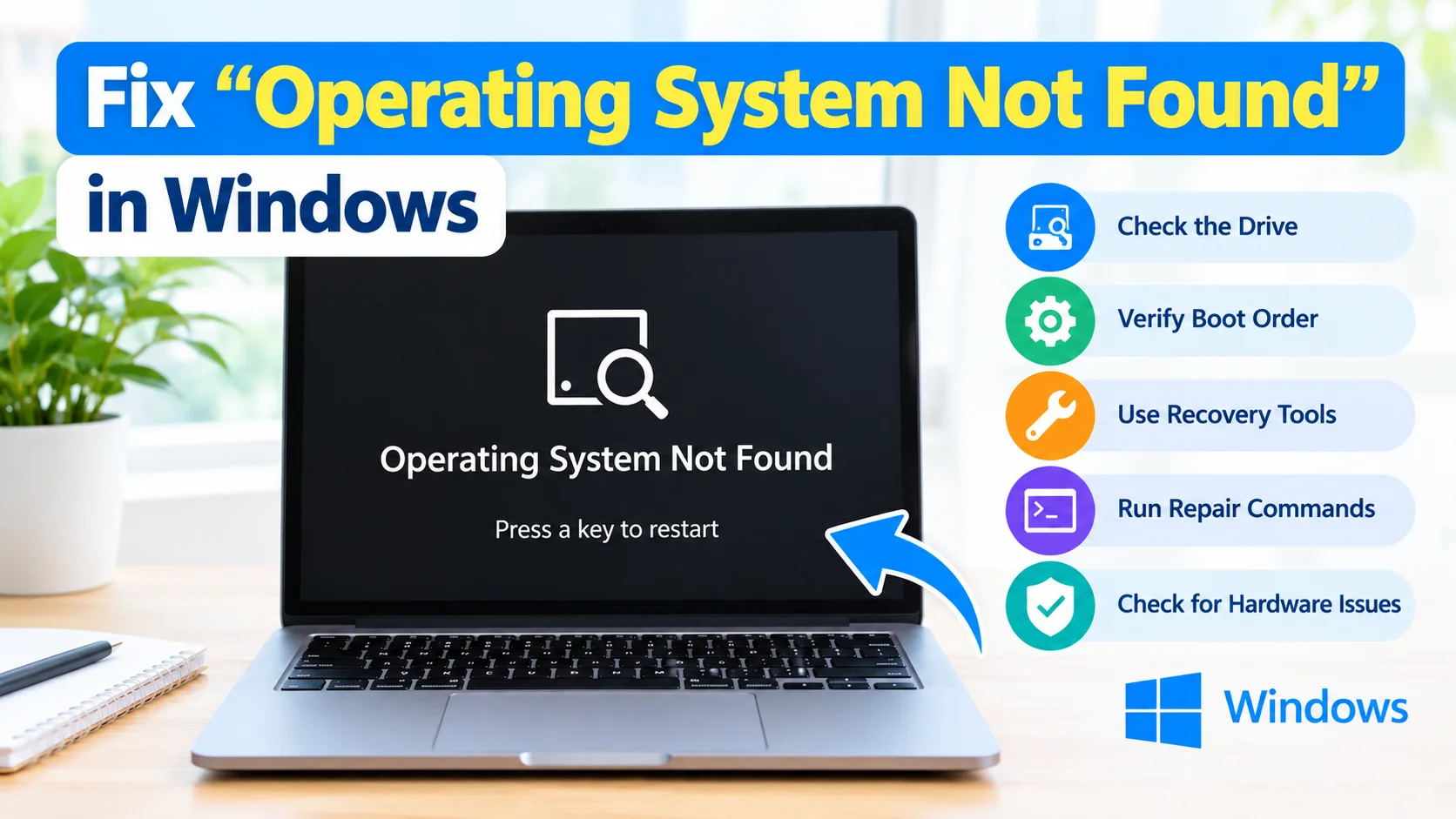
Fix “Operating System Not Found” in Windows by checking your boot drive, BIOS/UEFI settings, boot configuration, and Windows system files. This error usually appears when the computer cannot locate the drive or files required to start Windows. It can happen after a BIOS change, failed update, disk problem, or damaged boot configuration.
The message may appear as “Operating System Not Found,” “Missing Operating System,” or a similar boot error. Fortunately, several troubleshooting steps can help identify the cause and restore normal startup.
What Causes “Operating System Not Found” in Windows?
Several problems can prevent Windows from finding its operating system:
- The boot drive is not detected by the computer.
- The wrong drive is selected as the boot device.
- BIOS or UEFI boot settings have changed.
- Windows Boot Manager is damaged.
- The Master Boot Record (MBR) or boot configuration is corrupted.
- A hard drive or SSD is failing.
- Windows system files have become corrupted.
- A recently installed drive or hardware component has changed the boot order.
Before making major changes, disconnect unnecessary USB drives, memory cards, and external storage devices. Then restart the computer.
1. Check Whether the SSD or Hard Drive Is Detected
The first step is determining whether your computer can see the drive containing Windows.
Restart the PC and enter the BIOS/UEFI setup. The key varies by manufacturer but is commonly F2, Delete, F10, or Esc.
Look for a section such as:
- Storage
- Drives
- NVMe Configuration
- SATA Configuration
- Boot Devices
If the Windows SSD or hard drive does not appear, the problem may be related to the drive, connection, or hardware.
For a desktop PC, power off the computer and check the SATA and power cables. For an NVMe SSD, make sure the drive is properly seated.
If the drive is still not detected, avoid repeatedly attempting repairs until you have considered the possibility of drive failure.
2. Check the Boot Order in BIOS or UEFI
If the drive is detected, check whether the computer is trying to boot from the correct device.
In BIOS/UEFI:
- Open the Boot section.
- Find the boot priority settings.
- Look for Windows Boot Manager.
- Move Windows Boot Manager or the correct Windows drive to the top.
- Save the changes.
- Restart the computer.
If Windows starts normally afterward, an incorrect boot order was likely responsible.
3. Disconnect External Storage Devices
A USB flash drive, external hard drive, or memory card can sometimes interfere with startup.
Shut down the PC and disconnect unnecessary external storage devices. Leave only essential hardware connected, then turn the computer on again.
If Windows boots successfully, reconnect your devices one at a time to identify whether one of them caused the problem.
4. Start Windows Recovery Environment
If changing the boot order does not work, use the Windows Recovery Environment (WinRE).
You may need a Windows installation USB drive if the computer cannot automatically enter recovery.
After starting Windows Setup from the USB drive:
- Select your language and keyboard options.
- Select Repair your computer.
- Choose Troubleshoot.
- Select Advanced options.
Several useful repair tools are available from this menu.
5. Run Startup Repair
Startup Repair can automatically diagnose and repair certain boot-related problems.
From Windows Recovery Environment:
Troubleshoot → Advanced options → Startup Repair
Follow the instructions and allow Windows to complete the repair process.
Restart the computer after the process finishes and check whether Windows starts normally.
6. Repair Windows Boot Configuration
If Startup Repair does not resolve the problem, you can use Command Prompt from Windows Recovery Environment.
Open:
Troubleshoot → Advanced options → Command Prompt
First, determine which drive contains the Windows installation:
diskpart
list volume
Look for the volume containing the Windows folder. Assign a drive letter if necessary.
Exit DiskPart:
exit
You can then check the Windows installation:
dir C:\Windows
If Windows is installed on another drive letter, replace C: with the correct letter.
For many UEFI systems, rebuilding the boot files may be possible with:
bcdboot C:\Windows
Replace C:\Windows with the correct Windows installation path.
Restart the computer and check whether the operating system can now be found.
7. Check the Disk for File-System Errors
File-system problems can sometimes prevent Windows from starting correctly.
From the Recovery Environment Command Prompt, run:
chkdsk C: /f
Make sure C: is actually the Windows partition before running the command.
The /f parameter instructs CHKDSK to repair detected file-system errors.
If the drive is showing signs of hardware failure, avoid repeatedly running intensive repair operations. If important files are accessible, prioritize backing them up.
8. Check Windows System Files
Corrupted Windows files can also contribute to startup problems.
From Windows Recovery Environment, System File Checker can be used against an offline Windows installation. For example:
sfc /scannow /offbootdir=C:\ /offwindir=C:\Windows
The correct drive letters may differ in the Recovery Environment, so verify the Windows partition first.
SFC checks protected Windows system files and attempts to replace damaged files with valid versions.
9. Check BIOS/UEFI Boot Mode
A mismatch between the system’s boot mode and how Windows was installed can cause boot problems.
Common configurations include:
- UEFI
- Legacy BIOS/CSM
Modern Windows installations commonly use UEFI with a GPT disk. If the BIOS settings were recently changed, restoring the previous boot configuration may resolve the problem.
Avoid randomly switching between UEFI and Legacy/CSM because an incorrect change can create additional boot problems.
10. Check the Drive for Hardware Failure
If the operating system is still not found after software repairs, the SSD or hard drive may be failing.
Warning signs include:
- The drive disappears from BIOS/UEFI.
- Windows frequently freezes or crashes.
- Files become corrupted.
- The PC becomes unusually slow.
- The drive produces unusual noises, especially older mechanical hard drives.
- The problem returns after temporary repairs.
If the drive is failing, replacing it may be necessary. Before replacing it, recover important data whenever possible.
11. Remove Recently Added Hardware
If the error started immediately after installing new hardware, temporarily remove the component if practical.
For example, a newly installed storage drive or other hardware can affect boot configuration or device detection.
Return the system to its previous configuration and test whether Windows starts.
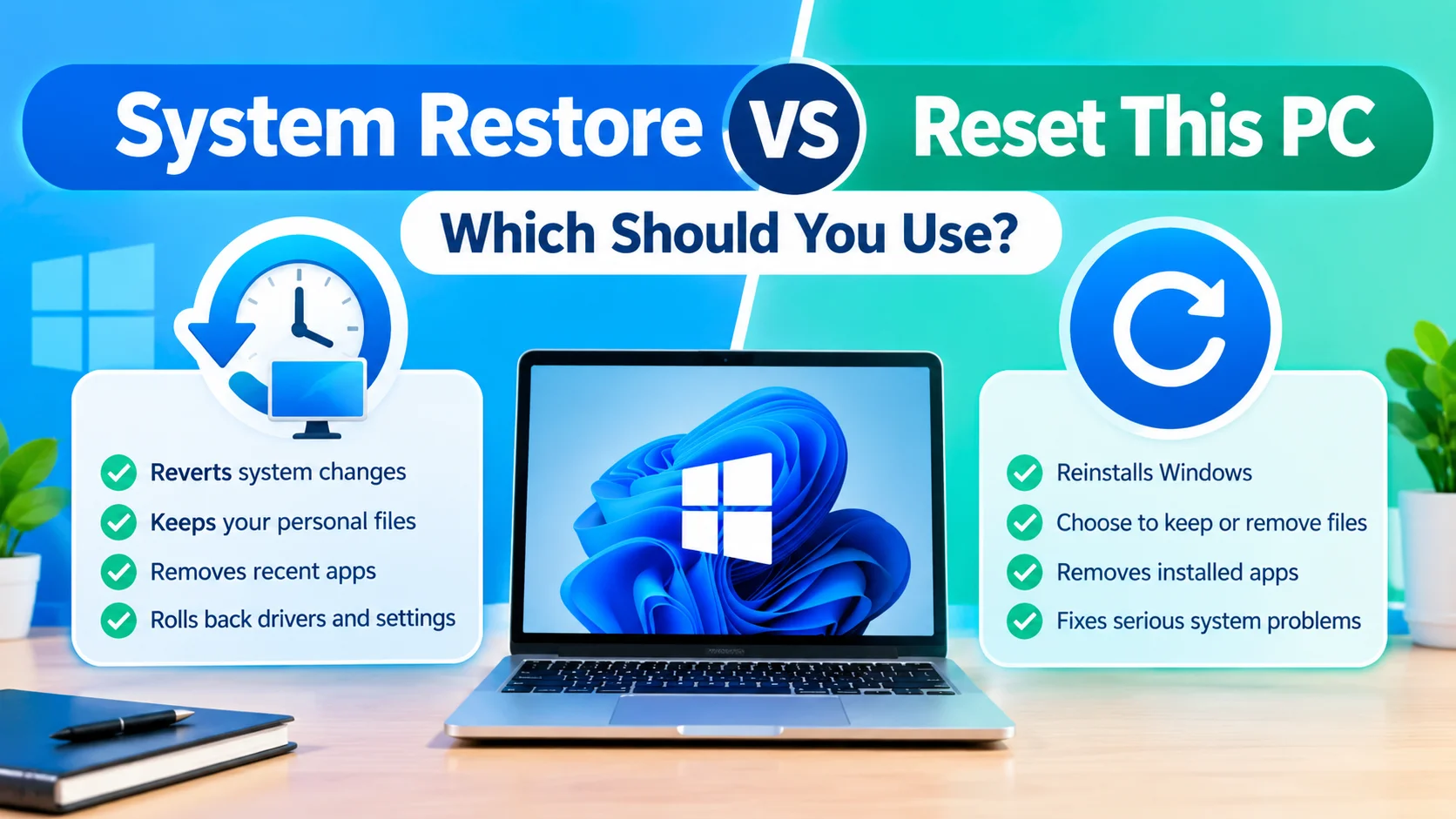
12. Use System Restore When Available
If Windows Recovery Environment offers System Restore, you can restore the system to an earlier restore point.
Go to:
Troubleshoot → Advanced options → System Restore
Choose a restore point created before the boot problem appeared.
System Restore can reverse certain system and configuration changes without normally removing personal documents.
13. Reset or Reinstall Windows as a Last Resort
If the boot problem cannot be repaired and the drive is healthy, Windows may need to be reset or reinstalled.
Before choosing this option, back up important files whenever possible.
A clean installation can resolve severe software corruption, but it can also remove applications and potentially personal data depending on the installation method. Make sure you understand the available recovery options before proceeding.
How to Prevent “Operating System Not Found”
You can reduce the chance of future boot problems by following a few precautions:
- Keep Windows updated.
- Maintain regular backups.
- Monitor SSD and hard-drive health.
- Avoid changing BIOS/UEFI settings without knowing their purpose.
- Safely remove external storage devices.
- Keep sufficient free space on the Windows drive.
- Avoid interrupting major Windows updates.
- Create a Windows Recovery Drive for emergency troubleshooting.
Frequently Asked Questions
Why does my PC say “Operating System Not Found”?
The message usually means the computer cannot locate a bootable Windows installation. Possible causes include an undetected drive, incorrect boot order, damaged boot files, corrupted system files, or a failing storage device.
Can a BIOS setting cause this error?
Yes. Changes to boot order, UEFI/Legacy mode, storage configuration, or other firmware settings can prevent the computer from finding the Windows installation.
Will Startup Repair delete my files?
Startup Repair is designed to repair startup-related problems rather than remove personal files. However, you should maintain backups of important data whenever possible.
Can CHKDSK fix “Operating System Not Found”?
CHKDSK can repair certain file-system errors, but it cannot fix every cause of the error. If the SSD or hard drive is physically failing, replacing the drive may be necessary.
What if my SSD does not appear in BIOS?
If the SSD is not detected in BIOS/UEFI, investigate the physical connection, storage slot, firmware configuration, and drive health. A failed SSD may need to be replaced.
Final Thoughts
The “Operating System Not Found” error can be caused by anything from an incorrect boot order to corrupted boot files or failing storage hardware. Start with simple checks such as removing external drives and verifying BIOS/UEFI detection. If the Windows drive is detected, use Windows Recovery Environment, Startup Repair, boot-file repair, CHKDSK, and SFC to troubleshoot the installation.
If the drive is not detected or shows signs of failure, focus on data recovery and hardware diagnosis before attempting extensive software repairs.