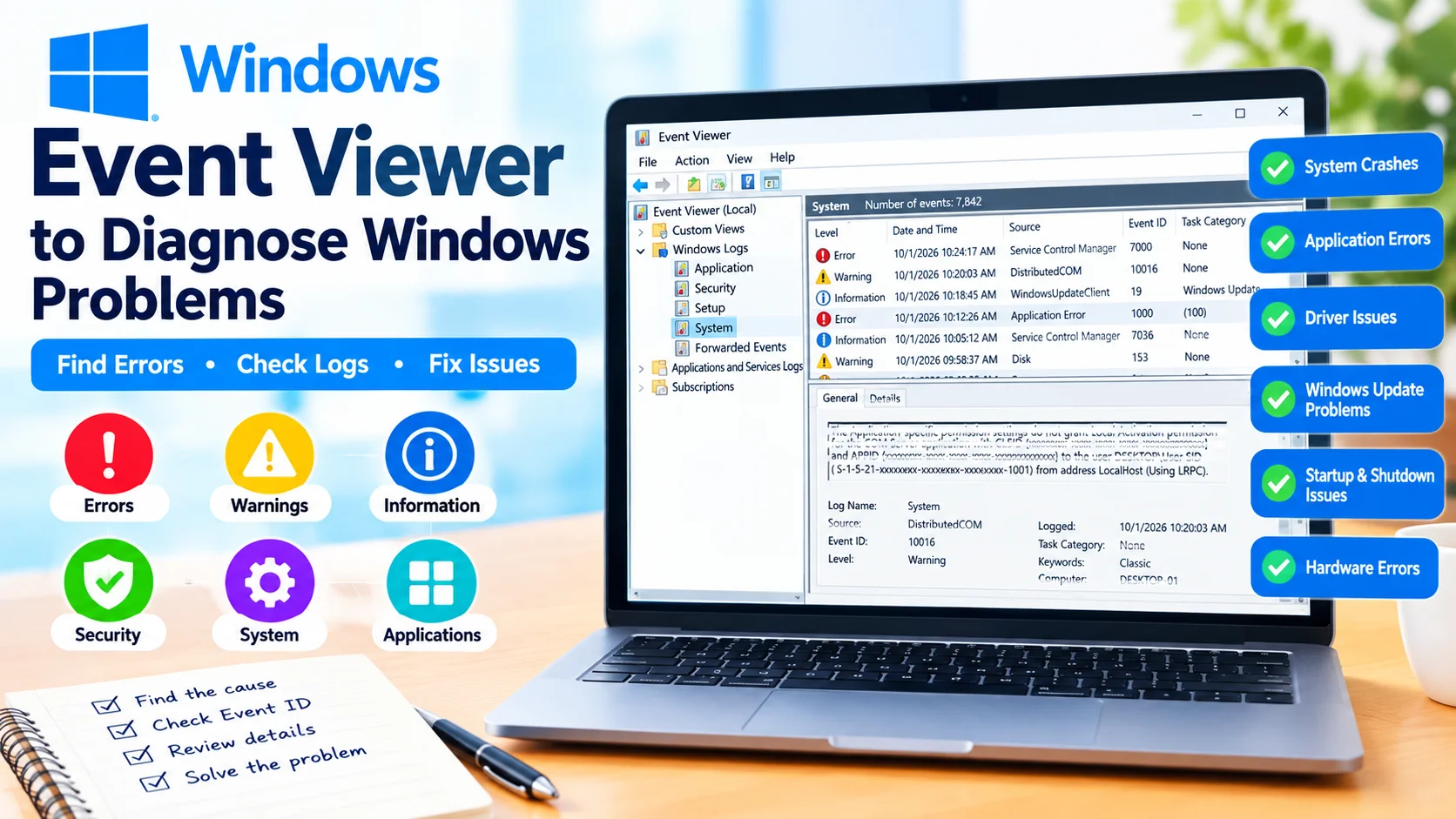
Event Viewer to Diagnose Windows Problems is a useful Windows troubleshooting method when your computer crashes, applications stop responding, drivers fail, or unexpected system errors appear. Instead of guessing what caused an issue, Event Viewer lets you examine recorded events and identify errors that occurred around the time of the problem.
Windows automatically records many system, security, application, and hardware-related events. Learning how to read these logs can help you determine whether a problem is related to Windows services, applications, drivers, or other system components.
What Is Windows Event Viewer?
Event Viewer is a built-in Windows utility that displays event logs generated by the operating system and installed applications.
These logs can contain information about:
- Windows errors and warnings
- Application crashes
- Driver failures
- Service problems
- Hardware-related events
- Login and security events
- Windows Update activity
- System startup and shutdown problems
Event Viewer does not automatically fix problems, but it provides useful information for finding possible causes.
How to Open Event Viewer
You can open Event Viewer in several ways.
Method 1: Use Windows Search
- Press Windows + S.
- Type Event Viewer.
- Select Event Viewer from the search results.
- Wait for the Event Viewer window to open.
Method 2: Use Run
- Press Windows + R.
- Type:
eventvwr.msc- Press Enter.
Event Viewer will open with access to the available Windows logs.
Understanding Event Viewer Logs
The main categories you will commonly use are located under Windows Logs.
Application
The Application log records events generated by Windows applications.
Look here when:
- A program repeatedly crashes.
- An application suddenly closes.
- Software fails to start.
- A specific application displays unexplained errors.
Security
The Security log records security-related events when auditing is enabled and configured.
It can help investigate:
- Login activity
- Authentication events
- Account-related activity
- Security policy events
System
The System log is particularly useful for Windows troubleshooting.
It contains events generated by Windows system components, drivers, and services. Check this log when investigating:
- Blue screen problems
- Driver failures
- Startup issues
- Service failures
- Unexpected shutdowns
- Hardware-related errors
Setup
The Setup log can contain information about Windows installation and update processes.
It may be useful when troubleshooting certain Windows upgrade or installation problems.
How to Find Windows Errors
To investigate a problem, start with the Windows Logs section.
- Open Event Viewer.
- Expand Windows Logs.
- Select System or Application.
- Look for events marked Error or Warning.
- Check the event date and time.
- Open an event to view its details.
Do not assume that every warning represents a serious problem. Windows can generate warnings during normal operation.
The most useful events are usually those that occurred immediately before or during the problem you are investigating.
Understanding Event Levels
Event Viewer uses different levels to describe recorded events.
Information
An Information event generally indicates that an operation completed or that a normal system activity occurred.
Warning
A Warning indicates a condition that may require attention but does not necessarily mean something is broken.
Error
An Error indicates that an operation or component encountered a problem.
Critical
A Critical event represents a significant system-level problem and deserves closer investigation.
Focus on the timing and relationship between events rather than simply counting the number of errors.
How to Filter Event Viewer Logs
Large Windows logs can contain thousands of entries. Filtering makes troubleshooting easier.
- Open Event Viewer.
- Select System or Application.
- Click Filter Current Log in the Actions panel.
- Choose relevant Event levels, such as Error or Critical.
- Select a time range if appropriate.
- Click OK.
You can also filter by event source or Event ID when you already have information about the problem.
How to Check an Event ID
Each event can contain an Event ID, which helps identify the specific type of event.
To find it:
- Select an event.
- Read the information in the General tab.
- Locate the Event ID.
- Note the Source and Provider.
- Check the event’s date and time.
- Review the details before searching for a solution.
An Event ID by itself does not always identify the root cause. The event description, source, timing, and related events should be considered together.
Use Event Viewer to Troubleshoot a System Crash
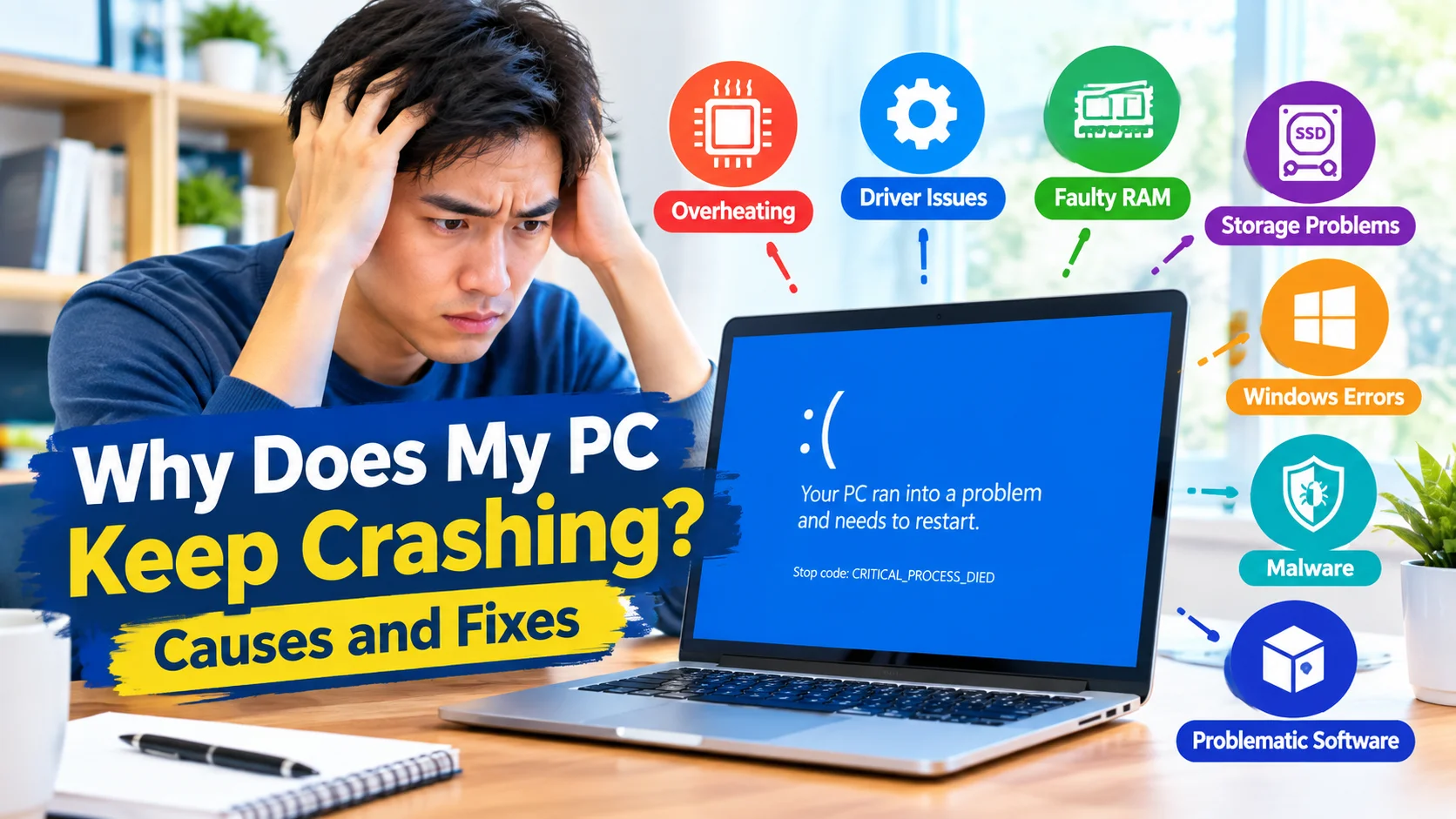
If Windows crashes or unexpectedly restarts, check the System log around the time of the incident.
Look for:
- Critical events
- Error events
- Driver-related errors
- Unexpected shutdown events
- Service failures
- Hardware-related messages
Compare the timestamps to when the crash occurred. This can help narrow down which events deserve further investigation.
For recurring crashes, recording the Event ID, source, and exact time can make troubleshooting much easier.
Use Event Viewer to Diagnose Application Problems
If a program repeatedly crashes, open the Application log.
Look for errors that match the application’s crash time. The event may provide information about:
- The application name
- Faulting component
- Exception information
- Event source
- Event ID
This information can help determine whether the problem is isolated to the application or connected to another Windows component.
Event Viewer and Windows Update Problems
Event Viewer can also provide useful information when Windows Update fails.
Check relevant logs around the time an update failed and look for events involving Windows Update, servicing, installation, or related services.
For detailed Windows Update troubleshooting, Event Viewer should be used alongside Windows Update history and other diagnostic tools rather than as the only source of information.
Important Event Viewer Information to Record
When researching an error, record these details:
- Event ID
- Source
- Level
- Date and time
- General description
- Related application or service
- Error code, if available
Keeping these details together makes it easier to compare multiple occurrences of the same problem.
Common Mistakes When Using Event Viewer
Event Viewer can be intimidating because it may display many errors even on a normally functioning computer.
Avoid these common mistakes:
Treating Every Error as the Cause
Some events are unrelated to the problem you are investigating.
Ignoring Timestamps
The timing of an event is often more useful than the event level alone.
Searching Only by Event ID
An Event ID should be considered together with its source and description.
Making Changes Without Understanding the Error
Do not modify services, drivers, registry settings, or system files simply because an event looks serious. First determine whether the event is actually connected to the problem.
Other Windows Troubleshooting Tools
Event Viewer works well alongside other Windows utilities, including:
- Task Manager for resource and application activity
- Reliability Monitor for a timeline of system and application failures
- System File Checker (SFC) for checking protected system files
- DISM for repairing Windows component issues
- Device Manager for investigating device and driver problems
- Windows Security for malware and security checks
Using multiple diagnostic tools can provide a clearer picture of what is happening.
Final Thoughts
Event Viewer to Diagnose Windows Problems is an effective way to investigate Windows errors without immediately reinstalling Windows or making unnecessary system changes. By examining the correct log, checking timestamps, reviewing Event IDs, and comparing related events, you can narrow down potential causes of crashes, application failures, driver issues, and system problems.
Event Viewer is most useful when treated as a diagnostic source rather than a list of problems that all need fixing. Start with events that closely match the time and symptoms of the issue you are experiencing.