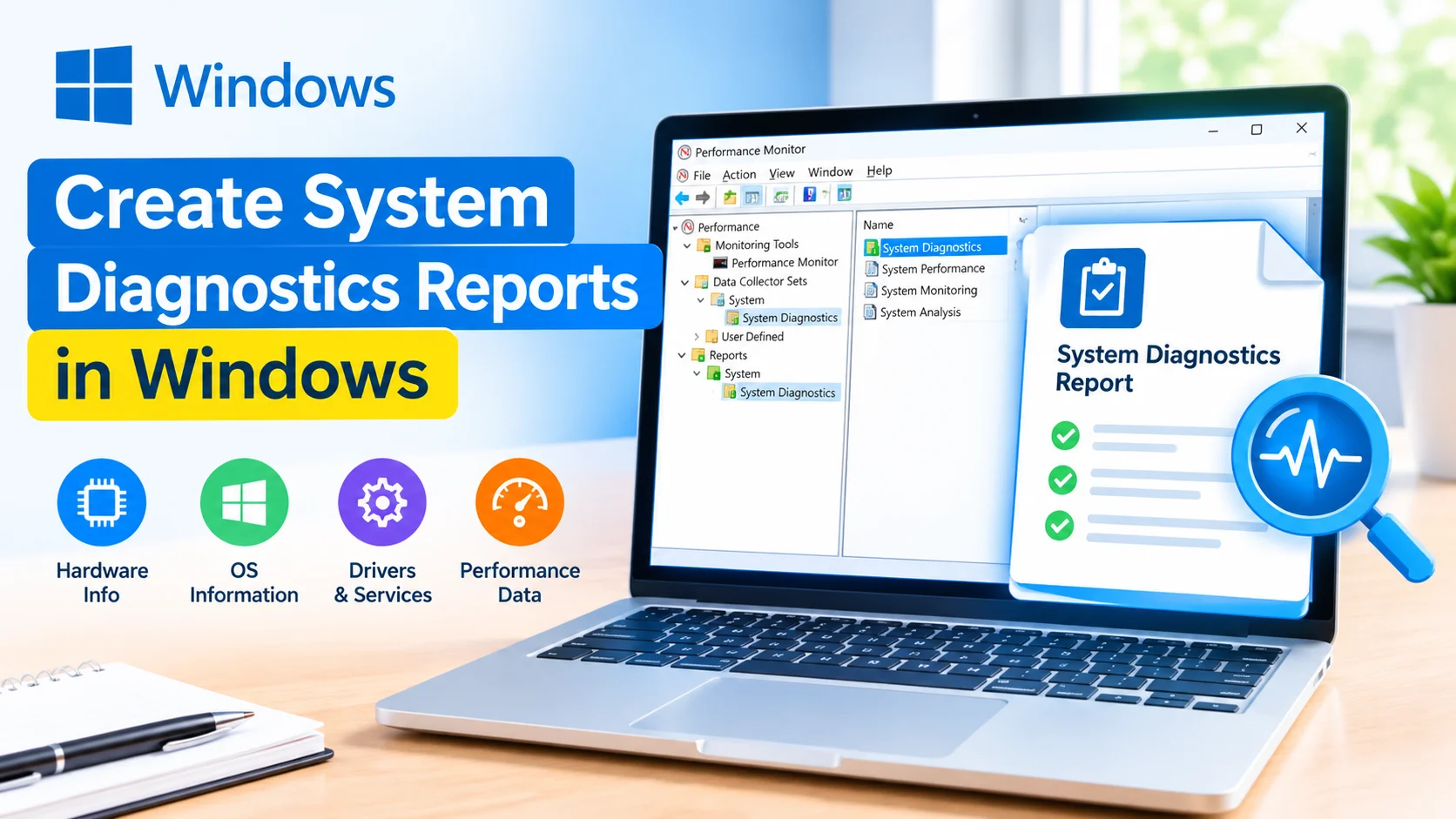
Create System Diagnostics Reports in Windows to get a detailed overview of your computer’s hardware, software, drivers, system performance, and potential configuration problems. This built-in Windows report can be useful when troubleshooting slow performance, startup issues, hardware failures, or unexpected system problems.
Windows includes several diagnostic tools that can collect system information without requiring third-party software. One of the most useful options is the System Diagnostics Report, which can be generated through Performance Monitor.
What Is a System Diagnostics Report?
A System Diagnostics Report is a detailed Windows report that analyzes your computer’s current configuration and system condition. It can provide information about hardware resources, operating system settings, drivers, services, and performance-related issues.
The report can help you identify problems that may not be obvious during normal Windows use.
Why Create a System Diagnostics Report?
Creating a diagnostic report can be useful when:
- Windows is running unusually slowly.
- Your computer frequently freezes or becomes unresponsive.
- You are troubleshooting hardware or driver problems.
- Windows has performance issues after an update.
- You need detailed system information for technical support.
- You want to investigate resource usage and configuration problems.
The report does not automatically repair problems, but it can provide useful information for determining what should be investigated next.
How to Create a System Diagnostics Report
You can generate the report using Windows Performance Monitor.
Step 1: Open Performance Monitor
Press Windows + R to open the Run dialog.
Type:
perfmon
Press Enter.
The Performance Monitor window will open.
Step 2: Open System Diagnostics
In the left navigation pane, expand:
Data Collector Sets > System
You should see an option named System Diagnostics.
Step 3: Start the Diagnostic Report
Right-click System Diagnostics and select Start.
Windows will begin collecting diagnostic information from your computer.
The process may take about a minute.
Avoid closing Performance Monitor while Windows is collecting the information.
Step 4: Open the Generated Report
After the diagnostic process finishes, expand:
Reports > System > System Diagnostics
Select the newest report based on its date and time.
Windows will display a detailed report containing information about your system.
What Information Does the Report Include?
The System Diagnostics Report can contain several categories of information.
Hardware Configuration
The report can show details about hardware resources and devices installed on the computer. This information can help identify possible hardware or configuration problems.
Operating System Information
You can review Windows-related information, including system configuration and other operating system details.
Driver Information
Drivers are an important part of Windows hardware operation. The report can help you investigate devices and driver-related issues.
System Services
The report provides information about services running on Windows. This can be useful when troubleshooting software or startup problems.
Performance Information
Windows can collect information related to system performance and resource usage. This may help identify areas that require further investigation.
How to Check for Problems in the Report
After opening the report, look for sections that indicate warnings, errors, or failed checks.
Pay particular attention to:
- Hardware problems
- Driver issues
- Service failures
- High resource usage
- Windows configuration problems
- Security-related warnings
- System performance issues
A warning does not always mean that your computer has a serious problem. Some warnings may be informational or related to temporary conditions.
How to Save the Diagnostic Report
If you need to send the report to technical support, you can save or export the information from Performance Monitor.
You can also take screenshots of relevant sections when troubleshooting a specific problem.
Avoid sharing diagnostic reports publicly if they contain personal, device, network, or other identifying information.
What to Do After Finding an Error
A diagnostic report is mainly an investigation tool. Once you identify a potential problem, you can troubleshoot it separately.
For example:
- Update or reinstall a problematic driver.
- Check Windows Update for available updates.
- Run System File Checker.
- Use DISM to repair Windows components.
- Check disk health.
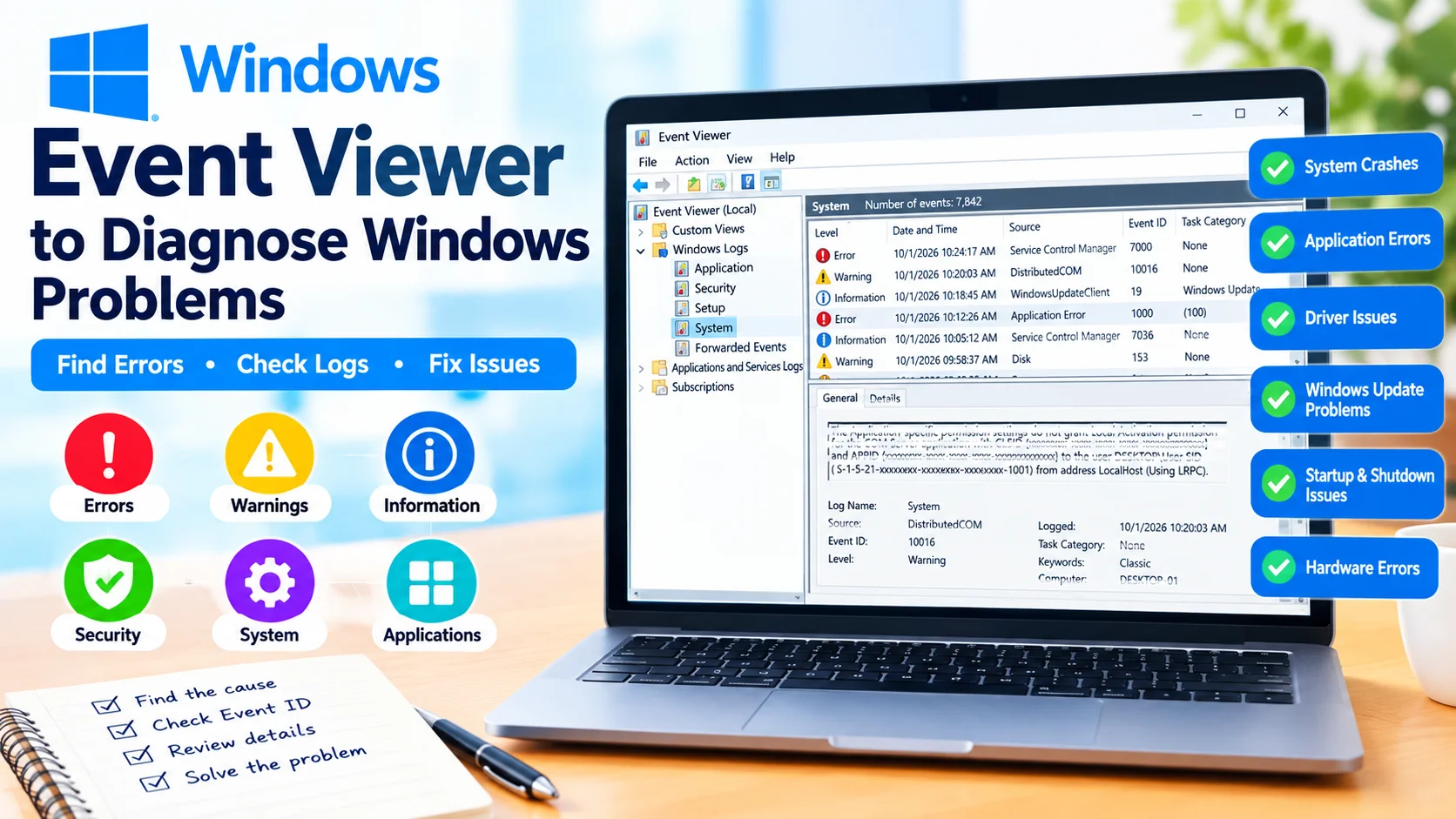
- Investigate Event Viewer for related errors.
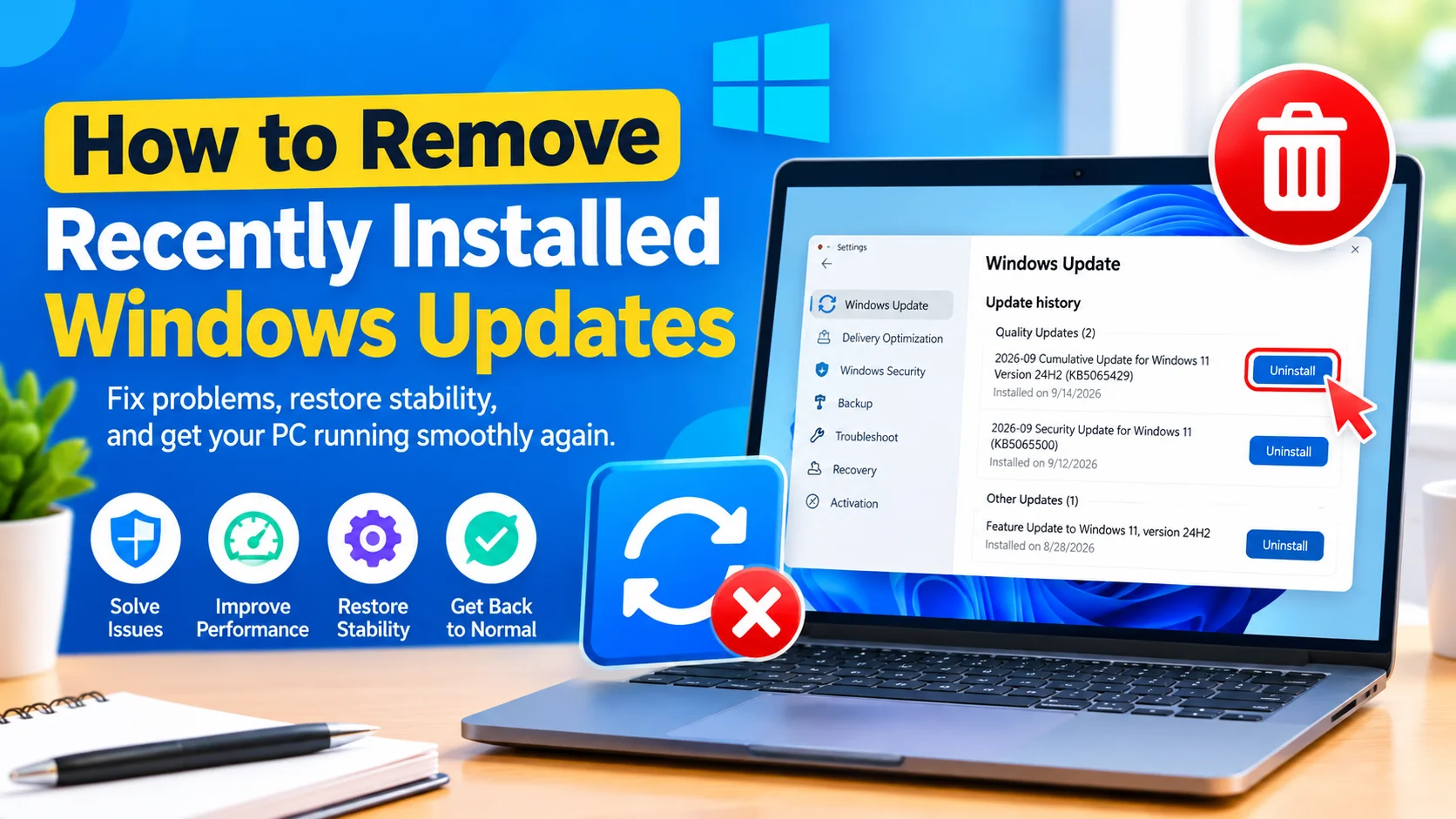
- Remove recently installed software or drivers when appropriate.
Always investigate the specific error before making major system changes.
Create System Diagnostics Reports Regularly
You do not normally need to create diagnostic reports every day. However, generating one can be useful when troubleshooting a recurring problem or before contacting technical support.
Creating a report before and after making significant troubleshooting changes can also help you compare system conditions.
Frequently Asked Questions
Does Windows have a built-in diagnostic report?
Yes. Windows Performance Monitor includes a System Diagnostics data collector that can generate a detailed diagnostic report.
How long does a System Diagnostics Report take?
The collection process typically takes around a minute, although the exact time can vary depending on the system.
Can a System Diagnostics Report fix Windows problems?
No. The report primarily collects and presents diagnostic information. You must troubleshoot identified problems separately.
Where can I find the System Diagnostics Report?
Open Performance Monitor and go to Reports > System > System Diagnostics. Select the most recent report.
Is Performance Monitor available in Windows 11?
Yes. Performance Monitor is included with Windows 11 and can be opened by entering perfmon in the Run dialog.
Conclusion
Create System Diagnostics Reports in Windows when you need a detailed look at your computer’s configuration and performance. Windows Performance Monitor can collect information about hardware, drivers, services, and other system components, making the report a useful starting point for troubleshooting.
When a problem occurs, use the diagnostic report together with tools such as Event Viewer, Device Manager, System File Checker, and Windows Update to investigate the underlying cause.