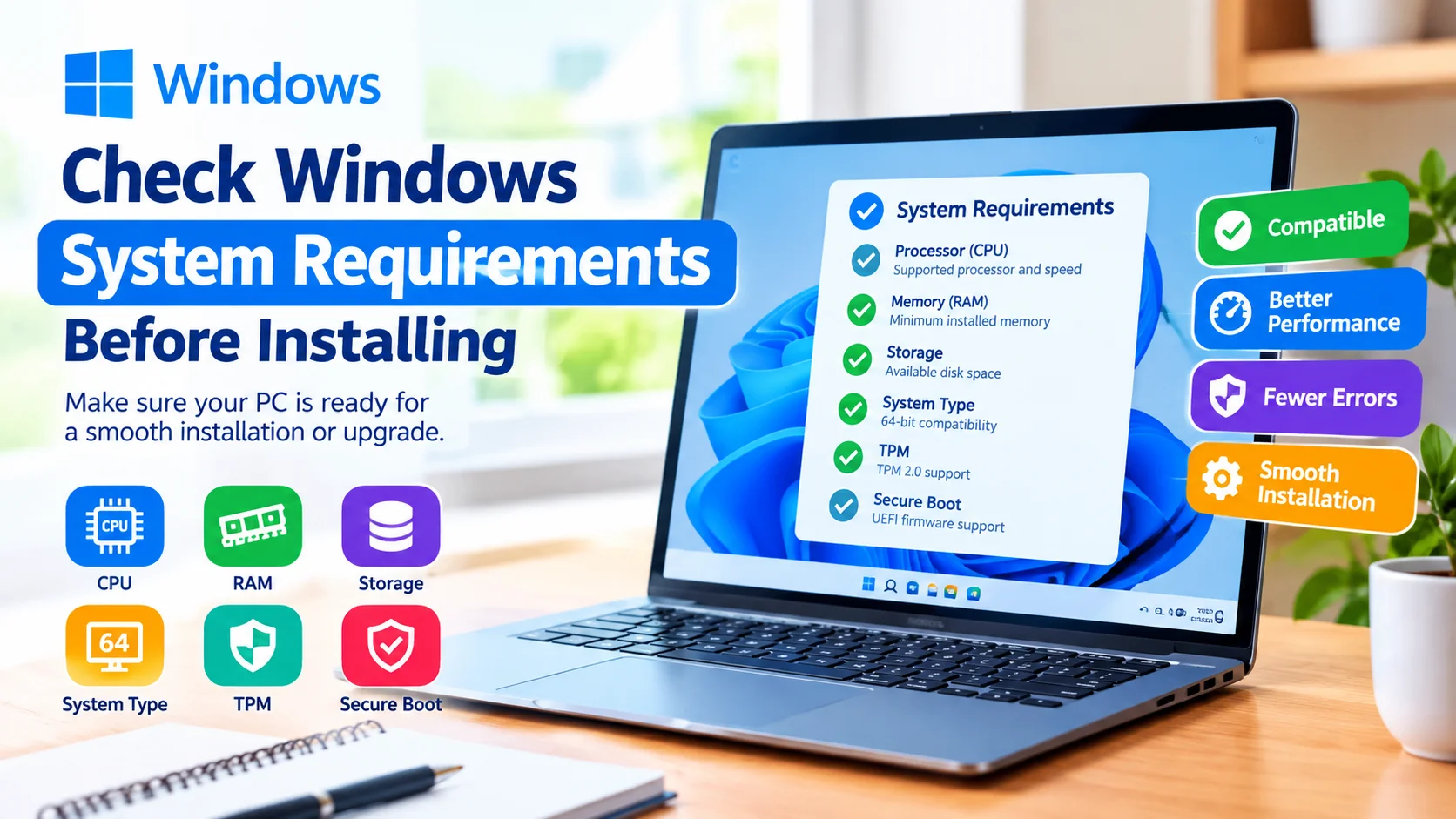
Check Windows system requirements before installing or upgrading Windows to make sure your PC has the necessary hardware and firmware. Verifying compatibility first can help prevent installation errors, poor performance, and unexpected hardware limitations.
Windows requirements can vary depending on the version you plan to install. Before making changes to your system, check your processor, RAM, storage, system type, security features, and other hardware specifications.
Why Check Windows System Requirements?
Checking system requirements is an important step before installing a new version of Windows. A computer may appear powerful enough but still fail to meet specific requirements.
Compatibility checks can help you:
- Confirm whether your processor is supported.
- Check available RAM and storage.
- Verify whether your PC uses 64-bit architecture.
- Check security features such as TPM.
- Determine whether Secure Boot is available.
- Avoid installation problems caused by unsupported hardware.
- Plan storage upgrades before installing Windows.
How to Check Your Windows System Information
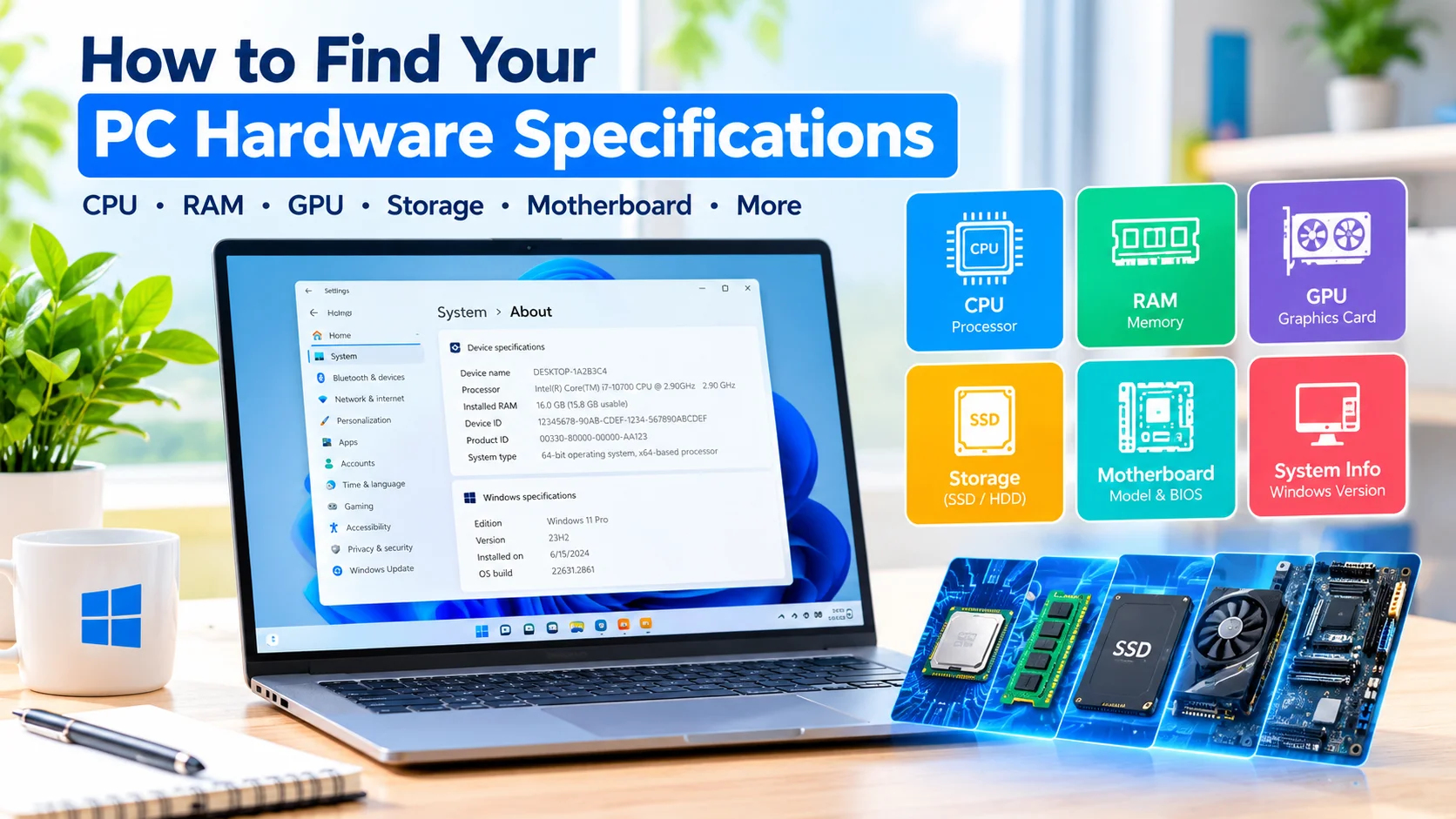
Windows provides several built-in tools for viewing hardware information.
1. Check Processor and RAM
Press Windows + I to open Settings.
Go to:
System > About
Look under Device specifications. You can see information such as:
- Processor
- Installed RAM
- System type
- Device name
Compare these specifications with the requirements for the Windows version you want to install.
2. Check Available Storage
Open Settings > System > Storage.
Windows displays your available storage and shows how disk space is being used.
Make sure the system drive has enough free space for the installation and future Windows updates. Having additional free space is recommended because Windows needs room for temporary files, updates, and system operations.
3. Use System Information
Windows also includes a detailed system-information utility.
Press Windows + R, type:
msinfo32
Press Enter.
The System Information window provides additional details, including:
- Processor model
- Installed physical memory
- BIOS mode
- System type
- Secure Boot State
- Hardware resources
- Windows version
This is useful when you need more detailed information than the Settings app provides.
How to Check TPM
Some Windows versions require specific security hardware, such as TPM 2.0.
To check your TPM status:
- Press Windows + R.
- Type
tpm.msc. - Press Enter.
- Look for the TPM information.
- Check the Specification Version field.
If your PC has a compatible TPM, Windows should display its specification information.
If Windows reports that a compatible TPM cannot be found, check your computer’s UEFI or firmware settings and the manufacturer’s documentation before making changes.
How to Check Secure Boot
Secure Boot status can be checked through System Information.
- Press Windows + R.
- Type
msinfo32. - Press Enter.
- Find Secure Boot State.
The result may show whether Secure Boot is enabled or disabled.
If Secure Boot is unavailable, do not change firmware settings without first checking your motherboard or PC manufacturer’s instructions.
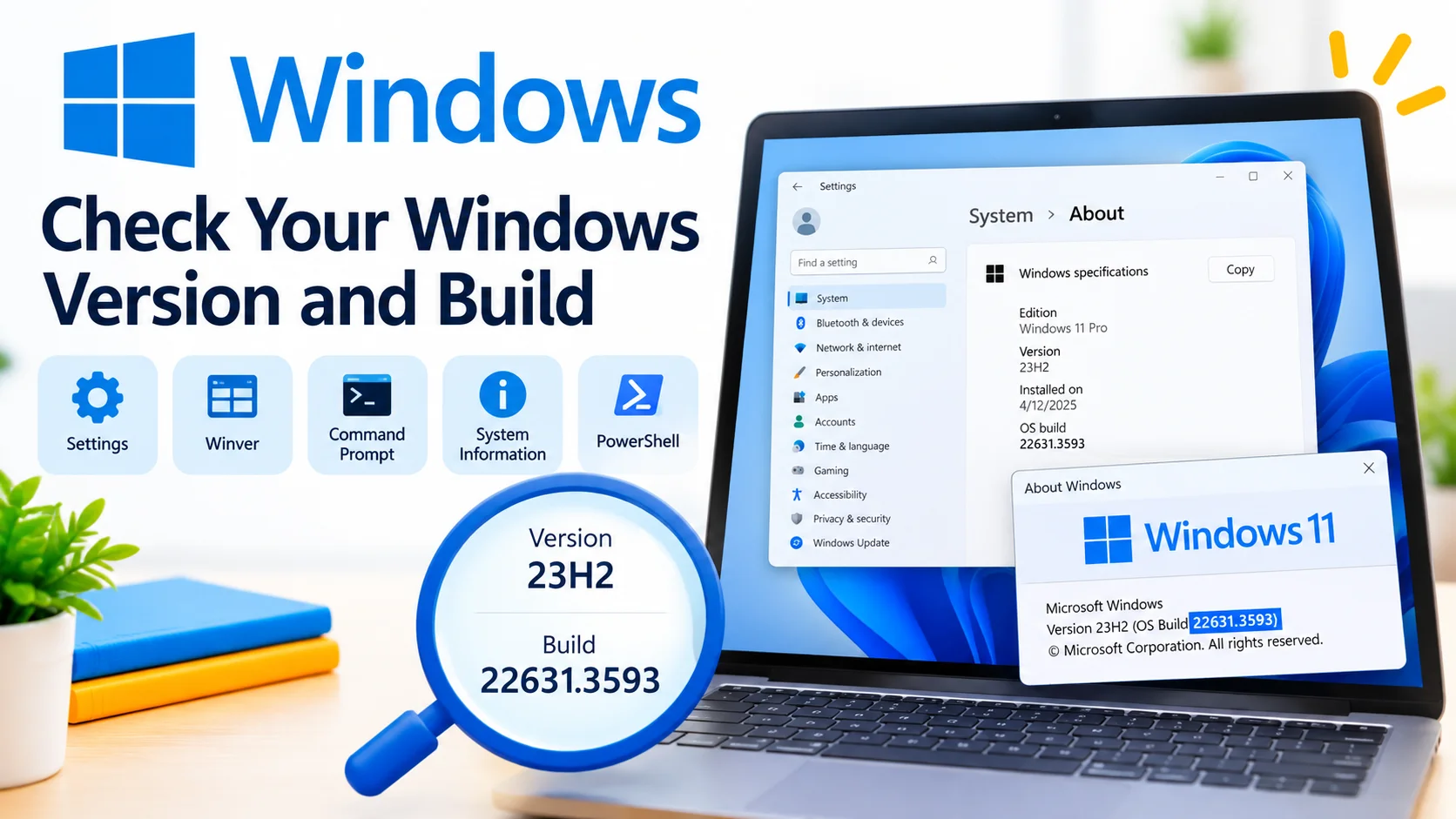
Check Your Windows Version
You should also identify the Windows version currently installed on your PC.
Press Windows + R, type:
winver
Then press Enter.
The dialog box displays the Windows edition and version information.
Knowing your current version makes it easier to determine whether you are performing an update, upgrade, or clean installation.
Check your Windows version and build quickly using built-in tools. Learn how to find your Windows edition, version, OS build, and system details.
Check Windows Requirements Using PC Health Check
For supported Windows upgrade scenarios, Microsoft’s PC Health Check application can help determine whether a PC meets Windows 11 requirements.
The tool can identify compatibility issues involving hardware and security requirements. If your PC does not meet a requirement, investigate the specific reason rather than relying only on a general compatibility message.
What to Check Before Installing Windows
Before upgrading or installing Windows, review these areas:
| Requirement | What to Check |
|---|---|
| Processor | Supported CPU and required speed |
| RAM | Minimum installed memory |
| Storage | Available disk space |
| System type | 64-bit compatibility |
| TPM | Compatible TPM availability |
| Secure Boot | Firmware support and status |
| Graphics | Compatible graphics hardware |
| Firmware | UEFI and related settings |
| Internet | Connection requirements for certain setup features |
Always compare your hardware against the official requirements for the exact Windows version and edition you intend to install.
Find your PC hardware specifications in Windows, including CPU, RAM, GPU, storage, motherboard, and system details using built-in tools.
What If Your PC Does Not Meet the Requirements?
If your computer does not meet a Windows requirement, first identify which requirement is missing.
For example, insufficient storage may be resolved by removing unnecessary files or upgrading the storage drive. A firmware-related requirement may require checking UEFI settings. However, hardware limitations such as an unsupported processor may not be easily resolved.
Avoid unofficial workarounds simply to bypass compatibility checks. They can create installation, update, driver, security, or support problems.
Frequently Asked Questions
How do I check my Windows system requirements?
Open Settings > System > About to view your processor, RAM, and system type. You can also use msinfo32 for more detailed hardware information.
How do I check how much storage my PC has?
Go to Settings > System > Storage. Windows will show available storage and the amount of space being used.
How do I check TPM in Windows?
Press Windows + R, enter tpm.msc, and press Enter. The TPM Management window displays available TPM information.
How do I check Secure Boot?
Press Windows + R, type msinfo32, and press Enter. Look for Secure Boot State in System Information.
Can I install Windows if my PC does not meet the requirements?
Some unsupported configurations may prevent installation or create limitations. Check the official requirements for your Windows version before proceeding and avoid unsupported installation methods when possible.
Final Thoughts
Checking Windows system requirements before an installation or upgrade can help you identify compatibility problems early. Use Windows tools such as Settings, System Information, TPM Management, and winver to review your current configuration.
For major upgrades, compare your hardware with Microsoft’s current requirements for the specific Windows release. Taking a few minutes to verify compatibility can make the installation process smoother and reduce unexpected problems.