Knowing your Windows version and build number can help you troubleshoot problems, install compatible software, and determine whether your PC is running the latest available updates. Windows includes several simple ways to find this information without installing third-party software.
Whether you use Windows 11 or another supported Windows release, checking the version and build takes only a few moments.
Why Check Your Windows Version and Build?
Your Windows version identifies the major release installed on your computer, while the build number provides more specific information about the operating system.
You may need this information when:
- Troubleshooting Windows problems
- Installing drivers or software
- Checking software compatibility
- Following technical support instructions
- Verifying a Windows update
- Confirming whether your PC meets system requirements
- Reporting your system information to technical support
Knowing the exact Windows build can also make troubleshooting easier because some features and fixes are available only in specific releases.
How to Check Your Windows Version Using Settings
The easiest way to check your Windows version is through the Settings app.
Step 1: Open Settings
Press Windows + I on your keyboard to open Windows Settings.
Step 2: Open System Information
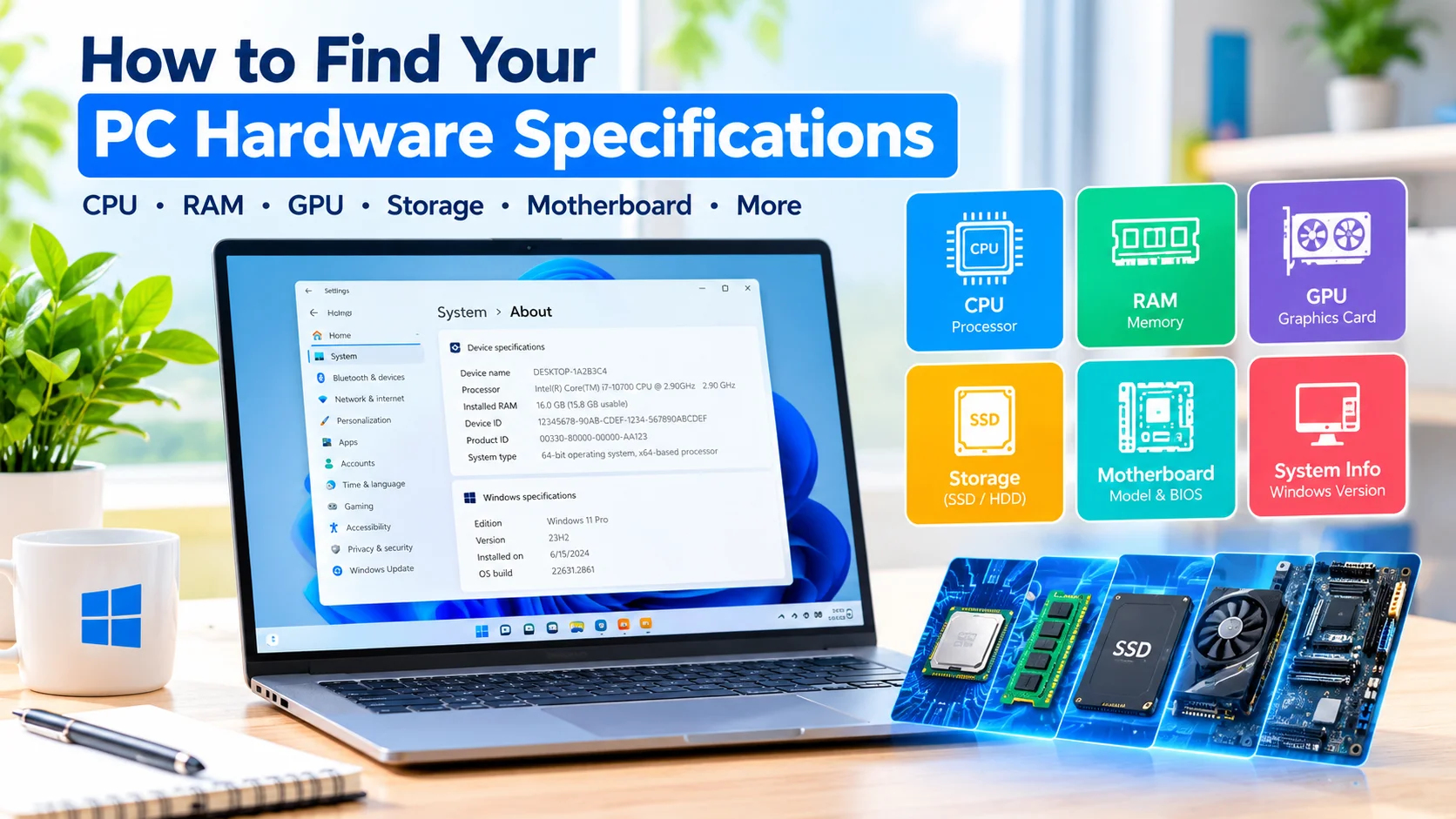
In Windows 11, select System, then scroll down and click About.
Step 3: Find Windows Specifications
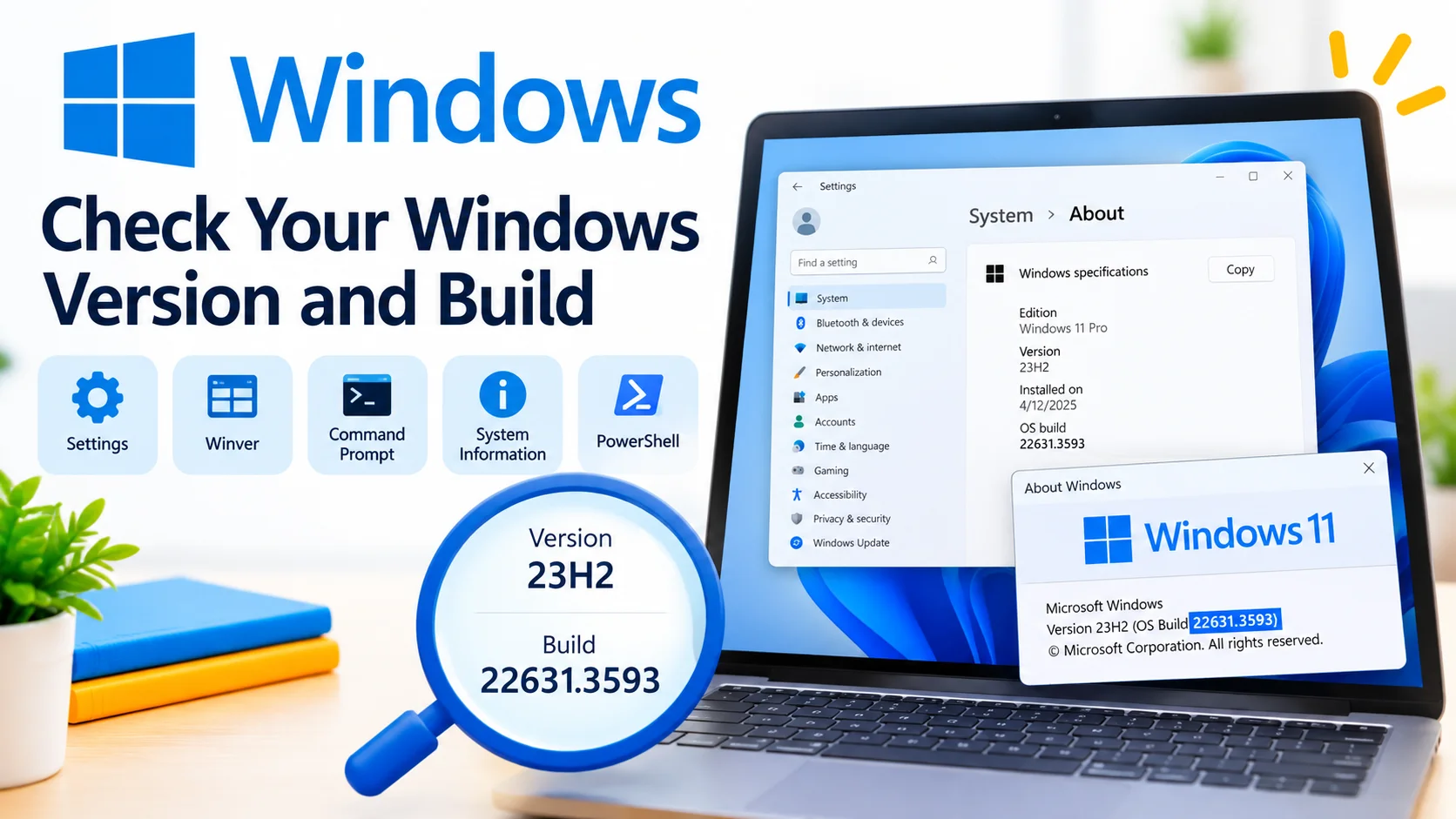
Look for the Windows specifications section. You should see information such as:
- Edition — For example, Windows 11 Home or Windows 11 Pro
- Version — The installed Windows release
- Installed on — The date Windows was installed
- OS build — The specific operating system build number
This is useful when you need to provide your exact Windows version to a technician or software developer.
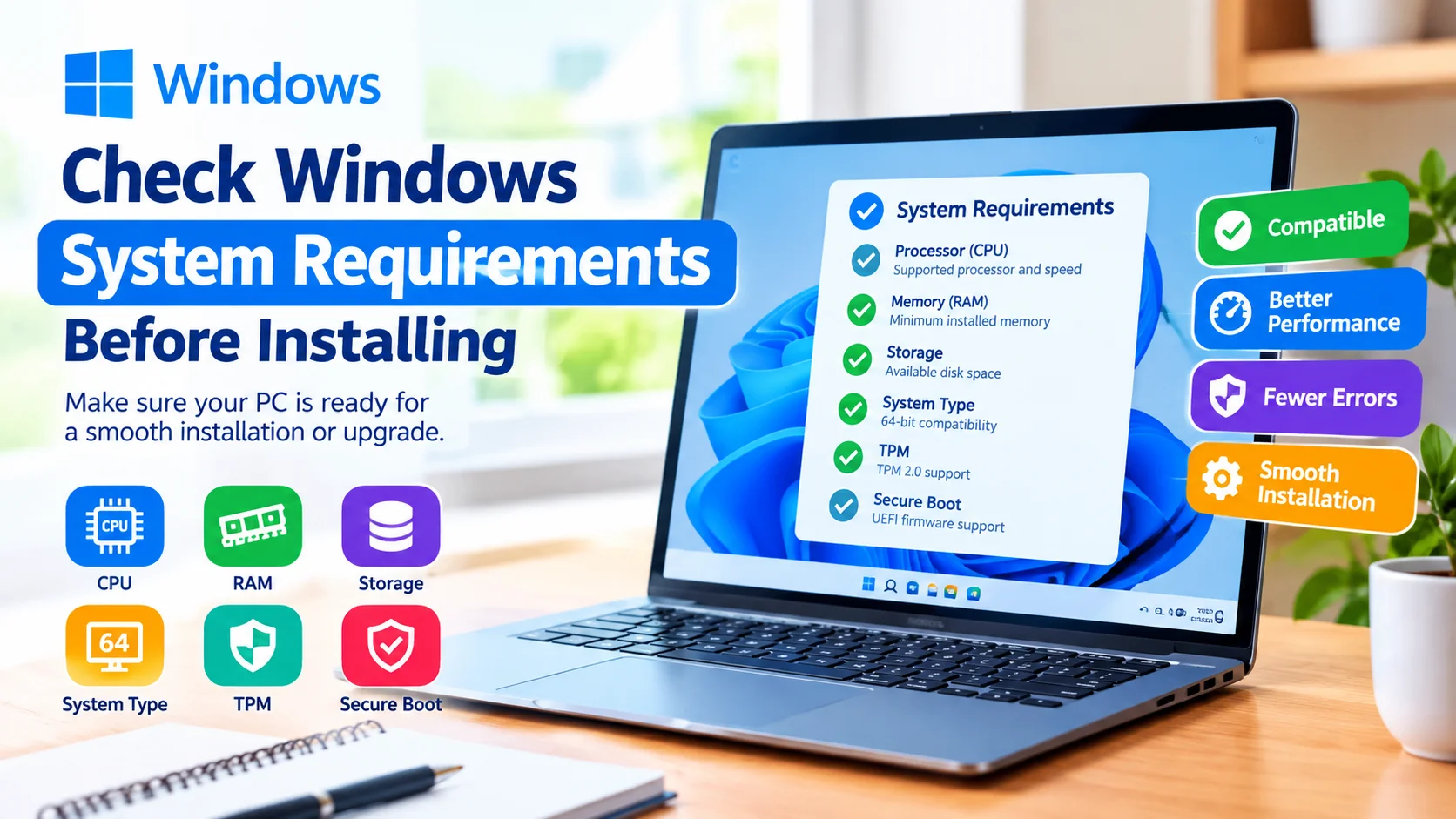
Check Windows system requirements before upgrading or installing. Learn how to verify CPU, RAM, storage, TPM, Secure Boot, and compatibility.
Check Your Windows Version With the Winver Command
Another quick method is the built-in winver command.
Press Windows + R to open the Run dialog. Type:
winver
Press Enter.
A window called About Windows will appear. It displays the Windows version and operating system build information.
This method is particularly useful when you want to quickly check your Windows version without navigating through Settings.
Check Windows Build Information With System Information
Windows also includes a System Information utility that provides more detailed information about your computer.
Press Windows + R, type:
msinfo32
and press Enter.
The System Information window will open. Look for OS Name, Version, and other system details.
This tool can provide additional information about your hardware, system architecture, BIOS, memory, and installed components.
Check Your Windows Version Using Command Prompt
You can also use Command Prompt to find Windows version information.
Open Command Prompt, then enter:
systeminfo
Press Enter.
Windows will display detailed system information, including the operating system name, version, installation date, system manufacturer, system type, and other configuration details.
If you only want to display the Windows version, you can also use:
ver
This command provides a quick version response directly in Command Prompt.
Check Your Windows Build With PowerShell
PowerShell provides another way to retrieve operating system information.
Open Windows PowerShell or Terminal, then run:
Get-ComputerInfo
This command displays extensive information about your Windows installation.
For a more focused result, you can use:
Get-ComputerInfo | Select-Object WindowsProductName, WindowsVersion, OsBuildNumber
This displays the Windows product name, version, and operating system build number.
Windows Version vs. Build Number
The Windows version and build number are related but provide different levels of information.
The Windows version identifies the release installed on your PC. The OS build number provides a more detailed identifier for that installation.
For example, two computers may both be running Windows 11 but have different build numbers because they have received different updates.
This distinction is important when troubleshooting software compatibility or following instructions that require a specific Windows build.
How to Check if Windows Is Up to Date
After checking your Windows version and build, you may also want to verify whether updates are available.
Open Settings > Windows Update.
Select Check for updates and allow Windows to search for available updates.
If updates are available, review the information before installing them. Keeping Windows updated can provide security improvements, bug fixes, compatibility updates, and new features.
What to Do With Your Windows Version Information
Once you know your Windows version and build, keep the information available when troubleshooting your computer.
For example, when searching for a solution to a Windows problem, include the exact version and build in your search. This can help you find instructions that match your system instead of following steps designed for a different Windows release.
You should also check your version before downloading drivers or applications that have specific Windows requirements.
Frequently Asked Questions
How do I quickly check my Windows version?
Press Windows + R, type winver, and press Enter. The About Windows window will show your Windows version and build information.
Where can I find my Windows build number?
In Windows 11, open Settings > System > About and look under Windows specifications. The OS build number is listed there.
Can I check my Windows version without Settings?
Yes. You can use the winver command, Command Prompt, System Information, or PowerShell to find Windows version information.
Why is the Windows build number important?
The build number identifies a more specific version of Windows. It can help determine software compatibility, troubleshoot errors, and verify whether particular updates are installed.
Does updating Windows change the build number?
Windows updates can change the operating system build number. Checking the build after an update can help confirm which version is installed.
Conclusion
Checking your Windows version and build is a simple but useful troubleshooting step. The Settings app provides a convenient way to view detailed Windows specifications, while commands such as winver, systeminfo, and PowerShell can provide the same or additional information.
Before troubleshooting Windows problems, installing software, or contacting technical support, knowing your exact Windows version and build can help you find more accurate solutions and avoid compatibility problems.