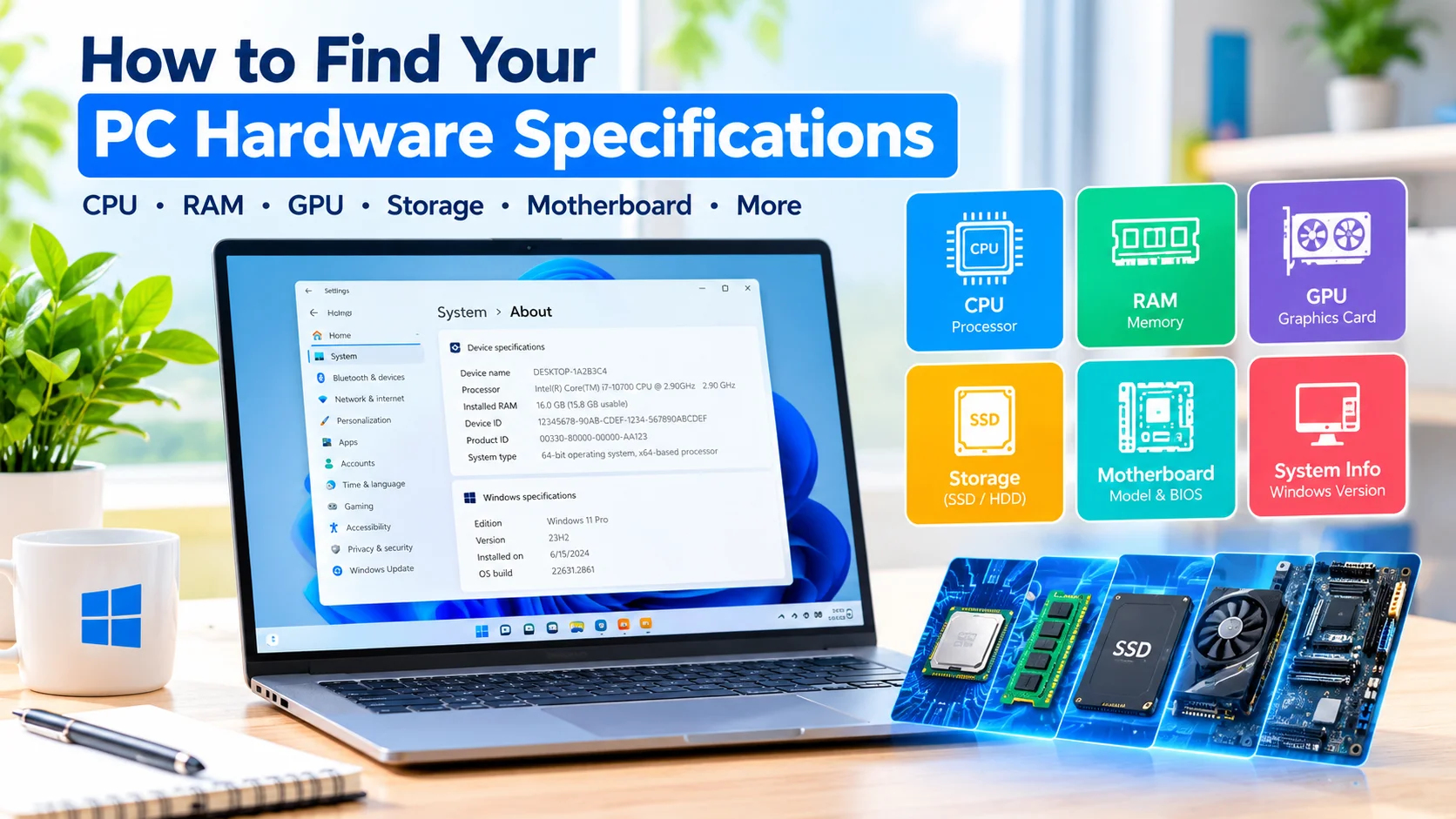
Find Your PC Hardware Specifications to quickly identify your processor, RAM, graphics card, storage, motherboard, and other important components. Knowing your PC hardware specifications can help you troubleshoot problems, install compatible software, plan hardware upgrades, and check whether your computer meets system requirements.
Windows includes several built-in tools that make it easy to find detailed hardware information without opening your computer case or installing third-party software. You can use Settings, Task Manager, System Information, Device Manager, DirectX Diagnostic Tool, Command Prompt, and PowerShell.
Why Find Your PC Hardware Specifications?
Finding your PC hardware specifications is useful when you need to:
- Check your processor and RAM
- Identify your graphics card
- Check SSD or HDD information
- Find your motherboard model
- Troubleshoot hardware problems
- Check software and game requirements
- Plan a RAM or storage upgrade
- Provide system information to technical support
Check PC Specifications in Windows Settings
The easiest way to view basic hardware information is through Windows Settings.
- Press Windows + I to open Settings.
- Select System.
- Scroll down and click About.
- Look under Device specifications.
You can usually find your processor, installed RAM, device name, system type, and other basic information.
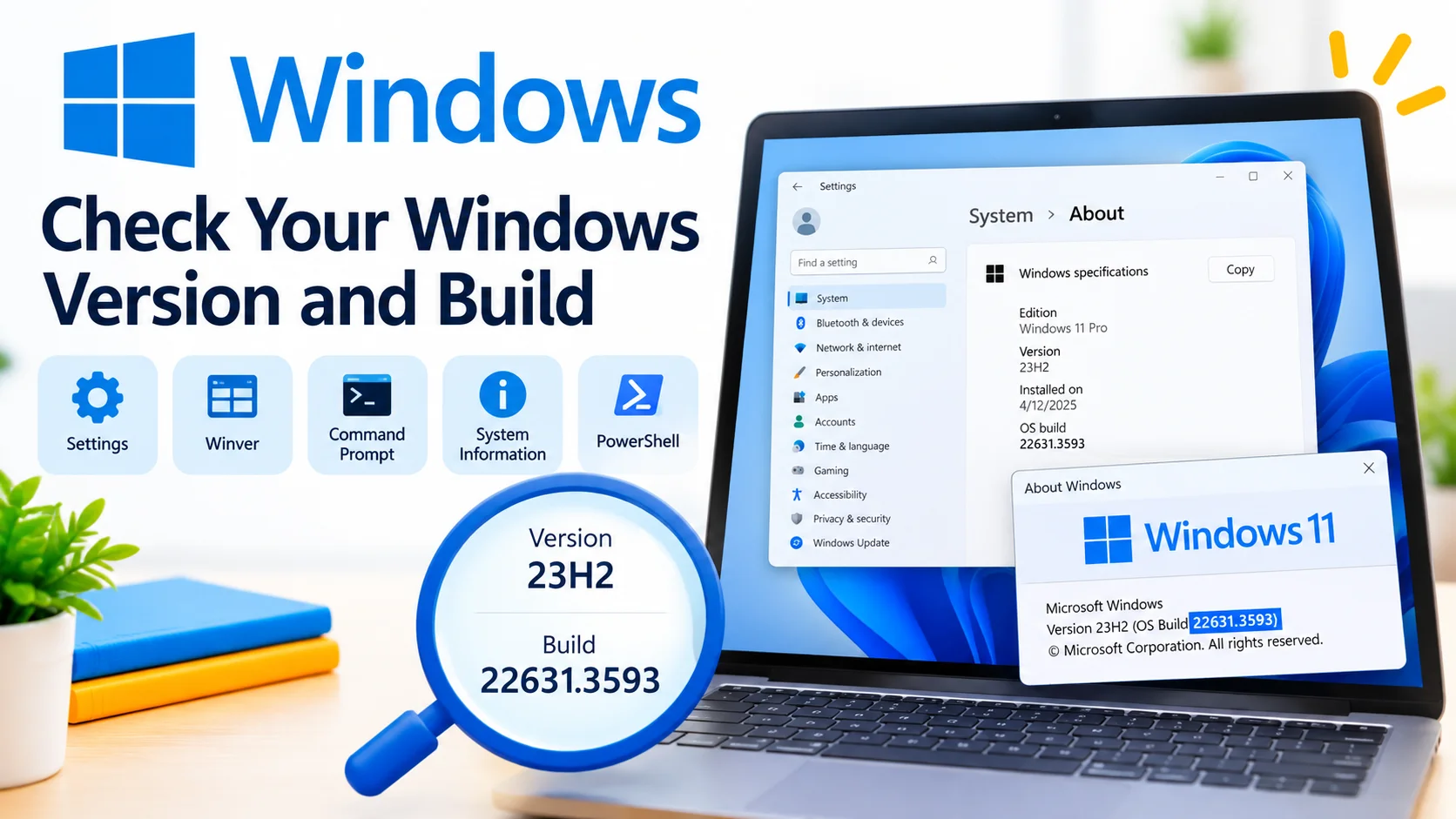
The Windows specifications section also displays your Windows edition, version, and operating system build.
Learn how to check your Windows version and build using Settings, Winver, System Information, and Command Prompt in a few simple steps.
Find Detailed Hardware Information with System Information
Windows System Information provides more detailed information about your computer.
- Press Windows + R.
- Type
msinfo32. - Press Enter.
- Review the information under System Summary.
You can find details about the processor, motherboard, BIOS, installed memory, system type, and other components.
Expand the Components section to investigate additional hardware.
Check CPU and RAM with Task Manager
Task Manager provides a quick way to view your processor and memory specifications.
- Press Ctrl + Shift + Esc.
- Select Performance.
- Click CPU to view processor information.
- Click Memory to check installed RAM.
Task Manager also provides information about disks, network adapters, and GPUs.
Learn how to monitor CPU, RAM, and disk usage in Windows using Task Manager, Resource Monitor, and built-in performance tools.
Find Your Graphics Card
To identify your graphics card, open Task Manager and select Performance > GPU.
You can also use Device Manager:
- Right-click the Start button.
- Select Device Manager.
- Expand Display adapters.
- Check the graphics device listed there.
This information can help you determine whether your PC meets graphics requirements for games and applications.
Learn how to fix graphics driver crashes in Windows by updating drivers, checking hardware, removing conflicts, and troubleshooting GPU issues.
Check Hardware with Device Manager
Device Manager displays hardware installed in your computer by category.
Common categories include:
- Processors
- Display adapters
- Disk drives
- Network adapters
- Sound controllers
- USB controllers
- Bluetooth devices
- Keyboards
- Mice and pointing devices
If a device has a warning icon, Windows may have detected a driver or hardware-related issue.
Use DirectX Diagnostic Tool
The DirectX Diagnostic Tool provides information about your processor, memory, graphics hardware, sound devices, and drivers.
- Press Windows + R.
- Type
dxdiag. - Press Enter.
- Review the available system information.
The System tab shows general PC information, while the Display tab provides graphics details.
Check Storage Information
To check your storage hardware, open Task Manager > Performance and select a disk.
You can also open:
Settings > System > Storage
This shows storage usage and available space.
For additional disk and partition information, right-click Start and select Disk Management.
Find PC Specifications Using Command Prompt
Command Prompt can display system information without requiring additional software.
Open Command Prompt and enter:
systeminfo
Windows will display information about the operating system, processor, memory, and system configuration.
You can also use:
wmic cpu get name
On some newer Windows installations, WMIC may not be available. PowerShell can be used as an alternative.
Use PowerShell to Check Hardware
PowerShell can retrieve specific hardware information.
To find the processor name, use:
Get-CimInstance Win32_Processor | Select-Object Name
To check installed memory:
Get-CimInstance Win32_PhysicalMemory | Select-Object Manufacturer, Capacity, Speed
These commands are useful when you need hardware information in a structured format.
Check Your Motherboard Model
Your motherboard information can be useful when planning hardware upgrades.
Press Windows + R, type msinfo32, and press Enter.
Look for:
- BaseBoard Manufacturer
- BaseBoard Product
- BaseBoard Version
The information available may vary depending on your PC manufacturer.
Compare Your Hardware with System Requirements
After finding your hardware specifications, compare them with the minimum and recommended requirements for the software you want to install.
Pay attention to:
- Processor
- RAM
- Graphics card
- Available storage
- Windows version
- System architecture
- Required security features
Meeting the minimum requirements means the software may run, but recommended requirements can provide a better indication of expected performance.
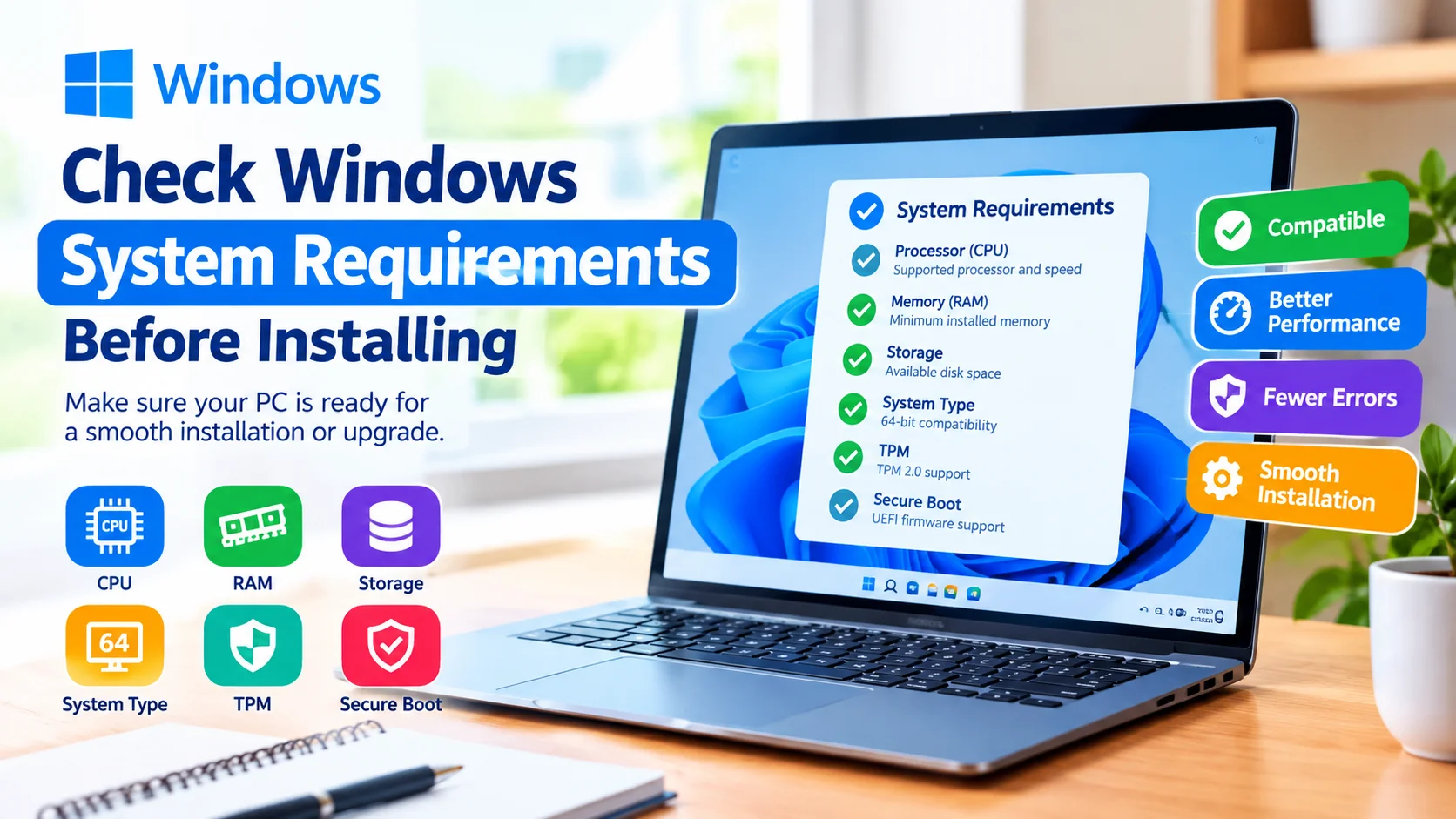
Learn how to check Windows system requirements before installing, including CPU, RAM, storage, TPM, Secure Boot, and graphics compatibility.
Keep a Record of Your PC Specifications
Keeping your hardware information in a document can make future troubleshooting and upgrades easier.
Consider recording your:
- CPU model
- RAM capacity and speed
- GPU model
- SSD or HDD model
- Storage capacity
- Motherboard model
- Windows edition and version
Frequently Asked Questions
How do I find my PC specifications in Windows?
Go to Settings > System > About to view basic information about your processor, RAM, system type, and Windows version.
How do I check my graphics card?
Open Task Manager > Performance > GPU or check Display adapters in Device Manager.
How can I check my RAM?
Open Task Manager > Performance > Memory to view installed RAM and memory usage.
How do I find my motherboard model?
Press Windows + R, enter msinfo32, and check the BaseBoard Manufacturer and BaseBoard Product entries.
Can I check PC hardware without installing software?
Yes. Windows includes several built-in tools for checking hardware specifications, so third-party software is not required for basic hardware information.
Final Thoughts
Find Your PC Hardware Specifications using the built-in Windows tools described above. Settings is useful for basic information, while System Information, Task Manager, Device Manager, and DirectX Diagnostic Tool provide additional hardware details.
Knowing your PC specifications can help you troubleshoot problems, verify software compatibility, and make better decisions when upgrading your computer.