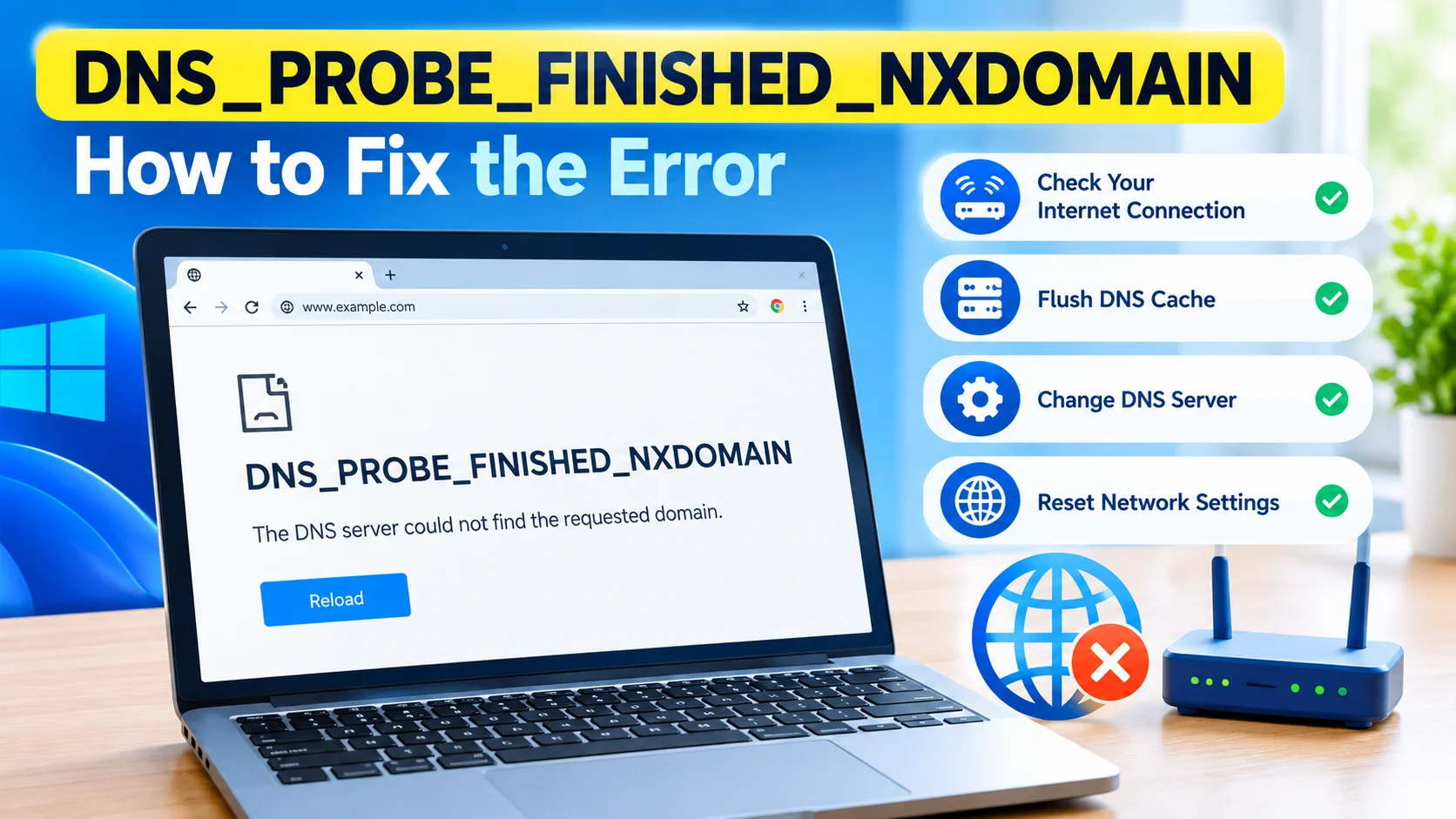
DNS_PROBE_FINISHED_NXDOMAIN is a common browser error that appears when your computer cannot find the IP address associated with a website domain. Instead of loading the requested page, browsers such as Google Chrome may display a message indicating that the DNS address could not be found.
The problem can be caused by an incorrect DNS configuration, corrupted DNS cache, network problems, an unavailable DNS server, or an issue with the domain itself. Fortunately, you can usually fix the DNS_PROBE_FINISHED_NXDOMAIN error by checking your network connection and resetting DNS settings.
What Does DNS_PROBE_FINISHED_NXDOMAIN Mean?
DNS stands for Domain Name System. It translates website names, such as example.com, into IP addresses that computers use to connect to web servers.
The term NXDOMAIN means that the DNS lookup returned a result indicating that the requested domain does not exist or could not be resolved.
When you see this error, your internet connection may still be working. The problem is often related specifically to DNS resolution.
Common Causes of DNS_PROBE_FINISHED_NXDOMAIN
Several problems can trigger this error, including:
- Corrupted or outdated DNS cache
- Incorrect DNS server settings
- Problems with your router or network
- Temporary DNS server outages
- Incorrect hosts file entries
- VPN or proxy configuration issues
- Browser DNS cache problems
- A domain that no longer exists
- Incorrect domain configuration
Identifying the cause can help you choose the quickest solution.
1. Check Your Internet Connection
Start by checking whether your internet connection is working properly.
Open another website in your browser. If multiple websites fail to load, restart your modem or router and reconnect your computer to the network.
If other websites work normally but only one domain produces the error, the problem may be related to that specific website or domain.
Learn how to check your internet connection speed in Windows, test download and upload speeds, identify network issues, and improve your connection performance.
2. Restart Your Router
A temporary network or DNS problem can sometimes be resolved by restarting your router.
- Turn off your router.
- Disconnect the power cable.
- Wait about 30 seconds.
- Reconnect the power.
- Wait for the internet connection to return.
- Try opening the website again.
This can refresh the network connection and DNS information supplied by your internet provider.
3. Flush the DNS Cache in Windows
A corrupted DNS cache is one possible reason for DNS resolution problems.
To flush the DNS cache:
- Press Windows + S.
- Search for Command Prompt.
- Select Run as administrator.
- Enter the following command:
ipconfig /flushdns
- Press Enter.
- Restart your browser.
Windows should display a message confirming that the DNS Resolver Cache was successfully flushed.
Learn how to flush DNS cache in Windows using Command Prompt and other methods to fix DNS errors, website loading problems, and connection issues.
4. Renew Your IP Address
Refreshing your computer’s IP configuration can help resolve network-related DNS problems.
Open Command Prompt as administrator and run:
ipconfig /release
Then run:
ipconfig /renew
Finally, flush the DNS cache:
ipconfig /flushdns
Close Command Prompt and test the website again.
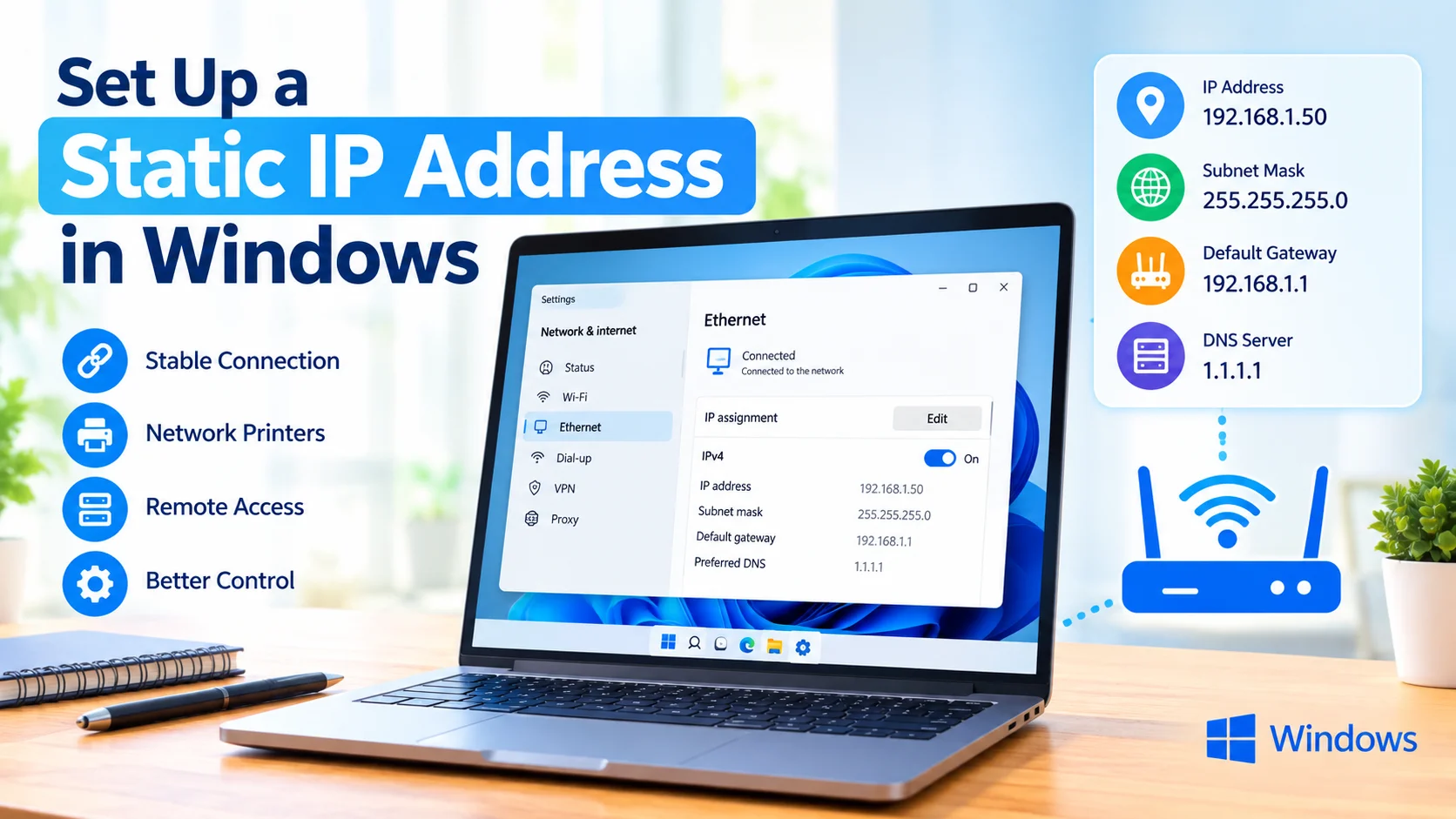
Learn how to set up a static IP address in Windows with simple steps to configure IP, subnet mask, gateway, and DNS settings for a stable network connection.
5. Change Your DNS Server
Your internet provider’s DNS server may be temporarily unavailable or experiencing problems. You can test another DNS service by changing your DNS server settings.
Common public DNS services include:
- Google Public DNS: 8.8.8.8 and 8.8.4.4
- Cloudflare DNS: 1.1.1.1 and 1.0.0.1
To change DNS settings in Windows:
- Open Settings.
- Select Network & internet.
- Open your active network connection.
- Find the DNS server settings.
- Choose manual DNS configuration.
- Enter your preferred DNS addresses.
- Save the settings.
- Restart your browser.
The exact menu names can vary depending on your Windows version and connection type.
Learn how to change DNS servers in Windows to improve DNS resolution, fix website access problems, and troubleshoot slow or unreliable internet connections.
6. Clear Browser DNS and Socket Caches
Chrome and Chromium-based browsers maintain their own networking information.
If you use Google Chrome, enter the following address in the address bar:
chrome://net-internals/#dns
Select Clear host cache.
You can also open:
chrome://net-internals/#sockets
and use the available option to flush socket pools.
Afterward, close and reopen Chrome.
7. Disable VPN or Proxy Temporarily
A VPN or proxy can sometimes interfere with DNS resolution.
If you are using a VPN, disconnect it temporarily and try visiting the website again.
For Windows proxy settings:
- Open Settings.
- Select Network & internet.
- Select Proxy.
- Review the configured proxy settings.
- Temporarily disable a proxy if you do not need it.
- Test the website again.
If the error disappears, check your VPN or proxy configuration.
Learn how to set up a VPN on Windows, configure a VPN connection, enter server details, and connect securely to a private network for safer internet access.
8. Check the Windows Hosts File
The Windows hosts file can override normal DNS resolution.
It is located at:
C:\Windows\System32\drivers\etc\hosts
Incorrect entries can prevent a website from resolving normally.
Open the file with administrator privileges and check whether the affected domain has a manually configured entry. Avoid deleting entries unless you understand what they do.
9. Restart the DNS Client Service
Windows uses system services to handle networking and DNS-related operations.
You can restart the DNS Client service through the Services application:
- Press Windows + R.
- Type:
services.msc
- Press Enter.
- Locate DNS Client.
- Restart the service if the option is available.
- Test the website again.
Some Windows configurations may restrict service restart options.
10. Try Another Browser or Device
Testing the website on another browser can help determine whether the issue is specific to your browser.
For example, if the site fails in Chrome but works in another browser, clear Chrome’s cache and DNS information.
You can also test the same website from a smartphone or another computer connected to the same network.
If every device receives a DNS-related error, the problem may be with the router, DNS provider, or website domain.
11. Check Whether the Website Is Down
Sometimes the problem is not caused by your Windows computer.
If a domain has expired, its DNS records are incorrectly configured, or its DNS provider is experiencing problems, users may be unable to resolve the domain.
Try accessing several unrelated websites. If only one website fails while other websites work normally, investigate the affected domain before making major changes to your computer.
12. Reset Network Settings in Windows
If the previous solutions do not work, Windows provides a network reset option.
Go to:
Settings → Network & internet → Advanced network settings → Network reset
Select Reset now and restart your computer when prompted.
Keep in mind that a network reset can remove network adapters and reset networking configuration, so you may need to reconnect to Wi-Fi afterward.
Learn how to reset network settings in Windows to fix internet problems, connection errors, Wi-Fi issues, DNS problems, and other network-related issues.
DNS_PROBE_FINISHED_NXDOMAIN vs Internet Connection Problems
The DNS_PROBE_FINISHED_NXDOMAIN message does not necessarily mean that your internet connection is completely down.
A computer can have a working internet connection while still being unable to translate a particular domain name into an IP address.
This distinction is important because restarting your entire network may not be necessary if the problem is limited to DNS resolution.
How to Prevent DNS Errors
You can reduce the likelihood of recurring DNS problems by keeping Windows and your network drivers updated, maintaining a stable network connection, and using reliable DNS servers.
Avoid changing advanced network settings unnecessarily. If a DNS configuration was provided by your network administrator, contact them before replacing it with a public DNS service.
Frequently Asked Questions
What is DNS_PROBE_FINISHED_NXDOMAIN?
DNS_PROBE_FINISHED_NXDOMAIN is a DNS resolution error that indicates the requested domain could not be resolved. It commonly appears in Google Chrome and other Chromium-based browsers.
Is DNS_PROBE_FINISHED_NXDOMAIN caused by my internet?
Not always. Your internet connection can work normally while DNS resolution for a particular domain fails. The issue may involve your DNS server, browser, router, or the website’s domain configuration.
How do I quickly fix DNS_PROBE_FINISHED_NXDOMAIN?
Start by restarting your router and flushing the Windows DNS cache with:
ipconfig /flushdns
If the problem continues, try renewing your IP address or changing your DNS server.
Should I change my DNS server?
Changing DNS servers can help if your current DNS provider is having problems. Google Public DNS and Cloudflare DNS are commonly used alternatives.
Why does only one website show DNS_PROBE_FINISHED_NXDOMAIN?
If other websites work correctly, the affected domain may have expired, have incorrect DNS records, or be experiencing a DNS configuration problem.
Final Thoughts
The DNS_PROBE_FINISHED_NXDOMAIN error usually means that your browser cannot resolve a domain name through DNS. Start with simple solutions such as checking your connection, restarting your router, and running ipconfig /flushdns.
If the problem remains, renew your IP address, check DNS settings, test another DNS provider, and investigate whether the affected website itself is experiencing a DNS problem. These troubleshooting steps can resolve many DNS-related browsing problems in Windows without reinstalling or resetting the operating system.