

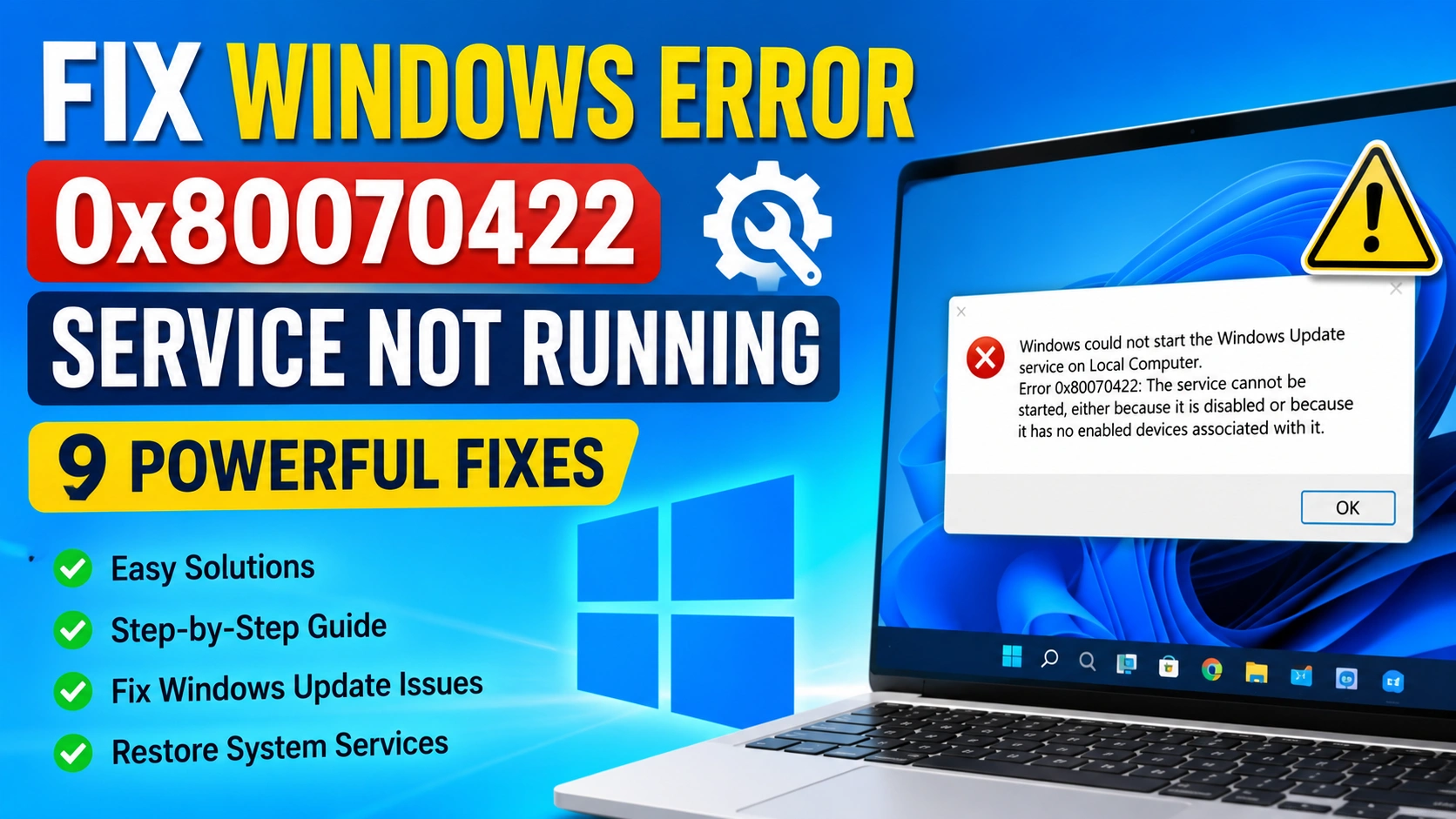
Windows Error 0x80070422 Service Not Running is a common problem that prevents Windows Update, Microsoft Store, and other system components from functioning correctly. The error usually appears when a required Windows service is disabled or not running.
Fortunately, you can fix Windows Error 0x80070422 Service Not Running using several built-in troubleshooting methods. This guide explains the most effective solutions step by step.
Resolving this error is particularly important if you plan to install feature updates or upgrade Windows 10 to Windows 11, as Windows Update services must function properly for the upgrade process to complete successfully.
What Causes Windows Error 0x80070422 Service Not Running?
Before applying fixes, it helps to understand why the error occurs.
Common causes include:
- Disabled Windows Update service
- Misconfigured system services
- Corrupted system files
- Malware infections
- Network-related service issues
- Incorrect registry settings
- Third-party optimization software
These issues can prevent Windows Update and other Microsoft services from operating normally. As a result, users may experience update failures, Microsoft Store errors, or even problems when attempting to upgrade Windows 10 to Windows 11.
In most cases, restoring the required services and repairing any underlying system issues resolves the problem quickly.
Fix 1: Enable the Windows Update Service
The most common cause of Windows Error 0x80070422 Service Not Running is a disabled Windows Update service.
Follow these steps:
- Press Windows + R
- Type services.msc
- Press Enter
- Locate Windows Update
- Double-click the service
- Set Startup Type to Automatic
- Click Start
- Select Apply
- Click OK
Restart your computer and check whether the error is gone.
Fix 2: Restart Required Windows Services
Several services work together with Windows Update.
Check the following services:
- Background Intelligent Transfer Service (BITS)
- Cryptographic Services
- DCOM Server Process Launcher
- Remote Procedure Call (RPC)
- Windows Defender Firewall
Make sure each service is running and configured correctly.
Fix 3: Run the Windows Update Troubleshooter
Microsoft includes a built-in tool that can automatically detect update-related issues.
To run it:
- Open Settings
- Select System
- Click Troubleshoot
- Choose Other Troubleshooters
- Run Windows Update Troubleshooter
Allow Windows to apply any recommended fixes.
Fix 4: Repair Corrupted System Files
Corrupted files can trigger Windows Error 0x80070422 Service Not Running.
Open Command Prompt as Administrator and run:
sfc /scannow
Wait for the scan to complete.
Afterward, run:
DISM /Online /Cleanup-Image /RestoreHealth
Restart the computer after both scans finish.
Fix 5: Check Network Services
Network services are essential for Windows Update and other Microsoft services to function properly.
Open Services and verify that the following services are enabled and running:
- Network Connections
- Network List Service
- WLAN AutoConfig (for Wi-Fi users)
If any of these services are stopped, start them and set their Startup Type to Automatic.
Network-related issues can sometimes contribute to Windows Error 0x80070422 Service Not Running. If the problem persists after verifying these services, consider following our guide on how to reset network settings to fix internet problems. Restoring the default network configuration can resolve hidden connectivity issues that may prevent Windows Update and other Microsoft services from working correctly.
Fix 6: Disable Third-Party Optimization Tools
Some PC optimization applications disable Windows services to improve performance.
If you recently installed:
- Registry cleaners
- System optimizers
- Privacy tools
- Tweaking software
Temporarily disable or uninstall them and check whether Windows Error 0x80070422 Service Not Running disappears.
Fix 7: Reset Windows Update Components
Resetting Windows Update components can resolve service-related issues that trigger Windows Error 0x80070422 Service Not Running.
Open Command Prompt as Administrator and run:
net stop wuauserv
net stop bits
net stop cryptsvc
net stop msiserver

ren C:\Windows\SoftwareDistribution SoftwareDistribution.old
ren C:\Windows\System32\catroot2 catroot2.old

net start wuauserv
net start bits
net start cryptsvc
net start msiserver
These commands stop Windows Update services, clear the update cache, and restart the required components with fresh settings.
Restart Windows after executing the commands. If updates still fail to install or remain frozen during the download process, see our guide on How to Fix Windows Update Stuck in Windows for additional troubleshooting steps and advanced repair methods.
Fix 8: Scan for Malware
Certain malware can disable essential Windows services.
Perform a full system scan using:
- Windows Security
- Microsoft Defender Offline Scan
- Trusted antivirus software
Remove any detected threats and reboot the system.
Fix 9: Perform a Clean Boot
A clean boot helps identify software conflicts.
Steps:
- Press Windows + R
- Type msconfig
- Open System Configuration
- Select Services
- Check Hide all Microsoft services
- Click Disable all
- Open Startup
- Launch Task Manager
- Disable startup programs
- Restart the computer
If the error disappears, re-enable services gradually to identify the culprit.
Additional Tips to Prevent Windows Error 0x80070422 Service Not Running
To reduce the chances of encountering Windows Error 0x80070422 Service Not Running in the future:
- Keep Windows updated
- Avoid using aggressive registry cleaners
- Install security and feature updates regularly
- Scan your computer for malware frequently
- Create restore points before making major system changes
- Monitor critical Windows services periodically
These practices can help maintain system stability and prevent service-related errors from affecting Windows Update and other Microsoft features.
If the error continues to appear after applying all the fixes in this guide, additional troubleshooting may be required. You can refer to the official Microsoft Windows support documentation for detailed guidance on Windows Update errors, service configuration issues, and advanced repair procedures.
For the latest troubleshooting resources, visit the Microsoft Windows Support website.
When to Use System Restore
If Windows Error 0x80070422 Service Not Running started recently, System Restore may be the fastest solution.
To use it:
- Search for Create a Restore Point
- Open System Protection
- Click System Restore
- Select a restore point created before the issue occurred
- Follow the on-screen instructions
System Restore can reverse problematic changes without affecting personal files.
Conclusion
Windows Error 0x80070422 Service Not Running usually occurs when critical Windows services are disabled or malfunctioning. By enabling Windows Update, restarting required services, repairing system files, resetting update components, and checking for software conflicts, you can resolve the issue quickly.
Start with the Windows Update service fix, as it solves the majority of cases. If the problem persists, work through the remaining solutions until Windows operates normally again.