

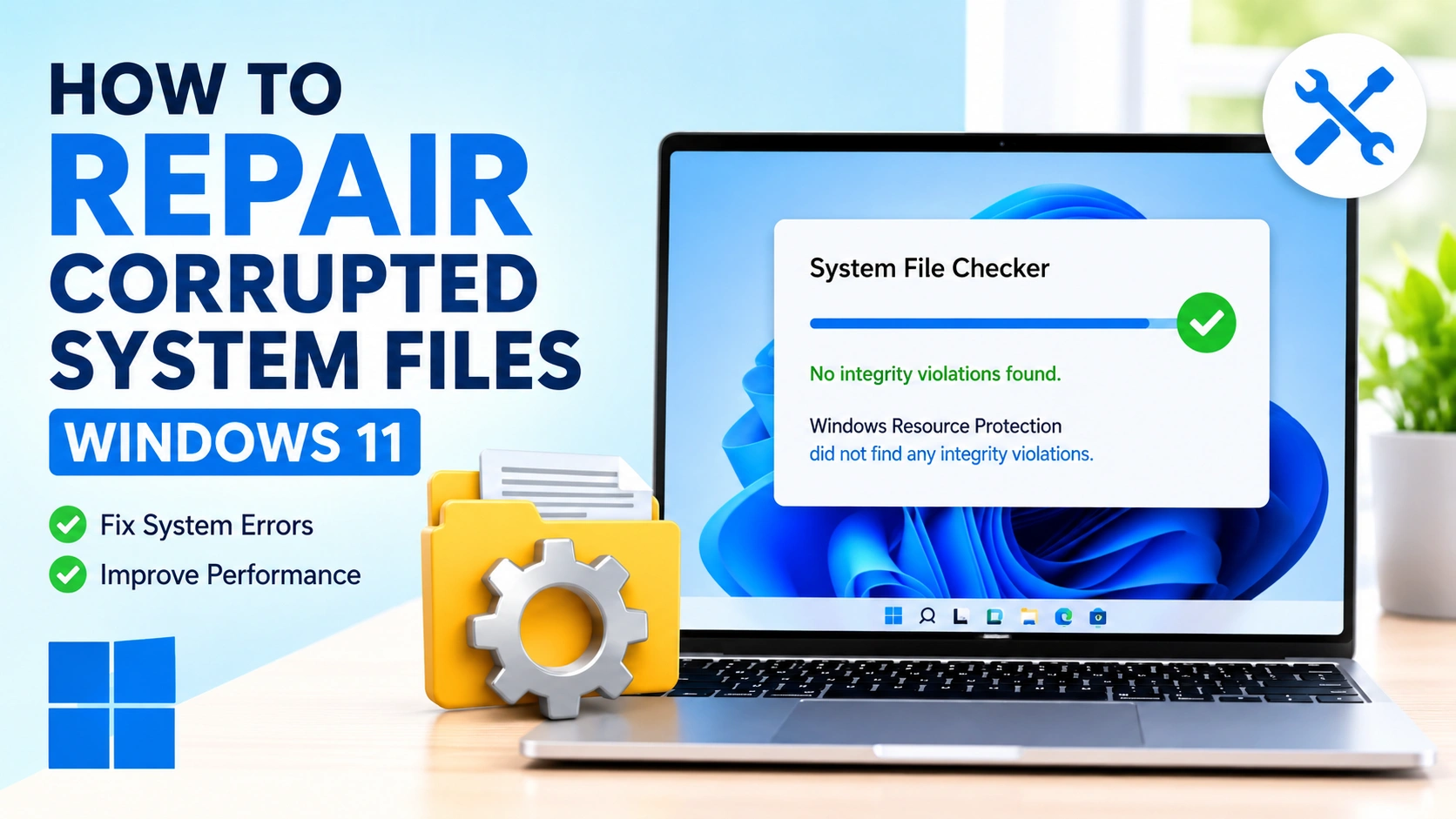
If your PC is crashing, freezing, or showing strange errors, you may need to Repair Corrupted System Files Windows 11 immediately. Corrupted system files can affect performance, prevent apps from opening, and even cause Windows boot issues. In some cases, file corruption occurs after a failed Windows upgrade or installation. If you recently encountered setup problems, read our guide on Fix Windows Installation Failed to resolve installation-related errors.
In this guide, you will learn how to safely Repair Corrupted System Files Windows 11 using built-in tools like SFC and DISM, along with advanced troubleshooting methods.
What Causes Corrupted System Files in Windows 11?
Before you fix the problem, it helps to understand the cause. Common reasons include:
- Sudden power failure or shutdown
- Malware or virus infection
- Failed Windows updates
- Bad sectors on the hard drive
- Improper software installation
These issues damage system integrity, making it necessary to Repair Corrupted System Files Windows 11 using recovery tools.
Fix 1: Use SFC to Repair Corrupted System Files Windows 11
The System File Checker (SFC) is the first and most important tool.
Steps:
- Open Command Prompt as Administrator
- Type the command:
sfc /scannow - Press Enter and wait for completion
SFC automatically detects and repairs missing or corrupted system files.
👉 Official reference: Microsoft SFC Tool Guide
Fix 2: Use DISM to Repair Corrupted System Files Windows 11
If SFC fails to repair corrupted files, use DISM (Deployment Image Servicing and Management). This tool repairs the Windows system image and can resolve issues that prevent SFC from working correctly.
Steps:
- Open Command Prompt as Administrator.
- Run the following commands:
DISM /Online /Cleanup-Image /CheckHealth
DISM /Online /Cleanup-Image /RestoreHealth- Wait for the process to complete.
- Restart your PC.
DISM repairs the Windows image itself, allowing SFC to work more effectively afterward. In some cases, DISM may become stuck or fail because of damaged Windows Update components. If that happens, check our guide on How to Fix Windows Update Stuck in Windows 10 & 11 before running the commands again.
Fix 3: Run CHKDSK to Check Disk Errors
Sometimes corrupted files are caused by disk issues.
Steps:
chkdsk C: /f /r
This scan checks and repairs bad sectors that may affect system files.
Fix 4: Use Windows Startup Repair
If Windows is unstable, Startup Repair can help.
Steps:
- Go to Advanced Startup Options
- Select Troubleshoot
- Click Startup Repair
This tool automatically fixes boot-related system file corruption.
Fix 5: System Restore to Repair Corrupted System Files Windows 11
System Restore allows you to revert your system to a working state.
Steps:
- Search “System Restore”
- Choose a restore point
- Follow the on-screen instructions
This is useful when corruption started after a recent change.
Fix 6: Update Windows and Drivers
Outdated drivers often trigger system file errors and may prevent Windows from functioning properly.
Steps:
- Go to Settings > Windows Update.
- Install all available updates.
- Update device drivers manually if needed.
Keeping Windows and drivers updated helps maintain system stability and prevents file corruption caused by compatibility issues. If you encounter problems while installing feature updates, check our guide on Solve Upgrade Error Windows PC for additional troubleshooting steps.
Fix 7: Reset Windows (Last Option)
If nothing works, resetting Windows may be necessary.
Options:
- Keep personal files
- Remove everything
This process completely rebuilds Windows system files and creates a clean operating environment. After the reset is complete, it’s a good idea to evaluate your computer’s speed and stability. Follow our guide on How to Test PC Performance to measure system performance and confirm that the repair was successful.
Final Thoughts
To Repair Corrupted System Files Windows 11, start with SFC and DISM, then move to advanced recovery tools if needed. Most system issues can be resolved without reinstalling Windows when you follow the correct steps in order.
A consistent maintenance routine can also prevent future corruption and improve system stability over time. Keeping Windows updated, monitoring disk health, and regularly checking for system errors can help prevent future issues and maintain optimal performance.