

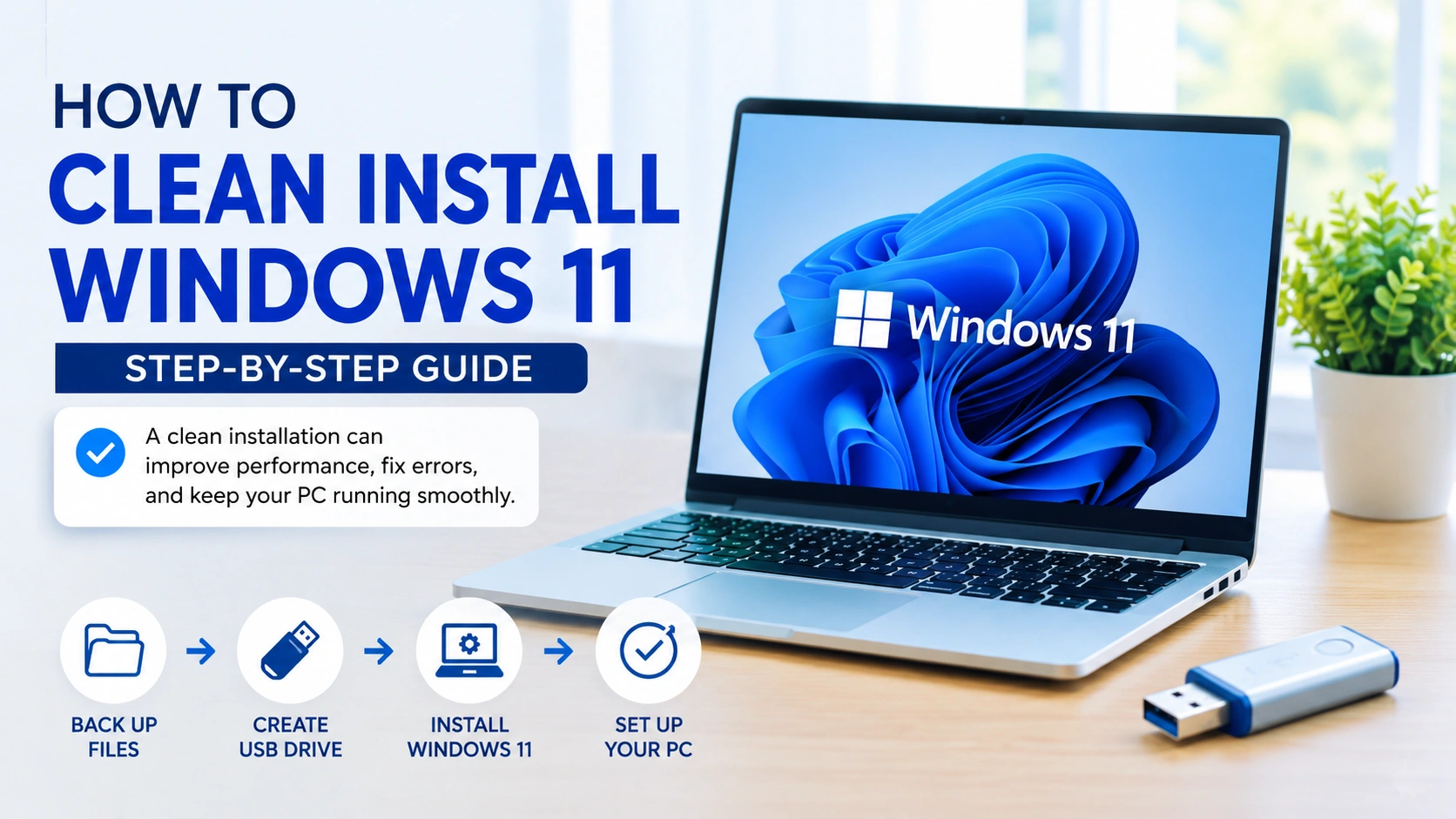
If your computer feels slow, unstable, or cluttered with unnecessary files, performing a Clean Install Windows 11 can help restore performance and eliminate software-related issues. A clean installation removes the existing Windows setup and installs a fresh copy of the operating system, helping improve speed, stability, and overall reliability.
Many users choose a fresh Windows 11 installation when dealing with persistent errors, malware infections, upgrade failures, or performance problems that cannot be resolved through standard troubleshooting methods. Starting with a clean system can often provide the best solution for a sluggish or problematic PC.
This Windows 11 clean install guide walks you through the entire process step by step using Microsoft’s official tools. By following these instructions, you can safely reinstall Windows 11 and enjoy a smoother, more stable computing experience.
Why Perform a Clean Install of Windows 11?
A Clean Install Windows 11 is one of the most effective ways to restore your computer to optimal condition. By removing the existing Windows installation and replacing it with a fresh copy, you can eliminate many issues that build up over time and improve overall system reliability.
Benefits of a clean install include:
- Removing malware and unwanted software
- Fixing corrupted system files and recurring errors
- Improving overall system performance
- Eliminating unnecessary applications and bloatware
- Providing a fresh, stable Windows environment
Many users perform a Windows 11 clean install when troubleshooting persistent crashes, startup issues, slow performance, or software conflicts that cannot be resolved through standard repair methods.
If your PC is experiencing crashes, missing system files, or other stability problems, you may also want to read our guide on Repair Corrupted System Files Windows 11 before proceeding with a fresh Windows installation.
Before starting the process, back up all important files, documents, photos, and settings. Since a Clean Install Windows 11 removes everything from the selected drive, having a backup ensures your data remains safe and can be restored afterward if needed.
Requirements Before You Begin
Before starting How to Clean Install Windows 11, make sure you have everything needed to complete the installation process successfully and avoid unnecessary interruptions.
You will need:
- A USB flash drive with at least 8 GB of storage
- A stable internet connection
- A backup of your important personal files
- A Windows 11-compatible PC
- A Microsoft account (recommended)
Preparing these requirements in advance will make How to Clean Install Windows 11 much smoother and reduce the risk of installation errors.
Before proceeding, it’s also a good idea to verify that your computer meets the official Windows 11 system requirements. You can do this using Microsoft’s PC Health Check tool, which can identify compatibility issues before you begin the installation.
Since How to Clean Install Windows 11 involves deleting data from the selected drive, creating a backup is essential. If important files are accidentally deleted or become inaccessible during the process, our guide on How to Recover Photos from Windows can help you restore lost data and recover valuable files.
Step 1: Back Up Important Files
Before starting a Clean Install Windows 11, back up all important data stored on your computer. A clean installation will erase everything on the selected drive, so taking a few minutes to create a backup can prevent permanent data loss.
Be sure to save essential files such as:
- Documents
- Photos and videos
- Music and other media files
- Browser bookmarks
- Work-related files
- Application settings and licenses
You can store your backups on:
- An external hard drive
- Cloud storage services
- A secondary internal or external storage device
Creating a backup is one of the most important steps before a Windows 11 clean install, as it ensures your personal files remain safe throughout the installation process.
Once your files are securely backed up, you can proceed with the Clean Install Windows 11 process knowing that your important data is protected and can be restored if needed.
Step 2: Download the Windows 11 Media Creation Tool
One of the easiest and most reliable ways to complete How to Clean Install Windows 11 is by using Microsoft’s official Media Creation Tool. This utility downloads the latest Windows 11 installation files and helps you create a bootable USB drive for the installation process.
To begin How to Clean Install Windows 11, visit the official Windows 11 download page and download the Media Creation Tool. Once the download is complete, locate the file and run it as an administrator to ensure it has the necessary permissions to create installation media.
The tool will guide you through the process of downloading Windows 11 and preparing the installation files automatically. Using Microsoft’s official utility helps reduce the risk of corrupted downloads and compatibility issues.
Because How to Clean Install Windows 11 requires a reliable installation source, using the latest version of the Media Creation Tool ensures you are installing the most recent Windows 11 release available from Microsoft.
Step 3: Create a Bootable Windows 11 USB Drive
A bootable USB drive is required for How to Clean Install Windows 11, as it allows your computer to launch the Windows Setup environment and begin the installation process.
After launching the Media Creation Tool, follow the on-screen instructions to create your Windows 11 installation media:
- Accept the Microsoft license terms.
- Select Create installation media for another PC.
- Choose your preferred language, edition, and architecture.
- Select USB Flash Drive as the media type.
- Choose your USB device from the list.
- Allow the tool to download the latest Windows 11 installation files and create the bootable media automatically.
Creating the installation media is an important part of How to Clean Install Windows 11, so make sure your USB drive remains connected throughout the process.
The download and creation process may take some time, depending on your internet connection speed and USB drive performance. Avoid disconnecting the USB drive or shutting down your computer until the process is fully completed.
If you need additional guidance while performing How to Clean Install Windows 11, check out our guide on How to Create Windows 11 Bootable USB for alternative methods, troubleshooting tips, and detailed instructions.
Step 4: Enter BIOS or UEFI Settings
After creating your bootable Windows 11 USB drive, insert it into your computer and restart the system.
During startup, enter the BIOS or UEFI firmware settings by pressing the appropriate key. The exact key varies depending on your computer manufacturer, but common options include:
- F2
- F10
- F12
- ESC
- DEL
Once inside the BIOS or UEFI menu, locate the Boot settings and change the boot order so that the USB drive is listed before the internal storage device. This allows your computer to start from the Windows 11 installation media instead of loading the existing operating system.
After saving the changes, exit the BIOS or UEFI settings and allow the computer to restart.
If you are having trouble accessing the firmware settings or need to restore default configurations, you can read our guide on How to Reset BIOS Settings for additional instructions and troubleshooting tips.
Step 5: Boot from the Windows 11 USB
After saving your BIOS or UEFI settings, restart your computer with the bootable Windows 11 USB drive connected.
When the boot menu appears, select the option to Boot from USB. Your computer will then load the Windows 11 installation environment instead of starting the existing operating system.
Once the Windows Setup screen appears, choose your preferred settings:
- Language to install
- Time and currency format
- Keyboard or input method
After selecting the appropriate options, click Next to continue.
If the USB drive does not appear in the boot menu or the system continues loading Windows normally, double-check the boot order settings in BIOS/UEFI and ensure the bootable USB was created correctly before proceeding to the installation step.
Step 6: Start Windows 11 Installation
Once the Windows Setup screen is ready, click Install Now to begin the installation process.
If you are prompted to enter a product key, choose one of the following options:
- Enter a valid Windows product key.
- Select I don’t have a product key if Windows was previously activated on the device. In most cases, Windows will reactivate automatically after installation when connected to the internet.
Next, select the Windows 11 edition that matches your license, such as Home or Pro, and click Next to continue.
Carefully review and accept the Microsoft license terms before proceeding to the next stage of the installation.
If Windows Setup displays an error, freezes, or fails to continue during installation, refer to our guide on Fix Windows Installation Failed for detailed troubleshooting steps and solutions.
Step 7: Delete Existing Partitions
This is the most critical step in How to Clean Install Windows 11, as it removes the previous Windows installation and prepares the drive for a fresh operating system setup.
When prompted to choose an installation type, select Custom: Install Windows Only (Advanced). This option allows you to manage existing partitions and perform a true clean installation.
You will see a list of partitions currently available on your storage drive. Locate the partitions associated with the existing Windows installation and delete them one by one. After the partitions have been removed, the storage space will appear as Unallocated Space.
Select the unallocated space and click Next. Windows Setup will automatically create the required partitions and begin the installation process.
Important: Double-check that you are selecting the correct drive before deleting any partitions. This action permanently removes all files, applications, and settings stored on the selected partitions and cannot be undone. If you have not backed up your important data, stop and create a backup before continuing.
Step 8: Complete the Installation Process
After selecting the installation drive, Windows Setup will automatically begin installing Windows 11. During this stage, the installer will:
- Copy Windows files
- Install required features
- Configure system settings
- Install updates when available
- Restart the computer several times
This process is largely automatic, so no additional input is usually required. Depending on your hardware specifications, storage speed, and system configuration, the installation may take anywhere from 15 to 45 minutes.
Keep the USB installation media connected throughout the process. If the computer restarts, allow Windows Setup to continue until the initial setup screen appears.
If the installation seems stuck for an extended period or fails during a feature update or upgrade phase, refer to our guide on Solve Upgrade Error Windows PC for troubleshooting steps and proven solutions.
Step 9: Configure Windows 11
After completing the installation, the final step in Clean Install Windows 11 is configuring the operating system for everyday use. Windows 11 will guide you through a series of setup screens to personalize your device and configure important settings.
Follow the on-screen instructions to:
- Connect to a Wi-Fi network
- Sign in with your Microsoft account
- Configure privacy and security settings
- Choose device preferences and personalization options
- Set up backup and synchronization features if desired
Take a few moments to review each option carefully. Proper configuration can improve security, privacy, and the overall user experience after a Clean Install Windows 11.
Once the setup process is complete, Windows 11 will load to the desktop, and your freshly installed system will be ready to use.
Install Drivers and Updates
After completing a Clean Install Windows 11, one of the first things you should do is install the latest Windows updates and hardware drivers. This helps improve security, stability, compatibility, and overall system performance.
Open:
Settings → Windows Update
Click Check for updates and install all available updates, including:
- Security updates
- Feature updates
- Optional updates
- Hardware drivers
Although Windows Update can install many drivers automatically, it’s also recommended to download the latest manufacturer-specific drivers for critical components such as:
- Graphics cards
- Chipsets
- Audio devices
- Network adapters
Keeping drivers updated is an important step after a Clean Install Windows 11, as it helps prevent compatibility issues and ensures your hardware performs at its best.
For additional support and troubleshooting information, visit the official Microsoft Windows support page.
Common Problems After a Clean Install
Although a clean installation usually resolves many Windows issues, you may encounter a few common problems during the initial setup. Here are some quick solutions to help you get everything running properly.
Missing Drivers
If certain hardware components are not working correctly after installation, such as audio, graphics, or networking devices, open Device Manager and look for devices marked with a warning icon. Download and install the latest drivers from the manufacturer’s official website to restore full functionality.
Windows Not Activated
If Windows 11 is not activated after installation, sign in using the Microsoft account previously linked to your digital license. Once connected to the internet, Windows should activate automatically in most cases.
No Internet Connection
Network drivers may not be installed automatically on some systems. If you cannot connect to the internet, use another computer to download the appropriate network driver and transfer it using a USB drive. After installing the driver, restart your computer and reconnect to your network.
Tips to Keep Windows 11 Running Smoothly
After completing a Clean Install Windows 11, regular maintenance can help keep your system fast, secure, and stable.
Follow these best practices:
- Keep Windows updated regularly
- Uninstall applications you no longer use
- Enable Storage Sense to free up disk space automatically
- Run Windows Security scans regularly
- Create restore points before major system changes
- Keep hardware drivers up to date
These simple maintenance habits can help prevent common Windows issues and ensure your Clean Install Windows 11 continues to perform at its best over time.
If some applications stop launching after updates, driver installations, or system changes, check out our guide on Software Not Opening Fixes for additional troubleshooting solutions.
Conclusion
Performing a Clean Install Windows 11 is one of the most effective ways to improve performance, fix persistent errors, and create a more stable computing environment. By following the steps in this guide, you can safely complete a Clean Install Windows 11 and start with a fresh, optimized operating system.
Although the process requires some preparation, the long-term benefits often make it worthwhile. A successful Clean Install Windows 11 can help restore speed, reliability, and overall system performance, giving your PC a smoother and more efficient user experience.